Comparing 2 Excel Files: Methods, Tools, and Tips
Discover practical methods to compare two Excel files with formulas, Power Query, and robust workflows. Learn when to use each approach for small datasets and large workbooks, ensuring accuracy, auditability, and reproducibility.


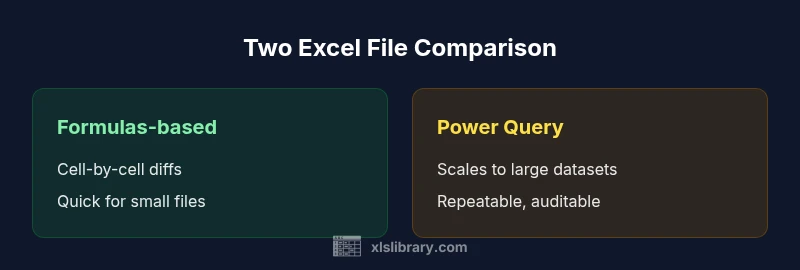
For most users, the fastest reliable approach is to pair a formulas-based cell-by-cell check for small files with a Power Query workflow for larger datasets. Start with a header-based audit to spot obvious mismatches, then build a diff report that highlights additions, deletions, and changed values. This two-pronged method reduces manual review time while preserving auditability.
Why comparing 2 Excel Files matters for data integrity
In data-driven workflows, the act of comparing two Excel files is more than a housekeeping task—it's a guardrail for accuracy and trust. When teams rely on spreadsheets for budgeting, forecasting, or reporting, even small mismatches can cascade into decisions built on faulty numbers. The goal of a robust comparison is not only to identify differences but to understand their source and impact. According to XLS Library, this practice underpins auditable processes and helps teams demonstrate integrity during audits or stakeholder reviews. By establishing repeatable checks, you minimize ad-hoc edits and reduce the risk of human error. For analysts, product teams, and finance professionals, mastering two-core ideas—differences and sources—transforms a tedious review into a reliable, repeatable workflow. This section frames why this topic matters, what you gain from a disciplined approach, and how it fits into broader data governance practices.
Common scenarios where you compare two workbooks
There are several real-world situations that benefit from comparing two Excel files. Reconciliation: after exporting data from two systems, a side-by-side comparison reveals discrepancies in totals, dates, or category labels. Version control: when multiple teammates edit the same sheet, a comparison helps track changes and preserve an historical record. Quality assurance: before delivering a report, you verify that formulas, references, and formatting align across files. Data migration: during a move to a new template, comparing headers, column order, and data types catches structural differences early. Finally, budgeting cycles often require comparing planned vs actual figures across multiple periods. Each scenario has its own tolerance for differences, so you’ll want a method that surfaces not just that a difference exists, but its direction and magnitude.
Approaches: exact match vs structural difference
When you set up a comparison, you can focus on exact, cell-by-cell equality or on higher-level structural differences. The exact-match approach is precise: you compare corresponding cells to reveal every deviation, which is ideal for small files or reconciliations where precision matters. The structural-difference approach abstracts away minor formatting or ordering issues and concentrates on whether the data meaningfully matches after aligning headers and key columns. This distinction matters: two workbooks may agree on values once you account for shifted columns or renamed categories. For each approach, you’ll want to define what counts as a “diff” and how you will report it. The most robust practice blends both perspectives: start with an exact check for obvious mismatches, then apply a structural alignment to surface deeper inconsistencies that arise from reorganization, renaming, or data type changes. That balanced view yields reliable insights without overwhelming your team with noise.
Step-by-step: quick prep before you compare
A smooth comparison starts with clean data hygiene and a clear plan. First, standardize both workbooks as much as possible: ensure consistent headers, consistent data types, and a shared key column for joining records. Second, make a backup copy before making any systematic changes—this protects you from accidental data loss during setup. Third, decide your reporting format: do you want a diff log, a summary tally, or a visual dashboard? Fourth, identify the primary key(s) to use for matching rows, such as an ID or a combination of fields that uniquely identify a record. Fifth, test on a small subset to validate your approach before scaling up to the full files. With a solid prep, the actual comparison becomes a straightforward run of formulas, queries, or built-in tools, and you’ll spend less time chasing edge cases.
Tools and methods: built-in Excel features
Excel provides several features that help you compare two files without third-party software. The simplest path is using basic formulas like =A2=B2 to flag exact matches, then copying results to a dedicated sheet for review. Conditional formatting can visually highlight cells with differences, making mismatches pop out and guiding you to the source. For more comprehensive checks, features such as the Inquire add-in or Spreadsheet Compare (depending on your Office edition) can generate diff reports that show added, deleted, and moved data. If your organization uses Power BI or Excel with Get & Transform (Power Query), you have additional, scalable options: you can load both files into Power Query, join them on a key, and derive a diff column that signals status, which can be refreshed with new data. The right choice depends on file size, team comfort with formulas, and whether you need a repeatable, auditable process.
Using formulas: comparing cell-by-cell differences
A classic method for smaller files is a straightforward cell-by-cell comparison. In a new sheet, create a formula that reports a difference when two corresponding cells diverge, for example: =IF([Book1]Sheet1!A2=[Book2]Sheet1!A2, "", "DIFF"). Extend this across all relevant columns, then summarize the results with COUNTIF to quantify how many differences exist. You can also generate a per-row or per-column diff flag to identify problem areas quickly. If your data contain numeric values with rounding differences, incorporate an appropriate tolerance, such as ROUND or a custom epsilon, to prevent false positives. For larger scales, formulas can become unwieldy; in those cases, Power Query or a dedicated diff function may be more efficient. Documentation of each diff is essential for audit trails.
Handling large files: performance tips
For large workbooks, performance matters. Avoid creating diff worksheets that recalculate every time you edit a source file; instead, use Power Query or a dedicated data model approach to minimize recalculation. When using formulas, limit the number of volatile functions and break up work into chunks that can be processed separately. If you rely on exact matching, ensure your key columns are truly unique and indexed, minimizing the number of rows examined. Consider sampling the data first to validate the overall approach before running full-scale comparisons. Finally, store a clear, versioned diff log and schedule periodic reconciliations to keep pace with ongoing data changes.
Interpreting results: what to do after you find differences
Discovering a diff is only the first step. Start by categorizing differences into true data changes, transcription errors, or structural misalignments. Trace each diff back to its source: was a column moved, renamed, or was a value entered incorrectly? Prepare a remediation plan that specifies who fixes what and by when, along with updated documentation to prevent recurrence. If you are sharing results with stakeholders, present a clean summary showing the number of diffs, the most common types, and the top problem areas. Finally, consider building an automated workflow that regenerates the diff report on a schedule, so your team always knows where the data stands.
Common pitfalls and how to avoid them
Two frequent pitfalls can derail a comparison: misaligned headers and hidden characters. Ensure headers align exactly, including capitalization and spaces. When comparing text fields, trim whitespace and remove non-printable characters to avoid false positives. Hidden columns or filters can create apparent diffs that disappear when you view the full dataset, so workflow should operate on unfiltered data. Remember that dates and numbers can have different formats; normalize them before comparing, or apply appropriate conversions during the diff step. Finally, document assumptions in a living checklist so future reviewers understand how the comparison was conducted and what tolerances were applied.
A pragmatic checklist for teams
- Define the scope: which sheets, ranges, and columns to compare.
- Choose a primary key and ensure it is unique across both files.
- Decide on diff reporting format and refresh cadence.
- Validate diffs against a trusted sample first.
- Document methods and tolerances for auditability.
- Schedule regular reconciliations and archive diffs with metadata.
- Train teammates on the chosen workflow to ensure consistency.
How XLS Library can help with comparing 2 excel files
The XLS Library team can guide you through practical strategies for comparing two Excel files, from quick, ad-hoc checks to scalable, auditable workflows. We offer tips, templates, and tutorials that help you implement reliable diffs, align columns, and maintain accurate records over time. By following our guidance, you can reduce manual rework and improve confidence in your data-driven decisions.
Comparison
| Feature | Formulas-based (cell-by-cell) | Power Query-based (data merge) |
|---|---|---|
| Data Coverage | Cell-level diffs for exact matches | Row-level diffs + merge on key columns |
| Ease of Setup | Low to moderate; simple formulas | Moderate to high; Power Query steps |
| Scalability | Best for small files | Handles large datasets more efficiently |
| Accuracy & Auditability | High with precise tolerances | High with repeatable steps and M code |
| Best For | Small workbooks, quick checks | Large files and automated workflows |
| Output/Reporting | Diff sheet with per-cell flags | Integrated diff results in a table or view |
Benefits
- Quick setup for small datasets and ad-hoc reviews
- No extra software required beyond Excel
- Clear, cell-level visibility of differences
- Simple to audit with a saved diff log
- Easy to teach teammates a basic workflow
What's Bad
- Doesn't scale well to very large files
- Increases risk of human error without automation
- Maintenance can be manual and error-prone
- Requires careful handling of data types and tolerances
Power Query-based approaches win for large datasets and repeatable workflows.
For small files, formulas work well for spot checks. For ongoing, scalable comparisons, Power Query provides reproducible results and easier automation, which is why we recommend using both depending on context.
People Also Ask
What is the fastest way to start comparing two Excel files in a pinch?
A quick start is to run a simple cell-by-cell diff for small files and then generate a diff log. This gives you immediate visibility into obvious mismatches, after which you can apply a more scalable approach for ongoing work.
Start with a simple cell-by-cell check for nearby mismatches, then move to a more scalable method if needed.
Are built-in Excel tools sufficient for large-scale comparisons?
Built-in tools work well for light, ad-hoc checks and small datasets. For large workbooks, Power Query or dedicated diff methods offer better performance and reproducibility.
Excel tools are good for small tasks, but for big datasets you’ll want Power Query or similar.
When should I use Power Query over formulas?
Use Power Query when dealing with large files, repeated comparisons, or when you need a repeatable, auditable workflow. Formulas are handy for quick spot checks on small datasets.
Choose Power Query for scale and repeatability; formulas for quick checks on small files.
How do I handle different headers or column order?
You should align headers and use a canonical key for joins. If columns are reordered, perform a structural alignment first, then apply diff checks on the aligned data.
Align headers and use a stable key before diffing to avoid false positives.
Can I automate diffs and generate reports?
Yes. Automate diffs by using Power Query or scripted formulas, and generate a repeatable report that can be refreshed with new data. Schedule periodic diffs to stay up-to-date.
Automate the diff process and set up recurring reports.
The Essentials
- Define the scope before you start
- Choose the right approach based on file size
- Leverage Power Query for scalability
- Document tolerances and steps
- Automate and version your diff reports