Difference Between Excel and Sheets: A Practical Comparison
A practical guide to the difference between Excel and Sheets, covering collaboration, formulas, automation, offline access, and data handling to help you choose.


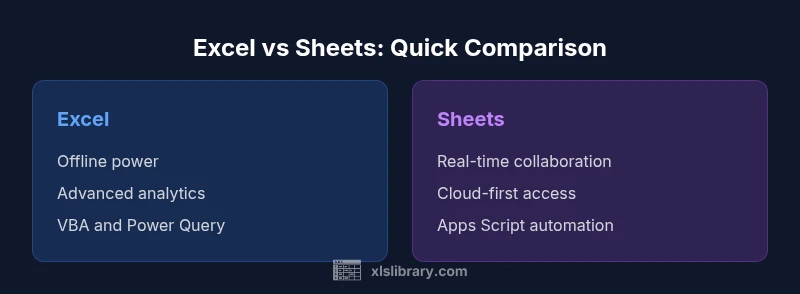
When deciding between Excel and Sheets, the core difference lies in where you work best: Excel excels at offline power, advanced analytics, and robust modeling, while Sheets shines with real-time collaboration and cloud-first workflows. For many teams, the best path is to leverage both tools where they fit the task, guided by data scale, collaboration needs, and ecosystem preferences. This TL;DR frames the choice and sets up the deeper analysis that follows, with practical guidance from XLS Library.
Understanding the difference between excel and sheets
In practical terms, the difference between excel and sheets comes down to workflow philosophy, offline versus cloud access, and how each tool supports data work at scale. Excel is deeply feature-rich for complex analytics, local modeling, and offline use, while Sheets emphasizes cloud-native collaboration, simple sharing, and seamless integration with Google Workspace. According to XLS Library, teams often decide based on collaboration needs, data size, and the preferred work environment. This section examines the core drivers behind that choice and sets the stage for a deeper comparison across dimensions like formulas, automation, and visualization. As you read, note that the best fit depends on your team's structure, whether you value offline power or real-time co-editing, and how much you rely on external data connections. The following sections unpack these differences with concrete examples and practical guidance to help you choose with confidence.
Collaboration in practice: cloud-first vs desktop-enabled
Real-time collaboration is a hallmark of Sheets, which is designed around cloud-based workflows. Multiple editors can work simultaneously, see changes as they happen, and rely on automatic saving to Google Drive. Excel supports collaboration as well, particularly in the web and online ecosystem, but the experience can vary depending on whether you are using the desktop app, the web version, or a mixed environment. The XLS Library team notes that teams with distributed members often get the most value from Sheets’ live co-editing, inline comments, and shared links. For groups that depend on offline work or advanced data modeling, Excel’s desktop experience remains a strong fit, with dependable local performance and broad feature coverage. Understanding your team's rhythm is essential before choosing a platform.
Formulas, functions, and data modeling: depth vs accessibility
Excel is historically the benchmark for advanced analytics, offering a rich formula language, an expansive function library, and powerful data modeling capabilities. It supports dynamic arrays, array formulas, and VBA for automation, with Power Query as a core data shaping tool. Sheets provides a robust set of standard formulas and supports automation through Apps Script, a JavaScript-based environment that can unlock custom functions and workflows. The practical takeaway from XLS Library analysis is that Excel is preferred for sophisticated modeling, large-scale data transformations, and enterprise-grade analytics, while Sheets covers everyday analyses, collaboration-friendly dashboards, and straightforward data flows. This difference shapes your tool choice depending on model complexity and data workflow demands.
Automation and scripting: legacy power vs cloud-enabled scripting
Excel’s automation story is long and deep, with VBA macros still widely used for repeatable tasks. The online ecosystem adds Office Scripts for automation in the web version, but the depth of desktop scripting remains a differentiator. Sheets centers its automation on Apps Script, which enables custom functions, add-ons, and automation tied to Google Workspace. If your team favors a code-first approach and needs offline or heavy workbook automation, Excel remains compelling. If you prefer a browser-first, platform-agnostic approach with quick deployment, Sheets and Apps Script deliver strong value with lighter maintenance.
Data handling, capacity, and reliability in practice
Data handling in Excel and Sheets reflects their underlying architectures. Excel shines with large, feature-rich workbooks and deep formatting options, especially when connected to external data sources and advanced data tools. Sheets is optimized for online use across devices, with automatic saving and easy sharing, but practical limits arise from browser performance and network constraints. The XLS Library guidance emphasizes that the choice hinges as much on how data is consumed (offline vs. online) as on how much data exists. For teams working across devices and locations, Sheets offers reliability in a cloud-first environment; for heavy data ops, Excel’s desktop capabilities and extensive toolset deliver strength.
Visualization and dashboards: charts, pivots, and storytelling
Both platforms offer charts, dashboards, and reporting capabilities, but Excel typically provides deeper charting options, pivot charts, and finer control over visuals and formatting. Sheets offers solid charts and dashboards suitable for collaborative, living documents, with the advantage of real-time updates across viewers. Practically, use Excel when you require advanced visuals, precise formatting, and polished reports; use Sheets for quick, shared visuals that evolve with input from multiple stakeholders. The interplay between the two tools often defines a hybrid reporting strategy that balances depth with accessibility.
Import/export, compatibility, and cloud storage choices
A practical difference centers on where your data resides and how you move it across ecosystems. Excel files can live on your device or in cloud storage linked to Microsoft; you can export to multiple formats, for broad interoperability. Sheets stores data in Google Drive and supports familiar formats like CSV and Excel, but certain formatting and features may transfer imperfectly when moving between ecosystems. The XLS Library recommends planning migrations with attention to data types, formatting rules, and formula behavior to minimize drift. If your team runs a cross-tool workflow, establish clear conventions and test data interchange early.
Integrations and ecosystem fit: Microsoft vs Google
Excel integrates deeply with the Microsoft ecosystem—Power BI, SharePoint, and enterprise data services—while Sheets integrates with Google Workspace apps and the broader web via Apps Script. The choice can influence how you connect to databases, BI platforms, and automation pipelines. In practice, teams often adopt a hybrid approach, using Excel for data-heavy analysis and Sheets for cross-functional collaboration and lightweight data collection. The result is a workflow that leverages the strengths of each environment while managing interoperability challenges.
Security, sharing controls, and governance in shared workbooks
Security and governance considerations differ by platform. Excel relies on file-level permissions, local OS security, and cloud-sharing controls for its online edition, while Sheets leverages Google Drive’s access controls and Workspace-level security features. Both require disciplined data governance: clear ownership, change tracking, and consistent policy enforcement to prevent unauthorized edits or data leakage. In organizations with strict compliance requirements, documenting access rules and maintaining an auditable history become essential regardless of the chosen tool.
Comparison
| Feature | Excel | Sheets | |
|---|---|---|---|
| Real-time collaboration | Available via Excel for the web and SharePoint/OneDrive, with desktop collaboration optional | Native real-time collaboration with multiple editors and live updates in Google Drive | |
| Formulas & automation | Extensive functions, dynamic arrays, VBA, Power Query, advanced analytics | Strong formulas with Apps Script for automation; generally simpler but highly extensible | |
| Automation scripting | VBA/macros plus Office Scripts in the online ecosystem | Apps Script for custom functions and add-ons; web-first automation | |
| Offline access | Robust offline power via the desktop app; full feature set often available offline | Offline availability exists but depends on browser and Google account setup | |
| Data capacity and performance | Strong performance with large, complex data models on desktop; scalable when hardware permits | Cloud-based; performance depends on browser, connection, and device | guideOnlyNote |
Benefits
- Excel offers deep data modeling, powerful analytics, and offline reliability
- Sheets enables real-time collaboration and seamless cloud-based access
- Both integrate well with their respective ecosystems for extended workflows
- Office 365 and Google Workspace provide consistent cross-platform experiences
- Cross-tool workflows can leverage the strengths of each environment
What's Bad
- Sheets may feel limited for highly advanced analytics and offline use
- Excel requires licensing for full features and has a steeper learning curve for some users
- Interoperability can introduce formatting drift when moving files between tools
- Automation ecosystems differ in language and deployment models, requiring skill shifts
Excel for heavy data work; Sheets for collaboration and cloud-workflows
The choice should be driven by collaboration needs and data complexity. Excel wins for advanced analytics and offline power; Sheets wins for real-time co-editing and cloud-first projects. The XLS Library team recommends selecting based on task requirements and team workflows, not a one-size-fits-all approach.
People Also Ask
What is the main difference between Excel and Sheets?
The main difference centers on collaboration and offline power. Excel emphasizes advanced analytics and desktop reliability, while Sheets prioritizes real-time collaboration and cloud-based workflows. Both share core spreadsheet concepts, but their strengths align with different work styles.
The core difference is collaboration and offline power—Excel for depth, Sheets for cloud-based teamwork.
Which is better for data analysis and modeling?
For heavy data analysis and complex modeling, Excel tends to be the stronger platform due to its extensive function library, data tools, and scripting options. Sheets is capable for many scenarios but is more suited to collaborative analyses and standard models.
Excel usually excels in deep data modeling; Sheets handles collaborative analyses well.
Can I collaborate in real-time on both platforms?
Real-time collaboration is native and robust in Sheets, as it’s built for web-based, multi-user work. Excel also supports real-time collaboration, especially in the web version, but the experience may vary compared to Sheets depending on mode and setup.
Sheets offers seamless real-time collaboration; Excel online also supports it, with some differences.
Is offline access possible in Sheets?
Offline access in Sheets is more limited and depends on using Google Chrome with Drive offline settings. Excel’s desktop version provides strong offline capability with its full feature set. Plan accordingly if you have intermittent connectivity.
Offline access is stronger in Excel; Sheets can work offline with setup, but features may be limited.
Are formulas cross-compatible between Excel and Sheets?
Many core formulas transfer between Excel and Sheets, but some advanced features or syntactic differences can cause compatibility gaps. Always test critical formulas after migrating data between platforms.
Core formulas cross over, but some advanced features require adjustments after moving between tools.
What about pricing and licensing?
Sheets is free with a Google account for most users, while Excel typically requires a Microsoft 365 subscription or a standalone license for the desktop version. Costs scale with usage, features, and deployment needs.
Sheets is generally free for basic use; Excel requires a license or subscription for full features.
The Essentials
- Prioritize real-time collaboration when teamwork is dispersed
- Use Excel for complex models and offline scenarios
- Leverage Sheets for cloud-native work and rapid sharing
- Plan cross-tool migrations with standard data types and testing
- Adopt a hybrid approach to balance depth and accessibility