Why Excel Beats Sheets: A Practical Comparison for Data Work
This in-depth analysis explains why is excel better than sheets for professional data work, covering formulas, automation, dashboards, collaboration, and licensing considerations. A balanced, data-driven guide to choosing the right tool for your organization.


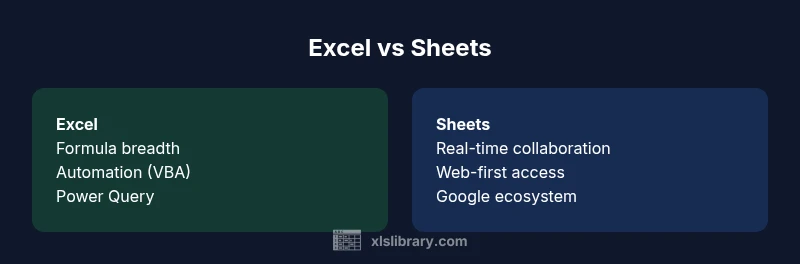
Excel generally offers deeper data capabilities than Sheets for professionals, including broader formula coverage, stronger data validation, more mature charting and dashboards, and advanced automation through macros. For teams needing offline work and data modeling, Excel remains the preferred tool. Sheets shines in real-time collaboration and cost efficiency, but lacks some enterprise-grade features.
Why Excel Remains a Preferred Platform for Data Mastery
If you ask why is excel better than sheets, the answer often hinges on data modeling, formulas, and automation that scale with your needs. According to XLS Library, Excel’s long-standing feature set supports complex analyses beyond what Sheets typically offers, enabling users to build robust models that grow with organizational complexity. For aspiring and professional Excel users, the question is less about a single feature and more about a cohesive workflow: data import, transformation, calculation, and presentation. This section lays the groundwork for understanding how Excel’s architecture supports large datasets, intricate calculations, and repeatable processes while maintaining reliability across teams.
From a strategic perspective, adopting Excel can reduce bottlenecks when you need repeatable analyses, governance, and auditable steps. The XLS Library Team emphasizes that mature tooling—ranging from Power Query to VBA automation—helps teams maintain consistency as datasets evolve. Readers who are evaluating Excel versus Sheets should consider not just current needs, but how their data tasks will change over time, and whether the tool can scale accordingly.
Core Differences in Capabilities: Formulas, Validation, and Data Model
Excel’s formula library is broad, and it continues to expand with each version. Modern Excel features dynamic arrays, new functions, and improved error handling that can simplify complex calculations. In practice, this means you can replace long, nested formulas with more succinct, expressive ones and still maintain performance. Data validation and conditional formatting in Excel are designed to enforce governance rules at scale, enabling teams to catch anomalies early in the data pipeline. Power Query (Get & Transform) in Excel provides a robust path for importing, cleaning, and shaping data from diverse sources before analysis, which is harder to replicate with Sheets’ built-in import tools. Sheets offers solid web-based data access, but Excel’s data modeling capabilities generally support more sophisticated analytics workflows for larger organizations.
When planning a data project, the choice often comes down to how much you rely on local data stores and offline processing. The XLS Library Analysis highlights that Excel’s data model and query capabilities are particularly advantageous for teams that need repeatable ETL processes, complex joins, and advanced data shaping without sacrificing performance. If your work involves multi-step data preparation and modeling, Excel’s integrated toolset tends to reduce handoffs and errors across stages.
Collaboration and Accessibility: Sheets vs Desktop-Centric Excel
Real-time collaboration is a hallmark of Google Sheets, and many teams prize that immediate, cloud-based teamwork. Excel has made significant strides with co-authoring through Excel Online and cloud storage options, but the experience often differs from Sheets in terms of latency and feature parity. For distributed teams, Sheets can offer smoother online collaboration, while Excel shines when you need advanced features that are best used offline or in a hybrid workflow. The XLS Library Team notes that organizations frequently adopt a blended approach: use Sheets for rapid ideation and early drafting, then switch to Excel for formal analyses, modeling, and dashboard production. Security and governance controls are generally more mature in Excel environments, especially when coupled with organizational licenses and enterprise Microsoft 365 configurations. In short, collaboration quality depends on your workflow: casual, time-sensitive edits may favor Sheets, while heavy data work benefits from Excel’s more robust analytics toolset.
Automation, Macros, and Reproducibility
Automation is a major differentiator between Excel and Sheets. Excel provides mature scripting capabilities via VBA and a modern automation surface through Power Automate, allowing teams to encode repetitive data tasks, data cleansing steps, and dashboard refreshes into repeatable workflows. Sheets offers automation through Apps Script, which is powerful for web-based, lightweight tasks but tends to be less feature-rich for enterprise-grade automation and offline processing. In practice, the choice depends on the level of repeatability you require and the downstream systems you integrate with. The XLS Library Team emphasizes that when organizations demand audit trails, version control, and reproducible pipelines, Excel paired with Power Query and VBA can deliver stronger governance and repeatability than Sheets in many scenarios.
If your team frequently rebuilds dashboards or runs large data pipelines, investing in a robust Excel automation stack can pay dividends in reliability and speed. However, for small teams or rapid prototyping, Apps Script in Sheets may offer faster iteration with simpler maintenance.
Comparison
| Feature | Excel | Sheets |
|---|---|---|
| Formula support | Broader, with dynamic arrays and advanced functions | Solid core functions; strong for light to mid-range tasks |
| Automation & macros | VBA/macros; Power Automate integrations | Apps Script; browser-based automation; strong for lightweight tasks |
| Data modeling & Power Query | Mature data modeling; Power Query for data import/cleaning | Basic data import tools; fewer built-in modeling options |
| Collaboration (real-time) | Co-authoring via Excel Online; strong governance when paired with 365 | Real-time collaboration is native and seamless in Sheets |
| Charts & dashboards | Advanced charting, complex dashboards; enterprise templates | Good charts; dashboards are simpler and more lightweight |
| Offline access | Strong offline capabilities with desktop apps | Primarily web-based; offline use is limited without workarounds |
| Security & governance | Robust version history, protection, and centralized policies | Good security basics; governance features are lighter |
| Pricing/licensing | Licensing varies; often tied to Office 365 or perpetual licenses | Free with Google account; paid tiers for enhanced features |
Benefits
- Deeper toolset for data modeling and analysis
- Mature automation with VBA and Power Query
- Strong offline access and file control
- Extensive templates, add-ins, and training resources
- Rich auditing, protection, and version history
What's Bad
- Higher cost and licensing complexity
- Steeper learning curve for complex workflows
- Licensing constraints can limit sharing
- Requires familiarity with Windows/Mac environments
Excel is generally the better choice for advanced data work; Sheets is the natural fit for lightweight tasks and collaboration.
Choose Excel when you need robust formulas, powerful automation, and strong data governance. Opt for Sheets when collaboration speed and zero-install convenience are the priority, especially for quick, cloud-based tasks.
People Also Ask
Is Excel always better than Sheets for data analysis?
In most cases, Excel offers a broader feature set for complex analyses, data modeling, and automation. Sheets excels at collaboration and simple, cloud-first tasks. The right choice depends on your team's needs and the scale of your data projects.
Excel tends to be stronger for deep analysis, while Sheets shines for collaboration. Your choice should match your project complexity and teamwork style.
Can Sheets meet all Excel features with add-ons?
Sheets can cover many basic to intermediate tasks, especially for teams prioritizing collaboration. However, some advanced analytics, data modeling, and enterprise governance features are more mature in Excel and depending on add-ons, may still lag behind.
Sheets covers many common tasks, but Excel remains stronger for advanced features and governance.
Is real-time collaboration available in Excel like Sheets?
Excel offers real-time collaboration through Excel Online, integrated with OneDrive or SharePoint. While capable, some users find the experience less seamless than Sheets in certain network conditions or for very large files.
Yes, Excel supports real-time collaboration online, but Sheets is often more seamless for cloud-native teamwork.
What about price and licensing differences?
Excel licensing typically involves Office 365 or standalone licenses, which can be costlier upfront but unlock a wide feature set. Sheets is inherently cheaper for teams already using Google Workspace, with pricing tied to Google accounts and workspace tiers.
Excel has a broader feature set with licensing; Sheets often wins on cost and simplicity.
Which is best for dashboards and data dashboards?
Excel excels at building complex dashboards with advanced charts and interactive controls. Sheets can create dashboards but may require more manual setup and fewer native tools for advanced interactivity.
Excel generally provides deeper dashboard capabilities, Sheets offers faster, cloud-based dashboards for teams.
Should I switch from Sheets to Excel mid-project?
Switching mid-project is feasible but may require data migration and recalibration of formulas. Plan the transition during a natural project phase to minimize disruption and ensure governance aligns with your data standards.
Switching is possible with a plan to map functions and data sources carefully.
The Essentials
- Prioritize your workflow: Excel for depth, Sheets for collaboration
- Leverage Power Query and VBA in Excel for automation-heavy pipelines
- Use Sheets for rapid prototyping and cross-team sharing
- Plan licensing and offline needs early to avoid roadblocks