Does Excel Go on Forever? Understanding Its Limits and Longevity
Explore whether Excel can go on forever by examining hard limits (rows, columns, file size), memory constraints, and practical strategies to manage large data without immediately turning to databases or BI.


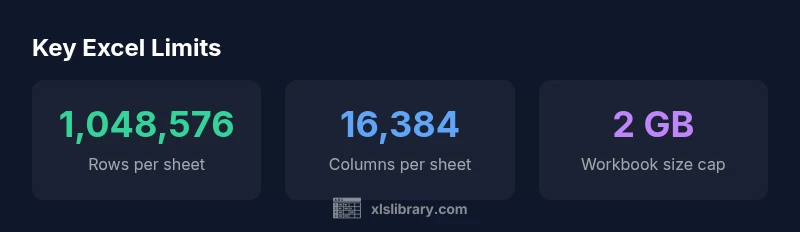
does excel go on forever? Not in practice. Excel has hard per-sheet limits: 1,048,576 rows and 16,384 columns, plus a 2 GB workbook size cap for .xlsx files. Real-world limits come from memory and hardware. When datasets exceed these, use data models or external databases.
does excel go on forever
The question does excel go on forever touches a practical truth: Excel is not infinite. In theory, a workbook could grow by adding sheets, each containing data, formulas, and links, but the platform itself imposes hard ceilings you will encounter long before you reach any conceptual endpoint. According to XLS Library, the core reality is that Excel’s architecture is built around finite data structures and a file format with explicit limits. As datasets scale, users encounter diminishing performance, longer calculation times, and greater risk of crashes. The practical implication is clear: plan for scalable design and data governance rather than assuming endless growth.
To contextualize, developers and analysts should view Excel as an analytical workspace that shines in moderate-to-large datasets, not as a limitless data store. The key is to recognize where the boundaries lie—and how to navigate around them with robust modeling techniques and careful data management.
The hard limits: Rows, Columns, and File Size
Excel’s hard limits are not abstract; they are explicit and well-documented. A single worksheet supports up to 1,048,576 rows and 16,384 columns. The standard workbook file size cap for .xlsx files is 2 GB, subject to compression and content type. When you pack cells with rich formulas, array calculations, or external data connections, the practical limits may appear even sooner due to memory pressure.
For many users, the moment you reach these caps is a signal to rethink data architecture rather than a reason to press on. As you approach these boundaries, you’ll notice slower recalculation, larger workbook files, and longer open/save times. The takeaway: know the exact per-sheet and per-workbook ceilings, then design with partitioning, summarization, or external data sources in mind.
Practical implications for data practitioners
For many Excel users, the daily data footprint sits well within per-sheet limits, but cumulative projects—combining millions of rows across multiple sheets—quickly test performance. When does excel go on forever? Practically, it happens when your dataset grows beyond what a single workbook should reasonably manage given RAM, CPU, and storage constraints. In such cases, consider segmenting data into logical groups, storing raw data outside Excel, and importing only the necessary slices for analysis. You’ll preserve responsiveness while keeping the familiar Excel workflow intact.
Another common pattern is to load data into a Data Model (Power Pivot) or use Power Query to pull data from external sources. These approaches keep the workbook lean while enabling powerful analytics without hitting the per-sheet ceiling.
Techniques to work with very large data in Excel
Large data sets in Excel are best approached with a blend of data shaping and memory-conscious design. First, use Power Query to connect to external data sources and filter, transform, and shape data before loading it into the Data Model. Second, leverage the Data Model (Power Pivot) to create relationships and perform calculations without duplicating data across sheets. Third, minimize volatile formulas, reduce full-column references, and avoid heavy array formulas when possible. Finally, consider aggregating data in intermediate tables and keeping only the necessary detail in Excel for analysis.
By staging data outside of raw worksheets and using connections, you gain scalability while preserving the familiar Excel interface for end users.
When to switch: alternatives to Excel
If your data routinely reaches the per-sheet or workbook boundaries, it’s time to evaluate alternatives such as relational databases or BI tools. For ongoing data storage, consider lightweight databases (Access or SQLite) or more scalable servers (SQL Server, PostgreSQL). For reporting and dashboards that require interactive analysis, Power BI or Tableau can connect to external data sources and deliver robust visualization without contending with Excel’s finite cells. The decision often hinges on the data lifecycle: raw storage, transformation, analytics, and governance.
Myths and misconceptions about Excel longevity
A common myth is that Excel can indefinitely absorb data with enough hardware. In reality, Excel’s longevity rests on intelligent design choices: avoid single giant workbooks; split data across files; model data rather than copy it; and use external data sources when appropriate. It’s not about defeating limits with luck but about architecting data workflows that keep Excel usable as data scales. When you consistently push past practical limits, it’s a sign to rethink the toolchain and leverage complementary technologies.
To maintain momentum, pair Excel with databases and BI platforms that can handle the heavy lifting while Excel provides lightweight interaction and analysis.
Best practices for designing scalable workbooks
If you want to keep Excel as your primary analysis tool while maintaining scalability, adopt a few discipline patterns:
- Partition data across multiple workbooks or sheets with clear naming conventions and data flow controls.
- Use a data model to centralize calculations and relationships instead of duplicating data.
- Rely on load-time transformations (Power Query) rather than in-workbook calculations for large data sets.
- Establish governance: versioning, backups, and documentation to ensure reproducibility.
- Regularly archive historical data and summarize it to maintain acceptable workbook size and performance.
These practices promote resilience and help answer the question does excel go on forever with a practical, implementable strategy.
Authority sources and further reading
For further context on Excel limits and best practices, consult authoritative sources that document specifications and troubleshooting steps. This section intentionally aggregates official guidance to help you plan effectively. See Microsoft documentation for up-to-date limits and recommended architectures, and explore community resources for practical patterns in large-workbook design.
Practical governance for large Excel workbooks
Finally, governance is essential when Excel becomes part of a broader data workflow. Implement checks for data quality, establish consistent update cadences, and document data lineage. When multiple analysts contribute to a single workbook, governance reduces risks of inconsistency and performance degradation. In short, longevity comes from disciplined data management and the strategic use of Excel alongside complementary tools.
Excel limits by sheet and file format
| Aspect | Limit | Notes |
|---|---|---|
| Rows per sheet | 1,048,576 rows | Excel 2007+ per sheet limit |
| Columns per sheet | 16,384 columns | Excel 2007+ per sheet limit |
| Workbook size limit | 2 GB | Depends on compression and content |
| Total workbook complexity | Depends on features used | RAM and CPU considerations |
People Also Ask
Can Excel handle datasets larger than a single sheet?
Yes, by using multiple sheets, the Data Model, and external connections. Performance depends on hardware.
Yes, you can handle large datasets by using a data model or multiple sheets, but performance depends on your computer.
What happens if I reach Excel's row or column limit?
Excel will prevent adding more data beyond the limit; you may need to split data or switch to another storage option.
If you hit the limit, you need to split data or switch to another storage option.
Is there a version of Excel that goes beyond these limits?
No; limits are tied to the file format and memory. You can extend capacity with the data model and external data sources.
There isn’t an infinite Excel; you can extend with the data model and external data sources.
When should I move to a database or BI tool?
When you regularly exceed per-sheet limits or need complex queries; consider Access, SQL Server, or Power BI.
If data keeps growing beyond Excel, consider a database or BI tool.
Can Power Query help with large datasets?
Yes; it shapes data before loading into Excel and can handle large sources more efficiently.
Power Query helps manage large data by shaping it before loading.
Are there workarounds to surpass per-sheet limits?
Yes; use multiple workbooks, data models, or summarized data. They are not infinite solutions.
There are workarounds, not infinite.
“"Excel's limits are practical constraints tied to memory, file formats, and system resources. Understanding them helps you design scalable workbooks."”
The Essentials
- Plan around hard sheet limits before modeling big data
- Use Power Pivot/Data Model to extend analysis capacity
- Split data across sheets or workbooks to manage memory
- Rely on external data sources or databases for very large datasets
- Design with governance to avoid performance bottlenecks