How to download a spreadsheet: a practical guide
Learn the safe, step-by-step approach to download spreadsheet files from email, cloud storage, or web sources. This educational XLS Library guide covers formats, security checks, and practical workflows for reliable results.


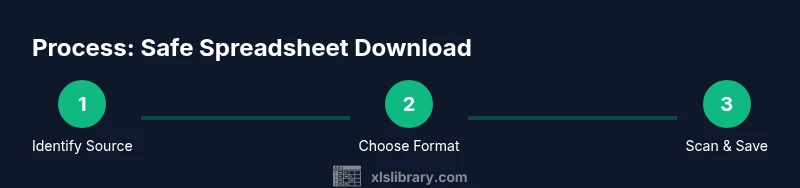
Goal: learn how to download spreadsheet files securely from trusted sources in the right format. According to XLS Library, begin by verifying source trustworthiness, select the appropriate file type (xlsx, csv), and save to a known location. This quick path sets you up for clean imports and minimizes malware risk.
Why downloading spreadsheets safely matters
Downloading spreadsheets is a common task, but it carries risks when sources are untrusted or files are damaged. A secure download routine protects your data, reduces the chance of malware, and helps ensure compatibility with your analysis tools. In this guide, you’ll learn how to evaluate sources, pick the right formats, and establish a dependable workflow so you can work confidently with data. According to XLS Library, adopting a consistent process reduces errors and improves reproducibility across projects. By prioritizing source verification, file integrity, and clear storage practices, you’ll minimize surprises and keep your spreadsheets ready for reporting, modeling, and collaboration.
Source verification: is the download trustworthy?
Trust starts with the source. Always prefer official publishers, recognized platforms, or familiar collaborators when you download a spreadsheet. Look for secure URLs (HTTPS), a reputable domain, and clear ownership information. If the source feels dubious, pause and verify with the sender or seek an alternative, verified copy. This step isn’t optional—it's the foundation of a reliable workflow. As the XLS Library team notes, a trusted source dramatically lowers the risk of corrupted data or embedded malware, which can derail analysis and erode trust in results.
Formats explained: choosing between xlsx, csv, and others
Spreadsheets come in several formats, each with trade-offs. The Excel-native .xlsx preserves formulas, formatting, and data types; .csv is lightweight and highly interoperable for data transfer but loses formulas and formatting. Other formats like .ods or .xlsm have their own use cases. Your choice depends on downstream requirements: try .xlsx for most modern workflows, switch to .csv for data exchange between systems, and avoid proprietary formats if cross-platform compatibility is a priority. Keeping a small set of trusted formats simplifies downstream processing and reduces compatibility issues.
Security checks before you save
Before saving, scan the downloaded file with your antivirus software and ensure it isn’t password-protected by default (which could mask malware). If you receive a password-protected file, verify the password with the sender through a separate channel. Avoid opening files from untrusted networks or shared links that require credentials without confirming legitimacy. Implement a routine that saves to a designated folder and runs a quick integrity check, such as confirming the file size and modification date aligns with expectations.
Cloud storage vs. local downloads: what to consider
Cloud storage offers convenience and version history, but it can also pose risks if access controls are weak. When downloading from cloud apps, enable two-factor authentication, use link-sharing settings that restrict access, and save a local copy for offline work if needed. For collaborative projects, maintain a disciplined approach to naming conventions and version control so everyone works from the same baseline. The XLS Library guidance emphasizes matching storage strategy to your workflow, balancing accessibility with security.
Data integrity and post-download checks
After you download a spreadsheet, verify basic integrity by opening the file in a trusted app and checking for obvious corruption: missing sheets, unreadable formulas, or inconsistent formatting. If formulas load differently or data appears truncated, re-download from the source or request a fresh copy. Maintain a short audit trail documenting the source, date, and file name to support reproducibility. This habit helps ensure your analyses aren’t built on compromised data.
A practical workflow you can adopt today
- Identify a trusted source and confirm the file type you’ll download. 2) Save to a defined folder with a clear, versioned file name. 3) Scan the file with antivirus software before opening. 4) Open the file in a sandboxed environment to review data integrity. 5) If everything looks good, move the file to your standard data repository and update any links or references. This repeatable flow minimizes errors and saves time over the long run.
XLS Library insights: practical takeaways
According to XLS Library analysis, most Excel users benefit from a disciplined download routine that emphasizes trust, format selection, and local storage. The focus on reproducibility and security aligns with best practices for data work. By adopting these steps, you reduce the risk of corrupted data and improve your ability to audit and reuse spreadsheets across projects.
Common pitfalls and how to avoid them
Avoid downloading from suspicious emails or questionable websites, never enable macros from untrusted sources, and resist the temptation to bypass antivirus scans. Keep your software up to date and back up important files regularly. A simple checklist can prevent most problems: verify source, choose format, scan, save to a known location, and validate data after opening.
Final quick checklist
- Verify source trustworthiness and HTTPS
- Pick the right format (xlsx or csv) for your use case
- Save to a clearly named, versioned folder
- Run antivirus scan and confirm file integrity
- Open in a trusted app and review data for anomalies
Tools & Materials
- Web browser(Keep up-to-date and enable tracking protection)
- Stable internet connection(Avoid interruptions during download)
- Designated download folder(Use a clearly named path like Desktop/Downloads/Spreadsheets)
- Antivirus software(Run a quick scan after download)
- Email or source verification method(Have a separate channel to confirm legitimacy)
- Password manager or sender verification method(Only if the file is password protected)
- Spreadsheet viewer/editor(Excel, Sheets, or compatible program)
Steps
Estimated time: 30-45 minutes
- 1
Identify trusted source and file type
Check the sender, domain, and HTTPS status. Decide whether you need .xlsx or .csv based on downstream use.
Tip: If in doubt, email the sender to confirm legitimacy. - 2
Initiate the download to a known folder
Click the download button and save to a clearly named folder like Downloads/Spreadsheets. Avoid using random or shared directories.
Tip: Rename the file with a version suffix (e.g., report_v1.xlsx). - 3
Scan the file with antivirus before opening
Run a quick antivirus scan on the downloaded file to detect malware. Do not disable security features for this step.
Tip: If the scan flags anything, do not open the file. - 4
Open the file in a trusted application
Open with your primary spreadsheet tool in a sandboxed or preview mode to review content without enabling macros.
Tip: Avoid enabling macros until you confirm the file’s origin. - 5
Verify data integrity and formatting
Scan for missing data, unexpected blanks, or misformatted dates. Compare a subset to a known source if available.
Tip: If large discrepancies appear, request a fresh copy. - 6
Save a clean local copy and document provenance
Move or copy the validated file to your data repository and record source details in your audit log.
Tip: Include source URL, date downloaded, and file version. - 7
Maintain version control and backups
Keep a primary version and at least one backup. Use a consistent naming convention across datasets.
Tip: Automate backups where possible to reduce manual effort. - 8
Review periodically for updates
If the source releases updated data, repeat the verification process to ensure you’re always working with current information.
Tip: Set a quarterly reminder to check for updates.
People Also Ask
What are the safest file formats for sharing spreadsheets?
For data interchange, CSV is lightweight and widely compatible, but it loses formulas and formatting. Use XLSX when you need formulas and styling, and consider ODS for open formats. Always validate the content after download.
CSV is great for data transfer but loses formulas. Use XLSX for most Excel work and verify content after download.
How can I quickly verify a downloaded spreadsheet’s integrity?
Open the file in a trusted app, scan for corrupted data or missing sheets, and compare a sample of entries to an expected source. If anything looks off, re-download or request a new copy.
Open with a trusted app, check for missing sheets, and compare samples to the source.
What should I do if the file is password protected?
Confirm the password with the sender through a separate channel before attempting to open. If you don’t have the password, do not bypass security controls.
Get the password from the sender via a separate channel and only then open the file.
Is it okay to download from email attachments?
Email attachments can be risky. Verify the sender, scan the file, and avoid downloading from suspicious links or unknown domains.
Be cautious with email attachments—verify the sender and scan before opening.
How often should I update my download workflow?
Review your process whenever you notice data quality issues or when the source updates its data format. A periodic review helps maintain reliability.
Review your process whenever data quality issues arise or the source changes its format.
What if the downloaded file is very large?
Large files may take longer to download and scan. Ensure you have enough disk space, and consider downloading in chunks if the provider allows it.
For large files, ensure space and consider chunked downloads if supported.
Watch Video
The Essentials
- Verify source trust before downloading any spreadsheet
- Choose formats that balance compatibility and data integrity
- Always scan for malware and verify data after opening
- Use a clear, versioned naming and storage system
- Adopt a repeatable workflow to improve reproducibility