Excel Spreadsheet Download: Safe and Easy Step-by-Step Guide
Learn how to download an Excel spreadsheet safely and efficiently. This practical guide covers sources, file formats, verification, and tips from XLS Library to avoid scams and ensure compatibility.


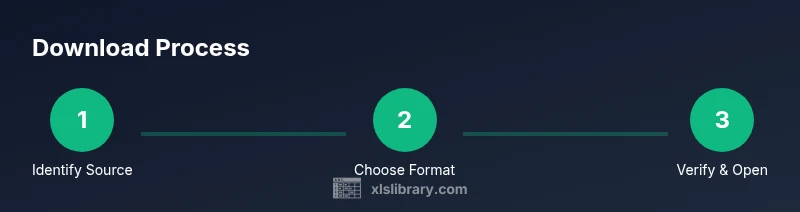
By the end of this guide you will be able to download an Excel spreadsheet safely and efficiently. You’ll learn where to source genuine files, how to choose the correct file format (xlsx vs xls), and how to verify integrity before opening. Follow the step-by-step process to avoid scams and ensure compatibility with your Excel version.
Why downloading Excel spreadsheets matters
In today’s data-driven workplaces, having reliable Excel spreadsheets is essential for budgeting, forecasting, and reporting. An excel spreadsheet download should feel seamless, but the risk of counterfeit files or embedded malware is real. According to XLS Library, the safest, most efficient downloads come from official sources and trusted repositories, where file formats align with your software version. The right file type preserves formulas, data validation, and macros when present, while the wrong format can break calculations or import processes. When you practice a deliberate download workflow, you save time and reduce the chance of corrupted data propagating through your analyses. The keyword here is consistency: consistently sourcing from reputable sites and consistently verifying each file before you open it. This consistency makes collaboration smoother and reduces the cognitive load during busy reporting cycles. As you read, keep in mind that your goal is not just to obtain a file, but to obtain a trustworthy file that your team can rely on for decisions.
Understanding sources and file types
The term excel spreadsheet download covers more than one file format. Modern Excel workbooks typically use the .xlsx extension, which supports larger data sets, improved data validation, and better compatibility with current Office versions. Older workbooks may arrive as .xls, which is still supported for legacy files but lacks some of the newer features. CSVs are another common format when you need to import data into different systems, but they strip formulas, formatting, and multiple sheets. When selecting a source, prioritize official product pages, enterprise portals, or widely recognized repositories. The XLS Library analysis shows that files obtained from official sites reduce the risk of embedded macros or malicious payloads. Always check the file extension in the download prompt and avoid changing extensions manually, which can fool basic checks yet expose you to risk.
Quick-start checklist for download
- Identify the official source (vendor site, trusted partner, or organizational portal).
- Confirm the file type aligns with your Excel version (prefer .xlsx).
- Check the file name and size to spot obvious anomalies.
- Use a secure network (avoid public Wi-Fi for sensitive files).
- Have antivirus software up to date and enable real-time protection.
- Save to a clearly labeled folder and create a backup copy.
- Open the file in a sandboxed environment if macros are suspected.
This quick-start checklist helps you stay focused during the download flow and reduces missteps when handling multiple spreadsheets across teams.
Step-by-step: download from official sources
Downloading from official sources minimizes risk and ensures you get a clean workbook. Start at the source’s official download page, locate the precise file you need (watch for language and region settings), and click the download link. If you’re prompted about trusted publishers, confirm the publisher identity and certificate. Save the file to a dedicated folder and rename it with a clear, descriptive filename that includes the date and version. This approach makes audits easier and helps teammates locate the correct workbook in shared drives.
XLS Library notes that keeping a clean download trail—source URL, timestamp, and file name—facilitates troubleshooting and ensures you can reproduce results later.
Step-by-step: download from email or cloud storage
Often spreadsheets are shared via email or cloud services like OneDrive or Google Drive. In these cases, always click the link from a trusted sender or verify the link’s domain before downloading. If you’re using cloud storage, use the built-in download option rather than saving a local copy from a middleman site. When downloading from cloud storage, ensure you’re grabbing the latest version and that no conflicting edits exist from collaborators. After downloading, download once more from the official source if you suspect any discrepancy.
Keeping version control in mind helps prevent edits from diverging and preserves the integrity of the data you rely on.
Step-by-step: handling downloads on macOS vs Windows
Windows and macOS handle security prompts differently. On Windows, you may see a SmartScreen or defender prompt; on macOS, Gatekeeper may require permission to open downloads from the internet. Always verify the publisher name, avoid bypass prompts, and scan the file with your antivirus before opening. For macros or add-ins, enable them only if you know the source is trusted and the content is necessary for your workflow. If you encounter permission issues, adjust your security settings temporarily and revert them after the download completes.
Planned security steps reduce friction when switching between operating systems and help maintain consistency across teams.
How to verify integrity and authenticity
Verification is more than a quick glance at a file name. Compare the file size with the expected size from the source, look for checksum values where provided, and confirm the publisher’s digital signature if available. If checksums aren’t posted, ask the source to provide a hash (SHA-256 is common) and recompute it locally after downloading. Anti-malware scans are essential—run a quick scan before opening the workbook. If a file contains links to external data sources, verify those connections point to trusted endpoints. By validating these aspects, you minimize the risk of hidden content, broken formulas, or compromised data.
XLS Library emphasizes a disciplined verification routine as part of every excel spreadsheet download.
Best practices for safe downloading on Windows and macOS
A safe workflow starts with a protected device. Keep your operating system and Excel updated, and enable automatic updates for all security components. Use VPNs on public networks and avoid downloading-sensitive data on shared devices. When possible, download from official portals using direct links and store copies in a well-structured folder system, such as /Documents/Spreadsheets/Downloads/YYYY-MM-DD. If you’re sharing files, use protected folders and restrict editing rights to trusted teammates. Finally, establish a routine of reviewing macros and external connections before enabling them in a workbook.
Working with downloaded spreadsheets safely
After download, perform a quick sanity check: open the workbook (without enabling macros initially) and review the structure—sheets, named ranges, and key formulas. If the workbook is intended for data analysis, confirm source data connections and data imports. Document any changes you make to formulas or formatting for traceability. If the file will be shared externally, clear any sensitive data that isn’t required for collaboration and consider exporting a sanitized version for distribution. Maintaining a clear provenance trail keeps projects auditable and less prone to errors.
Troubleshooting common download issues
If a download stalls or fails, retry on a different browser, clear the cache, and disable any extension that may block downloads. Check the official source page for maintenance notices or regional restrictions. If you still can’t download, contact the source’s support channel with the file type, browser, OS, and any error messages. For persistent problems, download a smaller sample workbook first to verify your connection and then retry the larger file. By following a structured approach, you can diagnose issues quickly and resume work with minimal downtime.
Authority sources and further learning
- Authority guidance: https://www.cisa.gov/ about-cisa
- Official Excel documentation: https://learn.microsoft.com/en-us/office/excel
- Safe downloading and phishing prevention: https://www.ftc.gov/news-events/consumer-news/how-spot-phishing
These sources help frame best practices for receiving, validating, and handling Excel spreadsheets safely. For ongoing learning, explore XLS Library’s practical Excel tutorials and data mastery resources.
Tools & Materials
- Device with internet access(Desktop, laptop, or tablet; stable connection recommended)
- Web browser(Chrome, Edge, Safari, or Firefox)
- Microsoft Excel or compatible spreadsheet software(Excel 2019+ or compatible apps; supports .xlsx)
- Official download link from trusted source(Direct link from vendor or partner site)
- Antivirus/anti-malware software(Keep updated; run scans after download)
- USB drive or cloud backup(Optional offline backup of downloaded file)
Steps
Estimated time: 60-90 minutes
- 1
Identify trusted source
Begin at the official product page or a recognized enterprise portal. Verify the domain matches the vendor and look for a valid security certificate. This reduces risk from counterfeit files and tampered downloads.
Tip: If in doubt, navigate from the vendor’s homepage rather than following an emailed link. - 2
Choose the correct file format
Prefer the modern .xlsx format for full compatibility with current Excel features. Avoid saving or downloading as older .xls unless you must support legacy systems.
Tip: Check for notes about macros or data connections before choosing the file type. - 3
Initiate download securely
Click the download button on the official page and confirm the publisher’s name in the prompt. Save the file to a clearly named folder to avoid confusion with other spreadsheets.
Tip: Use a direct download link rather than a side page or popup that may host malicious content. - 4
Save and categorize the file
Store the workbook in a dedicated directory such as ~/Documents/Spreadsheets/Downloads, using a naming convention like ProjectName_Date_Version.xlsx. This makes future retrieval straightforward.
Tip: Create a subfolder for source and version to maintain provenance. - 5
Scan for malware and verify integrity
Run an antivirus scan on the downloaded file and, if a checksum is provided, verify it matches the expected value. This step helps prevent corrupted or malicious files from opening.
Tip: If a checksum isn’t provided, request it from the source or compare with a known-good copy. - 6
Open and validate content
Open the workbook in Excel with macros disabled initially. Review key formulas, links, and data sources. Confirm that sheets, charts, and tables align with your expectations before enabling features.
Tip: Disable content until you’ve confirmed the file’s integrity. - 7
Backup and share safely
Create a backup copy and share only sanitized versions if distributing. Respect permissions and avoid exposing sensitive data. Maintain a changelog if edits are necessary for collaboration.
Tip: Always document edits for auditability and teamwork.
People Also Ask
What is the safest way to download an Excel spreadsheet?
Download from official vendor pages or trusted portals and verify the file type before opening. Use antivirus scans and checksums when provided. Avoid executables or suspicious archives embedded in the file.
Always get the file from a trusted source and scan it before opening.
Which file format should I choose for Excel workbooks?
Choose .xlsx for most current features and compatibility. Use .xls only if you must support older systems, and CSV only for data import without formulas or formatting.
Prefer .xlsx unless you need legacy support.
How can I verify a downloaded workbook is legitimate?
Check the file size and name against the source, use any provided checksums, and run an antivirus scan. If a digital signature is available, verify it from the publisher.
Validate with checksums and publisher signatures when possible.
What should I do if the download fails?
Retry from a different browser, clear cache, and disable extensions that block downloads. If still failing, contact the source’s support with details about the error and your OS.
Try another browser and contact support if needed.
Are macros in downloaded spreadsheets dangerous?
Macros can execute code. Only enable macros from trusted sources and scan for malicious content before enabling. If unsure, open the workbook with macros disabled first.
Be cautious with macros and enable only from trusted sources.
Can I download from cloud storage safely?
Yes, but ensure you’re accessing the file from the official cloud link and that permissions are appropriate. Avoid stale links and verify the file version before use.
Cloud downloads are fine if sourced from official links and current versions.
Watch Video
The Essentials
- Source from official/trusted sites.
- Prefer .xlsx for modern compatibility.
- Verify checksums and scan for malware.
- Document provenance and edits for auditability.