Excel Download: A Practical How-To Guide
Master safe, reliable excel download practices—from official sources to file verification. Learn formats, verification steps, and common pitfalls in this XLS Library guide.


In this guide, you’ll master a safe, reliable excel download from official sources. You’ll choose the right file format, avoid unsafe sites, and verify integrity before opening. By the end, you’ll be able to obtain Excel workbooks with confidence, whether you’re updating budgets, dashboards, or templates.
What 'excel download' means in practice
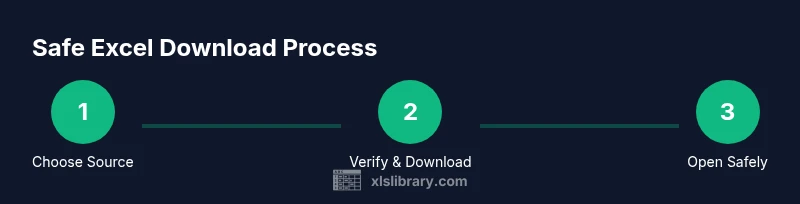
Excel download refers to obtaining a workbook file from an online source, typically in formats like .xlsx, .xlsm, or .xls. In real-world use, it includes identifying legitimate sources, selecting the right file format based on your Excel version and feature needs, and saving the file securely. The practice also encompasses verifying the source, avoiding deceptive prompts, and scanning the file for malware before opening. According to XLS Library, understanding what a safe excel download entails helps users distinguish official origins from risky links and fake portals. This enables you to protect devices, data, and workflows—from personal budgets to large-scale dashboards. In practice, you’ll follow a repeatable sequence: confirm the source, pick the compatible format, download, save securely, and verify integrity after download. This block sets the foundation for reliable, repeatable downloads you can trust in daily Excel work.
The anatomy of an Excel file and what to expect
Excel files come in several formats, each with its own use case. The most common is .xlsx, which balances compatibility and modern features. Older users may encounter .xls, which has limitations and is supported primarily for backward compatibility. Macro-enabled workbooks use .xlsm and can store automation, but they carry potential security risks if sourced from untrusted providers. Binary workbooks (.xlsb) offer performance advantages for large datasets, while OpenDocument formats are not native to Excel but can be opened with some caveats in compatibility mode. When you see a download prompt, consider your environment: if you rely on macros, you’ll need a macro-enabled file, but you should only enable macros after confirming the file’s origin. In sum, selecting the right format is about balancing features, compatibility, and security across your devices and team.
Why source matters more than you expect
Source quality dramatically affects download safety. Official portals from Microsoft and verified partners reduce the likelihood of bundled malware or tampered files. The right source also ensures that metadata, data validation rules, and workbook structures remain intact after download. For teams, this consistency translates into smoother collaboration, fewer compatibility hiccups, and cleaner audit trails. The XLS Library team emphasizes building a habit of verifying domain legitimacy, reading the page for security indicators, and avoiding unsolicited links. A trusted origin saves time and mitigates risk, especially when distributing files to colleagues or clients who rely on consistent formatting and formulas.
Tools & Materials
- Stable internet connection(Use a wired or reliable Wi-Fi connection to prevent incomplete downloads.)
- Up-to-date web browser(Prefer modern browsers (Chrome/Edge/Firefox) with JavaScript enabled.)
- Official source URLs (Microsoft or trusted partners)(Bookmark Microsoft domains like microsoft.com and office.com.)
- Antivirus/anti-malware software(Ensure real-time protection and automatic scans for downloaded files.)
- Backup storage(Optional cloud or local backup to preserve a clean copy if needed.)
Steps
Estimated time: 15-25 minutes
- 1
Identify your download goal
Clarify whether you need a workbook, a template, or a macro-enabled file. Decide on the format (.xlsx for most tasks, .xlsm if you require macros). This keeps you from grabbing the wrong file and saves time later.
Tip: Write down the exact file type and key features you expect (e.g., formulas, data validation, or macros). - 2
Open the official source
Navigate to an official site such as Microsoft Office or a trusted partner portal. Check that the domain is correct (https, with a valid certificate) before clicking any download links.
Tip: Hover the download link to preview the URL and ensure it begins with a trusted domain. - 3
Locate the correct file and format
Use the site search or navigation to locate the workbook or template you need. Confirm the file extension and whether macros are present so you can choose .xlsx vs .xlsm accordingly.
Tip: If in doubt, pick a non-macro .xlsx file first to test compatibility. - 4
Initiate download and choose a save location
Click Download and save to a known, secure folder. If prompted, select the preferred format and verify that the filename matches your expectations.
Tip: Avoid saving to Desktop if you lack a routine folder structure; use Documents or a project-specific folder. - 5
Scan and validate before opening
Run an antivirus scan or rely on real-time protection. When the download completes, open the file in Protected View to inspect content without enabling macros.
Tip: If the file is flagged, do not proceed; delete and re-download from an official source. - 6
Open and verify data integrity
Enable content only if you trust the source, and verify that formulas, links, and data structures function as expected. Compare critical cells against your prior version if applicable.
Tip: Cross-check key totals or pivot tables to catch obvious discrepancies early.
People Also Ask
Is it safe to download Excel files from non-Microsoft sources?
Downloading from non-official sources carries higher risk of malware or corrupted data. If you must use a non-Microsoft site, verify the publisher, check the domain, and scan the file before opening. When possible, prefer official Microsoft domains or trusted partners.
Avoid non-official sites when possible. Verify the publisher and scan the file before opening.
What formats should I choose for maximum compatibility?
For general use, choose .xlsx because it supports modern features and broad compatibility. Reserve .xlsm for macro-enabled workbooks, and avoid .xls unless you must work with very old Excel versions.
Choose .xlsx for most cases; use .xlsm if macros are needed.
How can I verify that a downloaded file is legitimate?
Verify the download source, check the URL, use Protected View, and scan the file with up-to-date antivirus software. Compare file details and, if possible, validate checksums or digital signatures provided by the publisher.
Check the source, scan the file, and validate any publisher-provided checksums.
What should I do if my download is blocked by antivirus?
If blocked, stop and reassess the source. Do not override security warnings. Try downloading again from an official site or contact the publisher for a trusted link.
Don’t ignore security warnings; retry from an official source or contact support.
Can I download Excel templates or macro-enabled workbooks safely?
Yes, but only from trusted sources. Macros can execute code, so enable them only after confirming the file origin. Templates usually pose less risk, but still verify the publisher and integrity.
Yes, from trusted sources; verify before enabling macros.
Watch Video
The Essentials
- Download only from official sources.
- Choose the correct file format for your needs.
- Verify integrity before opening the file.
- Scan for malware and back up important workbooks.