Excel and Python for Data Workflows: A Practical Comparison
Explore the strengths and tradeoffs of Excel and Python for data work. Learn when to use each, how to blend them, and practical workflows for reproducible, scalable analysis.


Excel and Python form a powerful duo for data work. Python handles heavy lifting—cleaning, transforming, automating—while Excel provides quick, familiar tabular editing and reporting. For many teams, the fastest path is to preprocess in Python and export to Excel, or drive Excel from Python for reproducible workflows. This comparison breaks down strengths, use cases, and practical workflows to choose wisely.
Why Excel and Python Make a Powerful Pair
In modern data work, Excel and Python are not rivals but teammates. Python handles data wrangling, complex transformations, and automation at scale, while Excel provides a familiar interface for quick inspection, ad-hoc calculations, and stakeholder-friendly reporting. According to XLS Library, this combination often shortens the path from raw data to decision-ready insights because each tool plays to its strengths. The XLS Library team found that teams that build a lightweight Python-driven pipeline to clean and shape data, then hand off to Excel for exploration and presentation, tend to deliver faster turnaround times with fewer manual steps. For analysts and business users, blending these two ecosystems reduces silos and improves collaboration. The key is to design workflows that leverage Python's reproducibility without abandoning Excel's interactive capabilities. In practice, you want reproducible scripts, versioned data, and clearly defined handoffs between the code and spreadsheet layers.
Core Differences: When to Use Each Tool
Excel shines when you need rapid visual inspection, structured data editing, and stakeholder-friendly reporting. It remains a go-to for budgeting, lightweight data validation, and quick what-if scenarios. Python excels when datasets exceed Excel’s comfortable size, when automation is repeated across multiple files, or when you require advanced analytics, machine learning, or custom data pipelines. A basic rule of thumb is: use Excel for presentation-grade worksheets and fast experiments; use Python for heavy lifting, data preparation, and repeatable processes across teams. The two tools also differ in governance: Excel workbooks are easier to share but harder to audit at scale, whereas Python scripts can be version-controlled and tested in CI, but require coding skills and a learning curve. Consider the data lifecycle, the team’s skill set, and the desired outcome to choose the right tool at each stage.
Common Workflows: Blending Excel with Python
There are several pragmatic patterns that combine both tools. A typical workflow starts with Python loading data from CSV, a database, or even an exported Excel file, performing cleaning and transformation, and then writing results back to Excel for distribution. Another pattern uses Python to generate Excel-ready dashboards or reports, leveraging libraries like Pandas to produce pivot-friendly tables and charts, then saving as .xlsx files. For interactive data exploration, teams use APIs like PyXLL or xlwings to call Python from Excel or vice versa, enabling live data refreshes without manual file handling. A third pattern relies on openpyxl or xlrd/xlwt to modify Excel files directly, enabling automation of formatting, conditional formatting, and formula insertion across many sheets. These patterns enable a reliable, auditable trail from raw data to decision-ready workbooks.
Tooling and Libraries: Python's Openpyxl, Pandas vs Excel Features
In Python, Pandas dominates data manipulation with expressive syntax and fast performance for large datasets. Openpyxl lets you read and write .xlsx files, including formulas and rich formatting, while xlrd/xlwt support legacy formats. For Excel itself, built-in features like tables, named ranges, data validation, and dynamic arrays provide strong capabilities for end-user analysis. The contrast is clear: Python libraries focus on programmatic data processing, logging, and automation; Excel focuses on interactive, user-facing data work, where assumptions can be reviewed quickly by stakeholders. Integrating both requires careful design: decide which steps belong in scripts, which belong in spreadsheets, and how to maintain repeatability across files. Remember that cross-tool debugging can be more complex, so invest in clear documentation and consistent file naming conventions.
Performance, Scalability, and Reproducibility
Performance characteristics differ: Excel handles small to moderate datasets well, but can slow or crash with large CSV exports; Python scales more gracefully, especially when using vectorized operations in Pandas. Reproducibility is a major advantage of Python—scripts, virtual environments, and version control enable repeatable analyses. However, Excel can still be part of a reproducible workflow when used as a final reporting layer with saved workbooks that reflect a controlled data state. The XLS Library analysis suggests that teams that separate data processing from reporting are more likely to identify data quality issues early and to share results consistently. Emphasize unit tests for Python code, and maintain a documented Excel template for end-user interactions. A careful balance ensures both speed and reliability in day-to-day analyses.
Cost, Accessibility, and Learning Curve
The cost of Excel is often bundled with Office 365 subscriptions; Python is free and open source, lowering the incremental cost of adopting automation. Accessibility varies: Excel’s GUI is immediate for beginners, while Python requires learning basic programming concepts. For teams, hybrid approaches can minimize friction: train analysts on essential Python libraries and create user-friendly Excel templates that call Python scripts or generate outputs automatically. Another factor is maintenance: Python projects require dependency management, version control, and testing, whereas Excel workbooks may require careful versioning and sharing practices to avoid conflicts. Consider total cost of ownership, onboarding time, and future-proofing when deciding how to deploy the hybrid solution.
Security and Governance Considerations
Excel files can carry sensitive data and macros that pose security risks if not managed properly. Python scripts can automate data flows but introduce new vectors if credentials or data sources aren’t secured. Adopt least-privilege access for data sources, use secure storage for credentials, and implement version-controlled scripts with documented change history. Establish governance on how workbooks are shared and preserved, and define clear ownership for data transformations in Python versus spreadsheet logic. Regular audits, role-based access, and automated logging help maintain trust as data moves between tools.
Real-World Use Cases by Industry
Finance teams often use Excel for budgeting while Python handles data cleansing and scenario analysis across multiple files. Marketing analysts leverage Python to combine web-scraped data with CRM exports, then deliver Excel-ready reports for executives. In operations, Python pipelines normalize data from sensors or ERP exports, with Excel dashboards summarizing KPIs. Education and research utilize Python for data cleaning and statistical analysis, exporting curated results to Excel for publication-ready figures. Across industries, a hybrid approach tends to reduce manual data wrangling, improve reproducibility, and accelerate decision cycles. The key is to map business questions to the most reliable tool at each step.
Getting Started: Quick Start Guide
Begin with a minimal setup: install Python, set up a virtual environment, and install Pandas and openpyxl. Create a simple script that reads a CSV, cleans a few columns, and writes an Excel workbook. Then build an Excel template that reads the generated output and uses data validation and a pivot table to summarize results. Add a small enhancement, such as formatting or a chart, to verify end-to-end flow. Over time, document each step, add tests for critical transformations, and establish a pattern for handing off results to stakeholders via a shared workbook. This approach reduces risk and builds confidence in hybrid workflows.
Advanced Patterns: Automation with Macros, APIs, and Scheduling
Beyond basic scripts, teams automate recurring tasks with scheduled jobs and API-driven data sources. Use Python to fetch data from APIs or databases, run nightly transformations, and push results to Excel via openpyxl or xlwings. Macros in Excel can trigger Python code through integration tools, enabling a single-click refresh of reporting dashboards. For robust environments, adopt CI/CD practices for Python code and maintain a repository of shared Excel templates with standardized formulas and styles. Finally, establish monitoring and alerting for failed automatisms to prevent silent data issues.
Common Pitfalls and How to Avoid Them
Pitfalls include over-automation of Excel users without sufficient Python training, fragile file paths when moving between folders, and inconsistent data schemas across sources. To avoid these, define a stable data schema, harden your import/export steps, and maintain clear versioning. Keep Excel templates lean and avoid embedding hard-coded credentials. Regularly review dependencies, and separate data processing from presentation logic so analysts can verify results in both ecosystems. Finally, invest in lightweight tests for Python code and simple validation rules in Excel.
Final Thoughts: Designing Hybrid Data Workflows
Hybrid workflows are not a rush job; they require thoughtful design, documentation, and governance. Start with a small pilot that demonstrates reproducibility, then scale by adding more datasets and complexity. The best practices emphasize transparency and collaboration: publish clear data lineage, maintain consistent naming conventions, and ensure end-user reports remain accessible to non-technical stakeholders. The XLS Library team recommends building a shared playbook that describes when to use Python versus Excel, how to trigger updates, and how to triage issues. Embrace a pragmatic approach that keeps both tools aligned with business goals.
Comparison
| Feature | Excel | Python |
|---|---|---|
| Best For | Quick analysis and reporting with familiar UI | Automation, scale, and data prep |
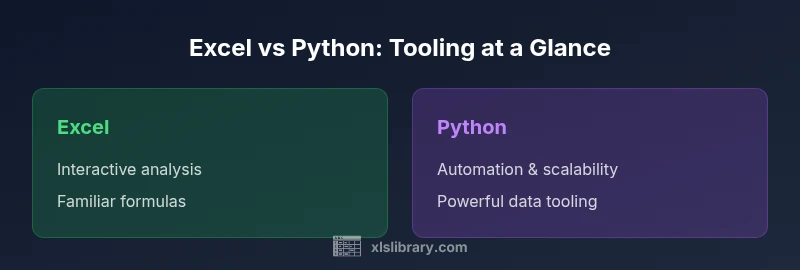
| Strengths | Interactive, formula-based analysis; easy sharing | Automation, reproducibility, scalability; rich data tooling |
| Weaknesses | Limited data volume handling; manual processes | Requires programming knowledge; setup time |
| Data Size Suitability | Small to medium datasets | Large datasets and complex pipelines |
| Learning Curve | Low for Excel users | Moderate to high for Python newcomers |
| Automation Potential | Low to moderate; some automation via macros | High with scripts, APIs, and scheduling |
Benefits
- Leverages familiarity of Excel to accelerate onboarding
- Python brings automation, scalability, and reproducibility
- Clear split between data preparation and reporting improves governance
- Open-source Python reduces licensing costs, expanding options
What's Bad
- Excel limits with very large datasets and complex automation
- Python requires programming knowledge and maintenance discipline
- Cross-tool debugging can be more complex than single-tool work
- Coordination overhead to maintain hybrid templates and docs
Hybrid workflows win for most teams; use Python for prep and automation, Excel for presentation and quick analysis
A blended approach delivers speed and reproducibility. Start small, document handoffs, and scale as comfort with Python grows.
People Also Ask
What is the core difference between Excel and Python for data tasks?
Excel excels at interactive analysis with familiar formulas. Python excels at automated data processing, reproducible workflows, and handling large datasets. The choice depends on data size, the need for automation, and the audience for the results.
Excel is best for quick, interactive analysis; Python is best for automation and handling large data. Use them together when appropriate.
When should I start using Python with Excel in my workflow?
Start when data volumes grow beyond Excel’s comfortable range or when you need repeatable, auditable processes. Python can preprocess data and generate Excel-ready outputs, making collaboration easier.
If you’re dealing with big data or repetitive tasks, add Python to your workflow.
Can I automate Excel tasks without coding macros?
Yes. You can automate by using Python to modify Excel files via libraries like openpyxl or xlwings, or by calling Python from Excel through integration tools. This reduces manual steps and enhances reproducibility.
You can automate Excel work without macros by using Python and integration tools.
Which libraries are best for Excel data with Python?
Key libraries include Pandas for data manipulation, openpyxl for reading/writing Excel files, and xlwings for interactive Excel-Python integration. These enable robust data pipelines and Excel-driven reporting.
Pandas, openpyxl, and xlwings are the main staples for Excel data in Python.
Is Python faster than Excel for data tasks?
In general, Python performs better on large datasets and repeatable processing due to vectorized operations and optimized libraries. Excel can be faster for small, ad-hoc analyses but struggles with scale and automation.
Python usually handles large data faster; Excel is fine for small, quick tasks.
The Essentials
- Adopt a hybrid approach that uses each tool where it excels
- Define data lineage and governance across Python scripts and Excel workbooks
- Automate data prep with Python, present results in Excel
- Invest in lightweight tests and documentation
- Plan for scale and maintainability from day one