Excel Compare to Files: A Practical Side-by-Side Guide
A practical, structured guide to comparing Excel files. Learn to align versions, assess data, formulas, and formatting, and maintain reproducible workflows for audits.


TL;DR: When you compare Excel files, use a structured side-by-side approach that covers data values, formulas, formatting, and external links. Start by listing what to compare, align versions, and choose a consistent method—manual checklists, built-in compare tools, or Power Query diffs. According to XLS Library, documenting findings and recording steps ensures reproducibility in audits.
What excel compare to files means in practice
When you set out to compare Excel files, you’re not just checking if two numbers match. You’re testing a data pipeline: how data is captured, stored, transformed, and reported across versions. The goal of excel compare to files is to surface differences that matter for decisions, compliance, or auditability, while ignoring cosmetic or non-functional changes. In practice, you map the scope (which workbooks, which sheets, which ranges) and define the baseline for comparison. A disciplined approach, championed by the XLS Library team, reduces the risk that small edits slip through unnoticed and creates a reproducible workflow for future reviews. In this context, you should decide whether you track only final values, or also intermediate calculations, data connections, and workbook structure. The difference between a superficial value check and a comprehensive diff can be substantial, especially when workbooks contain linked models, external data sources, or complex formulas. By establishing a common language for what constitutes a meaningful difference, you lay the groundwork for a robust comparison framework.
Common contexts where you compare Excel files
There are several typical scenarios in which teams need to compare Excel files. Monthly management reports and quarterly board packs often require diffs to verify that edits are correct and complete. When consolidating data from multiple departments, diffing helps identify duplicates, mismatches, or failed data connections. In software migrations or policy audits, retaining a precise trail of changes is essential. For analysts, comparing different versions of a financial model reveals how assumptions shift over time. For educators and students, diffing can demonstrate the evolution of an assignment or dataset. Across these contexts, a consistent approach to excel compare to files ensures stakeholders see the same story and makes review workflows more reliable.
Key comparison criteria
A robust comparison hinges on several core criteria. Data values and ranges must align, including number formats and text encodings. Formulas and functions should be evaluated for equivalence, not just final results; differences in references or ranges can produce identical outputs but different logic. Macros, named ranges, and external links require special handling to avoid broken references. Formatting and presentation—colors, borders, and conditional formatting—should be evaluated if they affect readability or reporting. Data connections, query sources, and refresh settings must be tracked to guard against stale data. Workbook structure, sheet order, hidden rows, and named references contribute to the diffs. Finally, an auditable trail—logs, notes, and version timestamps—helps stakeholders understand what changed and why.
How to structure a robust comparison
Begin with a clear scope: identify which workbooks, sheets, ranges, and time frames to compare. Create a baseline by locking the versions you’ll compare and document the rationale. Build a diff matrix that maps each criterion to the two files, then fill it with concrete observations. Consider a two-layer approach: automatic diffs for data values and formula logic, plus manual review for nuanced areas like complex array formulas or dynamic named ranges. Use Power Query or dedicated diff tools to extract, normalize, and compare datasets, then attach a reproducible script or steps to your checklist. Maintain an issue log for discrepancies, assign owners, and set deadlines. Finally, archive the diff results with a dated snapshot to preserve evidence for audits and governance.
Practical examples: comparing formulas, data sources, and formats
Example 1: You have two sales models, each pulling data from the same source but with different named ranges. A diff approach should compare final values, then drill into formula references to verify consistency. Example 2: Two versions of a budget workbook use different data connections. The comparison should verify that the connections pull from the same data tables and that refresh intervals align. Example 3: A reporting workbook includes extensive formatting. Determine whether formatting changes affect readability or export behavior, and decide if such changes constitute a diff or a cosmetic update. These examples illustrate how excel compare to files varies by domain and the level of scrutiny required for each scenario.
Handling edge cases: version control, linked workbooks, and external references
Edge cases require careful planning. If workbooks contain links to external sources, validate path integrity and ensure data refresh is consistent across versions. Hidden sheets and row-level filters can mask changes; explicitly unhide and review them during diffs. When multiple collaborators update the same file, enforce a version control protocol and timestamped diffs. If macros are involved, test macro execution in each version to confirm expected behavior. Finally, consider differences introduced by different Excel environments (Windows vs. Mac) that may impact features like certain functions or formatting capabilities.
Tools and features for effective comparison
A variety of tools support excel compare to files. Excel’s built-in diff capabilities, Spreadsheet Compare, or the Inquire add-in can surface differences automatically. Power Query is powerful for merging, normalizing, and comparing large datasets across workbooks. For teams, consider lightweight scripting (VBA or Python with openpyxl/pandas) to automate repeated comparisons and generate structured diff reports. When using tools, document the exact steps, tools, and versions used so your workflow remains reproducible. Always test tools on a small, representative sample before scaling to full files, and maintain an accessible changelog for future audits.
Pitfalls and common mistakes
Common mistakes include assuming identical values imply identical logic, overlooking hidden cells or sheets, and neglecting data validation rules or conditional formatting. Another pitfall is ignoring relative references that shift when sheets are moved or renamed. Relying on a single diffs view without cross-checking formulas and data connections can lead to missed discrepancies. Failing to standardize file names, folders, and versioning increases confusion and reduces reproducibility. Finally, skipping documentation of observations or not archiving diffs makes audits harder and undermines trust in the results.
When to choose manual review vs automated diff tools
Automated diffs excel at surface-level differences quickly and consistently. They are ideal for large datasets, repetitive tasks, and environments with strict governance requirements. Manual review becomes valuable when diffs involve nuanced business rules, unusual formatting, or specialized workbook logic that tools may misinterpret. In practice, combine both: run automated diffs to identify candidates, then apply human judgment to confirm whether a change is meaningful and warranted.
Best practices for reproducible comparisons
Adopt a standard comparison template that captures scope, baseline versions, and steps. Always lock input files, maintain a changelog, and record who performed each diff. Use version control for workbooks or a document-level changelog for non-binary changes. Create repeatable scripts or queries to produce a diff report that can be run on demand. Finally, review the diff outputs with stakeholders to ensure alignment and sign-off, and store the results in a centralized repository for future audits.
Governance, documentation, and audit trails
Effective excel compare to files workflows hinge on governance. Establish ownership for each comparison, set review timelines, and store diffs with metadata such as file names, versions, dates, and reviewer comments. Documentation should include the rationale for each difference, actions taken, and any follow-up tasks. An auditable trail supports compliance and builds trust among decision-makers. As you scale, standardize templates, checklists, and reporting formats to maintain consistency across teams and projects.
Comparison
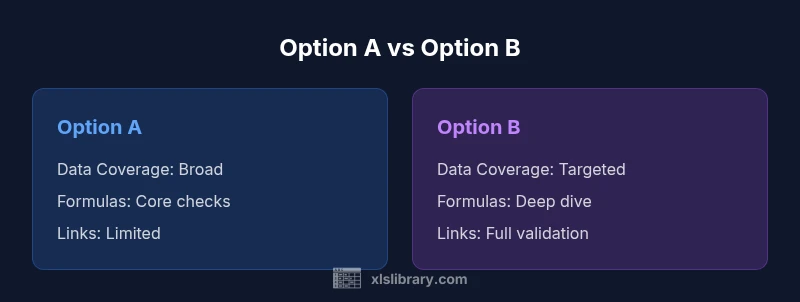
| Feature | Option A: Built-in Diff Tools | Option B: Manual Review Process |
|---|---|---|
| Data Coverage | Automated data diff across cells and ranges | Selective checks focused on critical areas |
| Formula Checks | Exact formula diff and reference tracing | Formula review by eye and spot-checks |
| Macros & External Links | Limited support for macros in diff results | Manual validation for links and macros |
| Audit Trail | Automatic log of changes in some tools | Manual notes and meeting records |
| Time Investment | Lower initial effort with automation | Higher time cost due to manual work |
| Best For | Large datasets and repeatable diff tasks | Edge cases or nuanced business rules |
Benefits
- Improves accuracy through structured diff
- Creates an auditable trail for compliance
- Reduces rework with repeatable workflows
- Can scale with automation and scripting
- Highlights discrepancies quickly
What's Bad
- Automation may require learning curve
- Manual review can be time-consuming on large files
- Macros and external links can be tricky to validate
Automated diff tools combined with targeted manual review deliver the best balance
Use automation to surface diffs and reserve human review for context-rich cases. This hybrid approach provides speed and accuracy, with an auditable trail.
People Also Ask
What is the best tool for comparing Excel files?
The best tool depends on your needs. For large datasets and repeatable tasks, use built-in diff tools or Power Query to automate diffs. Pair with manual review for nuanced checks that tools may miss.
For large datasets, start with built-in diff tools and Power Query to automate diffs, then add manual review for nuanced checks.
How can I compare values across two workbooks?
You can align datasets with Power Query or use formulas like VLOOKUP/XLOOKUP to join tables and reveal differences. Create a diff table that flags mismatches and records the baseline version.
Use Power Query or lookup formulas to join datasets and highlight mismatches in a diff table.
How do I handle external links during a diff?
Check the data connections and ensure the linked sources are identical across versions. Validate paths, refresh settings, and note any broken links in your diff notes.
Verify that data connections and links point to the same sources in each version and document any breaks.
Can formatting changes be considered diffs?
Formatting changes are often cosmetic but can affect readability or export results. Decide on a policy: count only functional changes as diffs, or include formatting in the scope.
Treat cosmetic formatting changes as diffs only if they affect outputs; otherwise, document them separately.
How should I document diffs for audits?
Record the baseline and target versions, the tools used, the exact steps, and the observed differences. Attach the diff report and retain dated snapshots for traceability.
Keep a dated diff report with stated steps and tool details to ensure traceability.
When is manual review essential?
Manual review is essential for complex logic, unusual formulas, or business rules that tools cannot reliably interpret. Always validate tool results with human judgment.
Use manual review for complex logic or nuanced rules that tools can't interpret reliably.
The Essentials
- Define and document the scope of comparisons
- Use both automated and manual checks for accuracy
- Maintain a reproducible diff workflow
- Archive diffs and governance records