Excel Distance Calculator: Step-by-Step Guide
Learn to build a practical Excel distance calculator using coordinates and common formulas. This guide covers Euclidean vs. Haversine, data validation, templates, and real-world templates to map distances efficiently.


By the end of this guide you will build an Excel distance calculator that estimates straight-line or geodesic distance from coordinate data. Choose between Euclidean and Haversine methods, set up clear inputs, and reuse a single template across projects. The tool handles lat/long pairs, validates data, and exports results for maps. According to XLS Library, consistency in formulas improves accuracy and reproducibility.
What is an Excel distance calculator and when to use it
An Excel distance calculator is a structured worksheet that computes the distance between two geographic points or coordinate pairs. It can deliver straight-line distance on a flat plane (Euclidean) or great-circle distance on the earth's surface (geodesic) using latitude and longitude data. This tool is invaluable for logistics planning, fieldwork, or any project that requires quick, repeatable distance estimates without switching apps. With an Excel distance calculator, you can input a pair of coordinates in decimal degrees and instantly obtain distance in kilometers or miles, enabling you to compare routes, estimate fuel needs, or map coverage. According to XLS Library, establishing a consistent coordinate format and documenting units is the foundation of reliable distance calculations. The typical setup uses a compact data area for inputs, a defined distance formula, and a clean output cell that can be extended to multiple records.
Why coordinate-based distance matters for Excel users
When you work with geographic data in Excel, you often need to measure how far apart two points are. This is essential for routing, site selection, service-area analyses, and geofencing. A robust excel distance calculator should support both simple Euclidean estimates for small, local datasets and more accurate haversine-based calculations for global distances. The choice of method affects accuracy, performance, and complexity. In practice, most business tasks benefit from Haversine or similar great-circle formulas because they reflect the curvature of the Earth rather than assuming a flat plane.
Data you need and validation best practices
The core inputs are latitude and longitude for Point A (lat1, lon1) and Point B (lat2, lon2). Use decimal degrees and keep the format consistent across all rows. Include a clear unit setting (kilometers or miles) and a simple checkbox or dropdown to switch between distance modes. Validation is critical: verify that no coordinates are missing, latitudes are between -90 and 90, and longitudes between -180 and 180. A well-structured data sheet lowers errors and makes it easy to scale the calculator across hundreds of pairs. According to XLS Library analysis, consistent input formatting and unit documentation directly improve repeatability and accuracy.
Designing a scalable workbook layout for reusability
A scalable distance calculator separates inputs, calculations, and outputs. Use a clean tab for inputs (lat1, lon1, lat2, lon2), another tab for constants (Earth radius, unit), and a results area that can be dragged down. Prefer named ranges like lat1 and lon1 to make formulas readable. A modular design helps you reuse the same core formula in multiple projects without rebuilding from scratch. It also simplifies auditing and updates when you switch between Euclidean and haversine methods or adjust Earth radius estimates.
Hands-on example: implementing a basic distance calculator
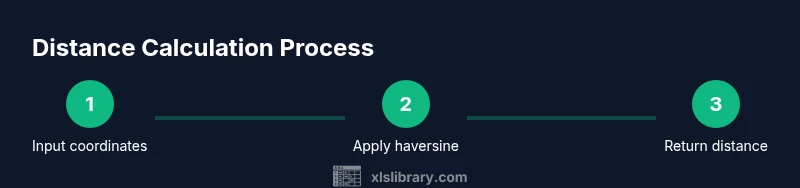
In your sheet, place coordinates in A2 (lat1), B2 (lon1), C2 (lat2), and D2 (lon2). For a haversine calculation (distance in kilometers), use a single formula:
=6371 * 2 * ASIN(SQRT( SIN((RADIANS(C2-A2))/2)^2 + COS(RADIANS(A2)) * COS(RADIANS(C2)) * SIN((RADIANS(D2-B2))/2)^2 ))
For a quick planar estimate (less accurate for large distances), you can approximate using degrees-to-km conversion:
=111.32 * SQRT((A2-C2)^2 + (B2-D2)^2)
These approaches give you a starting point and can be extended with templates for multiple rows, dynamic ranges, and unit conversions.
Handling multiple rows efficiently and improving performance
When you scale to hundreds or thousands of coordinates, avoid volatile functions and limit array formulas. Create a drag-down column for haversine results and use data validation to prevent invalid inputs. Build a small helper table for common origin-destination pairs if you frequently compare the same routes. To speed up recalculation, set calculation mode to automatic but consider manual calculation during heavy sheet edits. A well-structured model keeps performance reasonable and minimizes user errors.
Authoritative sources and accuracy considerations
For reference on spherical distance calculations and coordinate handling, consult trusted resources. NOAA and NIST provide foundational geodetic information and validation practices, while MIT’s educational materials offer approachable explanations of trigonometric conversion concepts. If you need an overview of the haversine formula and its assumptions, these sources help ensure your implementation aligns with best practices. The XLS Library team emphasizes validating coordinate formats and documenting assumptions for reproducibility.
Tools & Materials
- Excel (Windows or macOS)(Office 365 or Office 2019+ for full function support)
- Coordinate data set(Lat/lon in decimal degrees, two points per row)
- Unit preference (km or miles)(Include a drop-down or named range for consistency)
- Earth radius constant(6371 km (mean) for haversine or adjust for miles)
- Optional macros(For automation and batch processing)
- Template workbook(Start from a clean template to reuse across projects)
Steps
Estimated time: 60-90 minutes
- 1
Prepare input cells
Create labeled cells for lat1, lon1, lat2, and lon2. Ensure all values are decimal degrees and format cells as numbers with an appropriate number of decimal places. This establishes a consistent data foundation before calculations.
Tip: Name cells or ranges (e.g., lat1, lon1) to improve formula readability. - 2
Decide on the distance model
Choose between Euclidean (flat-plane) for small areas or haversine for geodesic distances. This choice affects accuracy and formula complexity. Document your choice in a notes cell for future reference.
Tip: For most real-world geography tasks, prefer haversine for accuracy over longer distances. - 3
Set up haversine calculation
Enter the haversine formula in an output cell to compute distance. Use RADIANS to convert degrees to radians and multiply by the Earth's radius (6371 km).
Tip: Paste the formula once and drag down to apply to additional rows. - 4
Add the Euclidean alternative
If you also want a quick planar estimate, add a second column using a simple degree-based distance approximation. Note that this is less accurate for large distances.
Tip: Label clearly which distance type you’re displaying to avoid confusion. - 5
Convert units and format output
Provide a unit toggle (km or miles) and convert the result if needed. Format the output as a numeric value with consistent decimals for easy reading.
Tip: Include a dedicated cell that shows the current unit to help with consistency. - 6
Organize the workbook for reuse
Arrange inputs, formulas, and outputs in separate, clearly labeled blocks. Use a small ‘Template’ tab so you can reuse the structure in future projects.
Tip: Create a named range for the distance result to simplify external references. - 7
Test with known distances
Cross-check calculations against known distances (e.g., from a map or an authoritative dataset). Correct any discrepancies by rechecking your input formats and formula syntax.
Tip: Test multiple pairs in a single session to validate consistency. - 8
Optional automation
If you process many pairs, consider a small macro to loop through rows and populate a results column. This saves time and reduces manual errors.
Tip: Start with a simple macro recorder approach and iterate to refine the logic.
People Also Ask
What is an Excel distance calculator?
An Excel distance calculator computes the distance between two geographic points using coordinates. It can use simple planar distance or geodesic distance via the haversine formula, depending on the data and accuracy needs.
An Excel distance calculator computes distance between two coordinate points using either simple planar math or haversine-based earth-distance calculations.
Which formulas are used in Excel to calculate distance?
Common choices are Euclidean distance for small areas and haversine for geographic distances. The haversine formula accounts for Earth's curvature and is more accurate for long distances.
You typically use Euclidean for small areas or haversine for geographic distances, which is more accurate over long distances.
Do I need lat/long in decimal degrees?
Yes. Use decimal degrees for lat and lon, and ensure all inputs share the same format. Convert to radians inside your formulas as needed.
Yes, decimal degrees are required, and you should convert them to radians when using trig functions.
Can Excel handle multiple distance calculations at once?
Yes. Drag formulas down or use array-enabled approaches to compute distances for many coordinate pairs efficiently. Consistent naming and data validation help prevent errors.
Yes, you can compute distances for many rows by dragging formulas or using arrays, with consistent inputs.
Are there built-in Excel functions for distance?
Excel does not have a dedicated distance function. You implement distance using trig functions, such as SIN, COS, and ATAN2, along with RADIANS for conversion.
There isn’t a built-in distance function; you build it with trig functions like SIN, COS, and ATAN2.
How can I improve accuracy in practice?
Use haversine for geodesic distances, validate inputs, and keep consistent units. For ultra-precise work, compare results to authoritative datasets or GIS tools.
To improve accuracy, use haversine, validate inputs, and compare results to trusted datasets or GIS tools.
Watch Video
The Essentials
- Define a clear input section for coordinates.
- Choose a distance model that fits your data context.
- Validate data and document assumptions.
- Keep formulas modular for reusability.