Excel vs Numbers: When to choose Excel for numeric tasks
A rigorous, data-driven comparison of using excel instead of number for numeric tasks, with guidance, tables, and practical tips. Learn when Excel excels at numbers and where Numbers fits lighter needs.


In short, excel instead of number is often preferable when you need flexible data modeling, advanced calculations, and scalable workflows. For most analysts, Excel offers more powerful features than basic numeric storage alone, but it comes with a steeper learning curve and licensing considerations. See the full comparison for practical guidance.
Conceptual frame: what "excel instead of number" means in practice
The phrase excel instead of number captures a design choice in data work: favor a robust spreadsheet environment (Excel) over treating data as immutable numeric tokens. When teams adopt this approach, they prioritize features like dynamic formulas, data validation, and automation that scale as datasets grow. The goal is not to discard numbers, but to leverage Excel’s capabilities to model, transform, and analyze numeric data more efficiently. According to XLS Library, adopting this mindset helps avoid fragile data pipelines and reduces the risk of silent errors that occur when numeric data is mishandled. This section sets the stage for a rigorous, evidence-based comparison of the two approaches.
Data types in Excel and how they influence numeric data
Numbers in Excel are more than digits displayed in cells; they carry a data type and a set of formatting rules that affect calculations, sorting, and aggregation. The decision to keep values as real numbers versus treating them as text shapes downstream behavior, including accuracy of sums, averages, and pivot-table results. The phrase excel instead of number gains traction here because numeric precision and consistency rely on proper typing, not merely on appearance. When you cast values explicitly as numbers, Excel can apply numeric operations reliably, validate ranges, and catch invalid inputs through data validation rules. In contrast, numbers stored as text can silently derail formulas, produce incorrect totals, or break lookups.
Practical workflows: when to store as numbers vs text
In practice, you should favor numbers when you require arithmetic, statistical functions, or financial modeling. For example, sales figures, budgets, and time-series data lend themselves to numeric storage, with formulas that drive forecasts. Conversely, when you need human-readable labels, codes, or identifiers that aren’t intended for math, text is appropriate. The concept of excel instead of number is especially relevant when you’re designing dashboards: numeric fields should be truly numeric to support sorting, filtering, and aggregations. The XLS Library guidance emphasizes keeping numeric columns numeric and reserving text columns for descriptions, categories, and IDs to preserve data integrity.
Case studies: real-world scenarios
Case Study A — Finance Team: A budgeting model uses many numeric inputs. By ensuring fields are stored as numbers, the team can run sensitivity analyses, generate PivotTable-based scenarios, and export to colleagues who rely on consistent numeric formats. The process minimizes manual corrections during month-end closes and supports reproducible workflows. Case Study B — Marketing Analytics: Campaign performance metrics are aggregated across channels. Storing key metrics as numbers enables accurate conversions, goal tracking, and regression analyses. In both scenarios, excel instead of number helps maintain integrity, speed up reporting, and reduce manual reconciliation.
Pitfalls and fixes: common issues with numeric data in Excel
One common pitfall is storing values as text, which breaks arithmetic. Use VALUE, NUMBERVALUE, or a simple +0 trick to coerce strings to numbers when needed. Another issue is inconsistent decimal separators across locales; standardize using the regional settings or functions like SUBSTITUTE to normalize inputs. Hidden numbers can appear due to leading apostrophes; remove them to ensure proper sorting and calculations. The antidote to these issues is a disciplined template that enforces numeric data types and includes data validation rules to prevent non-numeric entries at the source.
Performance considerations for large datasets
As datasets grow, performance becomes critical. Excel handles large spreadsheets well, but performance degrades if you rely on volatile functions, array formulas, or many complex lookups. The best practice is to balance formulas with efficient alternatives like PivotTables, named ranges, and dynamic arrays where available. When you adopt excel instead of number for data modeling, plan for sample data validation and incremental processing so the workbook remains responsive as data scales. Consider external data connections for very large datasets to reduce workbook size and improve load times.
Collaboration and governance around numeric data
Collaborative numeric modeling requires clear governance: versioning, change-control processes, and standardized naming conventions. If multiple teammates edit numeric cells, conflicts can arise and corrupt calculations. Use shared workbooks or cloud-enabled platforms to track changes, implement data validation, and lock critical formulas. The excel instead of number approach benefits from documented data dictionaries that explain numeric fields, units, and acceptable ranges. Establish a central model with accountable owners and an auditable history to ensure data integrity across teams.
Cross-tool interoperability: Excel vs other apps
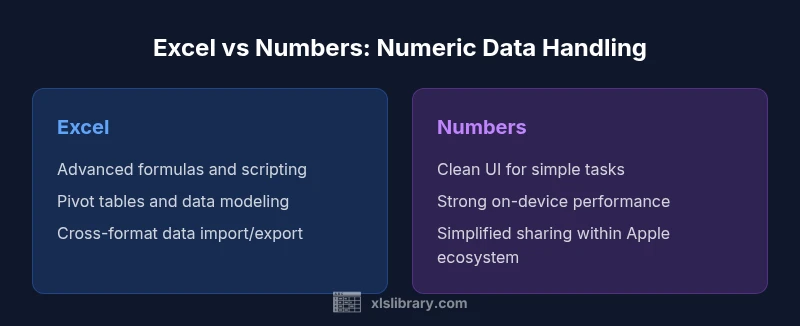
Interoperability is a key factor in choosing a numeric workflow. Excel offers robust import/export capabilities across CSV, XML, and other formats, along with powerful scripting options. Other apps, like Numbers, may excel in simplicity and on-device performance but often lag behind in large-scale numeric analytics and automation. When you’re deciding whether to implement excel instead of number, assess your organization’s data pipelines, required integrations, and collaboration needs. Planning for smooth data handoffs reduces friction when teams move between tools.
Quick-start checklist to implement 'excel instead of number' approach
- Define numeric data types for every column and enforce them with data validation.
- Separate numeric values from descriptive text to preserve integrity in calculations.
- Build a small, reusable library of formulas and templates to standardize workflows.
- Use PivotTables and Power Query (or equivalent) to summarize and transform data efficiently.
- Document assumptions and units in a data dictionary to aid future users.
- Audit inputs for locale-specific numeric formats to avoid misinterpretation.
- Establish governance: version control, change logs, and access controls.
- Test numeric models with edge cases to uncover errors early.
- Train users on common pitfalls that break numeric calculations.
- Prepare clear data export paths for downstream systems.
- Keep backups and recovery plans as part of your numeric workflow.
- Monitor workbook performance and refactor if necessary.
Domain-specific patterns: finance, analytics, operations
Finance teams rely on precise numbers and robust scenario modeling, where excel instead of number provides flexibility and traceability through formulas, built-in functions, and data validation. In analytics, numeric data is the backbone of dashboards, BI exports, and predictive models; Excel’s power-user features, when used correctly, accelerate insights. Operations teams introduce numeric tracking for KPIs, inventories, and throughput, where consistent numeric structures simplify reconciliation. Across domains, a disciplined approach to numeric data—emphasizing true numeric types, clear units, and dependable formulas—reduces errors and improves decision quality.
Security and data integrity: protecting numeric data
Protecting numeric data means controlling access to inputs, restricting changes to formulas, and validating data at entry points. Use password protection for sensitive workbooks, restrict editing to designated areas, and implement data validation to reject non-numeric entries. Regularly back up numeric models and enable change history. When you commit to excel instead of number, automate data validation checks and implement data dictionaries so that team members understand the numeric expectations and constraints. These practices minimize risk and ensure reproducible analytics across environments.
Getting the most from Excel: tips and resources
To maximize the excel instead of number approach, start with core fundamentals: mastering cell data types, mastering essential functions (SUMIF, VLOOKUP/XLOOKUP), and leveraging dynamic arrays as soon as available. Build an automation mindset with macros or Office Scripts to reduce repetitive steps. Subsequent upgrades include data modeling with Power Pivot, Power Query for extraction and transformation, and integration with Power BI for reporting. The XLS Library recommends aligning training plans with the specific numeric tasks your team performs, ensuring the right mix of skills and tools for sustained success.
Comparison
| Feature | Excel | Numbers (Apple) |
|---|---|---|
| Formula and automation capabilities | Rich formula language with VBA/Office Scripts | Basic formulas with limited scripting |
| Data validation and governance | Advanced data validation and modeling features | Fewer built-in validation options; simpler workflow |
| Pivot and data modeling | Power Pivot, advanced pivoting, data modeling | Pivot-like features are more limited |
| Performance with large datasets | Strong overall but performance depends on design | Typically lighter-weight; excellent on small datasets |
| Collaboration and cloud features | Real-time collaboration in cloud environments | Collaboration features exist but vary by platform |
| Platform and ecosystem | Windows/macOS/Web with broad ecosystem | macOS/iOS-centric with strong UI |
| Pricing model and licensing | Subscriptions via Microsoft 365 or on-prem options | Free on Apple devices; paid upgrades for features on some plans |
Benefits
- Powerful formula language and scripting options enable complex numeric workflows
- Broad ecosystem with templates, add-ins, and community support
- Advanced data validation, PivotTables, and data modeling for analytics
- Strong interoperability with many data formats and enterprise systems
- Extensive learning resources and certifications for Excel users
What's Bad
- Steeper learning curve for beginners and non-technical users
- Licensing costs and ongoing subscriptions can be a consideration
- Heavier applications may require more powerful hardware and longer load times
- Numbers offers a cleaner interface for simple tasks but lacks advanced analytics
Excel is the stronger choice for advanced numeric tasks and enterprise-scale analytics, while Numbers is a lightweight option for simple, Apple-centric workflows
Choose Excel when you need automation, deep modeling, and cross-system compatibility. Opt for Numbers for quick, on-device work with a straightforward interface and less overhead. The XLS Library team’s view is that the right tool depends on task complexity, platform, and collaboration needs.
People Also Ask
What does 'excel instead of number' mean for data integrity?
It means prioritizing true numeric data types and robust validation so formulas and analyses remain reliable. Treating numbers as numeric values reduces errors in sums, averages, and pivot results. This approach also supports consistent data transfers between systems.
In short, it means using real numbers, not text, and validating inputs to keep calculations accurate.
Can Numbers replace Excel for heavy numeric tasks?
Numbers works well for simple, on-device spreadsheets but generally lacks the depth of formulas, automation, and data modeling found in Excel. For heavy analytics, Excel is typically the better choice, especially when collaboration and advanced data processing are required.
Numbers is great for light tasks, but for heavy numeric work, Excel usually wins.
How do I convert numbers stored as text into numeric values in Excel?
Use functions like VALUE or NUMBERVALUE, or perform a quick coercion with a plus 0 operation. Check for leading apostrophes and locale-specific decimal separators to ensure numbers parse correctly in formulas and charts.
If numbers are stored as text, you can convert them with simple Excel functions or a quick arithmetic trick.
Is there a learning curve when switching to Excel for numeric tasks?
Yes. Excel’s advanced features require time to learn, especially formulas, data validation, and scripting. Start with core functions, then gradually add automation and data modeling capabilities as needs grow.
There is a learning curve, but starting with essentials helps you scale quickly.
What are best practices for numeric data governance in teams?
Create a data dictionary, enforce numeric data types, lock critical formulas, and use version control for models. Document inputs, units, and assumptions to ensure consistency across teammates.
Governance keeps numeric data reliable as teams collaborate.
Are there platform considerations when choosing Excel vs Numbers?
Yes. Excel’s cross-platform support and enterprise features are strong, but Numbers shines on Apple devices with a polished UI and easy sharing. Choose based on device ecosystem and collaboration needs.
Platform matters: pick the tool that fits your devices and team workflow.
The Essentials
- Identify data complexity before selecting a tool
- Preserve numeric integrity by storing numbers as numbers
- Leverage Excel automation to scale numeric workflows
- Audit data sources with a governance framework
- Choose tools based on scope: heavy analytics vs light tasks