Excel Template Expense Tracking: A Practical Guide
Learn to design a reusable Excel expense-tracking template with data validation, formulas, dashboards, and step-by-step setup to organize personal and business spending efficiently.


Create an automated Excel expense-tracking template that captures income, expenses, and reimbursements, then totals by category and month. You’ll define categories, set up automatic sums, and include optional dashboards. According to XLS Library, a well-structured workbook reduces manual entry errors and makes monthly budgeting effortless. This guide walks you through setup, formulas, data validation, and practical examples to ensure you can reuse the template for personal or business tracking.
Why an Excel expense-tracking template matters
Tracking every dollar by hand quickly becomes error-prone, especially as receipts accumulate across weeks or months. An Excel expense-tracking template provides a single source of truth, a structured way to capture every transaction, and a clear trail for audits. When designed well, it turns raw data into meaningful summaries — monthly spend, category breakdowns, and year-over-year trends — without requiring complex software.
A purpose-built template reduces manual data entry, enforces consistent data formats, and minimizes duplicate records. It also makes it easier to import receipts, attach notes, and generate reports for tax time or budget reviews. According to XLS Library, templates in Excel empower users to standardize data capture across periods and teams, which supports reproducible budgeting and transparent reporting.
In this section, you’ll see how the template fits into a practical workflow, from raw entries to executive dashboards. Expect guidance on field selection, data validation, and how to structure your workbook for simple updates and future reuse. The goal is to create a scalable system that you can adapt for personal finances, client projects, or departmental spending.
Core design principles for an effective expense tracker
An effective expense tracker follows several core design principles. First, separate data entry from calculations and visualization. Use clearly labeled sheets such as Data, Summary, and Dashboard so readers can quickly locate where to input data and where to find insights. Second, adopt consistent data formats and validation rules to avoid mismatched entries. Third, structure the workbook so it’s easy to extend: add months, categories, or new expense types without breaking existing formulas. Finally, emphasize auditability by retaining receipts or references and maintaining a simple change log.
XLS Library’s approach emphasizes a modular design and explicit naming conventions. A well-scaffolded template supports audits, collaboration, and future upgrades without requiring a full rebuild each year. By planning for growth from day one, you’ll save time and prevent fragile workarounds later on.
Essential fields and categories for your template
A robust expense-tracking template starts with the right data fields. At minimum, include: Date, Description, Category, Amount, and Payment Method. You may also track a Receipt reference, Tax/VAT, Project or Department, and Currency if needed. Establish a standard list of categories (e.g., Travel, Office Supplies, Meals, Utilities) and store it on a separate sheet for easy validation.
Use a data validation list for Category and Payment Method to prevent typos and inconsistent naming. Consider a separate currency column if you work across regions, and enforce a single currency to simplify totals. Dead-simple fields with consistent formats give you clean data for reliable analysis and dashboards.
Building your template: Structure and formulas
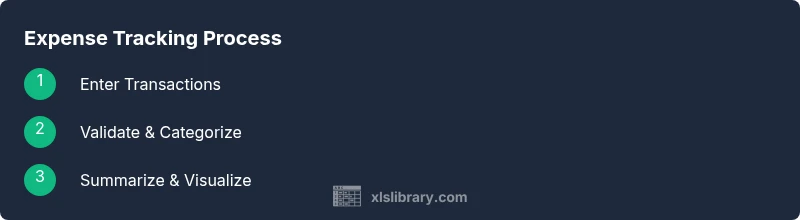
Create a workbook with three core sheets: Data (for entry), Summary (for quick totals), and Dashboard (for visuals). In Data, convert your entries into a formal Excel Table (Ctrl+T) so formulas automatically expand as you add rows. Use SUMIFS to total by category and month, for example: =SUMIFS(Amounts, Dates, ">="&FirstOfMonth, Dates, "<"&FirstOfNextMonth, Categories, selectedCategory).
For monthly trends, extract the month from the date with =TEXT(Date, "mmmm"). Use a pivot table to summarize monthly spend by category, then chart it for a visual dashboard. If you need precise lookups, XLOOKUP or VLOOKUP can pull category-specific budgets or color codes to the Summary sheet.
Finally, keep a separate sheet or table for recurring expenses and import data from CSV exports when available to maintain consistency.
Automations and data integrity tips
Turn on Excel Tables (Ctrl+T) so formulas automatically fill new rows. Add data validation lists for Category and Month to prevent typos and ensure consistent reporting. Use conditional formatting to highlight unusual or high spend entries, which helps flag potential data errors or fraud. Create named ranges for commonly used data (e.g., CategoryList, MonthList) to simplify formulas and improve readability.
If you anticipate regular imports, consider Power Query to clean and merge external data before it lands in the Data sheet. Regular backups and versioning are essential when the workbook becomes a collaboration hub. Finally, set up simple error checks, such as a running total that should not deviate from a trusted baseline by more than a small percentage.
Template customization: recurring expenses, budgets, and dashboards
Recurring expenses can be streamlined by marking entries with a Recurring flag and populating a separate Recurring table that auto-inserts monthly rows. Budgets per category can be tracked by a Budget column in Summary and a VARIANCE measure on the Dashboard to show overruns at a glance. Dashboards benefit from interactive elements like slicers for year or category, plus pivot charts that update automatically as new data arrives.
For teams, build a shareable template on OneDrive or SharePoint with clear permissions. Document how to use the template, where to input data, and how to update budgets. A well-documented blueprint makes it easy for others to adopt and adapt the template without rework.
Common pitfalls and how to avoid them
Common mistakes include inconsistent category naming, missing dates, and failing to back up the workbook. Another pitfall is overloading the Data sheet with raw receipts instead of structured entries. Avoid this by enforcing a uniform entry form and optional attachments via links rather than embedding images in cells. Finally, avoid hard-coding values directly in formulas; use named ranges or a configuration sheet instead so updates don’t break calculations.
Quick-start blueprint you can copy
If you’re short on time, start with a compact blueprint: a Data sheet with seven columns (Date, Description, Category, Amount, Payment Method, Receipt, Notes); a CategoryList on a separate sheet; a Summary sheet with category totals and monthly totals; and a Dashboard with two charts: Monthly Spend by Category and Category Breakdown. Save a copy as a template to reuse for future years and projects.
Tools & Materials
- Excel or compatible spreadsheet app(Office 365/Excel 2019+ recommended for best features)
- New blank workbook or copy of a starter expense template(Create a file named 'Expense Tracker 2026' to begin.)
- Receipts, invoices, or exportable CSV data(Use digital copies when possible for easy attachment or reference.)
- List of expense categories(Store on a separate sheet for data validation.)
- Backup storage(Cloud or external drive to back up the template regularly.)
Steps
Estimated time: 60-90 minutes
- 1
Define purpose and outputs
Start by outlining the reports you need: monthly expenses by category, year-to-date totals, and a dashboard for quick decisions. Clarify who will use the template and what data must be captured at entry.
Tip: Write down your required reports and data fields before you start designing the sheet. - 2
Create the data-entry sheet
Set up a table with columns for Date, Description, Category, Amount, Payment Method, Receipt, and Notes. Turn the range into a formal Excel Table so it expands automatically as you add rows.
Tip: Use Ctrl+T to convert the data range to a table for dynamic ranges. - 3
Establish data validation
Create drop-down lists for Category and Payment Method to minimize typos. Add a date format constraint and a single currency rule if you’re tracking in one currency.
Tip: Link the validation lists to a CategoryList sheet to keep them consistent. - 4
Add core calculations
Implement SUMIFS to compute totals by category and month. Use TEXT(Date, "yyyy-mm") to group by month, or use a PivotTable for automatic summaries.
Tip: Keep calculations in a dedicated Summary sheet to simplify maintenance. - 5
Build the summary sheet
Summarize data by category and month. Include a small variance column against a budget and a running total for quick health checks.
Tip: Label cells clearly and avoid hard-coded numbers in formulas. - 6
Create the dashboard
Add charts (column or bar charts) showing monthly spend by category and a pie chart for category distribution. Link charts to the Summary data and add slicers for year or category.
Tip: Use a clean layout with ample white space for readability. - 7
Test with sample data
Populate the Data sheet with a full month of sample transactions to verify formulas, charts, and filters. Adjust any misalignments before real use.
Tip: Simulate edge cases like refunds or negative adjustments to ensure correctness. - 8
Save and share
Save as a template, set up a simple versioning plan, and share with teammates via OneDrive or SharePoint. Document usage steps for new users.
Tip: Keep a master copy and create individualized templates for each project.
People Also Ask
What is an expense tracking template?
An expense tracking template is a structured Excel workbook designed to capture, categorize, and summarize spending. It provides a consistent data entry layout, built-in calculations, and visual dashboards to help you manage budgets and track outcomes over time.
An expense tracking template is a structured Excel workbook to capture, categorize, and summarize spending, with built-in calculations and dashboards.
What columns should I include?
Include at minimum: Date, Description, Category, Amount, and Payment Method. You may also add Receipt, Notes, Tax/VAT, Project or Department, and Currency if needed.
A minimal set is Date, Description, Category, Amount, and Payment Method, with optional Receipt and Notes.
How do I ensure data accuracy?
Use data validation for categories and methods, enforce consistent date and currency formats, and perform periodic checks against totals. Keeping data in a consistent table structure helps formulas stay reliable.
Use drop-downs for accuracy, keep formats consistent, and periodically check totals.
Can I automate receipts?
You can store links to electronic receipts or attach image paths, but Excel itself doesn’t host images inline. Use a consistent filing system and link references in the Notes field for quick access.
You can link to receipts or store image paths; Excel can’t embed all receipts directly.
Is this suitable for personal or business use?
The template can be customized for either case. Adjust categories, budgets, and reporting scope to fit personal monthly budgets or departmental procurement.
Yes—adjust categories, budgets, and scope for personal or business use.
How do I share the template with others?
Save the workbook to a shared location and set appropriate permissions. Consider creating a read-write version for teammates and a read-only template for consistency.
Save to a shared drive and set permissions so others can use or review the template.
Watch Video
The Essentials
- Define clear categories and date formats.
- Use data validation to prevent errors.
- Leverage PivotTables for quick summaries.
- Back up and version-control your workbook.