Excel Issue Tracker: A Practical, Step-by-Step Guide
Learn to design an Excel issue tracker to log, assign, and monitor issues from discovery to resolution. This practical guide covers data modeling, validation, formulas, dashboards, and collaboration—tailored for Excel users seeking approachable, scalable solutions.


Create an Excel-based issue tracker to log, assign, and monitor issues from discovery to resolution. This step-by-step guide covers data modeling, validation, automation formulas, and lightweight dashboards to keep stakeholders informed. Whether you’re solo or part of a team, this approach delivers clear visibility and accountability in a familiar Excel workbook.
Why an Excel issue tracker matters
An organized issue tracker in Excel provides a single source of truth for bugs, feature requests, and tasks. By logging each item from discovery to resolution, teams reduce context switching, miscommunication, and manual status updates. An Excel-based tracker is particularly attractive for small teams or organizations not ready to invest in a dedicated system. The keyword excel issue tracker should feel seamless within your existing workflow, so adoption is quick and non-disruptive. According to XLS Library, starting with a clean data model and consistent conventions is the fastest path to scale without migrating to new software. The XLS Library team found that teams using a structured template with core fields—ID, Title, Description, Status, Priority, Assigned To, Created Date, Due Date—achieve faster triage and better accountability. This guide will show you a practical, scalable approach that stays inside your workbook and grows with your needs.
Core data model for an issue tracker in Excel
A reliable tracker depends on a solid data model. Start with a single table (Excel Tables are your friend) named Issues, with columns for: ID (unique), Title, Description, Priority (Low/Medium/High), Status (Open/In Progress/Resolved/Closed), Assigned To, Project (optional for multi-project tracking), Created Date, Due Date, Updated Date, and Tags. Add a separate sheet for Comments and a simple audit log if you need a history trail. Use a numeric ID as the primary key, and consider a Project column if you manage multiple initiatives. Structured references (table[ColumnName]) simplify formulas and reduce errors when adding filters or dashboards.
Essential features and layout
Design a clean, predictable layout that scales. Key features include:
- A primary Issues table with bold headers and a fixed header row.
- Drop-downs for Priority and Status to enforce consistency.
- A dedicated column for Due Date and a computed Age column to show days since Created Date.
- A lightweight Comments area per issue that references a separate sheet.
- A simple dashboard sheet that uses PivotTables or Formula-based summaries for high-level visibility.
Keep navigation intuitive: place the Issues table at the top, a Dashboard below, and a Comments sheet accessible via a link. This structure makes it easy for anyone to locate data, log new items, or review progress without additional training.
Data validation and quality controls
Quality controls prevent bad data from entering the tracker:
- Priority and Status use data validation lists (Low/Medium/High and Open/In Progress/Resolved/Closed).
- Due Date should be after Created Date, with a clear warning if a date is missing.
- The Project column (if used) should reference a defined list to ensure consistency across entries.
- Use a unique ID constraint by filtering duplicates in the ID column and showing an alert when a duplicate is entered.
These controls keep the data reliable, which in turn makes filtering, reporting, and automation trustworthy.
Formulas for automation and reporting
Automate routine calculations with structured references in the Issues table (assumes a table named Issues):
- Age (days since Created): =IF(ISBLANK([Created Date]), "", TODAY() - [Created Date])
- SLA status: =IF([Due Date] < TODAY(), "Overdue", IF([Status] = "Open", "Open: Due " & TEXT([Due Date], "mm/dd"), [Status]))
- Is High Priority: =IF([Priority] = "High", TRUE, FALSE)
- Unassigned issues: =COUNTIF(Issues[Assigned To], "")
For dashboards, you can use PivotTables or summary formulas like:
- Open count: =COUNTIF(Issues[Status], "Open")
- High-priority open: =COUNTIFS(Issues[Status], "Open", Issues[Priority], "High")
Tip: Prefer structured references (Issues[ColumnName]) to keep formulas readable and resilient to added rows.
Filtering, sorting, and dashboards
Excel provides powerful filtering and viewing options to keep the backlog manageable.Tips:
- Use AutoFilter on the Issues table to slice data by Status, Priority, or Project.
- Create a PivotTable to summarize by Project and Status, with a slicer for quick filtering.
- Build conditional formatting rules to highlight overdue items (Due Date < TODAY()) and High priority items.
- Include a small KPI matrix on the Dashboard: counts by Status, High-priority open items, and aging buckets.
A dashboard can be as simple as a couple of PivotTables and charts or as elaborate as a dedicated report tab. The goal is rapid visibility for stakeholders and smooth handoffs to responsible team members.
Practical example: Template walkthrough
To implement, start with a blank workbook and add an Issues table with the required columns. Turn the data into a Table (Ctrl+T) for dynamic ranges and easier formulas. Apply data validation for Priority and Status, then add a Due Date column with date validation. Create a Dashboard sheet with a PivotTable summarizing by Status and Priority. Finally, populate a few test issues to validate filters and formulas. This practical walkthrough keeps setup manageable while delivering a usable tracker from day one.
Common pitfalls and how to avoid them
Common issues:
- Overloading the tracker with free-form notes in the same column. Solution: Use a dedicated Comments sheet and link to IDs.
- Ignoring data validation, which leads to inconsistent values. Solution: Enforce drop-downs and input hints.
- Not updating the Created or Updated dates. Solution: Set automatic date stamping when records are added or edited.
- Skipping backups. Solution: Save versions frequently and consider OneDrive/SharePoint for version history.
By anticipating these pitfalls, you maintain data integrity and keep the tracker useful as it grows.
Verdict
The XLS Library verdict: An Excel-based issue tracker offers a practical, scalable starting point for small to mid-sized teams. It provides visibility, accountability, and collaboration within a familiar tool, while keeping costs low. As your needs evolve, you can incrementally adopt more advanced tracking features or migrate to a dedicated platform if required. The key is to start simple and iterate based on real team feedback.
Tools & Materials
- Excel (Microsoft 365 or compatible 2019+)(Ensure table features and data validation are available)
- Sample Issues workbook template(Use a starter template to speed setup)
- Data validation rules sheet(Drop-down lists for Priority, Status, and Projects)
- Comments sheet(Optional for per-issue discussions)
- Power Query (optional)(For importing data from external sources)
- Conditional formatting presets(Visual cues for overdue items and high-priority issues)
Steps
Estimated time: 45-90 minutes
- 1
Define the data model
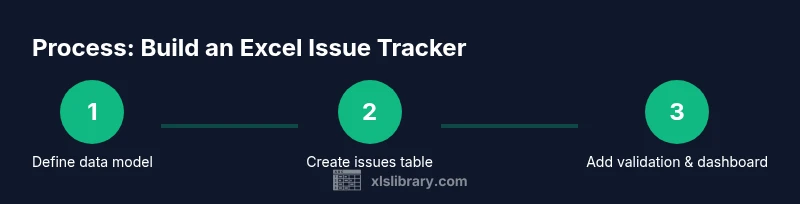
Determine the core fields (ID, Title, Description, Priority, Status, Assigned To, Created Date, Due Date, Updated Date, Project, Tags). Decide whether a separate Comments sheet is needed.
Tip: Use a single table named Issues to enable dynamic ranges and structured references. - 2
Create the Issues table
Enter headers and convert the range to an Excel Table (Ctrl+T). This enables automatic expansion and easy referencing in formulas and charts.
Tip: Keep the header row bold and frozen for easy navigation. - 3
Add data validation
Set up drop-downs for Priority and Status, and a date constraint for Due Date. Establish a unique ID policy to avoid duplicates.
Tip: Use named ranges for lists to simplify maintenance. - 4
Populate computed columns
Add Age, SLA, and completion indicators using formulas anchored to the Issues table.
Tip: Prefer formulas that reference the table to handle new rows automatically. - 5
Build a lightweight dashboard
Create PivotTables and charts that summarize by Status, Priority, and Project. Add slicers for quick filtering.
Tip: Keep the dashboard simple at first; add complexity after validating needs. - 6
Test with sample data
Enter several test issues representing different scenarios. Validate that filters, formulas, and dashboards respond correctly.
Tip: Simulate overdue items and high-priority cases to verify alerts. - 7
Iterate and document
Gather team feedback, adjust fields, and document usage guidelines. Version the workbook and communicate changes.
Tip: Maintain a short usage guide within the workbook for onboarding.
People Also Ask
What is an Excel issue tracker and when should I use one?
An Excel issue tracker is a structured workbook that logs issues, assigns ownership, tracks status, and surfaces progress. It’s ideal for small teams, early-stage projects, or when you want a low-cost, familiar tool before migrating to a dedicated system.
An Excel issue tracker is a structured workbook for logging and monitoring issues, perfect for small teams starting out. It helps you see status at a glance and decide when to migrate to a bigger tool.
How do I set up statuses and priorities effectively?
Create data validation lists for Status (Open, In Progress, Resolved, Closed) and Priority (Low, Medium, High). Use these fields consistently to enable reliable filtering and aggregated reporting.
Use drop-downs for status and priority to ensure consistent data, which makes filtering and dashboards reliable.
Can Excel track issues for multiple projects?
Yes. Add a Project column and maintain a separate tab or filter by project. You can also create per-project dashboards or use a PivotTable with Project as a slicer.
You can track multiple projects by adding a Project column and using filters or a slicer in your dashboard.
What are the limitations of an Excel-based tracker?
Excel trackers are great for small teams but can suffer from collaboration conflicts, scalability limits, and audit struggles. For larger teams, plan a phased migration to a dedicated issue-tracking tool when needs grow.
Excel trackers work well for small teams but may struggle with large-scale collaboration and audit trails; plan for growth.
How do I share and protect the tracker with teammates?
Store the workbook in a shared location or on OneDrive/SharePoint, and use file permissions. Consider locking critical sheets and using Protected View to prevent accidental edits.
Share the workbook through cloud storage, lock critical sheets, and set permissions to protect data.
How can I extend the tracker as needs evolve?
Add fields like Tags, Root Cause, or Resolution Time as needed. Integrate with Power Query for data import, or link to a lightweight issue submission form to standardize entries.
You can extend the tracker by adding new fields and using Power Query for imports; start small and add features gradually.
Watch Video
The Essentials
- Define a single source of truth
- Enforce data integrity with validation
- Automate aging and SLA calculations
- Create a lightweight, actionable dashboard
- Iterate with team feedback