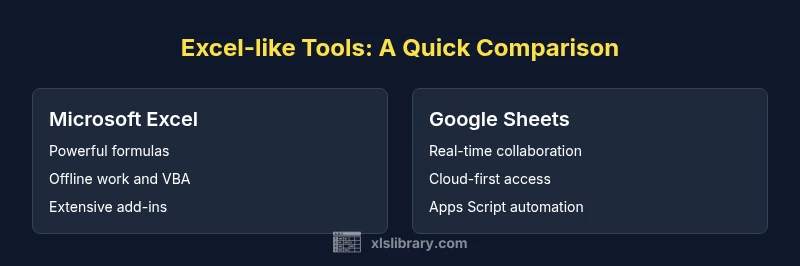
Excel-like Tools: A Practical Comparison
Objective, practical comparison of Excel-like tools—Excel, Google Sheets, Calc, and Airtable—covering formulas, collaboration, data capacity, automation, and licensing to help teams choose wisely.


TL;DR: Microsoft Excel remains the most powerful desktop option for deep data work, with advanced formulas, large datasets, and mature tooling. Google Sheets shines in real-time collaboration and cloud access, ideal for distributed teams. LibreOffice Calc and Airtable offer budget-friendly or workflow-focused trade-offs. See the full, objective comparison below.
Why Excel-like tools shape modern data workflows
According to XLS Library, organizations increasingly rely on a spectrum of spreadsheet tools to support data work, from traditional desktop Excel to cloud-based equivalents. The choice is rarely binary: teams often start with the familiar, then layer in cloud collaboration, automation, and data integrations as needs evolve. This article, grounded in practical use cases and tested criteria, helps aspiring and professional Excel users assess which tool—or mix of tools—best fits their workflows. The XLS Library team emphasizes that the optimal choice blends power, accessibility, and governance, not just feature count. By examining real-world scenarios, we reveal why Excel-like tools are central to everyday data tasks and how to choose with confidence.
Key criteria to compare Excel-like tools
To compare Excel-like tools objectively, focus on criteria that matter in practice:
- Formulas and data modeling depth: breadth of functions, array formulas, and scripting capabilities.
- Collaboration and access: real-time editing, version control, and offline support.
- Data scale and performance: how well the tool handles large datasets and complex calculations.
- Automation and extensibility: built-in macros, scripting, and third-party add-ins.
- Data integrity and governance: validation, auditing, and security controls.
- Integrations and data sources: connectors to external databases, BI tools, and cloud services.
- Licensing and total cost of ownership: licensing models, entry cost, and ongoing upgrades.
- Platform reach: desktop vs cloud-first orientation and cross-device compatibility.
Each criterion is evaluated across the major tools so readers can map their priorities to concrete outcomes. The goal is not to prescribe a single winner but to illuminate the trade-offs and best-use cases for each option.
Core capabilities: formulas, data modeling, and extensibility
Spreadsheet tools derive much of their power from formulas and the ability to model data relationships. Excel’s formula language includes a rich set of functions, array formulas, and a mature scripting ecosystem (VBA and more recently modern Office Script). Google Sheets offers core functions with strong array support and Apps Script for automation, enabling rapid customization. Calc provides a solid formula family suitable for day-to-day tasks with room for macro support, while Airtable emphasizes relational thinking through linked records and automation blocks. The choice here hinges on the complexity of calculations, the need for custom automation, and the ease of extending the tool with external services. For heavy numerical modeling, Excel tends to be the reference standard; for lightweight or collaborative modeling, Sheets often suffices. The XLS Library Analysis, 2026 underpins these observations and frames them in practical terms for teams transitioning between tools.
Collaboration and accessibility: cloud vs desktop
Collaboration is a core differentiator among Excel-like tools. Desktop-only Excel excels in performance and offline reliability for single users or tightly controlled environments. Cloud-first tools like Google Sheets provide real-time co-authoring, easy sharing, and cross-device access, which accelerates teamwork and reduces version conflicts. Calc and Airtable sit somewhere in between, offering moderate collaboration features and path toward automation. A practical decision rule: if your team operates across multiple geographies or remote roles, prioritize cloud-enabled tools that support concurrent editing and seamless sharing. If your work requires heavy offline processing, advanced local data modeling, or strict governance, desktop-first solutions may be preferable. The balance between collaboration speed and data integrity should guide the final choice.
Performance and data scale considerations
Performance scales with data size and calculation complexity. Excel generally handles very large worksheets with sophisticated calculations, but performance is tied to hardware, add-ins, and file organization. Google Sheets tends to perform best with smaller datasets and simple formulas, with latency increasing as data grows or when using many scripts. Calc and Airtable offer moderate performance profiles suitable for mid-sized tasks, but users should expect diminishing returns with multi-million-cell models or high-velocity automation. Teams should benchmark with representative datasets and consider workspace design, such as separating raw data from analysis sheets, to maintain responsiveness. This pragmatic approach aligns with XLS Library Analysis, 2026 findings on practical capacity planning.
Automation and scripting ecosystems
Automation is the backbone of scalable data work. Excel’s VBA remains a robust tool for complex, repeatable tasks and enterprise workflows, supported by Office Scripts for browser-based automation. Google Sheets leans on Apps Script, which is approachable for developers and can be ported to other Google services. Calc supports macro-like functionality, while Airtable offers automation blocks that integrate with its relational data model. When choosing, consider the organization’s programming skills, preferred scripting environments, and the need for cross-product automation. A well-chosen tool reduces manual steps and enables teams to focus on analysis rather than procedural chores.
Data integrity, validation, and auditability
Maintaining data quality is critical. All four tools provide validation rules, though the depth varies. Excel offers robust data validation, audit trails via versioning in collaboration environments, and explicit controls for spreadsheet integrity. Sheets provides version history and protected ranges that help prevent accidental edits in shared workspaces. Calc includes validation options and macros for governance, while Airtable’s relational design makes data integrity a natural outcome of structured records. Organizations should implement a layered approach: define validation rules, enforce access controls, and maintain a clear audit trail for analyses. This reduces risk and supports reproducibility across teams.
Ecosystem and integrations
A strong ecosystem amplifies tool power. Excel integrates deeply with the broader Microsoft 365 suite, Power Query for data ingestion, and a vast catalog of add-ins. Google Sheets shines with built-in cloud connectors and easy access to Apps Script-enabled services, plus seamless collaboration with Drive. Calc appeals to open-source communities and legacy workflows, while Airtable connects with popular automation platforms and API-based data sources. When selecting, map required data sources, BI tools, and automation pipelines to the tool’s native integration capabilities. A well-integrated stack minimizes manual data handoffs and accelerates insight generation.
Practical use cases: choose based on needs
If your work demands heavy numerical modeling, advanced analytics, and offline reliability, Excel is often the best choice. If your team requires real-time collaboration, quick sharing, and flexible cloud access, Sheets is a strong fit. For budget-conscious environments or teams prioritizing straightforward data organization with automation, Calc and Airtable offer compelling trade-offs. In mixed environments, a hybrid approach—using Excel for core analysis and Sheets for collaboration—can provide a practical balance. The specific choice should hinge on data complexity, collaboration needs, device availability, and governance requirements.
Getting started: migration, training, and adoption tips
Begin with a needs assessment that prioritizes your top workstreams: data modeling, automation, and collaboration. Create a small pilot project comparing two tools on a representative task, such as data cleaning, merging sources, and generating a dashboard. Invest in targeted training that emphasizes the most impactful features for your team, whether that’s advanced formulas, Apps Script, or macros. Establish governance: define naming conventions, version control practices, and update cycles. Finally, plan a gradual migration path or a hybrid approach to minimize disruption. Consistent practice plus structured onboarding accelerates adoption and maximizes ROI.
Comparison
| Feature | Microsoft Excel (desktop) | Google Sheets (cloud) |
|---|---|---|
| Formulas & functions | Extensive desktop-grade functions including advanced analytics and VBA | Core functions with cloud-based automation via Apps Script |
| Collaboration | Limited real-time collaboration in legacy setups; newer versions add co-authoring | Real-time collaboration with instant syncing for multiple editors |
| Data capacity & performance | Very large datasets with high calculation power; performance depends on hardware | Strong for small-to-mid datasets with responsive cloud performance |
| Automation & scripting | VBA and Office Script support for advanced automation | Apps Script support for automation within Google ecosystem |
| Offline access | Excellent offline capability on desktop apps | Limited offline editing in some browsers and mobile apps |
| Pricing/licensing | License-based with Office suite; enterprise options | Subscription-based with free tiers and cloud-first pricing |
| Integrations & data sources | Broad ecosystem; Power Query and extensive add-ins | Strong Google ecosystem connectors and built-in APIs |
Benefits
- Powerful data modeling and formula depth
- Strong offline capability and enterprise features
- Extensive ecosystem and third-party add-ins
- Wide availability of training resources
What's Bad
- Licensing can be costly and complex
- Steeper learning curve for advanced features
- Collaboration can be slower in desktop-centric setups
- Macros (VBA) can be brittle and hard to maintain
Excel is the strongest overall for power users, while Sheets excels in collaboration; the best choice depends on your team’s data size and workflow needs.
Choose Excel for deep analytics and offline work. Choose Sheets for team collaboration and cloud access. Consider Calc or Airtable for budget or workflow-focused scenarios. A hybrid approach may offer the best balance.
People Also Ask
Which tool is best for large, complex data models?
For very large and complex models, Excel often provides the most mature tooling and performance, especially with VBA and advanced data functions. Sheets can handle substantial work but may lag with ultra-large datasets. Choose Excel when analytics depth and offline work matter most.
For very large models, Excel typically offers the strongest analytics capabilities and offline reliability. Sheets is good for collaboration but may not match Excel on scale.
Is cloud-based collaboration always better than offline work?
Cloud collaboration shines for distributed teams and rapid iteration, but offline work remains essential in environments with restricted connectivity or sensitive data. Evaluate your team's connectivity, governance needs, and security requirements to decide the right balance.
Cloud collaboration helps teams work together in real time, but offline readiness is still important for many organizations.
Can I migrate data between tools without losing work?
Migration workflows exist, but some features may not translate one-to-one. Plan in phases, test critical sheets, and retain original files during transitions. Use standard data formats and preserve metadata to maintain data integrity.
Plan phased migrations with testing and preserve originals to protect data integrity.
Do Excel add-ins work with Google Sheets?
Excel add-ins typically do not transfer to Sheets. Sheets relies on Apps Script and built-in features for automation. If cross-platform functionality is needed, consider a hybrid workflow or tooling that supports both environments.
Excel add-ins don’t typically work in Sheets; use Apps Script in Sheets for automation.
What about mobile access and on-the-go updates?
All major tools offer mobile access, with varying feature sets. Excel’s mobile apps are strong for quick edits and data checks, Sheets offers updated collaboration on mobile, and Airtable provides mobile-friendly data views. Choose based on the need for on-the-go editing vs. full-feature access.
Mobile apps let you view and edit, but feature depth varies by tool.
Which tool is best for beginners learning spreadsheets?
For beginners, Google Sheets or Airtable can offer gentler onboarding with guided templates and collaborative workflows. Excel requires more time to master but pays off with deeper capabilities as skills grow.
Sheets or Airtable are friendlier for beginners, while Excel rewards deeper learning.
The Essentials
- Prioritize collaboration needs when choosing cloud-based tools
- Reserve Excel for heavy data modeling and offline work
- Test automation in your team’s real tasks before committing
- Plan governance to protect data quality during a transition
- Consider hybrids to balance power and collaboration