Which Excel Format Is Best for Large Data? A Practical Comparison
Explore XLSX vs CSV and related formats to determine the best choice for handling large datasets in Excel. Analytical guidance on performance, data integrity, and interoperability for 2026.


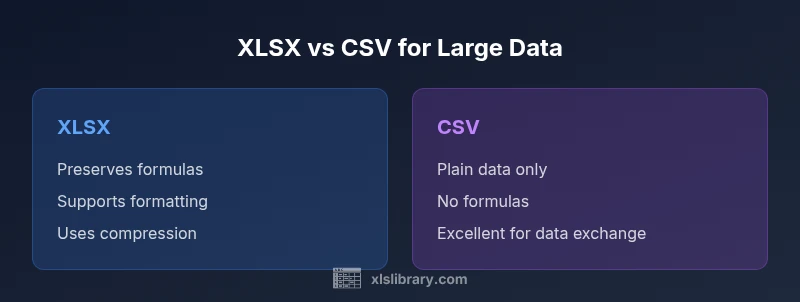
For large data, the best Excel format is XLSX due to compression, data integrity, and support for formulas and features; CSV is a strong alternative for interoperability and raw data exports, but lacks formulas and formatting. Your choice hinges on performance, compatibility, and data fidelity. In enterprise environments, plan for automated pipelines and versioning.
Which Excel Format Is Best for Large Data?
The question which excel format is best for large data drives practitioners toward a careful assessment of a few core factors: data fidelity, formula support, compression, interoperability, and the realities of how the data will be used downstream. According to XLS Library, the best choice is context-dependent, but for most Excel-driven workflows involving substantial datasets, XLSX emerges as the default starting point. This article uses a structured comparison to surface the trade-offs and provide concrete guidance for decision-making, backed by practical examples and common enterprise patterns. As you read, keep in mind that the goal is not simply saving space, but preserving data integrity and enabling efficient analysis across tools. The keyword which excel format is best for large data frames the central question, and the answer will hinge on your data lifecycle and team practices.
Understanding Large Data in Excel: Key Constraints
When we speak about large data in Excel, we are really talking about a combination of data volume, the number of rows and columns, and the operations performed on that data. Practical constraints are shaped by memory availability, processing power, and how Excel features like formulas, data types, and formatting are supported by the chosen file format. XLSX is optimized with compression and metadata handling that make large datasets more manageable inside Excel. CSV, by contrast, is plain text and excels in portability and lightweight exports but sacrifices data types, formulas, and formatting. The XLS Library perspective emphasizes mapping requirements to capabilities: are you preserving formulas for downstream modeling, or are you exporting a clean data dump for ingestion into another system? The right choice aligns with your data lifecycle and governance standards.
XLSX: The Workhorse for Big Data in Excel
XLSX represents the modern, feature-rich format designed for Excel users dealing with sizable datasets. It supports formulas, data types, formatting, and data validation, which are essential for reproducible analysis. Compression reduces on-disk size compared to older binary formats, making it more practical for large workbooks and shared environments. In real-world workflows, XLSX shines when you need to preserve the structure of calculations (like complex dashboards or multi-sheet models) and when you rely on Excel features such as tables, named ranges, and data validation. For teams that build models in Excel and then share results, XLSX can be a stable default choice that minimizes friction during collaboration.
CSV: The Interoperability Workhorse for Data Exchange
CSV stands out for interoperability and simplicity. It is a plain-text representation of tabular data, which makes it an excellent choice for moving data between systems that do not share a common binary format. CSV is lightweight and fast to parse in many data pipelines, especially when you only need raw data without formatting or formulas. However, the lack of data types, metadata, and formulas means any downstream processing must re-create or reinterpret these aspects. CSV is ideal for export-import cycles, data ingestion into data warehouses, or sharing snapshots of data that do not require Excel-specific features.
When to Use XLSX vs CSV: Practical Scenarios
Choosing between XLSX and CSV depends on the downstream use case. Use XLSX when you require intact formulas, charts, formatting, and data validation within Excel workbooks that will be edited by multiple teammates. CSV is preferable for data exchange with systems that only understand plain text, for large dumps that will be parsed by external tools, or when you want to minimize file complexity. In environments with automated data pipelines, consider using CSV for transfer and XLSX for intermediate analysis, or encode a workflow that uses a data model/power query approach to bridge formats while preserving lineage.
Other Formats Worth Mentioning: XLS, XML, and ODS
Although XLSX is the current standard for Excel workbooks, other formats have distinct use cases. Legacy XLS files may be encountered in older archives and require conversion; XML-based approaches are used for data interchange in some organizations, but they lack native Excel features. Open Document Spreadsheet (ODS) offers cross-compatibility with other office suites but may not support every Excel-specific feature. When deciding among these, prioritize the needs of your downstream tools and ensure that data fidelity, transformation steps, and version control are clearly defined in your workflow.
Data Integrity, Formulas, and Formatting: What Each Format Supports
The core considerations for large datasets include the ability to preserve formulas, formatting, and data types. XLSX supports all three, enabling robust modeling and dashboarding in Excel. CSV preserves only raw data with no intrinsic formatting or formula logic, which means any calculated results must be rebuilt after import or loaded through a separate pipeline. If you rely on color-coding, data validation rules, and structured tables, XLSX is the clear winner. For teams focused on data sharing and ingestion into analysis systems, a CSV-based approach can reduce friction, provided there is a defined process for reconstituting Excel-specific features downstream.
Performance Considerations: Memory, Disk, and Speed
Performance is multifaceted. XLSX leverages compression to reduce disk usage and can improve load times when editing multi-sheet workbooks with formulas and validations. However, very large XLSX files can strain memory during opening and editing, particularly on machines with limited RAM. CSV files typically load faster in raw form and can be bulk-imported into data tooling with fewer feature-related overheads. The trade-off is that you must reconstruct data types and formulas after import if your goal is to preserve analytical logic or Excel-specific structures.
Handling Extremely Large Datasets: Strategies to Improve Excel Performance
For datasets that push Excel toward its practical limits, consider strategies that break the work into manageable pieces. Split large workbooks into multiple files, or load data via Power Query into a single Data Model for analysis without keeping all data in memory in a single workbook. Using the Data Model (Power Pivot) can dramatically improve performance for large datasets by leveraging its columnar storage and efficient query engine. When possible, shift raw storage to CSV for transfer and reserve XLSX for analysis-ready workbooks that require formulas and formatting. These patterns align with best practices suggested by the XLS Library for scalable Excel workflows.
Best Practices for Saving and Versioning Large Workbooks
Saving large workbooks with care reduces risk and improves collaboration. Adopt a naming convention that captures dataset version, date, and purpose. Enable autosave and retention policies in your environment to prevent data loss. Consider splitting workbooks by topic or function to minimize conflicts during concurrent editing. Maintain a changelog within the workbook or a companion document to track formula changes, data model updates, and formatting decisions. Finally, implement automated backup routines that create restore points without introducing disruptive downtime for users.
How to Validate Your Choice: Quick Checklist
- Define the downstream uses: editing in Excel vs data exchange across systems.
- Confirm support for formulas, data types, and formatting that you rely on.
- Evaluate large-file performance in your typical hardware environment.
- Consider automation paths (Power Query, Data Model) that reduce manual rework.
- Establish versioning and backups to safeguard data integrity over time.
Comparison
| Feature | XLSX (Excel 2007+) | CSV (Comma-Separated Values) |
|---|---|---|
| Data fidelity (formulas, formatting, data types) | full support including formulas and formatting | no formulas or formatting; raw data only |
| Compression / file size | uses compression, smaller on disk for large workbooks | no compression; can be larger for the same data |
| Performance with very large datasets | excellent for models with many sheets and features, may require memory-aware hardware | fast to open/parse but may require post-import reconstruction of Excel features |
| Interoperability with other tools | primarily designed for Excel workflows; good in Microsoft-centric stacks | excellent for data exchange with systems that only read plain text |
| Best use case | Analysis dashboards, complex models, multi-sheet workbooks | Data dumps, exports, and ingestion pipelines |
| Versioning and collaboration | supports collaborative editing with proper version control when stored in compatible storage | simpler to version control as text-based files |
Benefits
- Preserves formulas and formatting for end-to-end analysis
- Compression reduces on-disk size for large workbooks
- Rich feature support (tables, data validation, charts) enables advanced workflows
What's Bad
- Can be memory-intensive for very large files in Excel
- CSV lacks formulas and formatting, requiring downstream re-creation
- Complex XLSX workbooks may become brittle if not properly version-controlled
XLSX is the best overall choice for large data in Excel; CSV remains the go-to for data exchange and lightweight imports
Choose XLSX for data fidelity and in-Excel modeling. Use CSV when interoperability and minimal structure are the priorities.
People Also Ask
Which Excel formats are best for large datasets?
For large datasets, XLSX is generally the best overall inside Excel due to its support for formulas, formatting, and compression. CSV is excellent for data exchange and ingestion into other tools, but you lose Excel-specific features. The optimal choice often uses a hybrid workflow: store raw data as CSV and modeling results as XLSX.
XLSX is best for large datasets inside Excel; use CSV for exporting data to other tools.
Does CSV support formulas or data types?
CSV does not support formulas or explicit data types; it stores raw text. You must re-create calculations after import if needed, which makes CSV ideal for simple data dumps but less ideal for complex analysis in Excel.
CSV has no formulas or data types; use it for simple data dumps and re-create calculations later if needed.
How does file size compare between XLSX and CSV for large data?
XLSX uses compression and structured storage to keep large workbooks manageable. CSV is plain text and can become large if the dataset is substantial, but it remains a lightweight option for transfer when no formatting or formulas are required.
XLSX compresses data, generally making it smaller than CSV for the same content when formatting is present.
Can I preserve formatting when importing CSV into Excel?
Importing CSV into Excel will not automatically preserve formatting or formulas. You will need to apply formatting and re-create formulas after import, or use Power Query to structure the data as a model before analysis.
CSV imports as plain data; formatting and formulas must be re-applied.
What about Power Query and Data Model for large data?
Power Query and the Data Model enable efficient handling of large datasets by loading data into a model rather than keeping it all in memory in a workbook. This approach supports scalable analysis and better performance when working with big data in Excel.
Use Power Query and the Data Model to scale Excel analysis for large datasets.
The Essentials
- Start with XLSX for large data when Excel-based analysis is primary
- Use CSV for clean data exchange and integration with non-Excel tools
- Leverage Power Query/Data Model to handle very large datasets efficiently
- Keep a clear versioning and backup strategy for all large workbooks
- Validate formats against downstream pipelines and governance requirements