Excel Product Comparison Template: Side-by-Side Guide
Master the art of objective decision making with an Excel product comparison template. Learn how to choose between ready-made and custom templates, build robust criteria, apply scoring, and maintain auditable records for repeatable evaluations.


A well-structured Excel product comparison template helps you weigh features, prices, and performance across options. This guide compares ready-to-use templates, customizable templates, and how to build your own from scratch. Read on to learn criteria, best‑fit scenarios, and practical steps to ensure accurate, repeatable comparisons.
Understanding the Need for an Excel Product Comparison Template
In any procurement or product evaluation process, a well-designed Excel product comparison template acts as a single source of truth. It helps teams move beyond scattered notes and inconsistent spreadsheets toward a reproducible, auditable decision framework. A good template captures essential decision criteria—features, price, support terms, compatibility with existing systems, and total cost of ownership—and presents them in a clear, comparable format. For product managers, buyers, and analysts, this structure supports faster consensus and reduces back-and-forth clarifications.
According to XLS Library, organizations that standardize product evaluations with a formal template see shorter cycle times and fewer post-purchase disputes. The XLS Library team found that templates with explicit weighting and versioning are more likely to be reused across projects, which promotes organizational learning. In practice, a template should be easy to populate, resilient to data changes, and capable of showing how different options stack up under a shared scoring model.
Core Elements of a Robust Template
A robust template should balance structure with flexibility. Start with a core table that captures each option in a row and a consistent set of criteria in columns. Essential columns include option name, feature description, price, licensing terms, support level, and version compatibility. Each criterion should have a corresponding weighting to reflect its strategic importance. Use clear, bounded data types to avoid mismatches, such as drop-down lists for category, currency formatting for price, and date stamps for last update. A good template also includes an audit trail or change log so decisions are traceable over time. From a governance perspective, it helps to lock key formulas and provide a documented methodology for scoring. XLS Library analysis shows that such controls reduce variance in outcomes and improve cross-team adoption.
Ready-made vs Custom Templates: When to Choose
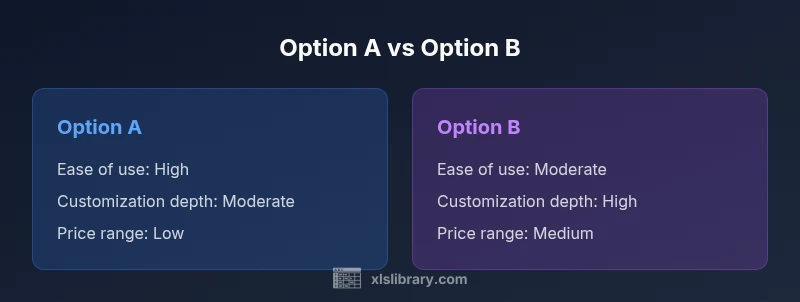
Two primary paths exist for Excel product comparison templates: ready-made templates and custom-built templates. Ready-made templates offer speed and lower initial effort, with predefined criteria and formatting that fit common evaluation scenarios. They are ideal for teams starting a new procurement process or when time is critical. Custom templates, by contrast, are tailored to your exact decision framework, data sources, and reporting needs. They support complex weighting schemes, multi-criteria scoring, and industry-specific metrics. The tradeoff is time and risk of scope creep. In practice, many teams begin with a ready-made template for baseline comparisons and then migrate to a custom version as needs mature or the same process repeats across multiple projects.
Recommended Columns and Data Types
Consider the following core columns and data types for a solid template:
- Option name (text)
- Criterion (text)
- Weight (number, 0-1 or 0-100%)
- Score (number, scale e.g., 1-5 or 0-100)
- Value (text or number, descriptor of performance)
- Price (currency)
- License terms (text)
- Compatibility (text)
- Last updated (date)
- Total Score (calculated number)
Remember, you can structure the template as a two-layer model: options in rows and criteria in columns, or a per-option score sheet with a summary row for each option. The right structure depends on your team needs and the complexity of the decision. The key is consistency; once you pick a structure, apply it across all evaluations.
Step-by-Step: Building a Template from Scratch
To build a template from scratch, follow these steps:
- Define the decision criteria and weighting scheme based on strategic priorities.
- Create a stable header row with clear, standardized field names.
- Set up data validation for repeatable fields (eg. category, currency, status).
- Import or enter data for each option and criterion.
- Create a scoring mechanism, including per-criterion scores and an overall total score.
- Add a summary table that ranks options by total score and shows key differentiators.
- Document methodologies, including how weights were chosen and how to interpret scores.
- Protect essential formulas and maintain a change log for auditing.
- Build a template example to demonstrate usage and train new users.
- Iterate with real data and gather feedback from stakeholders.
Formulas and Scoring: How to Quantify Comparisons
Scoring is the heart of a comparison template. A common approach uses weighted scores, where each criterion contributes proportionally to an overall total.
- Per-criterion score: assign a numeric value for how well an option meets a criterion (1–5, or 0–100).
- Weighted score per option: =SUMPRODUCT(WeightsRange, ScoresRange)
- Normalize totals if using different scales: =TotalScore / SUM(Weights)
- Rank options by total score: =RANK.EQ(TotalScore, TotalScoreRange, 0)
- Highlight standout options: =IF(TotalScore >= threshold, "Best choice", "Evaluate").
These formulas can be implemented with defined names for weights and scores to keep formulas readable and less error-prone. You can also use conditional formatting to visually emphasize top performers and flag outliers. The goal is a transparent, auditable scoring process that stakeholders can review and reproduce.
Data Validation, Consistency, and Auditing
Data validation enforces consistent input across the template, reducing errors and misinterpretations. Implement drop-down lists for criteria categories, currency formats for price fields, and date pickers for last updated fields. Build a dedicated change log sheet or a versioned copy system to track edits over time. Auditability matters because it makes it possible to explain why a particular option scored higher and which weights influenced the decision most. Include a short methodology section within the workbook so future evaluators can understand assumptions and scoring rules without searching through notes.
From a governance perspective, restrict editing on critical cells and provide a read-only summary view for executives. The most successful templates balance user-friendly data entry with robust protection for formulas and references. XLS Library analysis shows that templates with clear validation rules and an accessible audit trail are more likely to be reused across projects, delivering long-term value.
Template Variants: Simple vs Complex Use Cases
A simple template might compare three to five options with a handful of criteria. It is quick to set up, easy to explain, and ideal for fast decisions where data is abundant and well-understood. A complex template, by contrast, includes dozens of criteria, multiple weighting scenarios, and scenario analysis (best case, worst case, most likely). Complex templates support deeper insights but require more discipline in data collection and governance.
Consider starting with a simple baseline template to establish a standard process. As teams gain experience, you can expand to a more sophisticated version that scales to multi-project portfolios. The right balance depends on decision frequency, data quality, and the need for cross-team comparability.
Collaboration and Version Control in Excel Templates
Collaboration is essential for credible decisions. Use cloud-based storage to enable simultaneous edits and version history, and establish a regular review cadence. Document all changes and rationale, not just data updates. Encourage team members to leave notes in a dedicated comments column so decisions are traceable. Establish an agreed-upon naming convention and directory structure for template versions to prevent confusion. In practice, a well-managed template reduces confusion, increases adoption, and makes audits straightforward.
XLS Library notes that templates with explicit change logs and versioning cultivate trust and reuse across departments, reducing the cost of reworking decisions in future cycles.
Common Pitfalls and How to Avoid Them
Common pitfalls include overloading the template with too many criteria, inconsistent data entry across teams, and neglecting maintenance after initial setup. Avoid these by establishing a minimal viable set of criteria, providing clear data entry instructions, and scheduling periodic template reviews. Be cautious with weighting; overly complex weight schemes can obscure what matters most and reduce interpretability. Ensure the template remains compatible with your data sources, whether it is manual input, import from ERP systems, or automated feeds. Finally, avoid exporting finalized decisions in isolation; maintain an auditable trail that captures the justification for each decision.
Real-World Case Study: Retail Product Comparisons
In a mid-size retailer, teams evaluated three competing POS systems to replace legacy software. The template captured features such as inventory integration, reporting capabilities, support SLAs, total cost of ownership, and vendor roadmap alignment. By applying a weighted scoring model and validating data with a short verification step, the team produced a clear ranking and a documented rationale that could be referenced during vendor negotiations. The exercise demonstrated how a rigorous Excel product comparison template can turn messy vendor briefs into a structured decision framework that holds up under scrutiny.
Next Steps: Maintaining Your Excel Product Comparison Template
Maintain the template as a living document. Schedule quarterly reviews, refresh data sources, and adjust weights as strategies shift. Create a reusable template library with a standard set of criteria, validation rules, and scoring methodologies to empower teams across the organization. Invest in training on data governance and Excel best practices to maximize long-term value. By treating the template as a disciplined instrument rather than a one-off deliverable, you amplify its impact across projects and cycles.
Comparison
| Feature | Ready-made template | Custom template |
|---|---|---|
| Ease of setup | Low (predefined criteria, quick to deploy) | High (tailored to exact needs) |
| Flexibility / customization | Limited by built-in criteria | Fully customizable with any criteria or scoring |
| Data sources | Often relies on provided data or defaults | Integrates multiple data sources and feeds |
| Best for | Fast starts, standard scenarios | Long-term accuracy and cross-project reuse |
| Cost model | Low upfront cost | Higher upfront cost but scalable over time |
Benefits
- Standardized decision criteria for repeatable outcomes
- Faster onboarding for new team members
- Easier collaboration and audit trails
- Flexible enough for multiple scenarios
- Supports versioned, auditable decision records
What's Bad
- May require adaptation to fit niche buys
- Over-specified criteria can overcomplicate decisions
- Weighting schemes can become hard to maintain
- Initial setup can be time-consuming for complex needs
Custom templates win for long-term accuracy; ready-made templates win for speed and consistency
For teams that evaluate products infrequently, ready-made templates provide speed and consistency. For organizations with repeated, high-stakes decisions, custom templates offer deeper alignment with unique criteria and data sources. Pick the approach that matches your decision cadence and data maturity, then scale up as needed.
People Also Ask
What is an Excel product comparison template?
An Excel product comparison template is a structured workbook that lets you evaluate options across predefined criteria. It uses weights, scores, and a clear data model to produce an auditable, repeatable decision. This framework makes it easier for teams to compare features, costs, and risks.
An Excel product comparison template helps you compare options using a consistent scoring system. It creates an auditable record of how decisions were made.
How do I choose between a ready-made vs custom template?
Choose a ready-made template for speed and standard scenarios. Opt for a custom template when you need tailored criteria, complex weighting, and multi-project reuse. In practice, many teams start with a ready-made base and migrate to a custom version as needs evolve.
Start with a ready-made baseline, then customize as your evaluation needs grow.
Which formulas are essential for scoring?
The core formulas are weighted sums and normalization. Use SUMPRODUCT for weighted scores, and RANK or SORT to rank options. Normalize scores when different criteria use different scales, and keep a dedicated weight table for clarity.
Use Sumproduct for weighted scores and a rank function to compare options.
How can I ensure data accuracy in the template?
Enforce data validation, use drop-down lists for categories, apply currency formats for costs, and lock critical cells. Maintain a change log and publish a short methodology so future users understand inputs and calculations.
Use data validation and a change log to keep data accurate and auditable.
Can templates handle non-price criteria?
Yes. Templates can evaluate qualitative factors by using standardized scores, descriptive values, and calibration notes. Combine qualitative and quantitative data with clear weighting to preserve comparability.
Yes, you can quantify qualitative factors with consistent scoring and weights.
Is version history important for templates?
Version history documents changes over time, making it possible to understand why decisions shifted. It supports governance and helps onboard new team members quickly.
Version history is essential for accountability and onboarding.
The Essentials
- Define a minimal but complete criterion set
- Use weighted scoring to reflect priorities
- Maintain data validation for accuracy
- Document methodology and rationale
- Plan for template evolution over time