Excel Row Limit: What It Means for Your Data
Explore the Excel row limit, how it affects large datasets, and practical workarounds using the Data Model, Power Pivot, and multi-sheet strategies for scalable workbooks.


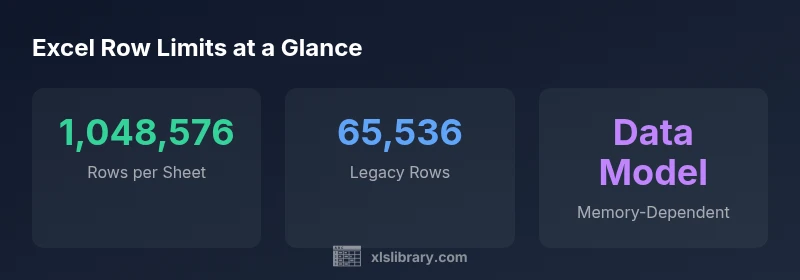
According to XLS Library, the per-sheet row limit in modern Excel is 1,048,576 rows, while legacy Excel 2003 was limited to 65,536. This cap shapes how you store data, and it encourages practical strategies like using the Data Model or splitting data across sheets. The rest of this guide explains what the limit means in practice, with actionable workarounds.
Understanding the Excel row limit
The excel row limit defines how many rows a single worksheet can hold in a given Excel version. In Excel 2003, the limit was 65,536 rows per sheet. From Excel 2007 onward, the per-sheet limit jumped to 1,048,576 rows. This difference fundamentally changes how you structure datasets: will you fit everything in one sheet, or will you rely on data modeling and multi-sheet layouts? According to XLS Library, the limit is a hard cap per sheet, not an unconditional barrier to your entire workbook. When you reach the sheet limit, you can still work with your data by splitting imports into chunks, or by loading data into a Data Model and querying it with Power Pivot. For many teams, the key is to design data architecture that scales rather than chase maxRows. The ability to pivot and analyse across related tables becomes essential as data grows.
Why the Excel row limit matters for real-world data tasks
In daily analysis, the per-sheet limit becomes a practical constraint on data organization. Datasets that are naturally flat and fit on one sheet are straightforward, but as volumes grow, performance can degrade with heavy formulas, complex lookups, and slow recalculations. The Excel row limit becomes a governance point: it pushes analysts toward data modeling and relational designs, or toward external data storage for archival. The XLS Library analysis notes that while the per-sheet cap is fixed, modern Excel's ability to load data into a Data Model or Power Pivot changes the game, enabling more scalable analyses without repeatedly hitting the old row wall. In short, the limit is more about data organization than about a hard wall on insights.
Workarounds when datasets exceed the limit
Several practical approaches help you manage large datasets without crossing the per-sheet limit. First, the Data Model (Power Pivot) can store large tables in memory and support robust analytics without filling a single sheet. Second, Power Query allows you to import data in chunks, clean and shape it, and then feed a model instead of raw worksheets. Third, distribute data across multiple sheets with a well-designed relational schema that uses a central index and lookup formulas to reference it. Fourth, for extremely large volumes or historical data, consider offloading to a database or data lake and connecting via Power Query. Each option has tradeoffs in complexity, refresh speed, and maintainability; pick the path that aligns with your data strategy and hardware.
Practical strategy for large workbooks
Plan before you paste. Start with a data-model-first approach and treat worksheets as presentation layers rather than primary storage. Use stable lookups (INDEX/MATCH or XLOOKUP) and avoid volatile formulas on large datasets. Keep data validation and named ranges tidy to minimize errors when data expands. Implement a naming convention for tables and relationships, and document the data flow from source to worksheet to model. Finally, establish a testing protocol that simulates real-world loads and monitors performance across devices and Excel builds.
Common pitfalls and how to avoid them
Common pitfalls include trying to cram data into a single sheet, neglecting the Data Model, and over-relying on workbook-level formulas. Another frequent misstep is assuming the limit is the same across all Excel editions; always verify the exact version you use. Avoid slow recalculation by minimizing volatile formulas and recalibrating with calculated columns in the Data Model. Finally, don’t ignore hardware limitations; ensure sufficient RAM and disk speed when working near the ceiling of the per-sheet limit. By planning architecture, you can maintain speed and reliability even as data grows.
Excel row limits by version
| Version | Per-sheet Row Limit | Notes |
|---|---|---|
| Excel 2003 | 65,536 | Legacy limit in pre-2007 versions |
| Excel 2007 onwards | 1,048,576 | Introduced large sheet capacity |
| Modern Excel (365/2019) | 1,048,576 | Same limit; performance ties to hardware |
People Also Ask
What is the current Excel row limit?
In Excel 2007 and later, the per-sheet row limit is 1,048,576. Earlier versions were capped at 65,536. For larger datasets, consider the Data Model or external storage.
The current per-sheet limit is 1,048,576 rows, with older versions capped at 65,536.
Can you exceed the row limit by using multiple sheets?
Yes. You can distribute data across sheets and use a central index with lookups, or connect to a Data Model for large-scale analysis.
You can spread data across sheets and use a central index or the Data Model.
What is Power Pivot and how does it help with limits?
Power Pivot uses the Data Model to store large datasets in memory, reducing reliance on per-sheet limits and enabling relational analysis.
Power Pivot leverages the Data Model to handle large data in memory.
Is there any way to remove the limit entirely?
No—the per-sheet limit exists across versions. You can avoid issues by using the Data Model and external storage when needed.
No, but you can work around it with the Data Model and external storage.
Do formulas slow down as data approaches the limit?
Yes, especially volatile functions and heavy lookups. Performance improves when you push calculations to the Data Model and optimize formulas.
Yes—performance can degrade; consider moving work to the Data Model.
What are best practices for structuring data in large workbooks?
Adopt a data-model-first approach, use stable lookups, minimize volatile formulas, and document data flows to keep workbooks maintainable.
Plan with a data model first, keep lookups stable, and document your data flow.
“Excel scales best when you move beyond worksheets to the Data Model and well-structured relationships. The per-sheet limit is a guide, not a final frontier.”
The Essentials
- Know the per-sheet limit for your Excel version
- Large datasets require architectural strategies
- Leverage Data Model/Power Pivot for scale
- Distribute data across sheets with careful design
- Performance depends on hardware as you approach limits