Excel Sheet Comparison: Desktop, Web, and Google Sheets
Comprehensive Excel sheet comparison across desktop, web, and Google Sheets. Learn strengths, limits, and best use cases to choose the right tool for data work.


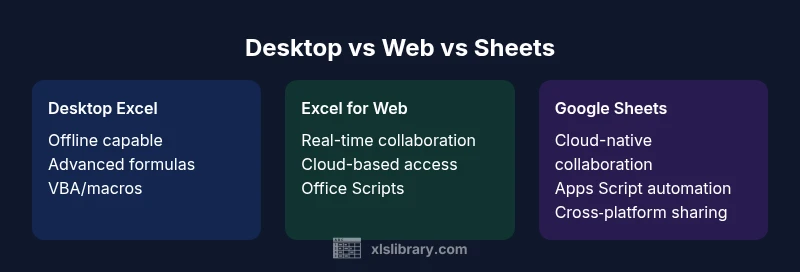
Excel sheet comparison across desktop, web, and Google Sheets shows three distinct strengths: desktop Excel excels in advanced modeling and large datasets, web-based Excel adds real-time collaboration and automation, while Google Sheets shines in cloud access and cross‑platform sharing. The best choice depends on your task: choose desktop for complex analytics, web for team work, and Sheets for light tasks with strong collaboration.
Why Excel Sheet Comparison Matters
In modern data work, an excel sheet comparison isn't just about picking a preferred interface; it's about aligning your task with the right capabilities. When teams scale, small feature gaps become bottlenecks that ripple into errors, delays, and frustrated users. A deliberate comparison helps organizations standardize workflows, reduce training time, and protect data integrity across departments.
According to XLS Library, the most impactful comparisons focus on three axes: capability depth (how powerful the tool is for formulas, data modeling, and automation), collaboration and accessibility (how easily teams can work together and access files from different devices), and governance and lifecycle support (security, versioning, and integration with existing data stacks). In practice, you often start with a core task: do you need heavy computational modeling on large datasets, or do you chiefly run data entry, light analysis, and dashboards for a team? The answer guides whether desktop Excel, the web app, or a cloud-based alternative best fits your needs.
This article uses the keyword excel sheet comparison and presents a neutral, evidence-based framework to evaluate three commonly used options: Microsoft Excel Desktop, Microsoft Excel for the web, and Google Sheets. By decoupling feature claims from marketing messaging, you can make a defensible decision for your organization or your personal workflow. The goal is not to declare a single winner, but to outline who should use which tool and under what circumstances.
Core Criteria for a Fair Comparison
A fair excel sheet comparison should be structured and repeatable. Start by listing the core use cases you support in your team, then map those to the tool capabilities that directly affect those tasks. The three pillars below help keep the analysis balanced:
- Capability depth: How powerful is the tool for formulas, data modeling, scripting, and automation?
- Collaboration and accessibility: How easily can multiple people work on the same file, from different devices, with reliable version control?
- Governance and lifecycle: What security controls, auditing, and integration options exist to keep data safe and compliant?
Beyond these pillars, consider data limits and performance, availability of add-ins or scripting environments, and licensing or pricing models. While this article focuses on three popular options — Microsoft Excel Desktop, Microsoft Excel for the web, and Google Sheets — the framework applies to any spreadsheet environment you compare. The ultimate aim is to quantify what matters most to your workflows and choose the tool whose strengths align with your priorities.
Desktop Excel vs Web Apps: Strengths and Limits
Desktop Excel (the traditional powerhouse) remains the gold standard for heavy data modeling, advanced formulas, and high-performance calculations. When you work with large datasets, multiple pivot tables, and complex array formulas, the desktop environment tends to respond more predictably and handles memory-intensive tasks more gracefully. It also supports a broad ecosystem of add-ins, VBA macros, and Office integrations that many finance, engineering, and analytics teams rely on daily.
By contrast, Microsoft Excel for the web brings modern collaboration to spreadsheets. Real-time co-authoring, simpler sharing controls, and seamless updates across devices make it a natural fit for teams that rely on cloud access and productivity suites. The web app supports many common formulas and features, but some advanced tools, legacy macros, or heavy automation via VBA may be limited or require alternatives such as Office Scripts. This option shines when you need immediate collaboration without installing software or managing local licenses.
Google Sheets is the strongest cloud-native option among the three. Its core strengths are cross‑platform accessibility, effortless sharing, and built‑in collaboration features that excel at enabling teams to work together in real time. Sheets also benefits from Apps Script, a powerful scripting platform for automation and lightweight tooling. However, Sheets can lag with very large datasets, and some advanced Excel-specific functions or pivot-table capabilities don’t map exactly, which can force workarounds or choice compromises.
Real-World Use Cases: Data Cleaning, Modeling, Dashboards
Different tasks demand different tools. For repetitive data cleaning and standardization, Google Sheets offers straightforward collaboration—teams can jointly clean data, validate results, and build dashboards on the fly. If your workflow involves intricate data modeling, regression analyses, or solver-based optimization, desktop Excel is typically the safer bet because it preserves the full fidelity of Excel's advanced features and performance. When teams require access anywhere, on any device, and want a familiar interface with automatic updates, Excel for the web delivers a balanced blend of functionality and accessibility.
Consider a typical data pipeline: you might clean raw data in Sheets (or desktop Excel), push the cleaned data to a centralized workbook, and then build a dashboard or scenario analyses using Excel's advanced functions. Real-time collaboration during data validation helps catch mistakes early, while the desktop environment preserves the most powerful modeling capabilities when you need them most.
Feature Matrix: What to Look For
A practical feature matrix helps teams compare capabilities at a glance. Look for parity on core functions (SUM, VLOOKUP/XLOOKUP, IF, FILTER, PIVOT), but also check how each platform handles advanced concepts like dynamic arrays, Power Query-like data shaping, and integration with external data sources. Assess automation options: VBA and Office Scripts for the web vs Google Apps Script for Sheets. Review add-in ecosystems and API availability, since these elements often determine long‑term scalability. Finally, evaluate security, auditing, and access controls that match your governance requirements. A good excel sheet comparison keeps these elements centered on workflow impact, not marketing promises.
Practical Decision Framework: Which Tool for Which Task
Create a decision map that starts with your primary task: heavy modeling vs cloud collaboration vs lightweight shared workbooks. If your task requires advanced analytics and reproducible workflows, prioritize desktop Excel. If collaboration and rapid sharing across devices are critical, lean toward Excel for the web or Google Sheets, depending on your team’s familiarity and scripting needs. For teams that rely on cloud-native processes and simple automation, Google Sheets paired with Apps Script can be a compelling choice. Always validate the chosen tool against a small, representative data subset to confirm that critical formulas and outputs behave as expected in the new environment.
Tips for Seamless Transitions Between Tools
Smooth transitions reduce friction and data loss. Start with a clear migration plan: map each critical workbook to a target tool, note features that have equivalents (or gaps), and prepare fallback processes for unsupported tasks. Use standardized naming conventions and centralized templates to minimize variability. When moving between desktop and web, test macros or scripts in the destination environment and consider converting VBA to Office Scripts where necessary. Finally, keep a living changelog that records when and why you migrated, along with any adjustments in formulas or data connections.
Common Pitfalls and How to Avoid Them
Rushing migrations without testing can introduce subtle errors. Common pitfalls include assuming complete parity of formulas across platforms, underestimating the impact of large datasets on browser-based apps, and treating cloud links as permanently reliable without version control. To minimize risk, pilot changes with a small dataset, validate key outputs, and set up a formal rollback plan. Document the exact tool and version used for each task, so analysts can reproduce results if needed. Finally, avoid mixing tool-dependent features in shared workbooks; instead, design clean, portable workbooks with clearly documented dependencies.
Feature Comparison
| Feature | Microsoft Excel Desktop | Microsoft Excel for the web | Google Sheets |
|---|---|---|---|
| Offline access | Full offline access on desktop | Partial offline access; online features constrained | Offline access available with Chrome offline mode |
| Real-time collaboration | Limited real-time collaboration (single-user emphasis; co-authoring supported post-online save) | Yes, robust real-time collaboration | Yes, real-time collaboration with limited concurrent edits |
| Formulas & function parity | Broadest and deepest function set; supports VBA and advanced analytics | Core functions with many Excel-compatible features; some gaps for advanced macros | Strong for common tasks; Apps Script provides automation alternatives |
| Data capacity & performance | Hardware-driven performance; very large datasets if memory permits | Memory-limited by browser; suitable for mid-size datasets | Browser-limited performance; best for light to mid-size datasets |
| Automation & scripting | VBA, macros, and Office Add-ins; advanced automation | Office Scripts; limited VBA support | Apps Script; extensive add-on ecosystem |
| Add-ins & integrations | Extensive add-ins and COM integrations; deep Office ecosystem | Web-based integrations via Office Online services; fewer add-ins | Rich Apps Script ecosystem; many third-party add-ons |
| Pricing & licensing | License-based with Office suite ownership | Included with Office 365 subscriptions; web app is free with sign-in | Free with Google account (storage limits apply) |
| Best for | Heavy analytics, large data models, offline work | Collaborative projects, cross-device access, quick updates | Cloud-first work, lightweight data, rapid sharing |
Benefits
- Helps users choose the right tool for the task based on capabilities
- Highlights trade-offs between collaboration, power, and accessibility
- Encourages teams to standardize workflows and governance
- Promotes clarity on licensing and cost implications
What's Bad
- Information can overwhelm if not tailored to use cases
- Gaps in feature parity may confuse non-technical users
- Implicit bias toward newer cloud tools can mislead decisions
Desktop Excel remains the strongest for advanced modeling; web and Sheets excel in collaboration and cloud access
If your tasks demand heavy data processing and complex formulas, choose Excel Desktop. For team projects and cross-platform access, Excel for Web or Google Sheets are preferable, with Sheets favored for cloud-native collaboration and Apps Script-powered automation.
People Also Ask
What is the main difference between Excel Desktop and Excel for the web?
Excel Desktop offers the broadest feature set, strongest performance for large datasets, and full VBA support. Excel for the web emphasizes real-time collaboration, accessible cloud storage, and simpler deployment, but may lack some advanced features and full VBA compatibility. Choosing between them depends on whether power or collaboration matters more for your workflow.
Desktop Excel gives you the most power for complex tasks; the web app shines for teamwork and cloud access. If you need offline, heavy modeling, go Desktop; for collaboration, try the web version.
Can Google Sheets replace Excel for complex data modeling?
Google Sheets can handle many common modeling tasks, but it generally lacks some of Excel’s advanced functions and performance characteristics for very large or complex models. Apps Script enables automation, yet parity with Excel’s deep feature set is not always guaranteed. Consider a split workflow if advanced analytics are required.
Sheets is great for simple to mid-range models, but for top-tier analytics you may still want Excel.
Is offline access available for all three options?
Offline access is strongest on Desktop Excel, relatively limited on Excel for the web, and available in Google Sheets via browser offline mode. Plan to design workarounds for online-only tasks if your environment requires uninterrupted connectivity.
Offline works best in Desktop Excel; web and Sheets offer offline modes with some constraints.
Which tool is best for real-time collaboration?
Google Sheets and Excel for the web both support real-time collaboration, with Sheets offering smoother cross‑platform sharing as a cloud-native product. If you need advanced Excel features alongside collaboration, Excel for the web is a solid middle ground, but expect some feature gaps compared to Desktop.
For collaboration, Sheets or Excel for the web depending on the balance you need between features and teamwork.
Are macros and automation supported across these platforms?
Macros are strongest in Desktop Excel (VBA). Excel for the web supports Office Scripts as an alternative, while Google Sheets relies on Apps Script for automation. If automation is core, consider where you will host and run your scripts.
Desktop Excel uses VBA; web uses Office Scripts; Sheets uses Apps Script for automation.
How do licensing and pricing affect the decision?
Desktop Excel requires a license for the Office suite, which can be a fixed cost. Excel for the web is accessible with an Office 365 subscription but offers a more limited feature set. Google Sheets is free with a Google account, albeit with storage and feature limitations. Align licensing with your organization’s budgeting and security requirements.
Licensing drives cost: desktop is licensed, web is subscription-based, Sheets is free with limits.
The Essentials
- Prioritize task type when choosing a tool
- Leverage desktop Excel for advanced analytics
- Choose web/Sheets for collaboration and accessibility
- Test critical workflows in the target environment before migrating
- Account for licensing and governance in the decision