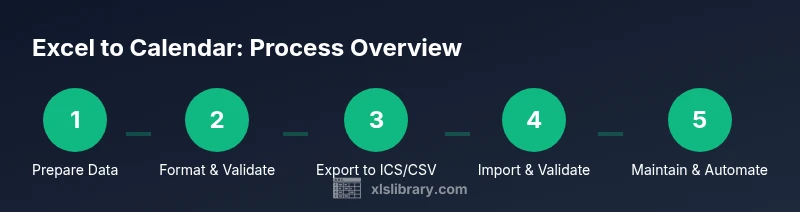
Excel to Calendar: A Practical How-To for Turning Sheets into Events
Learn how to map Excel data to calendar events, export to ICS/CSV, and import into Outlook or Google Calendar with practical tips and troubleshooting.


You will learn how to convert rows in Excel into calendar events, including dates, times, titles, and descriptions, and how to export to compatible formats for Outlook or Google Calendar. This quick guide covers data formatting, simple automation, and common pitfalls. We’ll also outline where to place formulas, how to validate data, and how to test imports before you commit to a real schedule.
Why Excel to Calendar matters
In the modern workflow, keeping project deadlines, meeting times, and event details in a calendar is essential for time management. The task of moving data from an Excel sheet to a calendar might seem tedious at first glance, but it becomes straightforward with a clear data model and a repeatable export process. The XLS Library team understands that many teams rely on Excel to organize inputs, then publish to shared calendars for visibility. By learning how to align fields like date, start time, end time, title, and location, you can create accurate, easy-to-import calendar events that synchronize with Outlook, Google Calendar, or Apple Calendar. This approach improves coordination, reduces missed meetings, and saves hours of manual input each week. The goal is to establish a light, repeatable pipeline that minimizes errors and keeps your team in sync.
Key concept: data model alignment
A robust Excel-to-calendar workflow begins with a consistent data model. Define columns for Date, Start Time, End Time, Title, Description, Location, and Time Zone. Use ISO date formats (YYYY-MM-DD) and 24-hour time whenever possible to minimize ambiguity. If you’re handling all-day events, capture an All Day flag (TRUE/FALSE) and omit Start/End time where appropriate. Clean data by removing blank rows, standardizing text case, and ensuring dates convert reliably across tools. This discipline is the backbone of a reliable calendar export that scales as your dataset grows.
Choosing a target calendar format: ICS vs CSV
Calendar systems accept different formats. An ICS file (iCalendar) preserves complex details like time zones and recurrence rules. CSV offers a simple, human-readable route that many calendar apps can import, though you may lose some metadata. A practical approach is to start with CSV for bulk data checks, then generate ICS for final imports. If you’re collaborating across teams, confirm which format your calendar administrator supports and test with a small sample first.
Data normalization: dates, times, and time zones
Discrepancies in date formats and time zones are the most common sources of errors. Normalize dates to YYYY-MM-DD and times to 24-hour format HHMM or HH:MM. If your events span multiple time zones, include a Time Zone column (e.g., ET, PT) and use a standard mapping. Keep duration in minutes or provide End Time to avoid misinterpretations. Remember to handle daylight saving transitions by testing events around DST changes.
Step-by-step: export-ready sheet design
Design a clean, export-ready sheet with headers that map directly to your calendar fields. For example: Date, StartTime, EndTime, Title, Description, Location, TimeZone, AllDay. Add a unique ID for each event to assist with deduplication and future updates. Create a sample row and verify that the combined fields render correctly when converted to ICS or CSV. This preparatory work reduces downstream errors and accelerates import.
Generating ICS or CSV: templates and automation
Templates speed up conversion. Use a simple ICS template that has placeholders for DTSTART, DTEND, SUMMARY, DESCRIPTION, LOCATION, and DTSTART/DTEND Time Zone. For CSV, ensure the header row matches the target calendar’s required fields (Subject, Start Date, Start Time, End Date, End Time, Description, Location). You can automate template filling with formulas, Power Query, or a small script. Start with manual copies to validate the mapping before scaling.
Outlook import: preparing for a smooth join
Outlook supports ICS and CSV imports. For ICS, save your generated content with a .ics extension and import via File > Open & Export > Import/Export. For CSV, map Excel headers to Outlook’s fields (Subject, Start, End, Description, Location, Time Zone). Validate each row during a test import to catch time zone mismatches or date parsing issues early.
Google Calendar import: best practices
Google Calendar imports rely on CSV or ICS. When using CSV, ensure dates are in a format compatible with Google (YYYY-MM-DD) and times use 24-hour format. If you’re migrating many events, consider splitting into smaller batches to avoid import timeouts. After import, verify event times and titles, and adjust time zones if necessary to prevent events from appearing at wrong hours.
Recurring events: how to model in Excel and import
Recurring events require a recurrence rule. In ICS, you’ll use RRULE lines (e.g., RRULE:FREQ=WEEKLY;BYDAY=MO). In CSV, note the recurrence pattern in a separate column and use a calendar solution that supports recurring imports. Plan recurrence carefully, including end dates, exceptions, and overlaps with non-recurring events. Testing is essential to ensure correct repetition.
Automation ideas: keep Excel and calendar in sync
For ongoing needs, automate the refresh process. Use Power Query to pull fresh data from your master Excel workbook, then output an ICS or CSV automatically. Script-based approaches (PowerShell, Python) can generate ICS content on a schedule or when data changes. Document the automation steps for handoff and future maintenance.
Validation and troubleshooting: common issues and fixes
Time zone mismatches, date parsing errors, and blank fields are the most frequent problems. Validate a small batch after each change, then gradually scale up. Use a sandbox calendar to test imports before affecting production schedules. If events appear at the wrong time, recheck time zone mappings and verify that your ICS/CSV formatting matches the target calendar’s requirements.
Tools & Materials
- Microsoft Excel or Google Sheets(Data preparation and mapping to calendar fields)
- Calendar account (Outlook, Google Calendar, or Apple Calendar)(For importing and validating events)
- CSV/ICS export tool or scripting environment (PowerShell, Python)(Required to generate ICS or CSV from Excel data)
- Text editor(For editing ICS templates or scripts)
- Time zone reference guide(Ensure accurate TZ mappings during export)
Steps
Estimated time: 2-4 hours
- 1
Prepare your dataset
Open your Excel file and ensure every event has a date, start time, end time, title, and optional fields like description and location. Remove blank rows, standardize headers, and ensure consistent data types across columns.
Tip: Use data validation rules to prevent accidental blanks or invalid dates. - 2
Standardize date and time formats
Convert dates to ISO format (YYYY-MM-DD) and times to 24-hour format (HH:MM). Include a Time Zone column if events span multiple zones. This makes the subsequent export predictable across calendars.
Tip: Add a helper column that concatenates Date and StartTime for a quick check. - 3
Create a mapping schema
Decide which Excel columns map to which calendar fields: Start Date, Start Time, End Date, End Time, Subject, Description, Location, Time Zone. Document the mapping so others can reproduce it.
Tip: Keep a separate sheet with the mapping table for easy reference. - 4
Add unique IDs for events
Generate a unique identifier for each event to help with deduplication during future updates. A simple approach is to concatenate Date, Time, and a row number.
Tip: Store IDs in a hidden column to avoid cluttering the calendar view. - 5
Choose a template: ICS or CSV
Decide whether to export to ICS for feature-rich imports or CSV for quick checks. Create a reusable template with placeholders for each calendar field.
Tip: Test both formats with a small subset of your data first. - 6
Populate the ICS or CSV template
Fill the template with your mapped Excel data. For ICS, generate lines like DTSTART/DTEND, SUMMARY, DESCRIPTION, LOCATION. For CSV, align headers with your calendar’s import fields.
Tip: Validate a sample row by importing into a sandbox calendar. - 7
Validate a test import to Outlook
Save ICS as a file and import via Outlook’s import wizard or drag-and-drop the ICS file into the calendar. Ensure fields render correctly and times reflect the intended time zone.
Tip: Check for events appearing on the wrong day due to DST edge cases. - 8
Validate a test import to Google Calendar
For CSV, use Google’s import tool and verify each event. For ICS, import directly and review event details. Look for discrepancies in times or missing descriptions.
Tip: If Google reports format issues, revisit date/time formatting guidelines. - 9
Model recurring events
In ICS, use RRULE to define recurrence. In CSV, model recurrence with a separate column and ensure end conditions are clear. Test complex patterns incrementally.
Tip: Document exceptions (dates to skip) to avoid confusion later. - 10
Automate the refresh
Set up a process where Excel data triggers ICS/CSV generation automatically. Use Power Query to pull data, and scripts to write files to a watched folder.
Tip: Log each run and time-stamp outputs for traceability. - 11
Validate a full dataset
Run a full import test with a non-production calendar. Verify all fields, durations, and time zones align with expectations. Fix any issues before publishing.
Tip: Keep a rollback plan if a batch introduces errors. - 12
Maintain the workflow
Document the end-to-end steps, store templates in a shared repository, and schedule periodic reviews as calendars or requirements change.
Tip: Review mappings after major data source changes or calendar policy updates.
People Also Ask
Can I export directly from Excel to calendar without scripts?
Direct export is possible via ICS or CSV templates, but most users rely on a small script or tool to generate the files from Excel data. This ensures consistent formatting and reduces manual steps.
Yes, you can export using ICS or CSV templates, but a small script helps keep formatting consistent.
What formats work best for calendar imports?
ICS preserves time zones and recurring rules; CSV is simpler and widely supported. Choose ICS for complex events and Google/Outlook integrations, CSV for quick bulk imports.
ICS is best for complex events, especially with time zones; CSV is good for bulk imports.
How do I handle time zones accurately?
Include a Time Zone column and normalize all times to a single reference. Verify conversions after import and adjust as needed based on calendar region settings.
Use a Time Zone column and verify conversions after import.
Are recurring events supported through this workflow?
Yes, recur patterns can be defined in ICS with RRULE lines or in CSV with a recurrence field. Test patterns thoroughly before widespread use.
Recurring events can be defined in ICS using RRULE. Test carefully.
What if imports fail or show errors?
Check date formats, time zones, and field mappings first. Use a sandbox calendar to isolate issues and re-run a small batch after fixes.
Check formats and mappings, test in a sandbox calendar, then re-run.
Can I keep Excel and calendar in sync automatically?
Yes, with a lightweight automation pipeline using Power Query and a script to regenerate ICS/CSV on a schedule or data change.
Yes, with a small automation script that regenerates files on changes.
Watch Video
The Essentials
- Map Excel fields to calendar fields clearly.
- Choose ICS for full metadata or CSV for quick imports.
- Validate with test imports before production.
- Automate the export to minimize errors.
- Document the process for future maintenance.