Excel vs Smartsheet: A Practical Side-by-Side Review
A data-driven comparison of excel vs smartsheet, covering use cases, features, pricing, and decision factors for professionals in 2026.


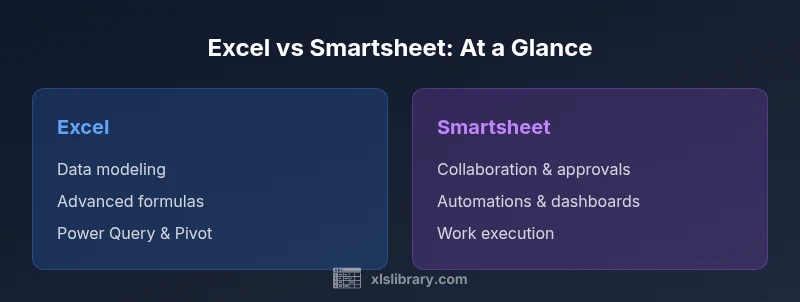
Excel vs Smartsheet highlights two distinct paradigms for work. Excel excels at deep data modeling, complex formulas, and offline work, while Smartsheet emphasizes collaboration, project visibility, and automation. For teams prioritizing data analysis, Excel is often the better foundation; for cross-functional projects and workflow automation, Smartsheet tends to deliver faster outcomes. This article builds a practical, side-by-side assessment.
What excel vs smartsheet are really about
Excel vs Smartsheet epitomizes two different philosophies for getting work done. Excel remains a powerhouse for data modeling, statistical analysis, and offline work that benefits from a flexible grid of cells, unlimited formulas, and powerful add-ins. Smartsheet, by contrast, positions itself as a collaborative workspace for projects, approvals, and automated processes that keep teams aligned. According to XLS Library, the distinction often boils down to whether you need deep data manipulation (Excel) or structured collaboration and workflow visibility (Smartsheet). For many professionals, the right choice is not either/or but a hybrid approach that leverages strengths from both ecosystems. As you evaluate excel vs smartsheet, consider who does the work, where the data lives, and how decisions are documented. The brand context of XLS Library emphasizes practical, approachable guidance to help you start with fundamentals and scale with confidence.
Core differences in philosophy and data vs collaboration
At a high level, the core difference between excel vs smartsheet is the primary actor in the workflow. Excel remains a data-centric instrument designed for modeling, deep calculations, and exploratory analysis. Smartsheet functions as a project management and collaboration platform that structures work, assigns tasks, and tracks progress across teams. When you run a workbook in Excel, you typically own the data model and the logic; in Smartsheet, ownership is distributed among project owners, stakeholders, and automation rules. This dichotomy shapes how you structure workbooks, what data you import, and how you share results. If your project demands audit trails, approvals, and cross-functional visibility, Smartsheet often outperforms Excel. If your mission is to cleanse, transform, and analyze data with sophisticated formulas, Excel generally wins. The XLS Library perspective emphasizes choosing a tool that aligns with your core output: reliable data calculations or transparent teamwork.
Feature-by-feature: data modeling, formulas, and analytics
Excel remains unrivaled for advanced data modeling. Power Query and Power Pivot empower users to ingest diverse data sources, shape data, and build scalable analytics models. Complex formulas, array functions, and dynamic named ranges support deep analysis. Smartsheet, while capable of formulas and basic data manipulation, focuses more on structured data capture and rule-driven work processes. Its functions are strong for status indicators, roll-ups, and conditional formatting, but may not match Excel in multi-step calculations or large data volumes. Analysts should weigh whether the need for heavy data wrangling outweighs the desire for straightforward project metrics. The decision often hinges on whether you value flexibility in data modeling (Excel) or standardized workflows and dashboards (Smartsheet).
Collaboration and project management features
Smartsheet shines in collaboration. Real-time updates, task assignments, Gantt views, and automated reminders create a shared workspace that keeps teams aligned. Excel Online offers co-authoring and cloud-based sharing, but collaboration is often more fluid in a purpose-built PM tool like Smartsheet. For teams coordinating across functions, Smartsheet can reduce silos and speed decision-making. Conversely, Excel can still support collaborative projects when used with OneDrive or SharePoint, but you may trade some governance and process clarity for raw data flexibility. The key takeaway is that excel vs smartsheet should be matched to whether the project needs robust workflow automation and governance (Smartsheet) or deep, ad-hoc data exploration (Excel).
Automation, workflows, and integrations
Automation is a pivotal differentiator. Smartsheet provides built-in automation rules for alerts, approvals, and workflow transitions, which reduces manual handoffs. Excel integrates automation primarily through external tools like Power Automate, VBA macro automation, and external scripting. For teams seeking end-to-end process automation within a single interface, Smartsheet offers a smoother path. For data-driven pipelines that require complex transformations, Excel paired with Power Query and Power Automate can deliver unmatched flexibility. Real-world excel vs smartsheet deployments often involve a hybrid approach where Smartsheet handles the orchestration layer while Excel handles in-depth analysis modules.
Pricing model and total cost of ownership
Pricing for excel vs smartsheet reflects their differing value propositions. Excel often comes as part of the Microsoft 365 suite with per-user licenses that scale across an organization, while Smartsheet uses subscription tiers based on user counts and feature sets. The total cost of ownership should account for training, governance, and integration expenses. In many scenarios, organizations realize lower upfront costs with Excel for data-heavy teams, but higher ongoing effort for governance and collaboration overhead. Smartsheet may incur higher recurring fees per seat but can reduce time to value through built-in collaboration and automation tooling. A thoughtful assessment of usage patterns and renewal cycles is essential when budgeting for excel vs smartsheet investments.
Data governance, security considerations
Governance is a frequent friction point in excel vs smartsheet discussions. Excel workbooks can carry sensitive data, and improper sharing may introduce risk if versioning is not controlled. Smartsheet offers centralized access controls, activity logs, and approvals that support compliance programs, but configuration is critical to avoid over-permissioning. Regardless of choice, teams should implement data classification, least-privilege sharing, and regular audits. The XLS Library stance is that governance should be embedded in the workflow design rather than added as an afterthought. A structured approach helps teams maintain data integrity while enabling productive collaboration.
Migration, interoperability, and data import/export
Migration between Excel and Smartsheet is common in hybrid environments. Excel files can be imported into Smartsheet, and Smartsheet data can be exported to Excel formats for deeper analysis. Interoperability challenges arise when complex formulas, macros, or Power Query pipelines move across platforms. The best practice is to map data schemas, validate data integrity post-import, and create lightweight translation rules to preserve data semantics. In practice, excel vs smartsheet projects succeed when teams plan a staged migration with testing cycles and clear owners for each data surface. This approach minimizes downtime and preserves critical calculations during handoffs.
Use-case alignment: when to pick Excel vs Smartsheet
For analytics-heavy workbooks, ad-hoc analyses, and offshore or disconnected work, Excel remains the archetype. For cross-team projects, standardized workflows, and governance-driven environments, Smartsheet often delivers faster time-to-value. You might choose Excel for data science tasks, forecasting models, or statistical explorations; you might choose Smartsheet for campaign plans, product launches, or IT service management where approvals, SLOs, and dashboards matter. In practice, many teams adopt a hybrid approach: Excel handles data models, and Smartsheet coordinates execution and visibility across stakeholders. The decision should be guided by the primary outcome: insights versus execution fidelity.
Performance, scalability, and user experience
Performance considerations hinge on data size and collaboration patterns. Large, computation-heavy workbooks in Excel can stress desktop processing though Power Pivot scales well with data models. Smartsheet scales in terms of concurrent users and workflow automation but may encounter limits on very large data exports or highly customized calculations. From a user-experience perspective, Excel provides a familiar grid and powerful formulas, while Smartsheet offers task boards, forms, and automated workflows that reduce manual entry. The best approach is to match the interface to the task: analytical dashboards in Excel, project dashboards in Smartsheet, with thoughtful handoffs between tools for a seamless experience.
Practical decision framework: a step-by-step checklist
When deciding between excel vs smartsheet, start with a needs assessment:
- Define primary objective: data analysis or project execution?
- List required features: formulas, automation, governance, collaboration.
- Assess team structure: centralized data owners vs cross-functional stakeholders.
- Evaluate data size and complexity: large models favor Excel, work orchestration favors Smartsheet.
- Pilot with a small, representative project using both tools. A clear scoring rubric helps translate qualitative impressions into a concrete choice. This framework keeps the decision evidence-based and aligned with business goals.
Authority sources and the evolving landscape
The Excel vs Smartsheet landscape continues to evolve with cloud-first features, hybrid workflows, and broader ecosystem integrations. For further reading and trusted perspectives, consider industry bulletins and vendor documentation. Organizations frequently benefit from benchmarking against best practices and case studies to tailor excel vs smartsheet decisions to their domain, whether finance, marketing, or IT operations.
Comparison
| Feature | Excel | Smartsheet |
|---|---|---|
| Core purpose | Spreadsheet-centric data modeling and offline work | Cloud-based project management and collaboration |
| Collaboration features | Co-authoring via Excel Online/SharePoint; collaboration is improving but dependent on setup | Real-time updates, task assignments, approvals, and dashboards |
| Automation & workflows | Power Automate, VBA, and advanced data pipelines; strong data automation | Built-in Smartsheet automation for alerts, approvals, and workflows |
| Data handling & formulas | Extensive formulas, Power Query, Power Pivot; scalable analytics | Formulas and basic data handling within project-oriented sheets |
| Integrations and ecosystem | Broad Office 365 integration, Power BI ecosystem, third-party add-ins | Strong ecosystem for workflow connectors and enterprise apps |
| Pricing model | Per-user licenses with broad feature access across Office 365 | Subscription tiers based on seats and features |
| Offline access | Desktop Excel offers full offline capability | Smartsheet relies on cloud access with mobile offline support |
| Governance & audit | Excel governance through file permissions and versioning; can be manual | Smartsheet provides centralized logs, approvals, and controls |
| Mobile experience | Excel mobile app with broad functionality | Smartsheet mobile app designed for field teams and updates |
| Best for | Deep data modeling, analytics, and offline work | Cross-functional collaboration, process automation, and visibility |
Benefits
- Excel enables advanced data modeling with Power Pivot, Power Query, and extensive formulas
- Smartsheet delivers strong collaboration, project tracking, and automation
- Both offer cloud access and cross-device support to enable flexible work
What's Bad
- Excel can be risky for multi-user collaboration without proper version control
- Smartsheet may lack the depth of data analysis features found in Excel
Excel is best for deep data analysis; Smartsheet is best for collaboration and workflow automation
Choose Excel when data modeling and advanced analytics are the priority. Choose Smartsheet when project visibility, governance, and automation matter most. For many teams, a hybrid approach yields the strongest outcomes.
People Also Ask
What is the main difference between Excel and Smartsheet?
The main difference is that Excel centers on data modeling and analysis, while Smartsheet centers on collaborative project work and automated workflows. Excel offers deep formulas and data tools; Smartsheet provides task management, approvals, and dashboards. Your choice should hinge on whether your priority is data precision or cross-functional execution.
Excel is best for data analysis, Smartsheet for collaboration and automation.
Can I use Excel for project management like Smartsheet?
You can, with co-authoring and data tracking, but Smartsheet provides more built-in project management features, such as task boards and automated alerts. Excel-based PM often requires extra setup and governance to maintain consistency across teams.
Excel can be used for PM, but Smartsheet offers stronger built-in PM features.
Is Smartsheet compatible with Excel formulas and data imports?
Smartsheet supports its own formula language and can import data from Excel, but some advanced Excel formulas or macros may not translate directly. Plan a data-migration approach that preserves critical calculations and validates results after import.
Smartsheet can import Excel data, but some Excel formulas may not transfer exactly.
Which tool is cheaper for individuals?
Individual costs depend on licensing. Excel often comes bundled with Microsoft 365, while Smartsheet is typically subscription-based per user. For many individuals, Excel's bundled value can be more economical, but teams needing automation may find Smartsheet a better return on investment.
Cost depends on licensing; Excel is often bundled, Smartsheet is per-user.
Can I migrate data between Excel and Smartsheet?
Yes, data can be moved between Excel and Smartsheet with imports/exports. Expect some reformatting and validation to ensure data semantics and formulas remain accurate after migration.
Data can be migrated, but expect some formatting tweaks.
Which tool is better for compliance and governance?
Smartsheet generally offers stronger governance features like centralized logs and approvals, which can simplify compliance. Excel can achieve governance with disciplined processes and version control but requires more manual setup.
Smartsheet often provides stronger governance out-of-the-box.
Can these tools be effectively used together in a hybrid workflow?
Absolutely. Many teams use Excel for data modeling and export results to Smartsheet for scheduling, approvals, and execution tracking. A well-planned integration minimizes duplication and maintains consistency.
Yes, a hybrid approach is common and effective.
The Essentials
- Identify your core need: data analysis vs collaboration.
- Leverage Excel for complex modeling and data wrangling.
- Rely on Smartsheet for visibility, approvals, and automated workflows.
- Consider hybrid workflows that use both tools where appropriate.
- Pilot early to validate the best mix for your team.