Google Sheets vs Excel vs Numbers: Practical Comparison
A thorough, analytical comparison of Google Sheets, Microsoft Excel, and Apple Numbers, covering collaboration, formulas, data handling, automation, interoperability, and pricing to help you choose the right tool for your workflows.


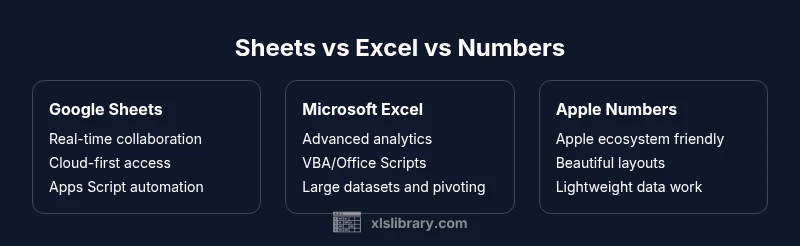
In the Google Sheets vs Excel vs Numbers landscape, the best choice depends on your workflow. Google Sheets excels at real-time collaboration and cloud access, Excel dominates complex data modeling and offline power, and Numbers offers a polished Apple-friendly option for lightweight data work and presentation-ready layouts.
The three ecosystems: Google Sheets, Excel, and Numbers
The modern spreadsheet market is organized around three dominant ecosystems: Google Sheets, Microsoft Excel, and Apple Numbers. Each tool emerged from different design goals: Sheets prioritizes collaboration and accessibility via the web; Excel emphasizes depth of features, offline capability, and enterprise-scale data analysis; Numbers focuses on a clean, Apple-native experience with strong emphasis on aesthetics and simplicity. When you compare google sheets vs excel vs numbers, you’re not just comparing features—you’re comparing operating models: cloud-first collaboration vs desktop-leaning power, and a design-centric experience tailored to a specific platform. For organizations, this triad often means choosing a primary tool and using the others in limited, interoperable ways. The XLS Library team notes that many teams adopt a mixed approach to balance collaboration, analytics, and presentation.
Quick differences at a glance
In the google sheets vs excel vs numbers spectrum, there are clear, practical contrasts. Sheets is ideal for teams that need real-time co-editing and cross-device access; Excel remains the default for advanced analytics, extensive data modeling, and robust automation; Numbers offers a visually refined, Apple-friendly solution for lightweight data tasks and storytelling-with-data. The decision often hinges on core tasks: do you need heavy pivot tables and macro support, or smooth cloud collaboration with minimal setup, or beautifully designed outputs for reports?
Each tool also has a distinct ecosystem: Google Workspace, Microsoft 365, and Apple’s software suite. This matters for integration with other apps, governance policies, and IT roadmaps. The goal of this article is to illuminate the practical differences and provide actionable guidance for choosing google sheets vs excel vs numbers based on real-world needs.
Ecosystem and platform parity
Google Sheets operates in a cross-platform, web-first environment that naturally emphasizes collaboration, sharing controls, and real-time updates. Excel spans Windows, macOS, and mobile apps, with deep data analysis capabilities, VBA/Office Scripts, and Power Query for data connectivity. Numbers is macOS/iOS-first and emphasizes native aesthetics, iCloud synchronization, and export options suitable for publishing. When you consider google sheets vs excel vs numbers, you should weigh not only feature parity but platform alignment, IT policy, and user habits. The XLS Library analysis highlights that organizations with mixed-device fleets often gravitate toward Sheets for everyday work, while data-heavy teams lean toward Excel, and design-focused teams gravitate toward Numbers for client-facing documents.
Practical recommendations for teams
If collaboration and ubiquity are the priority, Google Sheets is often the best starting point. If your workload involves large datasets, complex formulas, and offline work, Excel remains the strongest option. If you’re deeply embedded in the Apple ecosystem and prioritize elegant layouts for reports, Numbers can be a compelling choice. The trade-off is clear: Sheets lowers friction for sharing; Excel increases capability for analysis; Numbers prioritizes design and simplicity. In professional contexts, many teams use a hybrid approach: Sheets for collaboration, Excel for modeling, and Numbers for presentation-ready outputs or sketches.
Formulas, functions, and cross-tool nuances
All three tools support core spreadsheet concepts like cells, rows, columns, and standard arithmetic operations. However, the function names, arguments, and even behavior can vary. Google Sheets emphasizes online collaboration with Functions like IMPORTRANGE, FILTER, and QUERY that simplify cross-sheet data retrieval. Excel offers a comprehensive library of functions, including advanced statistical, financial, and array formulas, with powerful automation via VBA and Office Scripts. Numbers focuses on approachable formulas and functions that integrate with Apple automation features, while keeping syntax accessible. When you google sheets vs excel vs numbers in this area, expect broad parity for common tasks (SUM, AVERAGE, IF) but plan for tool-specific nuances when migrating formulas or building complex models. The XLS Library team observes that teams often maintain separate formula baselines for each tool to avoid drift across workflows.
Data capacity and performance considerations
In practice, data capacity and performance influence your tool choice. Google Sheets scales well for collaborative, mid-sized datasets in the cloud, and its performance is typically more dependent on network conditions than the app’s core engine. Excel offers authoritative data modeling capabilities, large datasets, and turbocharged performance for heavy computations; it excels when you need pivot tables, Power Query-based data imports, and advanced charting. Numbers caters to lighter datasets and presentation quality, with performance optimized for macOS/iOS ecosystems. When deciding google sheets vs excel vs numbers for data-heavy tasks, you should match your dataset size, refresh rates, and calculation complexity to the tool that handles them most efficiently without compromising user workflow. The XLS Library framework encourages performance benchmarking on representative workloads before large-scale deployment.
Collaboration and governance: sharing, permissions, and history
Collaboration is a defining factor for Sheets, while Excel offers collaboration through SharePoint and OneDrive. Numbers supports iCloud-based sharing but is more limited in granular permissions compared with enterprise-grade solutions. For governance, Sheets excels in simple, transparent sharing and comment threads; Excel provides version history, co-authoring with enterprise controls, and robust auditing in business environments; Numbers focuses on individual or small team workflows with straightforward sharing options. If you operate under strict data governance standards, you’ll want to consider how each platform handles access control, versioning, and audit logs as you plan a rollout.
Automation, scripting, and extensibility
Automation is essential for scaling workflows. Google Sheets leverages Apps Script for custom functions, add-ons, and automation that run in the cloud, which is ideal for distributed teams. Excel offers VBA on Windows and Office Scripts on the web, enabling sophisticated automation, batch data processing, and integration with other Microsoft 365 apps. Numbers has automation features tied to macOS and iOS ecosystems, with Apple Shortcuts and scripting limited compared to Excel and Sheets. In choosing google sheets vs excel vs numbers for automation, consider where the automation will run (cloud vs desktop), the skill set of your team, and the required integration with other tools. The XLS Library findings indicate that teams often centralize automation in Excel while using Sheets for lightweight automation and real-time data entry.
Import, export, and interoperability across tools
Interoperability remains a practical challenge: while each tool supports common formats like CSV and XLSX, preserving formatting, formulas, and data validation rules across platforms can be tricky. Google Sheets can import and export Excel files and CSVs efficiently, but some advanced Excel features may not translate perfectly. Excel shines at exporting to a wide array of formats and maintaining complex structures, but cross-compatibility can require manual adjustments after import. Numbers exports to Excel-friendly formats and PDFs, but its native features may not map one-to-one. If your workflow requires exchanging files across google sheets vs excel vs numbers frequently, expect patches in formatting, dependent features, and scripting, and plan migration paths or adapters accordingly. The XLS Library guidance emphasizes documenting layout conventions and maintaining a shared model when cross-tool collaboration is frequent.
Security, privacy, and governance in the cloud
Security considerations differ among the three ecosystems. Sheets relies on Google’s cloud security stack with granular sharing controls, while Excel leverages Microsoft’s enterprise-grade security, advanced threat protection, and eDiscovery capabilities within 365. Numbers leverages Apple’s privacy defaults and iCloud security model, which some teams value for privacy, particularly in consumer-focused environments. The trade-off concerns data residency, access controls, and compliance alignment. As you google sheets vs excel vs numbers for sensitive information, map your organization’s regulatory needs to each platform’s security features, and implement least-privilege access, data loss prevention policies, and regular audits so you minimize risk across tools.
Real-world use-case scenarios: matching tools to tasks
Consider three archetypes. The first is a cross-functional team collaborating in real time on budgets and planning—Google Sheets often wins here due to seamless sharing and comment threading. The second is a data science or finance group building predictive models and dashboards—Excel frequently outperforms due to its breadth of analytics functions and data modeling capabilities. The third is a creative team delivering proposals and client reports—Numbers can deliver polished visuals and clean layouts with Apple devices. When you google sheets vs excel vs numbers in practice, mapping the use-case to platform strengths yields the most efficient outcomes, with potential for a hybrid setup when necessary.
Practical decision framework: a quick step-by-step guide
- List the core tasks: collaboration, modeling, presentation. 2) Identify platform constraints: devices, cloud access, IT policies. 3) Evaluate existing tooling: Google Workspace, Microsoft 365, or Apple ecosystem. 4) Assess migration costs and interoperability needs. 5) Pilot with a small team to validate workflow fit before scaling. This approach aligns with the XLS Library recommendation to start with the dominant workflow and only expand to other tools when justified. 6) Establish governance and training plans to minimize friction and maximize return on investment.
Common mistakes to avoid when choosing a spreadsheet tool
Avoid assuming feature parity across google sheets vs excel vs numbers. Don’t underestimate the cost of cross-tool migration for macros, scripts, and complex formulas. Don’t ignore collaboration needs in favor of raw power; cloud-based collaboration can be a decisive factor for many teams. Finally, don’t overlook security and compliance implications when selecting tools for sensitive data or regulated industries. By anticipating these pitfalls, teams can implement a more resilient, scalable spreadsheet strategy.
Feature Comparison
| Feature | Google Sheets | Microsoft Excel | Apple Numbers |
|---|---|---|---|
| Platform availability | Web + Android + iOS apps; strong cloud collaboration | Desktop (Windows/macOS) + web; rich offline power | macOS + iOS; strongest Apple ecosystem integration |
| Advanced data modeling | Solid for many tasks; best with collaboration in mind | Industry leader for complex analytics, large models, VBA/Office Scripts | Limited compared to Excel; best for lightweight models |
| Automation & scripting | Apps Script; cloud-based automation | VBA + Office Scripts; strongest automation toolkit | Apple Shortcuts; simpler automation, less depth |
| Pivot tables & data analysis | Strong pivot capabilities with live collaboration | Industry-standard pivot tables and extensive data tools | Pivot and analytics are more basic, simpler workflows |
| Interoperability | Excellent with Google ecosystem; good XLSX support | Excel is the interoperability cornerstone (read/write many formats) | Excellent with Apple ecosystem; best for Mac-native workflows |
| Collaboration & sharing | Real-time multi-user editing; granular sharing | Co-authoring with enterprise controls; robust version history | Sharing via iCloud; simple permissions |
| Pricing model | Free with Google account; paid for Workspace for advanced features | Part of Microsoft 365; licensing depends on plan | Free on Apple devices; bundled with macOS/iOS |
Benefits
- Real-time collaboration and cloud access across all devices
- Strong ecosystem support and wide compatibility with other apps
- Cost-effective entry points for teams starting from zero
- Cross-platform access reduces vendor lock-in in mixed environments
- Presentable outputs and dashboards can be produced efficiently
What's Bad
- Interoperability can cause formatting and feature drift between tools
- Excel’s depth can come with a steeper learning curve and licensing overhead
- Numbers offers fewer enterprise features and automation options
- Security and governance complexity rises with cloud-based collaboration
Excel is best for heavy data work; Sheets for collaboration; Numbers for Apple-centric, design-focused tasks.
Choose Excel when you need deep data modeling and offline work. Opt for Sheets when collaboration and cross-device access matter most. Numbers is ideal for Apple-native teams prioritizing design and simple workflows.
People Also Ask
Which tool is best for collaboration and real-time editing?
Google Sheets generally offers the strongest real-time collaboration and cloud-first workflow, followed by Excel’s online capabilities within Microsoft 365. Numbers supports collaboration too, but with fewer enterprise-grade controls. The best choice depends on your team’s preferred ecosystem and governance needs.
For teams needing real-time collaboration, Google Sheets is usually the strongest option, with Excel offering strong online collaboration within Microsoft 365 and Numbers providing basic collaboration within the Apple ecosystem.
Can I use formulas across all three tools without changes?
Core formulas like SUM and AVERAGE are supported across all three, but many function names, syntax, and capabilities differ. Complex models or advanced functions (like ARRAY formulas or scripts) often require translation or rewriting when moving between Sheets, Excel, and Numbers.
Core formulas exist in all three, but you’ll usually need to adjust complex formulas when transferring between them.
Is Numbers suitable for business analytics?
Numbers is excellent for lightweight analytics and polished reports, especially when Apple device aesthetics matter. For heavier data modeling, pivot tables, and automation, Excel is typically a stronger choice.
Numbers works well for light analytics and reports; for heavy data work, Excel is usually better.
What about interoperability if my team uses all three tools?
Interoperability can introduce formatting drift and feature gaps. Establish shared templates, clearly document supported features, and define migration paths to minimize disruption when exchanging files between google sheets vs excel vs numbers.
Plan for drift and set up shared templates to ease cross-tool exchanges.
How should I choose between the three for my organization?
Start with core tasks: collaboration, analytics, and presentation. Map these to the ecosystem that best supports them, then implement a pilot. Consider security, IT policy, and device management before scaling.
Begin with your main tasks and pilot the tool that best fits them, then scale.
Are there any hidden costs I should anticipate?
Costs come from licensing, training, and potential migration effort between tools. Cloud-based collaboration may incur data and admin costs, while offline work may require additional software licenses or device support.
Expect licensing, training, and migration costs as you adopt a multi-tool workflow.
The Essentials
- Prioritize collaboration if Sheets is your primary tool
- Lean on Excel for advanced analytics and offline use
- Use Numbers for Apple-centric, presentation-ready tasks
- Plan for cross-tool workflows with clear migration paths
- Invest in governance when cloud-based tools are used