How to Get Excel for Free: Legit Ways to Access Excel Without Paying
Explore legitimate, practical methods to access Excel for free, including Excel for the web, student licenses, trials, and safe alternatives. Learn steps, limitations, and tips from XLS Library.


If you’re asking how to get Excel for free, you have solid, legal options. Start with Excel for the web (free with a Microsoft account), look into student or educator licenses, or try a time-limited Microsoft 365 trial. These paths provide usable spreadsheet features without purchasing a license, though feature parity and offline access vary.
Why people look for free Excel options
In 2026, many learners and professionals seek ways to use Excel without paying upfront. The drivers include budget constraints, non-technical roles that only need occasional spreadsheet work, and the desire to trial advanced features before committing. The XLS Library team found that most legitimate routes fall into three categories: free online access via Excel for the web, eligible education licenses, and temporary trials. While free options are powerful for many tasks, it’s important to understand scope and limits. Expect differences in desktop vs. online capabilities, offline access, and collaboration features. Throughout this guide, we’ll keep the focus on legal, supported paths so you can learn and work with confidence and peace of mind. If you’re wondering how to get excel for free, start with Microsoft’s official channels before exploring third-party alternatives.
Note: Always verify eligibility and avoid sources offering “free full Excel” downloads, which are often scams or contain malware. The goal is practical access, not risky shortcuts.
According to XLS Library, the most reliable routes combine official free options with good data practices, so you can learn, test, and grow your spreadsheet skills without paying a dime. As you read on, you’ll see concrete steps, realistic expectations, and safety tips tailored to students, professionals, and casual users alike.
wordCountOnlyForBlock1 ?? 0 ?? 0?
Tools & Materials
- Microsoft account(Needed to access Excel for web and to sign in for trials.)
- Stable internet connection(Required for online Excel for web and sign-in.)
- Device with a modern browser(Chrome, Edge, Safari, or Firefox.)
- School or employer email (optional)(Helpful for education licenses and verification.)
- Office mobile app (optional)(For mobile access to Excel features.)
- Backup plan (LibreOffice, Google Sheets)(Useful if you need offline access or alternate formats.)
- Payment method (only if you opt into a paid trial later)(Remember to cancel before the trial ends to avoid charges.)
Steps
Estimated time: 2-3 hours
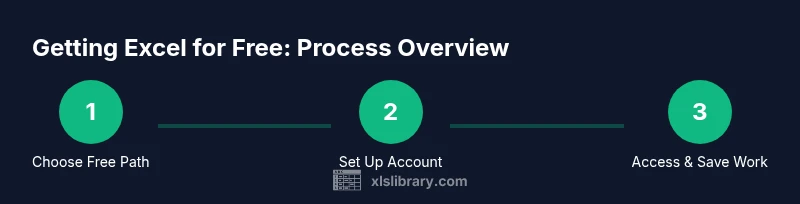
- 1
Identify the best free path for your needs
Start by clarifying whether you need online access, desktop features, or offline capability. If you’re only doing light editing or sharing, Excel for the web may suffice. If you need advanced desktop features, a trial or education license could be more appropriate. Knowing your goal helps you pick the right option and avoid overpaying.
Tip: Choose Excel for web for quick, always-on access; reserve trials for advanced tasks. - 2
Create or sign in with a Microsoft account
If you don’t already have one, create a free Microsoft account. This account unlocks Excel for web, OneDrive storage, and access to trial options. Keep your login credentials secure and enable two-factor authentication for safety.
Tip: Use a dedicated account for learning to keep work separate from personal data. - 3
Access Excel for the web and start a workbook
Navigate to office.com and open Excel for the web. Create a new workbook or upload an existing one. You’ll be able to edit, save to OneDrive, and share with collaborators in real-time within the free tier.
Tip: Regularly save to OneDrive to prevent data loss in case of browser issues. - 4
Verify education eligibility if you’re a student or teacher
Check if your institution offers Microsoft 365 Education. If eligible, you may access Excel and other apps at no cost through your school’s license. Verify with your school’s IT department or the Microsoft Education portal during sign-up.
Tip: Use a school-issued email to simplify verification and ensure full feature access. - 5
Consider a Microsoft 365 trial for desktop features
If you require desktop Excel features, sign up for a trial. Trials are time-limited and require cancellation before charges begin. They provide access to the full desktop app and offline files, but you must manage renewal settings to avoid auto-charges.
Tip: Set a calendar reminder to review trial status and cancel if you don’t want to continue. - 6
Explore safe, free alternatives for ongoing needs
For long-term free use, supplement Excel with alternatives like Google Sheets or LibreOffice Calc, which handle common tasks and import/export Excel files. These tools won’t replace every advanced feature but cover most day-to-day needs and preserve compatibility with .xlsx files.
Tip: Keep project files in a universal format like .xlsx when possible to ease sharing. - 7
Practice with templates and community resources
Use built-in templates and free online tutorials from reputable sources to accelerate learning. This strengthens your ability to perform typical tasks (formulas, charts, data validation) without purchasing a license.
Tip: Look for official Microsoft templates to ensure compatibility and quality.
People Also Ask
Is Excel for free truly free, or are there hidden fees?
Excel for the web is free with a Microsoft account, but some advanced features and offline access may require a paid plan or desktop installation. Always verify what’s included in the free tier and avoid offers claiming “full Excel for free.”
Excel for web is free with a Microsoft account, but some advanced features require a paid plan.
Can I use Excel offline if I don’t want to pay?
Offline access is typically available with the desktop version, which may require a trial or license. The web version requires an internet connection. Plan your work accordingly and use offline-capable alternatives if needed.
Offline use usually needs the desktop app or a trial—web Excel requires internet access.
What features are available in Excel for web?
Excel for the web supports many core tasks: formulas, charts, tables, filtering, data validation, and collaboration. Some advanced features and add-ins may be limited compared with the desktop version.
Core spreadsheet features are available online, but some advanced tools may be limited.
Do I need a student email to qualify for education licenses?
Often, yes. Education licenses usually require verification through a school email or student credentials. Check your institution’s eligibility page for precise steps.
A student or educator email often helps verify eligibility for free education licenses.
Are there risks with free Excel programs or trials?
Risks include unexpected charges if you forget to cancel trials, scams offering “free full Excel” downloads, and potential data privacy concerns. Stick to official sources and read terms carefully.
Be cautious with offers outside official Microsoft channels to avoid scams.
Watch Video
The Essentials
- Start with official free options (Excel for web) to learn the basics quickly.
- Education licenses and trials are legitimate paths for broader access.
- Always verify eligibility and protect your data with strong security practices.