How to Make a Work Schedule on Excel: A Practical Guide
Master the art of building a reusable work schedule in Excel with templates, formulas, and clear formatting. Learn step-by-step setup, automation tips, printing, and sharing for teams of any size.


By the end of this guide, you will know how to make work schedule on excel that is reusable, readable, and printable. You’ll set up a calendar grid, assign shifts, apply color-coding, and lock formulas to prevent mistakes. This approach works in any Excel version and scales from a small team to a large department.
Why a Well-Designed Schedule Saves Time
In any team, a clear schedule reduces confusion, idle time, and last-minute scrambles. When you learn how to make work schedule on excel, you create a single source of truth that everyone can reference. A practical schedule helps front-line staff know their shifts, managers plan coverage, and payroll stays accurate. According to XLS Library, a well-structured schedule saves time and reduces scheduling conflicts. Start with a simple premise: pick a scheduling period (week or biweekly), list all employees, and define standard shift codes. By laying out responsibilities in a consistent grid, you minimize back-and-forth emails and the risk of double-bookings. The aim is legible, scalable design that works across several weeks and can be copied forward. From there, you can add layers like vacation blocks, training days, or notes for special events. The payoff is smoother operations, happier staff, and less stress on managers who must keep the calendar up to date.
Key Concepts for Scheduling in Excel
Before you start, define the core building blocks of the schedule. A grid with dates along the top and employees along the side is the backbone; each cell represents a shift or status. Use short shift codes (for example: M for morning, E for evening, O for off) to keep the grid compact. Reserve a summary row at the bottom for totals, so you can quickly see coverage gaps. Implement conditional formatting to highlight open shifts, overworks, or missing entries. Data validation reduces errors by restricting entries to allowed codes and dates. Finally, plan for printing: decide whether you want weekly or monthly views and ensure margins are printer-friendly. These decisions determine how easily the schedule can be shared, updated, and audited.
Step-by-Step Template Setup
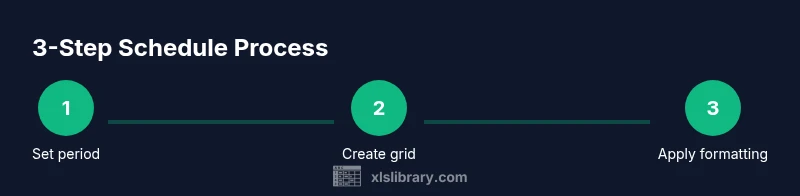
Start by creating a new workbook and naming the sheet Schedule. In row 1, place a date header starting with the first date of your period; in column A, list the team members. Create a header row with columns for Employee, Role, and each date. Then set up a Shift column next to the name, and add a Status or Hours column. Create a named range for the employee list and a data validation rule that restricts shift codes to M, A, E, N, OFF. Save a copy as a template so you can reuse it weekly. Finally, apply a simple formula to auto-fill dates when you copy the template to the next period.
Customizing Shifts and Roles
Customize the grid to reflect your team structure. Add a Role column to capture positions (e.g., Manager, Clerk, Technician) and use separate sections for different departments if needed. You can also add a Reset or OOS (out of service) state for planned absences. Consider creating a two-tier system: a primary shift grid for day-to-day staffing and a secondary grid for exceptions or backup coverage. This separation helps when you need to reallocate resources during peak times or emergencies.
Automation with Simple Formulas
Leverage basic Excel formulas to reduce manual entry. Use RANK or COUNTIF to ensure you meet minimum coverage and flag gaps. Use IF and VLOOKUP/XLOOKUP to pull shift codes based on the date and employee. Create conditional formatting rules to color-code shifts (e.g., green for filled, red for missing). A small helper column can compute total hours per week for each employee, highlighting overtime or under-scheduling. These automations keep the schedule accurate without heavy scripting.
Printing and Sharing Your Schedule
Decide the view that works best for your team—weekly is common, but monthly can reduce page flips. Set a print area that includes headers and a clear left margin for employee names. Use landscape orientation and adjust margins to fit on standard paper; test print a sample sheet to ensure readability. If you need to share digitally, save the schedule as a template and distribute the workbook via your team's collaboration platform. Consider exporting to PDF for a stable, print-ready version.
Common Pitfalls and How to Avoid Them
Common issues include misaligned dates, inconsistent shift codes, and forgotten exceptions. Build guardrails like a standardized list of shift codes, a drop-down validation for all date cells, and a dedicated notes column for special cases. Regularly audit the template by comparing a printed copy with the digital version and by soliciting feedback from team leads. Keep the template in a central location and enforce version control to avoid multiple conflicting copies.
Putting It All Together
With a solid template, you can replicate schedules week after week, adjust for holidays, and quickly onboard new staff. The key is to maintain readability, enforce consistency, and keep your data protected. A well-built schedule in Excel becomes a repeatable process rather than a chore, reducing clerical work and freeing up time for proactive planning. As you gain experience, you can layer on more features such as vacation tracking, shift swapping, or integration with other tools.
Tools & Materials
- Excel software (Windows or macOS)(Any recent version, e.g., Excel 2019/365)
- Blank schedule template (XLS Library provided)(Excel workbook or template to start from)
- Date range calendar(Define the period (week, biweekly, or monthly))
- Color-coded highlighters or conditional formatting(Helpful for printed copies or quick visuals)
- Data validation list for shift codes(Example codes: M, A, E, N, OFF)
- Print settings and printer(For hard copies of the schedule)
Steps
Estimated time: 30-45 minutes
- 1
Create the base grid
Open a new workbook and create a sheet named Schedule. In the top row, set dates for your period starting with the first day; in column A, list all team members. Leave space for shift codes and hours to the right.
Tip: Use a consistent date format (e.g., mm/dd) to prevent confusion between weeks. - 2
Define headers and data regions
Create a header row with Employee, Role, and each date as separate columns. Add a Shift or Status column next to the employee name for quick entry. Name the employee range for easy lookup.
Tip: Freeze the top row so headers stay visible when scrolling. - 3
Set up allowed values
Create a data validation list for shift codes (M, A, E, N, OFF) and apply it to all date columns. This constraint reduces entry errors and keeps formatting consistent.
Tip: Store the allowed values in a hidden sheet or a named range for easy updates. - 4
Add initial shifts
Enter the initial week's shifts for each employee. Use the Shift column to reflect primary assignments and hours. Save a template copy after this step.
Tip: Start with a small pilot group to test the template before expanding. - 5
Incorporate totals and summaries
Add a totals row or column to track coverage and hours. Use SUM across date columns to monitor hours per employee and ensure you’re within labor guidelines.
Tip: Highlight under-covered days with a conditional format rule. - 6
Apply conditional formatting
Set rules to color-code filled vs. open shifts and overworked employees. This makes gaps obvious at a glance and speeds review.
Tip: Keep formatting simple to preserve readability when printing. - 7
Protect and share the template
Lock formulas and critical cells to prevent accidental changes. Save the template in a shared location and provide a short guide for teammates.
Tip: Only unlock cells intended for edits to maintain structure. - 8
Test print and adjust
Print a sample week to verify margins, fonts, and readability. Tweak font size and column widths so the schedule fits clearly on one page.
Tip: Use landscape orientation for wider date ranges.
People Also Ask
What version of Excel do I need to build a schedule like this?
Any recent version of Excel will support the features described, including data validation and conditional formatting. If you’re on an older version, you can simplify the formulas, but you may lose some advanced formatting.
Any recent Excel version will work; older versions may require simpler formulas and fewer formatting options.
Can I share this schedule with teammates who use Google Sheets?
Yes. You can export the schedule as CSV or copy data into Google Sheets. Some features like data validation may behave differently, so test the sheet after import.
Yes, you can share it in Google Sheets after exporting, but some features might differ.
How do I automatically fill dates across weeks?
Use the fill handle to extend date sequences and apply a consistent date format. Pair this with a small formula to adapt days across weeks.
Use Excel’s fill handle to auto-fill dates and copy formulas across weeks.
What should I adjust for printing a weekly schedule?
Set a defined print area, choose landscape orientation if needed, and verify margins. Printing a weekly view helps managers review before shifts.
Adjust print settings and print a weekly view for readability.
How do I handle shifts with variable hours?
Add an Hours column and use a simple formula to total weekly hours. Highlight deviations with conditional formatting to catch anomalies.
Add a column for hours and highlight deviations.
Watch Video
The Essentials
- Plan the schedule around a fixed period and team size.
- Leverage simple Excel rules to auto-fill and validate data.
- Use color-coding and protected cells for clarity and safety.
- Test print and sharing workflows to ensure consistency.