How to Tell When an Excel File Was Created
Learn practical methods to tell when an Excel file was created by checking OS metadata, file properties, and workbook details across Windows and macOS. This guide covers proven steps, common pitfalls, and verification workflows.


You can tell when an Excel file was created by checking its metadata and file properties across Windows and macOS, then correlating those values with the workbook’s internal information. Look for the creation date in the file header, filesystem timestamps, and author or creator fields, then consider any moves or edits that might have changed those dates. This guide shows practical steps to verify creation time.
How to Tell When How to Tell When Excel File Was Created: Why It Matters
Understanding how to tell when excel file was created is more than curiosity; it supports data provenance, audits, and troubleshooting. A reliable creation timestamp helps you verify where data came from, when a workbook first started, and whether downstream edits affected its origin. According to XLS Library, practitioners who verify creation times across multiple signals reduce ambiguity in investigations. The XLS Library team found that relying on a single source—like a file system date or an Excel property alone—can lead to false conclusions, especially after copies, moves, or cloud transfers. This section lays the groundwork for a robust verification approach that combines OS metadata, Excel properties, and direct workbook signals. The goal is not to build a perfect timestamp in every case, but to triangulate evidence so you can justify your conclusion with sources and reasoned judgment.
How to Tell When How to Tell When Excel File Was Created: Key signals
To determine when a workbook began, you’ll pull signals from three layers: the operating system's file metadata, the Excel workbook's internal properties, and any cloud or backup services that touched the file. When signals converge on the same date, you gain confidence in the result. If signals diverge, you’ll need to document the discrepancy and note which signal you trust most given the context (e.g., a copied file might show a new creation date in the OS). The practical takeaway is to build a small evidentiary chain: OS creation time, Excel-created date, and any corroborating timestamps from cloud backups or version history. This approach aligns with best practices recommended by the XLS Library team, ensuring you have a reproducible method for future audits.
First principles: definitions and scope
The creation date can appear in various places depending on your platform and workflow. Different systems—Windows, macOS, or a cloud service—store different signals. In Windows, you’ll typically see a Created timestamp in the file properties; in macOS, Get Info provides a creation attribute; Excel itself can store workbook-level metadata like a Created date. The important nuance is that not all signals survive every operation. A simple copy can reset OS timestamps, while Excel metadata might be preserved in some versions and not in others.
What to expect in practice
In real-world files, you may discover that the OS Created date differs from the workbook's own Created property. This isn’t a bug; it reflects how the file was moved, copied, or saved. To resolve, collect evidence from multiple sources and note any operation you performed (copying, emailing, cloud syncing). The goal is to arrive at a defensible conclusion, not a perfect one, and to document your reasoning for future reference.
Quick wins and long-term habits
For ongoing work, establish a routine: whenever a workbook is created or received, record the creation signals you checked and the resulting date. Maintain a small log or metadata note alongside the file. This habit reduces confusion later, particularly when a file passes through multiple hands or platforms. As you gain experience, you'll develop a mental model of which signals are most trustworthy in your typical workflows.
Tools & Materials
- Windows PC with File Explorer(Navigate to the file, right-click > Properties to view creation date)
- macOS computer with Finder(Right-click or Get Info to view creation date)
- Excel workbook file(The target .xlsx, .xlsm, or similar workbook)
- PowerShell or Terminal access(Run commands to fetch metadata if needed)
- Text editor(For recording findings and decisions)
Steps
Estimated time: 30-40 minutes
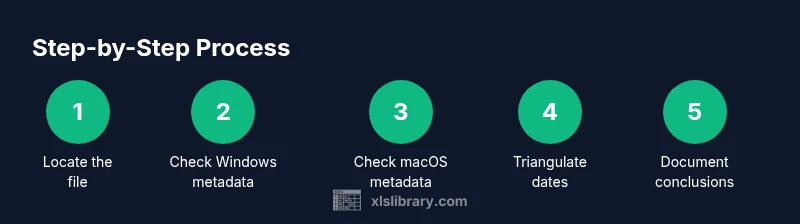
- 1
Locate the file
Find the Excel file in its folder or on the desktop. Confirm the exact path to ensure you are inspecting the correct object.
Tip: Use a consistent folder structure to avoid misidentifying files. - 2
Open Windows file properties
Right-click the file and choose Properties. Note the Created timestamp and the Modified timestamp. These OS signals can indicate when the file first appeared on the system.
Tip: If the Created date seems off, check the file’s location history and any subsequent copies. - 3
Open macOS Get Info
Select the file and press Command-I to view Info. Look for the Created date and creator metadata that macOS records.
Tip: macOS can show multiple dates; compare Created with Modified to understand changes over time. - 4
Inspect Excel properties
Open Excel and go to File > Info > Properties. Some versions show a Created time and author fields that may corroborate OS data.
Tip: If the Created field is missing, rely on OS metadata and cloud version history for triangulation. - 5
Fetch metadata via PowerShell
On Windows, run Get-Item in PowerShell and inspect CreationTime. This can confirm the OS-level signal or reveal discrepancies.
Tip: Example: (Get-Item 'path\to\file.xlsx').CreationTime - 6
Fetch metadata via macOS terminal
On macOS, you can use mdls or stat to query creation dates. mdls -name kMDItemFSCreationDate <path> is a common approach.
Tip: mdls may return multiple date fields; focus on kMDItemFSCreationDate for the filesystem signal. - 7
Triangulate dates
Compare the Created date from OS properties, the Created property inside Excel, and any cloud/version history dates. Favor the signal that aligns across sources unless you have a strong reason to doubt it.
Tip: Document any mismatch and explain which signal you trust and why. - 8
Document and conclude
Record your determined creation date and the sources you used. Include a short justification in case someone later questions the result.
Tip: Keep a short note with the file or in a related project log for future audits.
People Also Ask
Can the creation date of an Excel file be changed, and if so, how?
Yes, the creation date can change when a file is copied or moved, or when metadata is rewritten by some backup processes. Always verify using multiple signals—OS metadata, Excel properties, and cloud/version history—to form a supported conclusion.
Yes. Creation dates can change when a file is copied or moved, so verify with several signals to be sure.
How reliable is the creation date in Excel files?
Reliability varies by platform and workflow. OS timestamps can be affected by copies, while Excel’s own properties may reflect workbook information. Triangulating OS data with workbook metadata gives the most reliable result.
Reliability varies; triangulate OS data with workbook metadata for best accuracy.
Where should I look for the creation date in Windows?
In Windows, inspect the file’s Properties window and look for the Created timestamp. Also check the Modified timestamp for context, and compare with any Excel workbook properties if available.
Check the file's Properties for Created time and compare with Modified time.
Where should I look for the creation date on macOS?
In macOS, use Get Info to view the Created date. You can also use Terminal commands like mdls to pull filesystem creation data and compare with Excel properties if present.
Use Get Info or Terminal mdls to view creation dates on Mac.
Does cloud storage affect creation dates?
Yes. Uploading, syncing, or downloading can alter local creation timestamps or create new ones. Always cross-check with the original file location and any version history available.
Cloud actions can change timestamps; verify with version history.
Is there a universal method across Excel versions?
There isn’t a single universal method across all versions. Combine OS file metadata, Excel workbook properties, and, if available, cloud history to triangulate the creation date.
No universal method; use a triangulated approach across sources.
Watch Video
The Essentials
- Check OS file properties and Excel metadata together.
- Triangulate signals to form a defensible creation date.
- Document steps and sources for future audits.
- Be cautious of copied or cloud-moved files that reset dates.
- Use command-line tools when UI signals are inconclusive.