How to Check When Excel Was Edited
Learn how to determine when an Excel file was edited using built-in tools, metadata, and version history. This practical, step-by-step guide from XLS Library helps you trace changes and maintain an auditable trail.


According to XLS Library, you can determine when an Excel workbook was edited by checking file metadata, using Version History (Excel for Microsoft 365), and reviewing Track Changes or Comments if enabled. Start with the File Info pane to inspect last modified dates, then look for earlier versions in OneDrive/SharePoint or AutoSave history for a complete edit timeline.
Why understanding edit history matters
In professional settings, knowing exactly when and who edited an Excel workbook is essential for audits, collaboration accountability, and data integrity. The XLS Library team has found that most organizations rely on a mix of metadata, version histories, and change logs to reconstruct edit timelines. This section explains what counts as an edit and why you should verify it before sharing or signing off on data. You’ll learn to distinguish between simple saves, auto-saves, and deliberate edits, and you’ll know where to look first when tracing changes.
File properties and metadata: the first clues
Many Windows and macOS file systems store basic metadata for each Excel workbook, including last modified date and the user who saved it. To access this information, open the file in Explorer or Finder, then view the Details/Get Info pane. In Excel, you can also inspect the File > Info panel, where the last modified timestamp may appear. Note that metadata can be altered by copying the file or saving to a different location, so treat it as a clue, not definitive proof. If you find discrepancies, cross-check with Version History or cloud-based saves. As highlighted by the XLS Library team, metadata alone rarely tells the full story, but it’s a crucial starting point.
Version History and AutoSave: cloud vs local
Version History is often the most reliable source for a record of edits, especially for files stored on OneDrive or SharePoint. In Excel for Microsoft 365, AutoSave runs continuously and creates a stream of versions you can restore or compare. The history lists edits by date and author, and you can open a previous version to inspect the exact cells that changed. Local copies without cloud storage might show outdated information, so prefer cloud versions when possible. For teams using cross-platform workflows, Version History provides a centralized, auditable trail that local file properties cannot guarantee.
Tracking Changes and Comments in shared workbooks
Tracking Changes was the older method for collaborative edits; in modern Excel, you enable Shared Workbook mode or use Comments and threaded discussions. When enabled, you can see who edited which worksheet and when, and you can accept or reject changes. If you’re dealing with a workbook that’s shared across teams, this becomes crucial for accountability, especially in regulated contexts. Always save a new version after applying changes to preserve an auditable trail. As noted by XLS Library, combining Track Changes with Version History yields the most robust record of edits.
Checking edits across platforms: Windows, Mac, and Excel Online
Edit histories can vary slightly depending on platform. Windows and OneDrive typically surface last-modified dates and Version History in File > Info. Mac users can access Version History similarly, though the path may differ slightly. Excel Online offers an integrated history panel tied to the document in the browser; changes are captured even if your desktop app isn’t installed. When cross-checking, record the results from each platform to avoid gaps. This cross-platform approach reduces the risk of missing edits that occurred in a different environment.
A practical checklist for verifying edits
Create a simple, repeatable checklist: 1) confirm last modified date in file metadata; 2) review Version History for edits by date and author; 3) check AutoSave status in cloud storage; 4) scan for Track Changes or Comments; 5) compare key cells against a known baseline; 6) document findings in a change log. Keeping a log helps with audits and reduces miscommunication. Remember: consistency beats ad-hoc checks, especially when multiple people edit the same workbook.
Real-world examples and edge cases
Consider a scenario where a workbook is moved to a different folder or copied to another drive. Metadata may show the new save date, but the original edit timeline remains in Version History if cloud-based; if not, you may lose some context. Another edge case is when a file is opened in read-only mode; edits may be saved in a separate version only after someone writes changes. Always check both metadata and Version History to resolve inconsistencies. These nuances are why a multi-source approach is recommended by the XLS Library team.
How to document edits for audits
End with a clean, auditable trail. Use a standard template to capture who edited what, when, and why. Save a final version and attach a summary of changes along with the file. If possible, export a version history as CSV for archival purposes and ensure you reference the source storage (OneDrive vs SharePoint) in your notes. This discipline helps maintain data integrity over time. Adding a brief narrative of major changes improves future traceability.
Tools & Materials
- Excel (Office 365 or equivalent)(Version History and AutoSave features are central to tracking edits)
- A computer with internet access(Needed to access cloud-based Version History and metadata)
- OneDrive or SharePoint access(Cloud storage enables robust versioning)
- OS file explorer with metadata access(For checking last modified dates outside Excel)
- Audit log template or notebook(Optional—useful for documenting evidence)
- A local copy of the workbook for comparison(Helps validate cloud vs local history)
Steps
Estimated time: Total time: 25-40 minutes
- 1
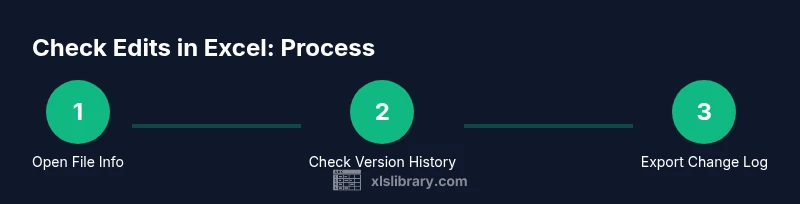
Open the workbook and locate the File Info pane
Open the Excel file and navigate to File > Info. Review the last modified date and any author information shown in the Document panel. This gives you a quick sense of when the file was most recently saved. If the info panel is blank or missing, proceed to metadata checks in the OS or cloud history.
Tip: If the File Info pane lacks details, ensure you’re connected to the internet and the file is stored in a cloud location. - 2
Check the file properties in your OS
On Windows, right-click the file and select Properties > Details to see the Modified timestamp. On macOS, use Get Info to view the Modified date. Record the timestamp and compare it with Excel's own indicators. This step helps validate whether a recent change occurred locally or through a cloud workflow.
Tip: Capture full date-time to avoid ambiguity (e.g., 2026-02-20 14:32:10). - 3
Open Version History in Excel
In Excel, choose File > Info > Version History. Browse versions by date and author, then open a previous version to compare changes in specific cells. This is often the most reliable source for edits made over time, especially in collaborative environments.
Tip: Use the Compare feature within a previous version to pinpoint exact cell changes. - 4
Review AutoSave and cloud version history
If AutoSave is on, review the version stream in OneDrive or SharePoint. Look for who saved each version and when. Restore or snapshot relevant versions to capture the timeline. If AutoSave is off, rely on available versions and any local backups.
Tip: Document any differences you observe between locally saved copies and cloud versions. - 5
Inspect Track Changes and Comments
For shared workbooks, check if Track Changes or Comments are enabled. Review who edited what and when; accept or reject changes as appropriate. If the workbook is newer, track changes may be replaced by modern collaboration features, but the audit trail should still be clear.
Tip: Enable or re-enable Track Changes only when collaboration is active to preserve a clear trail. - 6
Document and export a change timeline
Create a concise change log summarizing edits, dates, authors, and locations (local vs cloud). If possible, export the version history as CSV for archival records. Save this alongside the workbook and reference the storage location in your notes.
Tip: Saving a short narrative alongside data can greatly simplify future audits.
People Also Ask
How can I tell the last edited date in an Excel file?
Open the workbook and check the File > Info pane for last modified information. Cross-check with Version History in cloud storage to confirm edits over time.
Check the File Info pane for the last modified date, then review Version History to see when edits happened.
Does Excel Track Changes preserve edits when collaborating?
Yes, if Track Changes is enabled or the workbook is shared; you can see who edited what and when. For newer workflows, use Comments and Version History together for a clear trail.
Yes, Track Changes helps you see edits by person and time, especially in shared workbooks.
Can I see edit history in Excel for Mac?
Version History is accessible on Mac via File > Version History, though steps may vary slightly from Windows. Cloud-synced versions generally provide the most complete timeline.
Mac users can access Version History, usually through the File menu, with cloud history offering the most complete record.
What about edits saved to OneDrive or SharePoint?
AutoSave and versioning on OneDrive/SharePoint capture edits over time. Review each version to identify who changed what and when.
Cloud storage like OneDrive saves edits as versions you can review over time.
Why is there no edit timestamp on local files?
Local file metadata may not reflect collaborative edits. Cloud-based version history often provides a more accurate timeline when available.
Local files may not show a reliable edit history; cloud history is usually better.
How accurate are the timestamps?
Timestamps reflect system time and save events; discrepancies can occur if files are copied or moved between locations.
Timestamps depend on system clocks and save events; expect occasional small discrepancies.
Watch Video
The Essentials
- Identify last modified date from file metadata.
- Use Version History to see who changed what and when.
- Rely on cloud storage history for granular edit traces.
- Leverage Track Changes for visibility in shared workbooks.
- Document audit steps for compliance and future reference.