Word vs Excel: A Practical Word Excel Comparison
A data-driven comparison of Word and Excel, guiding when to use each tool for word excel tasks, plus tips for hybrid reports and cross-tool workflows.


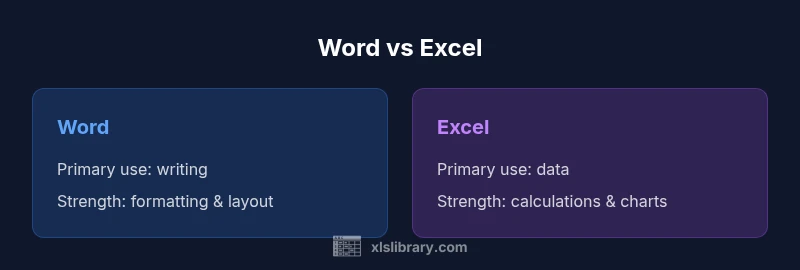
Word vs Excel comes down to task fit: Word excels at long-form writing and formatting, while Excel shines with data analysis and modeling. This comparison clarifies when to choose each tool, how they complement each other, and where hybrid reports benefit from both. By understanding their core strengths, you can streamline workflows and reduce time spent switching between apps.
Why Word vs Excel matters for most workplaces
In daily office life, the choice between Word and Excel is not just about preference; it's about optimizing how information is created, read, and shared. If your project straddles narrative text and structured data, the phrase word excel might describe your dilemma. According to XLS Library, the two programs are designed around different tasks: Word for writing and formatting, Excel for numbers and models. Misplacing a task into the wrong tool leads to friction, longer turnaround times, and unnecessary training. This section helps you map common workflows to the right application, so reports read smoothly and data remains trustworthy.
To begin, treat Word as the canvas for prose, layout, and peer review. Its strengths include long-form writing, styles-based formatting, bibliographies, and reviewer workflows. Treat Excel as the engine for data analysis, numerical modeling, and dashboards. Across both tools you’ll find overlap—tables, basic charts, and comments—but the core capabilities shape how information is stored, analyzed, and presented. The most persistent pitfall is building a data model inside a document or drafting a lengthy report inside a spreadsheet. The right decision reduces rework and speeds collaboration, especially when teams span writing specialists and data analysts. In short: use the tool that aligns with the primary task, and reserve cross-tool workflows for integrated reports.
Core differences in design philosophy
Word and Excel are built to optimize different cognitive workflows. Word prioritizes narrative clarity, typography, and document structure. Excel prioritizes numeric precision, data relationships, and visual analytics. This leads to distinct interfaces: word processors emphasize styles, reference management, and track changes; spreadsheets emphasize cells, formulas, and dynamic charts. Because of this, Word supports master documents, long tables, and bibliographies, while Excel supports named ranges, data validation, pivot tables, and scenario analysis. Both apps support collaboration, comments, and automation, but the typical user journey differs: writing and revising prose happens within a document-centric mindset; modeling scenarios and crunching numbers happens within a grid-centric workflow. The most important takeaway is not which program feels easier, but which interface best aligns with your cognitive tasks and output requirements. If your goal is consistency in formatting across multiple pages, Word will be the better canvas; if your goal is reliable, repeatable data calculations, Excel is the tool to rely on.
Data handling vs text formatting: where each excels
Excel's data engine allows precise numeric operations, structured tables, and scalable analysis. Word excels at layout and readability, supporting headers, footnotes, and citations. For instance, when you need to present a data table with calculations, Excel can perform the math and refresh charts automatically; if you need to weave that data into a narrative, Word offers linking and embedding features, with consistent typography and page layouts. Word tables are useful for simple tabular data inside prose, but not designed for large datasets or complex modeling. Excel, by contrast, handles thousands of rows, supports formulas with relative and absolute references, and integrates with Power Query for data cleansing. The practical distinction is that Word is story-focused, while Excel is data-focused. If you find yourself copying numbers into a document or trying to embed charts inside a paragraph, consider whether the task would be more robustly accomplished in Excel or in Word with a well-structured table.
Collaboration, versioning, and file sharing
Modern collaboration across Word and Excel has improved with cloud-based co-authoring and version history. Word's track changes and comments are well-suited for editorial workflows; Excel's real-time co-authoring supports multi-user data work, though large worksheets can occasionally lag. When teams share files, naming conventions and linked resources become critical: separate drafts in Word from data sources in Excel; maintain a single source of truth; and use cloud shares to keep everyone aligned. For governance, consider building a standard template library, with pre-approved fonts, styles, and chart templates. This reduces formatting drift and ensures consistent outputs across departments. Finally, be mindful of cross-app linking: if you embed Excel charts into Word, ensure the links remain valid when files move or are renamed, otherwise you risk broken dashboards in reports.
Practical task scenarios: when to reach for Word vs Excel
Consider a variety of real-world tasks to guide tool selection. For a polished quarterly report that blends narrative sections with data visuals, start in Word for writing, then embed or link your Excel charts to maintain accuracy. When creating a data-heavy budget, Excel’s formulas, named ranges, and pivot tables deliver clarity and reproducibility. For a draft proposal with appended data summaries, draft the text in Word and attach an appendix generated in Excel. For an internal memo that must include a quick table of figures, use Word for prose and a simple Word table to present the numbers, then attach an Excel sheet for deeper analysis. Finally, if you’re preparing a newsletter or policy brief, Word’s typography and layout features help maintain readability and professional appearance. Across these scenarios, the word excel distinction becomes a practical guide to choosing the right tool for the job.
Hybrid workflows: integrating Word and Excel for reports
Many teams run hybrid workflows to combine the strengths of both tools into a single report. Start with a Word document as your narrative backbone, then insert charts or tables sourced from Excel. Use linked objects for live data that updates with the source workbook, or paste as pictures when you need static visuals. If your report requires ongoing data refreshes, consider a workflow that exports a data subset from Excel into Word using dynamic links. For complex dashboards, embed Excel-based dashboards into a Word appendix, ensuring you maintain a clear document structure with a table of contents, section breaks, and consistent styles. Finally, establish a templated approach: standardized page layouts, fonts, and chart styles across both apps to ensure a cohesive final product.
Comparison
| Feature | Word | Excel |
|---|---|---|
| Primary use | Document creation (writing, formatting, reviewing) | Spreadsheet analysis, data modeling, charts |
| Data handling capabilities | Text and layout-centric data; tables for prose | Numerical data, formulas, large datasets, pivot tables |
| File formats supported | DOCX, PDF, RTF | XLSX, CSV, XLS, ODS |
| Collaboration features | Track Changes, comments, editorial workflow | Real-time co-authoring, comments, data collaboration |
| Automation and macros | Macros/VBA for text/process automation | Macros/VBA for data automation and modeling |
| Learning curve | Accessible for writing tasks; formatting can be complex | Requires familiarity with formulas and data structures |
| Best for | Long-form reports, letters, proposals | Numerical analysis, dashboards, budgeting |
| Typical outputs | Letters, reports, proposals | Spreadsheets, charts, models |
Benefits
- Clear delineation of when to use Word vs Excel based on task
- Broad compatibility and ubiquitous file formats
- Strong collaboration features when using cloud-enabled suites
- Rich formatting and proofreading tools in Word
- Advanced data analysis capabilities in Excel with formulas and charts
What's Bad
- Steeper learning curve for advanced features in each app
- Not ideal to force data modeling into a word document or narrative into a spreadsheet
- Potential for fragmentation if files are not well organized or named consistently
- Some advanced features require a Microsoft 365 subscription
Word excels at narrative documents; Excel dominates data tasks.
Use Word for writing and formatting; Excel for data analysis and modeling. For hybrid reports, plan a deliberate workflow that combines both tools and preserves links and templates to maintain consistency.
People Also Ask
What is the primary difference between Word and Excel?
Word focuses on narrative writing, formatting, and page layout. Excel focuses on data analytics, numerical modeling, and charting. The two are built to optimize different cognitive workflows, so use each tool for its core strengths.
Word handles writing and formatting; Excel handles data analysis and modeling. Use each for its strengths.
Can Word handle data-heavy documents effectively?
Word can manage simple tables and embedded data, but for large data sets, calculations, and dashboards, Excel provides far stronger capabilities. For complex data, keep data in Excel and link or embed it into Word as needed.
Word can include data, but Excel is better for large data sets and calculations.
Is Excel suitable for long-form writing?
Excel can host text, but it excels (pun intended) in data tasks. For long-form writing and consistent typography, Word is generally preferred. You can still add narrative in Excel by using cells strategically, yet readability may suffer.
Excel is not ideal for long-form writing; use Word for that purpose.
How do I embed an Excel chart in Word and keep it linked?
In Word, insert the chart as a linked object from Excel; maintain the source workbook to refresh data automatically. If files move, ensure the links are updated or use a shared drive to keep paths stable.
Embed the Excel chart as a linked object and keep the source workbook accessible.
Are there cost considerations between using Word and Excel?
Both Word and Excel are typically bundled in Microsoft 365 subscriptions or Office suites. Costs vary by plan, but many teams find that cloud-based collaboration features justify the investment when workflows depend on cross-app integration.
Costs depend on your plan; many teams justify the investment for cross-app work.
What are best practices for hybrid reports?
Plan a template-first approach: keep standard styles, templates, and data links. Use Word as the narrative backbone and Excel for charting and data tables, with clear headers and a defined data flow to avoid broken links.
Start with templates; keep Word for text and Excel for data visuals, with stable links.
The Essentials
- Define the primary task before choosing the app
- Use Word for writing and formatting; Excel for data work
- Leverage hybrid workflows to integrate insights
- Consider subscription costs and cross-platform features