Is Excel or CSV Better? A Practical Comparison
Explore when to use Excel vs CSV, weighing formulas, formatting, and data exchange. This XLS Library analysis outlines practical use cases and steps to convert between formats.


Is Excel or CSV better? For most data workflows, CSV excels at portability and interoperability, while Excel shines in analysis, formatting, and automation. The XLS Library team emphasizes using CSV for data ingestion and exchange, then moving to Excel for exploration, modeling, and reporting. Your choice depends on whether you prioritize broad compatibility or rich features.
Core differences between Excel and CSV is excel or csv better? The answer is nuanced and depends on your goals. According to XLS Library, the two formats serve different purposes in data work: CSV is a portable plain-text format ideal for data exchange, while Excel stores rich data structures, formulas, and presentation-ready content. Understanding these core differences helps you design workflows that minimize friction when moving data between systems and teams. In practice, many teams start with CSV for ingestion and then migrate to Excel for analysis, modeling, and storytelling with dashboards. This piece unpacks where each format shines and where pitfalls lurk, so you can decide with confidence.
CSV: strengths, use cases, and limitations CSV stands for Comma-Separated Values, a plain-text representation of tabular data. Its biggest advantage is portability: a single, human-readable file that can be opened by virtually any spreadsheet, database, or scripting language without needing special software. For data ingestion pipelines, CSV is often the default interchange format because it minimizes compatibility concerns across platforms. However, CSV has limitations: no formulas, no formatting, and no metadata beyond the raw values. Dates and numbers can be misinterpreted if locale and encoding aren’t standardized. In addition, complex data types like multi-line text, arrays, or nested structures require careful handling. When teams ask is excel or csv better for data exchange, CSV generally wins on interoperability but loses on data richness. The XLS Library findings show that when data flows between systems, CSV can act as a neutral, lightweight carrier; when analysis or reporting is required, CSV is typically transformed into Excel or loaded into a database before processing.
Excel: strengths, use cases, and limitations Excel files (.xlsx, .xls) are designed for analysis, presentation, and iterative modeling. They support formulas, pivot tables, charts, conditional formatting, and data validation rules. This makes Excel ideal for analysts who want to experiment with scenarios, build dashboards, or share a finished workbook with stakeholders. Excel also enables structured metadata through defined names, named ranges, and workbook-level properties. The cost is heavier file size and software dependency: you generally need Excel or an equivalent program to preserve the full feature set, and some users may encounter issues with backward compatibility between older and newer Excel versions. When deciding is excel or csv better, Excel often wins for internal data analysis, scenario planning, and reporting tasks; CSV remains the go-to for ingestion, archiving, and cross-platform transfer where formatting and formulas are not needed.
Data integrity, transformation, and interoperability A key consideration is how data integrity is preserved when moving between formats. CSV can be sensitive to delimiters, encoding, and decimal separators, which means extra steps are often required to ensure values are interpreted correctly across locales. Data transformation tools like Power Query or Python pandas can flatten, clean, and standardize CSV inputs before loading into Excel or a database. Conversely, Excel can embed rules to enforce data types through data validation, but those constraints may be lost when exporting to CSV. The right workflow often involves a round-trip path: capture data in CSV, apply transformations, then load into Excel for analysis; or export from Excel to CSV for integration with other systems. Keeping a documented schema and agreed-upon encoding (for example, UTF-8 with a consistent delimiter) reduces surprises and errors.
Practical workflows: ingestion, cleaning, and analysis Real-world data tasks typically begin with data ingestion. If you receive data from an external partner, it is common to get CSV files because they are easy to generate and parse. In this phase, define a plan for encoding, delimiter, and header presence. Next comes cleaning and normalization: handling missing values, standardizing date formats, and reconciling numeric precision. Excel shines here with built-in tools like Power Query, formulas, and conditional formatting to surface anomalies. For reporting, analysts often pivot data, create charts, and compile a narrative in a workbook. Finally, consider the end destination. If the goal is sharing insights, Excel workbooks with clean visuals are effective; if the goal is data integration, CSV or structured data dumps are preferable. In short, align your format choice with the downstream audience and the task at hand.
Performance, scalability, and future-proofing your data strategy Excel offers powerful analytical features, but performance can degrade with very large datasets or intricate calculations. CSV, being a flat text format, generally handles large volumes with less memory overhead, though it lacks built-in analysis tools. For scalable data workflows, many teams combine both formats: store raw data as CSV, perform heavy lifting in a database or data-lake, and deliver processed results in Excel-ready workbooks or dashboards. Consider future-proofing by documenting data dictionaries, using stable encodings, and adopting a consistent folder structure. This approach minimizes surprises when the data format changes or when teams scale up. The strategic takeaway is to view CSV as the backbone for data exchange and Excel as the workspace for analysis and storytelling.
How to move between formats: best practices Smooth conversions require discipline. Adopt a clear naming convention for CSVs and Excel workbooks, and maintain a shared data dictionary describing column types, units, and allowed values. When converting CSV to Excel, verify data types (text, numbers, dates) and set the correct date system (1900 vs 1904) to avoid misinterpretation. When exporting from Excel to CSV, remove formulas or replace them with their calculated results if the downstream consumer cannot evaluate them; choose a delimiter that avoids conflicts with data (commas are common, but semicolons or tabs may be necessary for locales with comma decimals). Validate the final files with sample loads against a test dataset. Document any edge cases and encoding assumptions so future users repeat the process consistently.
Comparison
| Feature | Excel | CSV |
|---|---|---|
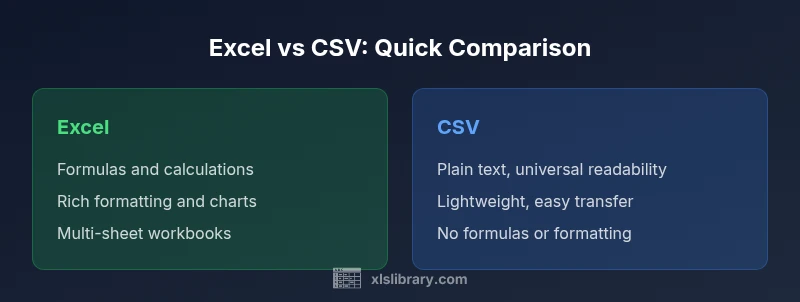
| File format and structure | Binary workbook with sheets, formulas, formatting | Plain text with a single data table; no formatting or formulas |
| Data types and formulas | Supports numbers, dates, text; formulas and data validation | All data stored as text; no built-in formulas |
| Multisheet support | Yes; multiple sheets, named ranges, and possibly macros | No; single sheet per file |
| Formatting and presentation | Rich formatting, charts, conditional formatting | No formatting; visuals must be recreated in target app |
| Automation and scripting | Macros (VBA), Office Scripts (web) | No scripting support |
| Portability and compatibility | Best in Microsoft ecosystem; wide support but larger files | Highly portable and widely supported across platforms |
| Data integrity and validation | Robust data validation; error checking | No built-in validation—depends on parser |
| Best use case | Internal analysis, dashboards within Excel | Data interchange and ingestion across systems |
Benefits
- CSV files are lightweight and portable across platforms
- Excel preserves formulas, formatting, and data validation for analysis
- CSV simplifies data exchange between tools and systems
- Excel provides powerful analytics and visualization capabilities
- Both formats can be integrated in end-to-end data pipelines
What's Bad
- CSV lacks formulas and metadata, requiring rework after import
- Excel files can be large and require compatible software to maintain features
- CSV encoding/delimiter issues can cause data misinterpretation
- Excel-to-CSV conversion can lose formulas and data validation
Excel for in-depth analysis and presentation; CSV for lightweight data exchange.
Excel is the stronger tool for analysis within the Office ecosystem, while CSV remains the universal interchange format. For most teams, a hybrid approach—CSV for ingestion and Excel for analysis—offers the best balance.
People Also Ask
Is Excel better than CSV for most business tasks?
For most business tasks, Excel is preferable for analysis, modeling, and reporting within the Office ecosystem, while CSV is ideal for simple data interchange.
Excel is usually best for analysis; CSV is best for moving data.
When should I use CSV over Excel?
Use CSV when you need a lightweight, universal format that can be opened by many tools without special software. Ensure consistent encoding and delimiter settings.
CSV is great for portability.
Can I store formulas in a CSV file?
No. CSV only stores plain data; formulas are not saved. You can save calculated results if needed by exporting from Excel.
No formulas in CSV.
How do I convert CSV to Excel without data loss?
Open CSV in Excel and use data import tools to specify data types, then save as .xlsx. Check date formats and locale settings to avoid misinterpretation.
Use Excel's import features.
Are there encoding issues with CSV?
Yes. CSV can fail to display characters properly if encoding isn't consistent; use UTF-8 and a standard delimiter and verify with a test import.
Watch encoding.
What about large datasets?
CSV generally handles larger datasets more efficiently in plain-text form; Excel can slow down with many rows or complex workbooks, depending on version.
CSV scales better for large data.
Can I automate conversions between formats?
Yes, using scripts in Python, Power Query, or Excel macros you can automate conversions between CSV and Excel.
Automation helps.
The Essentials
- Define the task: analysis vs interchange
- Use CSV for portability and scripting readiness
- Convert to Excel for calculation and visualization
- Standardize encoding and delimiters to avoid surprises