reddit excel vs google sheets: A Practical Comparison
Analytical guide comparing Reddit discussions on Excel vs Google Sheets, focusing on collaboration, data modeling, automation, and real-world use cases to help teams choose wisely.


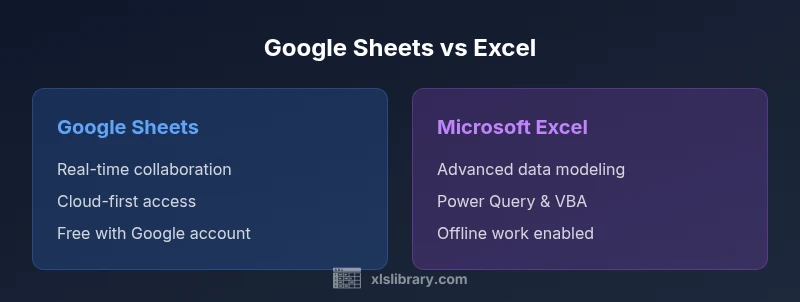
In the reddit excel vs google sheets debate, Google Sheets often wins on collaboration and cost, while Excel shines for offline work, large datasets, and advanced automation. For most teams, the choice hinges on file size, workflows, and whether real-time editing across devices matters more than deep data analysis capabilities. This comparison helps you decide which tool fits your needs.
The Reddit Excel vs Google Sheets Debate: Why this comparison matters
According to XLS Library, the core of the debate centers on collaboration speed vs. analytical depth. Reddit threads often crystallize into a practical question: should a team prioritize cloud-based, real-time editing or robust offline data processing and automation? This block sets the stage by outlining when each tool tends to outperform the other and how teams typically balance trade-offs in daily work. In short, this comparison matters because it shapes how data teams collaborate, scale, and govern spreadsheets across devices and time zones. The goal is not to declare a universal winner but to map your workflow to the strengths and limits of Google Sheets and Microsoft Excel.
Core Differences at a Glance
- Collaboration and access: Sheets is built for live, cloud-first collaboration; Excel offers strong collaboration when using Office 365 but remains powerful offline.
- Data scale and performance: Sheets handles smaller datasets with ease; Excel scales better for large data models and complex calculations with Power Query and PivotTables.
- Automation and scripting: Sheets relies on Apps Script and built-in automation; Excel leverages VBA and a mature ecosystem of add-ins.
- Offline availability: Excel shines in offline scenarios; Sheets requires internet for full functionality, though offline mode is available.
Collaboration and Accessibility: Google Sheets shines
Google Sheets excels at real-time collaboration, bridging multiple editors with instantaneous updates and built-in version history. For teams spread across time zones or working remotely, Sheets lowers friction by removing the friction of file sharing and offline syncing. However, real-time activity can become chaotic with very large spreadsheets or complex linked data. The trade-off is clear: Sheets prioritizes concurrent access and simplicity, while traditional Excel workflows emphasize control and precision when modulating data across devices.
Data Modeling and Automation: Excel's edge
Excel remains the powerhouse for data modeling, advanced analytics, and automation. With features like Power Query for data shaping, PivotTables for multidimensional analysis, and VBA for custom automation, Excel enables workflows that involve heavy data processing, large datasets, and repeatable pipelines. While Sheets has grown its automation capabilities, Excel's ecosystem still offers deeper control for engineers and analysts who need repeatable, auditable processes and complex transformations in offline or hybrid environments.
Formulas, Functions, and Add-ons: Depth vs Breadth
Google Sheets provides a broad set of functions suitable for everyday tasks and integrates tightly with other Google Workspace tools. Excel delivers an expansive function library, dynamic array capabilities, XLOOKUP, and powerful analytical functions that support sophisticated modeling. Add-ons exist for both platforms, but Excel’s add-in ecosystem often targets heavy data manipulation, visualization, and enterprise-grade reporting, whereas Sheets leans toward seamless integration, lightweight automation, and cloud-native workflows.
Data Size, Performance, and Governance
For many teams, data size and performance are deciding factors. Google Sheets handles typical business datasets well and emphasizes ease of use and collaboration. Excel excels when datasets grow large, when data needs rigorous transformation, and when governance requires detailed versioning, auditing, and macro-enabled automation. Governance considerations include access control, change tracking, and ensuring data integrity when moving between cloud and desktop environments.
Real-world Scenarios and Best Practices
In practice, teams often adopt a blended approach: use Sheets for ideation, light data collection, and collaborative planning; switch to Excel for deep analysis, ETL-like transformations, and offline crunching. Best practices include standardizing templates, defining data schemas, implementing consistent naming conventions, and establishing clear data ownership. Training should cover core formulas, data validation, and basic automation to reduce errors and increase reproducibility across both tools.
Migration Paths and Hybrid Workflows
Migration between Sheets and Excel can be smooth for straightforward data, but cross-tool incompatibilities may arise with advanced formulas or macros. A practical approach is to maintain a single source of truth in one tool and export/import as needed using clean, compatible formats. Hybrid workflows work best when you establish a data pipeline: collect in Sheets, validate in Excel, and feed into dashboards or reports that reflect the same data source.
Practical Guidelines for Teams and Playbooks
Create a team playbook that specifies when to use Sheets vs Excel, how to share, how to manage versioning, and the process for escalation if data quality is at risk. Include guidelines for data hygiene, security, and access controls, plus a rollback plan for critical workbooks. The goal is to empower teams to choose the right tool for each task while maintaining consistency and governance across the organization.
Comparison
| Feature | Google Sheets | Microsoft Excel |
|---|---|---|
| Collaboration and real-time editing | Excellent real-time collaboration and cloud-based sharing | Strong co-authoring with Office 365; robust collaboration in desktop and online modes |
| Offline access | Offline mode available but optimized for online use | Full offline desktop app with rich feature set |
| Data capacity and performance | Best for moderate datasets and lightweight modeling | Handles large datasets and complex models more efficiently |
| Automation and scripting | Apps Script-based automation with cloud integrations | VBA, Power Query, and extensive add-in ecosystem for advanced automation |
| Formulas and functions | Broad set of functions; strong integration with Google services | Expanded function library; dynamic arrays; powerful data analysis tools |
| Add-ons and extensions | Cloud-centric add-ons and Workspace integrations | Office add-ins; third-party tools; enterprise-grade extensions |
| Cost and licensing | Typically free with a Google account (Workspace options add value) | License required (Microsoft 365/Office) for full feature access |
| Platform availability | Web, iOS, Android; best cross-device sync | Windows, macOS, mobile; desktop power and offline access |
Benefits
- Excellent real-time collaboration and cross-device accessibility
- Low upfront cost for teams already in Google Workspace
- Cloud-native workflows simplify sharing and version history
- Excel offers deep data modeling and mature automation capabilities
What's Bad
- Sheets can struggle with very large datasets or complex models
- Excel requires licensing and may be less convenient for cloud-only teams
- Offline functionality in Sheets is limited compared to Excel
- Cross-platform feature parity can vary between the two tools
Sheets is best for collaboration-first environments; Excel is best for data-heavy, offline workflows
For teams prioritizing collaboration and cost, Sheets wins. For advanced analytics, offline access, and automation, Excel wins.
People Also Ask
Which is better for real-time collaboration: Google Sheets or Excel?
Google Sheets generally offers superior real-time collaboration and cloud-based sharing, making it the better choice for teams needing simultaneous edits. Excel has strong collaboration in Office 365 but can be less fluid in very large, multi-user environments.
For live collaboration, Sheets usually leads; Excel works well when teammates are online with Office 365.
Can I migrate data between Sheets and Excel without losing formulas?
Basic data transfers work well, but some Sheets-specific functions or Excel macros may need adjustment. Plan to audit formulas and data types before moving files.
Migrate data carefully; formulas may require tweaks.
Is there a cost difference that matters for small teams?
Sheets is free with a Google account and included in Workspace plans; Excel requires a Microsoft 365 license for full features. For small teams, Sheets often reduces upfront costs.
Cost matters; Sheets is usually cheaper for small teams.
How do I handle data-heavy workloads across both tools?
Excel generally handles large datasets and complex analytics better, especially with VBA, Power Query, and PivotTables. Sheets can manage many tasks but may slow with very large files.
Excel handles heavy data; Sheets can handle many tasks but can slow with huge files.
Can I use both tools in a hybrid workflow?
Yes. You can export/import data between Sheets and Excel, use formats that transfer cleanly, and design a pipeline that leverages each tool’s strengths.
Hybrid workflows are workable; choose data formats that migrate cleanly.
What security considerations should I plan for with both tools?
Both tools support access controls and version history, but governance practices may vary. Align with your organization’s data policy and ensure proper sharing settings.
Security depends on governance; set clear sharing rules.
The Essentials
- Choose Sheets for real-time collaboration and cloud ease
- Choose Excel for large data sets and offline control
- Hybrid workflows maximize strengths of both tools
- Define governance and licensing early to avoid friction
- Standardize templates and data schemas across platforms