Convert PDF to Excel: A Practical How-To Guide for 2026
Learn reliable methods to convert PDF to Excel with OCR, export options, and data cleanup. This XLS Library guide covers tools, options, and best practices for accurate results.


You can convert a PDF to Excel by using dedicated PDF-to-Excel tools or built-in export options in PDF readers. The process usually involves selecting the table, running OCR if needed, exporting to XLSX, and cleaning the data in Excel. This guide from XLS Library shows reliable methods, common pitfalls, and best practices to maximize accuracy.
Why you might need to convert PDF to Excel
According to XLS Library, converting PDF to Excel is a common task for teams that gather data from reports, invoices, marketing sheets, or financial statements. The ability to move data from a fixed PDF into editable cells unlocks faster analysis, cleaner budgets, and reproducible workflows. When data in PDFs is not structured as a table, or when the layout uses multi-row headers, a precise conversion requires a method that preserves row order and column alignment. This guide uses practical language and concrete examples to help you choose a workflow that minimizes manual re-entry, reduces errors, and saves time. Whether you are a data analyst, student, or business professional, mastering to pdf to excel workflows can dramatically speed up reporting and decision-making.
This guidance is grounded in real-world scenarios where teams need repeatable results across projects, not just one-off conversions.
Methods overview: extraction, formatting, and validation
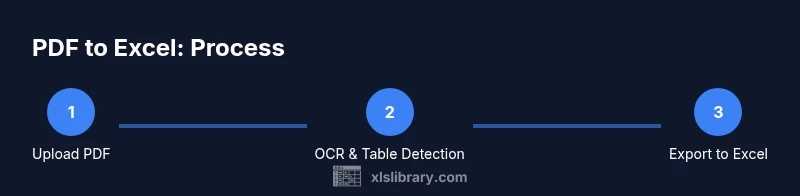
There are three core phases when you convert a PDF to Excel: extraction, formatting, and validation. Extraction pulls the tabular data from the source document, which may require OCR for scanned pages. Formatting arranges the extracted values into clean columns, with proper headers and data types. Validation checks ensure numbers, dates, and text match the original document. In practice, you’ll often switch between direct copy-paste, built-in PDF export, or dedicated conversion tools depending on table complexity and the quality of the source PDF. The central goal is to preserve the data’s structure while minimizing manual corrections. The XLS Library approach prioritizes reproducibility, so you can re-run conversions on updated PDFs with predictable results.
Methods: dedicated tools for PDF-to-Excel conversion
Dedicated tools designed for PDF-to-Excel conversion can offer higher accuracy, especially for complex tables. When choosing, look for features like table detection, header recognition, and batch processing. Many tools provide a one-click export to XLSX or CSV, followed by an import into Excel for final cleanup. It’s important to test a sample page first to understand how the tool handles merged cells, multi-row headers, and numeric formats. For ongoing work, consider a tool that supports automation and scripting to standardize outputs across projects and teams. This approach minimizes manual edits and helps teams scale data tasks.
Built-in options: Excel and PDF readers
Some readers and versions of Excel include built-in export features or connectors that simplify the workflow. For example, you can export a simple table from a PDF viewer as CSV and then open it with Excel, where you’ll apply text-to-columns and data type corrections. Power Query in Excel offers a robust way to pull data from PDFs if your version supports the connector, allowing you to automate refreshes when the source PDF changes. This approach is often more cost-effective for occasional conversions and fits within standard Excel environments. You’ll gain reliability without relying solely on external services.
OCR-driven workflows: when your PDF is a scan
If your source document is a scanned image, OCR is essential to extract text. Choose an OCR engine with good language support and accuracy, and verify results against the source. After OCR, you’ll usually export to Excel-compatible formats and then clean up misread numbers, punctuation, and headers. Advanced OCR workflows let you define zones on the page to isolate tables, improving recognition rates and reducing cleanup time. Always review the first few rows to catch systematic errors early. This careful step reduces downstream rework.
Cleaning and normalizing data in Excel
Exported data often requires cleaning to reach production-ready quality. Start by removing blank rows and fixing merged cells that break the grid. Normalize headers (short, consistent names), convert text numbers to numeric data types, and standardize date formats. Use Excel features like Text to Columns, data validation rules, and conditional formatting to spot anomalies quickly. If you work with multiple PDFs, create a template workbook that standardizes column order and formatting so you can reuse it for future conversions. This reduces rework and keeps teams aligned.
Handling multi-page and complex layouts
Some PDFs spread a table across pages or use repeated headers. In such cases, collect each page’s data into a single Excel table, ensuring consistent column alignment and header labeling. You might need to consolidate multiple mini-tables into one master dataset, or use lookup formulas to fill missing cells. When layouts vary, consider exporting each page separately and then combining them in Excel using Power Query or append operations. Clear documentation of steps helps teammates reproduce the results reliably.
Tips for preserving formatting and formulas
To maintain the integrity of your analysis, preserve important formats and formulas. Keep numeric precision (avoid rounding during import), preserve date serials, and maintain currency formats where applicable. If you rely on calculations, recreate them in Excel after import rather than trying to carry over formulas from the PDF. Save intermediate versions often so you can revert to a clean baseline if the data changes. Finally, document the workflow in a readme file that explains each step and the rationale behind conversions.
Security, privacy, and reproducibility of your workflow
Data from PDFs can contain sensitive information. When using online converters, review privacy policies and avoid uploading personal or confidential files. Prefer offline tools or trusted services for sensitive materials. Reproducibility matters: store the original PDF, the exact tool version, and a sample export in a shared repository so teammates can replicate results. By documenting parameters (page ranges, table detection rules, and export formats), you create a reliable, auditable process that scales across projects.
Tools & Materials
- PDF document(s)(Include the pages with the tables you want to convert)
- PDF-to-Excel converter (software or online)(Choose a reputable tool with OCR if needed)
- Microsoft Excel (or equivalent spreadsheet software)(Used for cleanup, validation, and final formatting)
- Web browser(Helpful for online converters or documentation)
- Optional: intermediate CSV workbook(Useful for staging data before final import)
Steps
Estimated time: Total time: 90-120 minutes
- 1
Open the PDF and locate the target table
Open the document and navigate to the page containing the table you need. Confirm that column headers align with the data you expect to extract, noting any merged cells or multi-line headers that might complicate a clean export.
Tip: Use Ctrl/Cmd+F to find header keywords and capture a quick screenshot for reference. - 2
Choose the best conversion method
Assess whether a direct export, OCR-assisted tool, or manual copy-paste will yield the most accurate result for your table. Simpler tables may export cleanly, while complex layouts benefit from OCR and table-detection features.
Tip: Run a quick test on a small sample page to compare accuracy across methods. - 3
If needed, run OCR on image-based PDFs
For scanned pages, apply OCR using a reliable engine and verify results against the original. Pay attention to language settings and image quality, as these heavily influence recognition accuracy.
Tip: Choose a high-resolution source and specify the document language to reduce errors. - 4
Export to Excel-compatible format
Export the extracted data to XLSX or CSV. If using an intermediate CSV, ensure the delimiter matches your regional settings to avoid misparsed fields.
Tip: Prefer CSV as a staging step when using multiple tools, then import into Excel. - 5
Import into Excel and inspect structure
Open the exported file in Excel and verify that headers, rows, and columns appear as expected. Check for broken rows, extra spaces, and misaligned columns that require manual adjustment.
Tip: Turn on gridlines and freeze header rows to simplify navigation during cleanup. - 6
Clean headers and normalize columns
Standardize header names, remove duplicates, and convert text numbers to numeric data types. Normalize date formats and ensure consistent units across the dataset.
Tip: Use Text to Columns for delimited data and Data Validation to enforce consistency. - 7
Validate data types and ranges
Verify that numeric fields are truly numeric, dates are valid, and text fields are consistent. Flag anomalies with conditional formatting and spot-check totals against source values.
Tip: Create a small validation checklist to ensure repeatability for future conversions. - 8
Save workflow and document parameters
Save the workbook with a clear naming convention, document the conversion rules, and store the original PDF alongside the export. This ensures reproducibility and easier audits.
Tip: Include a readme with steps, tool versions, and any assumptions used during conversion.
People Also Ask
Can I convert scanned PDFs to Excel?
Yes, but you need OCR-enabled tools. OCR translates images to text, which Excel can then organize into columns. Always verify accuracy after conversion.
Yes. You’ll need OCR to extract text from scanned PDFs, then check the results for accuracy.
Is there a free way to convert PDF to Excel?
Free tools exist, including some online converters and built-in export options in PDF readers. Expect variable accuracy and be cautious with sensitive data.
Yes, there are free options, but quality varies and data privacy is important.
How can I preserve formulas after conversion?
PDF to Excel conversions rarely preserve Excel formulas. You’ll typically need to recreate calculations within Excel after import.
Formulas usually don’t transfer; you’ll recreate calculations in Excel.
What if data spans multiple pages?
Export each page or section, then consolidate the data into a single table in Excel using append operations or Power Query.
If pages differ, export separately and combine in Excel.
How do I verify data accuracy after conversion?
Compare a sample of rows and totals with the source document. Use checksums or pivot tables to confirm consistency.
Check a sample of rows and totals against the source to confirm accuracy.
Watch Video
The Essentials
- Convert PDF to Excel using OCR-aware tools for accuracy.
- Choose methods based on table complexity and source quality.
- Clean and normalize data to ensure reliable analysis.
- Document the workflow for reproducibility and audits.
- Prioritize data privacy when using online converters.