PDF Conversion to Excel Free: A Practical Guide
Learn how to convert PDF data to Excel for free using reliable tools and practical techniques. This XLS Library guide covers online converters, offline options, OCR considerations, data cleaning, and accuracy checks.


Convert PDFs to Excel for free using reliable online or offline tools. This quick guide covers text-based PDFs, OCR for scans, data cleaning, and how to verify results without paid software. Learn how to choose tools, run the conversion, and validate the output for accuracy. This approach helps preserve formatting and delivers ready-to-analyze data without cost.
Understanding the PDF-to-Excel task
PDF documents often contain tabular data that you need in Excel for analysis. Free conversion options exist for text-based PDFs, but scanned PDFs require OCR to extract data. According to XLS Library, PDF-to-Excel tasks vary widely by document type and data quality. The choice of method depends on whether the PDF is text-based or image-based, how complex the table structures are, and how strict the final formatting needs to be. In practice, invoices, reports, and research tables pose different challenges: multi-page layouts, merged cells, and inconsistent header rows can all complicate extraction. By understanding these nuances, you can pick a workflow that minimizes manual cleanup while staying within a zero-cost framework. This section sets up the decision framework you’ll use as you move through online vs offline options, and as you decide when to apply OCR.
css_class_id_3e9f9b1b_0a0a_4d4b_9e5a_3b2a9f6d2b1d_0_0_0
_uuid_1_0_0_0
Tools & Materials
- Computer or laptop with internet access(Any modern OS (Windows, macOS, Linux) and a stable connection will do.)
- Free online PDF-to-Excel converter(Choose a reputable service that supports table extraction.)
- Microsoft Excel or Google Sheets (as a fallback to Excel)(Excel is preferred for final formatting; Sheets can export to .xlsx.)
- LibreOffice Calc (optional offline alternative)(Can be used if you prefer an offline workflow.)
- Scanner or high-quality PDF image source (if working with physical documents)(Useful for OCR-based extraction when PDFs are image-based.)
Steps
Estimated time: 20-45 minutes
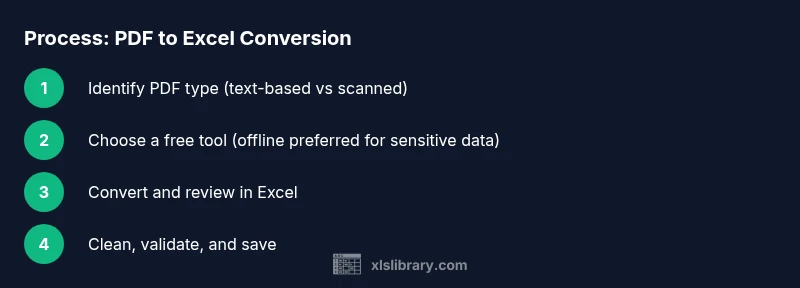
- 1
Identify PDF type
Open the PDF and inspect the data. If you can select text in a browser or reader, it’s text-based and can often be converted with fewer cleanup steps. If not, the file is likely image-based and will require OCR. Understanding the type upfront saves time later.
Tip: Use a quick text check (Ctrl/Cmd + A then paste into a text editor) to confirm text availability. - 2
Choose a free conversion method
Select either an online converter or an offline tool based on your PDF type and privacy needs. Online tools are convenient for small, non-sensitive files; offline tools preserve local data and can handle larger documents.
Tip: For sensitive data, prefer offline conversion to avoid uploading files to a third party. - 3
Run the conversion
Apply the tool to extract the table. If the output looks garbled, try a different tool or switch to OCR mode for image-based PDFs. Save the intermediate file in CSV or Excel format to preserve structure for review.
Tip: Keep the original PDF as a reference in case you need to re-check formatting. - 4
Initial data review in Excel
Open the converted file in Excel and scan for misaligned columns, missing headers, or merged cells. Use Excel features like Text to Columns and Find & Replace to clean up inconsistent data.
Tip: Turn on show formulas or gridlines to better see misalignments. - 5
Clean and normalize data
Standardize headers, split/merge columns as needed, and format numbers consistently (e.g., thousands separators). Validate totals by performing basic checks (sum of rows equals reported totals).
Tip: Build a small validation checklist to ensure consistency across pages and tables.
People Also Ask
Can I convert a scanned PDF to Excel for free?
Yes, but it typically requires OCR (optical character recognition) to extract text from images. Free online and offline tools offer OCR-enabled conversions, though accuracy varies with scan quality. Expect more manual cleanup for scanned PDFs compared to text-based ones.
Yes. If your PDF is a scan, you’ll need OCR to extract text before importing to Excel; results vary and cleanup is often needed.
Which free tools work best for PDF to Excel conversion?
The best free tools balance accuracy and privacy. Online converters are convenient for small files, while offline tools provide greater control over data once you’ve verified the results. Try multiple options to compare layout retention and error rates.
Try a few free online tools for quick checks, and an offline option if you’re handling sensitive data and want more control.
Will the formatting in Excel be preserved after conversion?
Formatting preservation depends on the tool and the PDF’s structure. Tables with clear headers and consistent columns convert better. Expect some header shifts, merged cells, or column misalignment that you’ll fix during the cleanup stage.
Formatting can drift during conversion, so plan to tidy up headers and column alignment in Excel after importing.
Is OCR required for PDFs with text?
OCR is only needed if the PDF content is not selectable text. If you can copy and paste text from the PDF, OCR isn’t required. OCR adds a layer of recognition that helps when data isn’t easily parsed by simple converters.
OCR is only needed when the text isn’t selectable; otherwise, you can proceed without it.
Is it safe to upload PDFs containing sensitive data to online converters?
Online converters carry privacy considerations. Use reputable services, review their privacy policies, and avoid uploading documents with sensitive information if possible. For high-sensitivity data, stick to offline tools and local processing.
Online tools can pose privacy risks, so prefer offline options when your PDFs contain sensitive data.
Can I do this without internet access?
Offline tools and desktop software allow conversion without internet access. This is ideal for environments with strict data policies. You may need to download software or use a local OCR engine for image-based PDFs.
Yes, offline tools let you convert without internet, which is safer for private data.
Watch Video
The Essentials
- Convert text-based PDFs first to reduce cleanup
- OCR is essential for scanned PDFs but may require more verification
- Always validate data after import with simple checks
- Prefer offline tools for sensitive data
- Plan for post-import cleanup to restore correct formatting