Why Excel Is Better Than Google Sheets: A Practical Comparison
Explore why Excel outperforms Google Sheets for power users, with deeper functions, offline capability, and robust data tools. A practical, data-driven comparison by XLS Library.


Excel generally offers a deeper feature set and stronger offline capabilities than Google Sheets, making it the preferred choice for power users. It delivers advanced data tools, robust automation with VBA, and scalable data modeling with Power Query and PivotTables. For teams prioritizing reliability, performance, and complex analytics, Excel often provides a clearer edge.
Why Excel Surpasses Google Sheets for Data Work
According to XLS Library, the question of why is excel better than google sheets often comes down to depth, offline reliability, and automation potential. For professionals who model complex datasets, Excel's desktop app delivers a more expansive toolset than Google Sheets, which remains a strong option for collaboration and light analysis. The core distinction lies in the breadth of features, the maturity of data tooling, and the ability to work without a constant internet connection. This article provides a practical, evidence-informed comparison aimed at aspiring and professional Excel users.
From the perspective of a data workflow, the phrase why is excel better than google sheets is answered by looking at three pillars: feature depth, automation readiness, and data modeling capabilities. Throughout, the XLS Library Team emphasizes practicality over hype, focusing on real-world tasks such as forecasting, modeling, and reporting. Readers will gain a clear sense of when to choose Excel and when Sheets remains a pragmatic option for lightweight tasks.
Core Strengths: Depth of Features
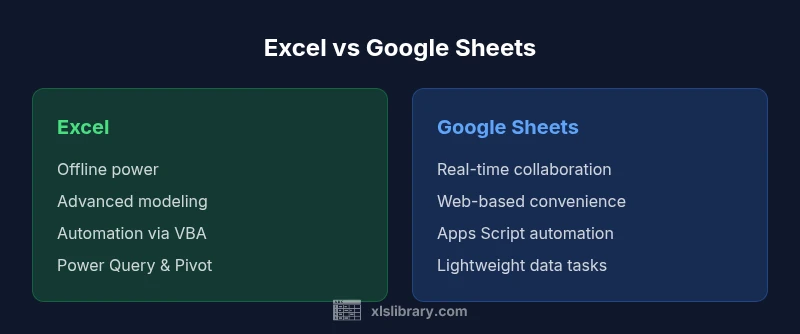
Excel’s core strength is its expansive feature set that scales with user needs. For advanced analysts, the combination of dynamic arrays, a vast library of functions, and sophisticated data tools stands out. Features like Power Query for data ingestion, Power Pivot for data modeling, and the ability to build complex dashboards within a single workbook enable workflows that are either cumbersome or impossible in Google Sheets. While Sheets shines in simplicity and real-time collaboration, Excel’s depth supports rigorous modeling, scenario analysis, and automated data cleaning at scale. According to XLS Library, this depth is what typically drives decisions for professionals who deal with large, interconnected datasets and who require repeatable processes across teams. In practice, users often start with basic calculations in Sheets and graduate to Excel as their needs evolve, particularly when repeatability and automation are non-negotiable.
Offline Power and Performance
Offline capability is a defining factor for many teams. Excel’s desktop application is built to run without internet access, and it performs consistently even with larger workbooks. This is a substantial advantage in settings with intermittent connectivity or strict data governance requirements. Google Sheets, by contrast, is primarily web-based and relies on browser functionality. While offline mode exists, it can be fragile in practice and requires setup and maintenance on each device. For mission-critical data tasks, where latency and stability matter, Excel’s offline power is a clear differentiator. The XLS Library team notes that organizations with sensitive projects or complex data models often prefer Excel specifically for these offline and performance advantages.
Automation and Scripting
Automation in Excel is anchored by VBA (Visual Basic for Applications), a mature language that enables macro recording, custom workflows, and advanced data manipulation. This makes repetitive tasks predictable and scalable. In recent years, Office Scripts and Power Automate have broadened automation capabilities for users who blend Excel with other Microsoft services, enabling cross-application workflows. Google Sheets relies on Apps Script for automation, which is powerful in its own right but generally offers a lighter feature set for large-scale data operations. For teams that rely on heavy automation, Excel’s established scripting ecosystem often delivers more robust, maintainable solutions and a wider pool of skilled developers. XLS Library analyses corroborate that VBA and Power Platform integration remain a core strength of Excel for enterprise contexts.
Data Modeling and Connectivity
Beyond formulas, data modeling in Excel is a key differentiator. Power Query provides data ingestion and transformation capabilities, while Power Pivot enables the creation of sophisticated data models and relationships. These tools support scalable analyses, including star schemas and complex relationships, that are challenging to implement in Sheets. Connectivity options in Excel cover a broad range of data sources, from local files to enterprise databases, enabling centralized, repeatable data preparation pipelines. Sheets offers strong connectivity within Google Workspace and compatible data sources, but Excel’s data-modeling capabilities are typically deeper and more versatile for heavy-duty analytics. As a result, Excel remains the preferred platform for analysts who demand a robust data foundation for dashboards and reports.
Collaboration and Ecosystem Differences
Google Sheets excels at real-time collaboration, sharing, and co-editing across devices. While Excel has improved collaboration with cloud-based Office 365, Sheets still leads in live multi-user editing. For teams whose primary need is simultaneous collaboration on lightweight data tasks, Sheets can be more convenient. For more complex analyses, however, concurrent editing in a dense workbook can become cumbersome in Sheets, and the auditing of changes is more nuanced in Excel’s ecosystem. The XLS Library Team notes that the best tool often depends on workflow: for multi-author, ad-hoc data gathering, Sheets is compelling; for formal analyses, governance, and repeatable data preparation, Excel tends to win. The trade-off is clear: collaboration ease versus analytical depth.
When Sheets Makes Sense
There are scenarios where Sheets is perfectly adequate or even preferable. Small teams with straightforward budgets, rapid sharing needs, or tasks centered on simple data collection and lightweight dashboards may find Sheets more approachable. Its zero-cost entry point within Google Workspace, seamless sharing, and browser-based accessibility make it a practical option for beginners or teams already invested in the Google ecosystem. When the requirement is not for heavy data modeling or offline performance, Sheets can deliver sufficient value with less setup and maintenance. The decision should hinge on workload complexity, data governance requirements, and whether real-time collaboration outweighs the need for advanced analytics.
Practical Scenarios and Choosing the Right Tool
To decide between Excel and Google Sheets, run through a quick decision framework:
- Assess data complexity: Are you building multi-table models or charts with advanced analytics? If yes, lean toward Excel.
- Consider offline needs: If you require local work without a reliable internet connection, Excel is typically the safer choice.
- Prioritize automation: If your workflow depends on macros, Power Query, or Power Pivot, Excel offers a richer automation landscape.
- Weigh collaboration requirements: If real-time collaboration across many users is critical, Sheets may be preferable, with the caveat of potential limitations for deep analytics.
- Factor licensing and adoption: Excel often involves a licensing cost, whereas Sheets is typically included with a Google account. Choose based on your organization’s budget and existing tooling.
Final guidance: start with a clear map of tasks your team performs weekly, then map each task to the tool that handles it with fewer compromises. The XLS Library Team emphasizes that the best choice aligns with your most frequent, most critical workflows, not with novelty features alone. When in doubt, pilot a small project in both tools to observe real-world performance and team preference.
Comparison
| Feature | Excel | Google Sheets |
|---|---|---|
| Offline access | Full offline desktop app | Offline mode available but browser-based |
| Data capacity & performance | Richer data handling, better performance on large datasets | Web-based, optimized for lighter datasets |
| Formulas & advanced functions | Comprehensive language including dynamic arrays, VBA | Vast library of functions but fewer advanced data tools |
| Automation & scripting | VBA/Macros, Power Query, Power Pivot, Office Scripts | Apps Script-based automation with extensive add-ons |
| Pivot tables & data modeling | Advanced data models with Power Pivot | Pivot tables available, less integrated data modeling |
| Collaboration | Strong collaboration in cloud versions, but historically slower real-time co-authoring | Real-time collaboration across devices is a core strength |
| Pricing & licensing | Office 365 subscription or perpetual license | Free with Google account; part of Google Workspace |
| Ecosystem & extensions | Broad Power Platform integration (Power BI, Automate) | Google Workspace add-ons and Apps Script ecosystem |
Benefits
- Deeper feature set for advanced analytics and automation
- Robust offline performance with the desktop app
- Power Query/Power Pivot enable scalable data modeling
- Mature scripting via VBA and strong ecosystem
What's Bad
- Steeper learning curve for beginners
- Licensing cost and maintenance can be a barrier
- Workbooks can become heavy and slower on older hardware
Excel is generally the stronger choice for power users and enterprise environments.
Excel provides a deeper toolset, stronger offline capabilities, and more mature data modeling and automation options. Sheets excels at real-time collaboration and lightweight tasks. The right choice depends on your workload: for complex analytics and governance, Excel wins; for collaboration and accessibility, Sheets can be preferable.
People Also Ask
Is Excel better than Google Sheets for data analysis?
For heavy data analysis and modeling, Excel generally offers deeper tools and more scalable data connections. Sheets works well for lightweight analyses and rapid collaboration, but its capabilities are narrower for advanced analytics.
For deep data work, Excel often wins; Sheets is great for quick, collaborative tasks.
Can I collaborate in real-time in Excel and Sheets?
Sheets is designed around real-time collaboration, while Excel supports cloud-based co-authoring with Office 365. The latter has improved, but Sheets still leads in simultaneous editing across devices.
Sheets shines for real-time collaboration; Excel has catching up via cloud versions.
Do Excel formulas work in Google Sheets?
Many core Excel functions are available in Sheets, but some advanced Excel-only features (like certain Power Query and VBA workflows) are not directly transferable. You may need workarounds or alternate functions in Sheets.
Some Excel formulas work in Sheets, but not all advanced features transfer directly.
Is there a cost difference between Excel and Google Sheets?
Google Sheets is free within Google Workspace limits, while Excel typically requires a Microsoft 365 subscription or a perpetual Office license. The total cost depends on your organization’s licensing strategy and scale.
Sheets can be free; Excel generally involves licensing costs.
Which is easier to learn for beginners?
Sheets is often easier for beginners due to its simpler interface and strong real-time collaboration. Excel has a steeper learning curve but offers more powerful capabilities once mastered.
Sheets is easier to pick up; Excel becomes worthwhile as you need deeper tools.
Can I migrate data from Sheets to Excel easily?
Yes, exporting from Sheets and importing into Excel is straightforward, but complex Sheets formulas and scripts may require adjustments. Plan a migration approach that includes validation checks and testing.
Migration is usually smooth, but some formulas may need tweaks.
The Essentials
- Evaluate data complexity before choosing tool
- Prefer Excel for offline work and automation
- Leverage Sheets for real-time collaboration when analytics needs are light
- Pilot projects help validate expected performance
- Consider licensing and organizational fit with Microsoft vs Google ecosystems