Excel and Word for Windows 11: A Practical Comparison
A data-driven, analytic comparison of Excel and Word on Windows 11. Learn use cases, strengths, and workflow tips from XLS Library to optimize productivity across spreadsheets and documents.


This TL;DR compares Excel and Word on Windows 11 for practical decision-making. It highlights core strengths, typical use cases, and how each app integrates with Windows 11 and the Office ecosystem. With insights from XLS Library, you’ll see where data-heavy work belongs in Excel and where narrative and formatting tasks shine in Word, guiding efficient tool selection.
Overview of Excel and Word on Windows 11
On Windows 11, both Excel and Word are part of the familiar Office ecosystem, yet they serve distinct purposes that shape how you approach daily tasks. Excel centers on data manipulation, numerical analysis, and automation through formulas and macros, while Word focuses on long-form writing, formatting, and collaboration. The transition to Windows 11 brings a refreshed touch interface, improved window management, and snappier responsiveness, all of which can influence your choice of tool for a given job. For professionals seeking practical mastery, understanding the chores each app is best at is essential. According to XLS Library, aligning your task with the right app on Windows 11 improves efficiency, reduces duplication, and minimizes workflow friction. This article uses a balanced, analytical lens to compare Excel and Word across common work scenarios and Office integrations, helping you decide when to rely on spreadsheets and when to compose documents.
Core Differences: Data-Driven Work vs Narrative Documents
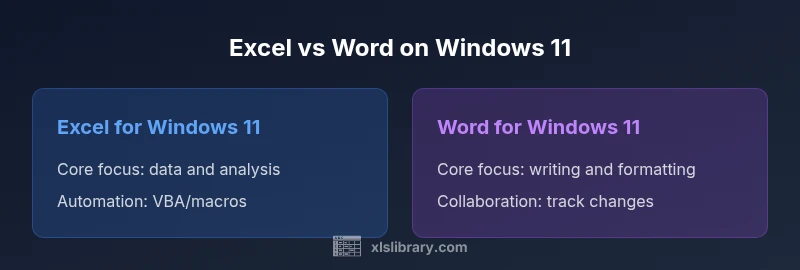
The most obvious distinction between Excel and Word lies in their core design goals. Excel is built around cells, formulas, and data visualization, which makes it the natural home for budgeting, forecasting, inventory tracking, and data analysis. Word, by contrast, emphasizes typography, structure, and readability, suited to reports, proposals, and manuscripts. In Windows 11, both apps benefit from improved accessibility features, cloud-based collaboration, and consistent keyboard shortcuts, but their feature sets remain specialized. An analytical reader will notice that Excel accelerates decision-making when numbers, trends, and what-if analyses matter, while Word accelerates clarity, persuasion, and document quality for communicating ideas. The XLS Library team notes that the optimal workflow often involves exporting or copying data between the apps when a hybrid output is required.
Workflow Scenarios: When to Choose Excel vs Word
Consider a project that entails building a quarterly report with numerical summaries and a conclusive narrative. For the data-centric sections—tables, charts, pivot-like summaries—Excel handles the data preparation efficiently, while Word’s outlining and formatting capabilities enhance the final presentation. For a proposal that relies on structured sections, citations, and professional typography, Word is typically the best starting point. In Windows 11 environments, you can streamline this workflow by using dynamic linking of charts from Excel into Word, enabling live updates as data changes. According to XLS Library, mastering these inter-app interactions reduces redundancy and ensures consistency across your document set. The key is to identify where accuracy and rigor are required most: numbers and models in Excel, narrative and layout in Word.
Interoperability and Office Integration on Windows 11
Interoperability between Excel and Word is stronger in Windows 11 thanks to unified Office apps, OneDrive synchronization, and seamless clipboard handling. You can embed Excel range data into Word with live link options, preserve formatting during transfers, and use shared libraries for styles and templates. When teams collaborate, co-authoring becomes more efficient as both apps support real-time edits in Windows 11’s modern UI. The Office ribbon remains consistent across apps, which reduces the learning curve for users switching between Excel and Word. For organizations, this means easier standardization of templates, consistent reporting frameworks, and a smoother onboarding path for new employees. The XLS Library perspective emphasizes practical integration strategies that minimize duplication and promote reproducible workflows across documents and datasets.
Performance and Accessibility on Windows 11
Performance on Windows 11 is influenced by system RAM, background processes, and how large a worksheet or document you handle. Both Excel and Word benefit from modern hardware acceleration and optimized font rendering, which improves readability and editing efficiency. For long-running tasks, Excel’s calculation engine and Word’s track changes function can become more demanding; managing resource use and turning off unnecessary add-ins may improve responsiveness. Accessibility features—high-contrast modes, screen reader compatibility, and keyboard navigation—are consistently improved in Windows 11, and both Office apps respect these settings. In practice, ensuring your OS and Office are up to date reduces compatibility hiccups and keeps your workflows flowing smoothly.
Features Spotlight: Key Tools in Each App
Excel’s feature set centers on numerical analysis: formulas, array functions, conditional formatting, data validation, and charting. Pivot tables and power-user shortcuts enable rapid data exploration. Word’s strength lies in styles, outlines, reference tools, and collaboration features such as comments and change tracking. Windows 11 enhances UI clarity and accessibility in both apps, making complex documents or datasets easier to manage. Practitioners should focus on building reusable templates in Word and robust data models in Excel to maximize efficiency. The XLS Library guidance highlights aligning feature usage with your task’s goal for predictable results.
Power Features and Automation: Macros and Add-ins
Automation is a cornerstone of both apps, with Excel supporting VBA macros and a growing ecosystem of add-ins for data processing, analysis, and visualization. Word also supports macros, enabling automated formatting, mail-merge workflows, and repetitive editing tasks. On Windows 11, Office add-ins and VBA projects can be coordinated through shared libraries and trusted locations, helping teams standardize automation across documents and datasets. It’s important, however, to consider governance and security when deploying macros and add-ins in a professional setting. The XLS Library approach advocates modular automation: separate data processing in Excel, document assembly in Word, and controlled interfaces that prevent drift between outputs.
Practical Tips for Beginners and Pros
New users should start by mastering keyboard shortcuts across both apps to accelerate basic tasks, such as formatting in Word and data entry in Excel. Experienced users can leverage templates, styles, and quick-access toolbars to streamline frequent tasks. Windows 11 users benefit from improved window snapping and multitasking, enabling easier side-by-side work between Excel and Word. A practical rule is to draft the document outline in Word while simultaneously validating numbers in Excel, then link charts into Word for a cohesive final report. The XLS Library guidance emphasizes building a consistent workflow around data sources, templates, and style guides to minimize rework and maintain output quality.
Pitfalls and Best Practices for Windows 11 Office Users
Common pitfalls include relying on manual data transfers that introduce formatting drift, failing to update linked charts, and neglecting template governance. Best practices involve using linked objects sparingly, locking formats with styles, and maintaining centralized templates for consistent branding. On Windows 11, be mindful of new UI behaviors that may affect navigation in crowded documents or large spreadsheets. Adopting a structured file-naming convention, version control, and a documented workflow reduces confusion and ensures your team produces consistent outputs across projects. The XLS Library analysis highlights that disciplined organization routinely outperforms ad-hoc approaches in long-running work streams.
Case Studies: Real-World Windows 11 Scenarios
Consider three typical scenarios: a quarterly business review, a research report, and an operational dashboard. In the quarterly review, Excel handles the numerical summaries, while Word compiles the narrative and executive commentary. In the research report, Word manages citations, appendices, and figures, with Excel serving as the data source for charts embedded in the document. For an operations dashboard, you can export key tables to Word for a written summary or generate an interactive Excel workbook shared via OneDrive for team access. Across these cases, Windows 11’s performance and compatibility with Office features help maintain productivity. The XLS Library guidance reinforces the importance of aligning tools with the task, ensuring that the output meets quality standards and stakeholder expectations.
Comparison
| Feature | Excel for Windows 11 | Word for Windows 11 |
|---|---|---|
| Core purpose | Spreadsheet-centric data analysis | Document-centric writing and formatting |
| Best use | Data modeling, analytics, and visualization | Reports, proposals, and manuscripts |
| Offline access | Strong offline capabilities for data work | Strong offline capabilities for drafting and formatting |
| Collaboration | Co-authoring with live data links possible between files | Co-authoring with tracked changes and comments |
| Learning curve | Moderate to high for advanced features | Moderate for formatting and structure |
| Automation | VBA/macros, advanced data tools | VBA/macros, mail merge automation |
| Office integration | Power Query, external data connections | Styles, references, and cross-references |
Benefits
- Both apps are part of a unified Office ecosystem, simplifying licensing and updates
- Strong integration with OneDrive enables seamless cloud collaboration
- Templates, styles, and macro support help scale common workflows
- Excel’s data tools and Word’s narrative power balance professional outputs
What's Bad
- Learning curve for advanced features in both apps
- Potential feature drift if templates are not centrally governed
- Linked data between Excel and Word can break if files are moved without care
- Office licensing or feature availability may impact access on Windows 11
Excel for data-heavy tasks; Word for polished documents.
For Windows 11 users, choose Excel when data manipulation and modeling are primary; opt for Word when narrative, formatting, and collaboration are the priority. Use both in tandem when outputs require integrated data and prose.
People Also Ask
Which app should I choose on Windows 11 for data tasks?
For data-centric work, Excel generally offers more powerful tools for calculations, data validation, and visualization. Word is better suited for narrative content and formatting tasks. When in doubt, start with Excel to model the data, then present with Word for the final document.
If you’re focusing on data, choose Excel. For writing and formatting, choose Word.
Can I use both apps in the same project?
Yes. A common pattern is to analyze data in Excel, then link charts into Word to produce a cohesive report. You can maintain consistency by using shared templates and styles across both apps.
You can integrate Excel charts into Word to tell a complete story.
Are there Windows 11-specific optimizations for Office apps?
Windows 11 provides UI improvements, faster window management, and better accessibility options that benefit both Excel and Word. Ensure you keep Office and Windows up to date to maximize compatibility and performance.
Windows 11 updates can improve Office performance and accessibility.
Is offline access available for both Excel and Word?
Both apps support offline work; your changes sync when you reconnect to the internet. This makes Windows 11 a flexible environment for teams with intermittent connectivity.
Yes, you can work offline and sync later.
Do Excel and Word support similar shortcuts on Windows 11?
Many core shortcuts overlap across Excel and Word, especially for formatting, navigation, and basic editing. Learning app-specific shortcuts will speed up advanced tasks.
Keyboard shortcuts help you work faster in both apps.
What are the key risks when mixing Excel and Word in projects?
The main risks are formatting drift and data-link breakage when moving files without preserving structure or templates. Mitigate by using centralized templates and careful file management.
Be mindful of formatting drift and broken links if you move files.
The Essentials
- Prioritize task type: data work in Excel, writing in Word
- Leverage cross-app features (linked charts, templates) to save time
- Use Windows 11 features to improve layout and multitasking
- Automate repetitive work with macros carefully and consistently