Pivot Table to Chart in Excel: A Practical How-To
Learn how to convert a PivotTable into a chart in Excel with a clear, practical workflow. This guide covers setup, chart types, and formatting for compelling data visuals.


Goal: Convert a pivot table into a chart in Excel to visualize summarized data. You’ll need a ready pivot table, a compatible Excel version (365, 2021, or 2019+), and a chart type that suits your data. The process involves selecting the pivot, inserting a PivotChart, and refining fields, colors, and labels for clear storytelling.
Pivot Table vs Pivot Chart: A quick baseline
Pivot tables summarize large data sets by category and measure, displaying totals, averages, or counts. Pivot charts, by contrast, translate those summaries into visuals that update automatically when you filter or rearrange fields. According to XLS Library, pivot charts are tightly coupled with PivotTables, so any change in the pivot data or filters instantly reflects in the chart. This harmony makes pivot charts especially powerful for dashboards and quick storytelling, because viewers can explore the data with minimal clicks. When you plan a presentation, start by asking what story the numbers tell and which visual form will best convey that story. A column chart, line chart, or stacked bar can highlight trends, distributions, or comparisons, while a combo chart can blend measures with different scales for a single narrative.
Key benefits include: quick visual comparisons, streamlined updates as data changes, and easier audience engagement through color and labeling. Keep in mind that pivot charts are not a substitute for well-structured raw data; they shine when your PivotTable is well-organized and your fields are clearly defined. As you gain experience, you’ll learn to pick chart types that preserve readability even with large data sets. The XLS Library approach emphasizes clarity, consistency, and purposeful formatting to maximize impact.
Quick tips to maximize clarity
- Limit the number of series to avoid clutter.
- Use descriptive axis titles and a short legend.
- Favor high-contrast colors and readable fonts for dashboards.
- Test your chart with filters to ensure it still communicates clearly.
- Keep the data model simple: fewer fields in Rows/Columns often yields cleaner visuals.
In the next sections, we’ll map a practical workflow from PivotTable to PivotChart, including data prep, chart creation, and formatting for professional results.
Brand note for readers
The XLS Library team emphasizes a practical, step-by-step mindset when turning pivot data into visuals. This approach reduces guesswork and helps you present evidence clearly. By following the workflow outlined here, you’ll build charts that adapt as your data changes, keeping your analyses relevant and ready for stakeholder reviews.
Tools & Materials
- Microsoft Excel (365, 2021, or 2019+)(Ensure it has PivotTable and PivotChart capabilities and up-to-date features.)
- Sample dataset with headers(At least 2 measures and 1 category; clean headers for easy field mapping.)
- Existing PivotTable(PivotTable already built from the dataset that you will chart.)
- PivotChart feature(If not visible, enable via Insert > PivotChart; otherwise, use a standard chart linked to the PivotTable.)
- Color palette or theme(Optional, for consistent visuals across dashboards.)
- Screen capture or screenshot tool(Helpful for sharing steps or documenting results in reports.)
Steps
Estimated time: 25-40 minutes
- 1
Plan the chart objective
Define the question your chart answers and choose a chart type that supports that narrative. Consider whether you need trends, comparisons, or composition. This planning saves time later and guides field selection in the PivotChart.
Tip: Draft a one-sentence story before you start; it will guide chart choices. - 2
Select the PivotTable and insert PivotChart
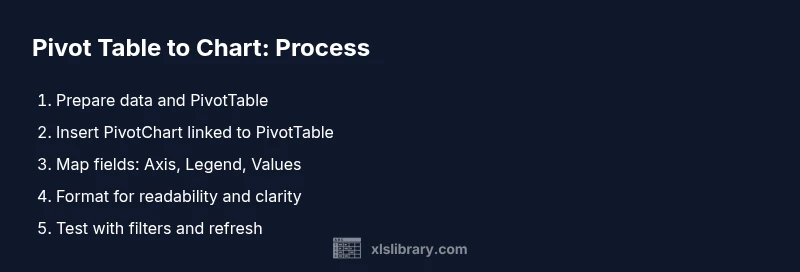
Click anywhere inside the PivotTable, go to the Analyze/Options tab, and choose Insert PivotChart. Pick a location for the chart (new sheet or embedded) and confirm. The chart will mirror the PivotTable’s fields.
Tip: If a PivotChart distorts layout, temporarily remove nonessential fields from Rows or Columns. - 3
Map fields to the chart
Drag the desired fields into the chart’s Axis (Categories), Legend (Series), and Values sections. Ensure the Values summarize the measure you want (sum, average, count, etc.).
Tip: Limit the number of series; too many series reduce readability at a glance. - 4
Tune the chart type and formatting
Experiment with Column, Bar, Line, or Area charts to best reflect the data. Adjust titles, axis labels, data labels, and legends for clarity.
Tip: Use data labels selectively; place them where they aid interpretation, not crowd the view. - 5
Format for readability
Apply consistent fonts, color themes, and gridline styles. Add chart and axis titles that describe what’s shown. Consider adding a brief note box for context.
Tip: A subtle gridline and bold axis titles improve readability in dashboards. - 6
Validate and refresh
Check that filters, slicers, and data updates reflect correctly in the PivotChart. Refresh the PivotTable if the underlying data changes.
Tip: If you encounter mismatches after data changes, re-check field mappings and refresh both PivotTable and PivotChart.
People Also Ask
Can I convert an existing PivotTable to a chart without rebuilding the pivot?
Yes. Click inside the PivotTable, insert a PivotChart, and Excel will generate a chart linked to the same fields. You can modify the fields afterward without recreating the PivotTable.
Yes. Click inside the PivotTable and insert a PivotChart to link the chart to the same fields.
What chart types work best with PivotCharts?
Column and Bar charts are common for comparisons; Line charts show trends over time; Combo charts can combine measures with different scales.
Column and bar charts show comparisons well; line charts are good for trends; combo charts handle multiple measures.
Will PivotCharts refresh when the PivotTable changes?
PivotCharts update automatically when the PivotTable fields change or when you refresh the data source. If you modify the data, re-run Refresh All.
PivotCharts update when you adjust the PivotTable or refresh the data source.
Can PivotCharts handle multiple measures in one view?
Yes. You can add multiple measures as separate series, but avoid too many series to keep readability. Use separate axes if necessary.
Yes, you can have multiple measures as series, but keep it readable.
How do I share PivotCharts in dashboards?
Export the dashboard as a workbook or publish to a shared drive. Ensure consistent filters and slicers across charts for cohesive storytelling.
Export the workbook or share it, keeping filters consistent across charts.
Are there accessibility considerations for PivotCharts?
Yes. Use high-contrast colors, descriptive titles, and avoid relying solely on color to convey meaning. Provide textual summaries where possible.
Make sure visuals are accessible with good contrast and descriptive text.
Watch Video
The Essentials
- Identify the story you want to tell before charting.
- PivotCharts mirror PivotTable fields and respond to filters automatically.
- Choose chart types that emphasize the insight, not just decoration.
- Keep formatting clean to support clear interpretation.
- Verify data integrity by refreshing after updates.