How to Make a Calendar in Excel: A Step-by-Step Guide
Learn to build a reusable Excel calendar from scratch with month navigation, date formulas, and clean formatting. This XLS Library guide covers layout and sharing-ready templates.


Learn how to make calendar excel with a clean, reusable template. This step-by-step guide covers layout, date logic, month navigation, and sharing-ready formatting. According to XLS Library, starting from a blank workbook and building a date grid with simple formulas yields reliable calendars. Follow practical examples and protect formulas to keep your calendar safe when others edit. By the end, you’ll have a functional calendar you can reuse year after year.
Why a calendar in Excel matters
Using Excel to manage dates offers flexibility that ready-made calendars can't match. If you're asking how to make calendar excel, you’ll appreciate the control over layout, formulas, and data provenance. A calendar in Excel can become your project tracker, personal planner, and team-shared schedule all in one file. According to XLS Library, the best templates start with a clean grid, a clear header, and a consistent date format. With a few straightforward formulas, you can generate all the days of the month, adjust for leap years, and even display previous/next month without leaving the sheet. This approach makes it easy to customize for weekends, holidays, and regional settings. A well-built calendar reduces manual data entry, minimizes mistakes, and simplifies sharing because everything sits in a single, version-controlled workbook. The XLS Library team has found that practitioners who design calendars with stable structure also save time when preparing quarterly planning documents or event schedules. The result is a scalable template that can be reused year after year while preserving formatting and logic. In short, a robust Excel calendar is both a practical tool and a proof of Excel mastery.
Planning the calendar layout
Before typing a single date, sketch a layout that fits your goals. Decide how many months you’ll display, where the month and year selectors live, and what extra spaces you’ll reserve for notes or events. The layout determines how easily you’ll maintain the calendar and how it will scale with future years. For consistency, keep a fixed grid size (e.g., 7 columns for Mon–Sun and 5–6 rows for the days). In this guide, we’ll build a single-page monthly calendar that you can duplicate for other months. Knowing the plans ahead of time reduces rework and helps you keep formatting uniform across pages. The XLS Library notes emphasize modular design so readers can adapt the template for quarterly planning and personal use.
Step-by-Step Overview: Building a Calendar in Excel
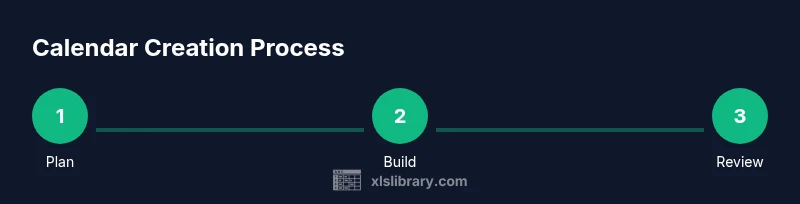
This section outlines the core logic and workflow, so you can see the big picture before diving into formulas. You will set up a header with Month/Year, create a day-of-week grid, build a date-fill mechanism, and then add optional enhancements such as highlighting weekends and marking events. The approach emphasizes modular design: separate input cells for Year and Month, a date grid, and a small event area. By keeping inputs separate from formulas, you’ll simplify maintenance and updates. Throughout, remember to test with February and leap years to ensure the date logic holds year after year. The steps are designed to be approachable for both aspiring Excel users and seasoned analysts, with examples you can adapt to your own needs.
Implementing Month Navigation with Data Validation
A robust calendar lets you switch months without editing formulas. Use data validation in dedicated cells to create dropdowns for Month (January–December) and Year (e.g., 2024–2035). Link those cells to your date grid so changing the selections automatically rebuild the calendar. This setup minimizes manual edits and prevents inconsistent month lengths from breaking the grid. If you plan to publish the calendar, consider hiding the inputs or placing them on a separate sheet for clarity. This separation makes your calendar cleaner and easier to audit. The XLS Library Team highlights that clear inputs improve reproducibility and reduce errors when sharing templates across teams.
Enhancing with Formulas and Formatting
Fill the 7×6 date grid with a formula that starts from the first day of the chosen month and increments by one day each cell. A typical pattern is to calculate the first visible date using =DATE(YearCell, MonthCell, 1) and then fill across weeks with +1 per cell. Use WEEKDAY to identify weekends and apply conditional formatting for Saturdays and Sundays (blue or gray). For leap years, rely on Excel’s built-in date handling so February automatically shows 29 days when appropriate. Apply a consistent font, borders, and a light background to improve readability. As a practical tip from the XLS Library, keep the date cells uniform to ensure print-ready layouts remain tidy across pages.
Testing, sharing, and maintenance
Test the calendar with several months, including leap years, to confirm the grid updates correctly. Save a copy as a template (.xltx) so you can reuse it for future years. When sharing, consider protecting the formula cells, locking the grid area, and leaving input cells editable. If distributing via email or cloud storage, validate compatibility with Excel Online, which sometimes has minor rendering differences. Finally, maintain a simple changelog so you can track edits over time. The XLS Library recommends documenting any custom rules or color conventions so others can pick up the template quickly.
Authority sources
A calendar in Excel benefits from solid, citable guidance. The following sources provide foundational knowledge on date handling, data validation, and spreadsheet best practices. Microsoft Support offers official steps and syntax for date functions and calendar templates. University Extension programs explain how to structure data and use Excel features for reliable templates. National standards from NIST help clarify how dates are interpreted across systems, which can influence your date logic in Excel. These sources support the approach described above and can help you deepen your understanding.
- https://support.microsoft.com
- https://extension.illinois.edu
- https://nist.gov
Tools & Materials
- Excel (Microsoft 365 or Office 2021+)(Windows or macOS)
- Blank workbook or new worksheet(Start with a clean sheet)
- Month and Year input cells configured with Data Validation(Enable dropdowns for navigation)
- Printer (optional)(For hard copy calendars)
- Keyboard and mouse(Optional)
Steps
Estimated time: 60-90 minutes
- 1
Create a new workbook and prep the sheet
Open Excel, create a blank workbook, rename the sheet to 'Calendar', and set up a clean header with bold text. Choose a readable font and center alignment for a tidy layout. Prepare a separate area for Month/Year inputs.
Tip: Name the sheet and set a consistent font. - 2
Set up the day headers (Mon–Sun)
In the top row, enter the seven day names (Mon–Sun) and adjust column widths so every header is visible. Apply a light border to define the grid. This header row guides later date placement.
Tip: Use a fixed column width to keep the grid uniform. - 3
Create Month/Year selectors with data validation
In dedicated cells, set up dropdowns for Month (January–December) and Year (e.g., 2024–2035) using Data Validation. Tie these cells to your date grid so changes automatically refresh the calendar.
Tip: Use a named range for Month names to simplify formulas. - 4
Calculate the first visible date for the grid
Determine the starting date for the grid using a DATE formula that depends on the selected Year/Month. Place this in the top-left date cell so the grid can follow with +1 increments.
Tip: Test February in leap years to verify correct day counts. - 5
Fill the date grid with incremental dates
In the date cells, use a simple +1 day offset from the first visible date. Copy across the grid to fill six weeks (42 cells) to cover all possible month lengths.
Tip: Lock the initial date calculation to prevent accidental edits. - 6
Apply conditional formatting for weekends
Use WEEKDAY to identify Saturdays and Sundays and apply a distinct fill color. This visual cue helps users scan the calendar at a glance.
Tip: Choose colors with strong contrast against the page background. - 7
Add an events area or sheet
Create a separate area or sheet to list events by date. Link events to the calendar grid using a simple lookup to keep everything synchronized.
Tip: Keep events on a separate tab to avoid clutter on the calendar. - 8
Protect formulas and save as template
Lock cells that contain formulas, leaving input cells editable. Save the workbook as a template (.xltx) so you can reuse it for future years without rebuilding.
Tip: Document any custom rules so others can reproduce the setup.
People Also Ask
Can I create a calendar for any year?
Yes. Bind year and month to the grid and use date formulas that adapt for leap years and varying month lengths.
Yes—bind year and month to the grid so it updates automatically for any year.
How do I show previous/next months?
Use dropdowns for Month/Year and ensure your date grid references these inputs to rebuild the calendar.
Use month and year dropdowns to switch months smoothly.
Can I share this calendar with others?
Yes. Save as a template or workbook and consider protecting formula cells while keeping inputs editable.
You can share the calendar; protect formulas and keep inputs editable.
Is auto-filling across months supported?
Absolutely. Use a first-date calculation and a simple +1 increment to fill the grid across weeks.
Yes, auto-fill is supported with a simple date formula pattern.
How can I format weekends differently?
Apply conditional formatting with WEEKDAY to highlight Saturdays and Sundays in a distinct color.
Highlight weekends using conditional formatting.
Watch Video
The Essentials
- Plan layout before data entry.
- Use data validation for Month/Year.
- Base the grid on a dynamic first-date formula.
- Protect formulas when sharing.
- Highlight weekends for readability.