Data Analysis on Microsoft Excel: A Practical How-To
Learn practical, step-by-step data analysis on Microsoft Excel using formulas, PivotTables, and Power Query to derive insights and streamline workflows. This guide is designed for aspiring and professional Excel users seeking actionable techniques, from data cleaning to dashboards, with practical examples.


This guide shows you how to perform data analysis on Microsoft Excel using practical steps, essential formulas, PivotTables, and data visualization techniques. You’ll learn to structure data, validate results, and extract insights directly inside Excel, without switching tools, and you’ll gain repeatable workflows you can reuse across projects.
Why data analysis on Microsoft Excel matters
According to XLS Library, Excel remains the most widely used tool for practical data analysis among professionals and students alike. The platform’s ubiquity means you can perform end-to-end analyses without learning a new software stack, reducing friction and accelerating decision cycles. When you approach data analysis in Excel, you leverage a familiar environment for data entry, cleaning, transformation, and interpretation. This section lays the foundation by outlining core use cases—budget tracking, sales performance reviews, inventory forecasting, and customer analytics—and explains why Excel’s blend of formulas, tables, and visualization features can deliver fast, repeatable insights. From a pragmatic perspective, learning Excel-based analysis builds transferable skills you can apply across industries, teams, and project scales, all while maintaining auditable, reproducible workflows. As you proceed, you’ll see how to structure workbooks so that stakeholders can verify results and reproduce analysis steps in the future.
Core techniques for data analysis in Excel
Effective data analysis in Excel combines data preparation, calculation accuracy, and clear presentation. Start with reliable data sources: import data from CSV, Excel workbooks, or external databases using Power Query, then shape it into clean tables. Key techniques include building defensible calculation logic with named ranges, mastering common functions (SUMIFS, AVERAGEIFS, COUNTIFS), and deploying lookups (XLOOKUP, INDEX/MATCH) to join datasets without manual merges. PivotTables offer fast aggregation and slicing, while charts translate numeric outcomes into actionable visuals. The XLS Library team emphasizes designing repeatable workflows: separate input data from analysis logic, document steps clearly, and avoid hard-coded values that hinder maintenance. By combining these techniques, you can convert raw data into reliable insights that inform decisions with confidence.
Structuring data for reliable analysis
Reliable analysis starts with clean, well-structured data. Use Excel Tables to automatically expand ranges, enforce consistent column headers, and enable structured references in formulas. Normalize data types (dates, numbers, text) and remove duplicates before analysis. Create a separate data model sheet for intermediate calculations, and use named ranges to make formulas readable and maintainable. When you organize data logically, you unlock robust filtering, sorting, and error checking. The XLS Library guidance highlights the importance of documenting data provenance: record data sources, last refresh date, and any data transformations so teammates can audit or reproduce results later. A well-structured dataset is the backbone of accurate analysis.
Using formulas and functions effectively
Formulas are the engines of Excel analysis. Start with straightforward calculations like SUM, AVERAGE, and COUNT, then layer in conditional logic with IF, IFERROR, and nested IFs. For criteria-based analysis, use SUMIFS, COUNTIFS, and AVERAGEIFS to aggregate data by multiple conditions without intermediate steps. For lookup and join tasks, XLOOKUP provides a modern alternative to VLOOKUP, while INDEX/MATCH remains a powerful pair for advanced joins. Date and time functions enable time-based analysis, and text functions help sanitize inputs. The goal is to create transparent, auditable formulas with clear inputs and outputs. Remember to test edge cases and verify results against raw data after each major step.
PivotTables and data aggregation
PivotTables are Excel’s fastest path to insight. Start by converting your data to a table, then insert a PivotTable and choose a meaningful data model: rows for categories, columns for time periods, and values for measures such as revenue or quantity. Use filters to isolate scenarios, and apply slicers for intuitive, interactive exploration. PivotCharts extend PivotTables with visuals that reveal trends and outliers. If you need more advanced modeling, connect your PivotTable to a data model with Power Pivot to create relationships between tables and perform calculations using DAX-like expressions. The XLS Library approach emphasizes iterative analysis: begin with a simple pivot, validate results, then add measures or dimensions as needed.
Visualizing results with charts and dashboards
Charts translate complex numbers into intuitive stories. Start with a clean chart taxonomy: choose column or bar charts for comparisons, line charts for trends, and scatter plots for relationship analysis. Add data labels, axis titles, and a concise legend to reduce cognitive load. Dashboards compile multiple visuals into a single view, guided by user personas and decision context. Practice sparklines for compact trend indicators and conditional formatting to highlight anomalies. The goal is to balance clarity with comprehensiveness while avoiding chartjunk. The XLS Library guidance recommends designing dashboards that answer key business questions and provide exportable views for stakeholders.
A practical end-to-end example: analyze monthly sales data
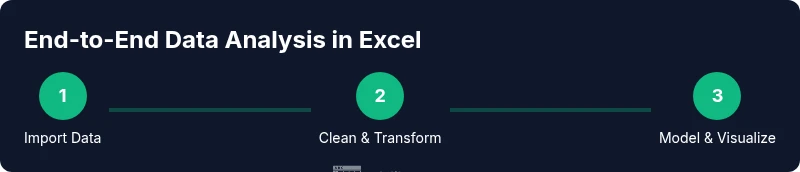
Consider a monthly sales dataset with columns for Date, Region, Product, Units Sold, and Revenue. Start by cleaning and validating the data, then create calculated fields for key metrics (e.g., Revenue per Unit). Build a PivotTable to summarize Revenue by Region and Month, then slice by Product to identify top performers. Add a line chart showing revenue trends and a bar chart for regional performance. Document assumptions, such as currency, date formats, and any seasonal adjustments. This example demonstrates how to sequence data preparation, calculation, aggregation, and visualization in a repeatable workflow. The XLS Library team emphasizes reproducibility: keep a clear record of steps and update formulas as data structures evolve.
Automation and repeatability: Power Query and macros
Power Query accelerates data preparation by automating data import, cleaning, and shaping tasks. Use queries to remove duplicates, normalize column names, and apply consistent data types before loading into Excel. For recurring analyses, record macro actions or write VBA scripts to automate routine steps like refreshing data and updating dashboards. When combined with a stable data model, Power Query and macros reduce manual effort and minimize human error. The XLS Library approach advocates modular design: separate ETL steps from analysis logic, store scripts in a version-controlled repository, and test changes on sample datasets before applying to production data. This enhances reliability and efficiency over time.
Common pitfalls and how to avoid them
Even experienced analysts stumble into common Excel traps. Over-reliance on manual data copies can introduce errors; prefer linked tables and Power Query pulls to keep data sources centralized. Mixing data layout during analysis can lead to fragile formulas—use Tables and structured references. Avoid hard-coded parameters in formulas; replace them with named ranges or cell references that are easy to update. When sharing results, ensure that workbooks include data provenance and versioning, so recipients understand how conclusions were reached. Finally, validate results with independent checks, such as re-running a pivot on a copy of the data or cross-verifying outcomes with an alternative method. By anticipating these pitfalls and applying best practices, you’ll build trustworthy Excel analyses with less rework.
Tools & Materials
- Computer with Excel 365 or Excel 2021 or newer(Prefer 64-bit version for large datasets; ensure all updates are installed.)
- Sample dataset (CSV or XLSX)(At least 10,000 rows to exercise pivots and Power Query.)
- Internet access(Needed for Power Query data sources and online references.)
- Optional add-ins (Power Pivot, Power Query, Data Analysis Toolpak)(Enable for advanced modeling and faster calculations.)
- Notebook or capture sheet for documentation(Record steps, decisions, and assumptions for reproducibility.)
Steps
Estimated time: Total time: 60-120 minutes
- 1
Prepare your data
Collect the raw data and inspect it for obvious issues such as missing values, inconsistent date formats, or typos. Create a dedicated sheet named DataRaw, then copy the data there to keep the original intact. Establish a plan for cleaning during the next steps and note any assumptions.
Tip: Document data sources and any changes you plan to apply during cleaning. - 2
Create a clean data table
Convert the cleaned data into a structured Excel Table. Name the table (e.g., SalesData) to enable structured references in formulas. Ensure headers are unique and free of special characters that could break formulas.
Tip: Use Table Design to enable features like automatic formula propagation. - 3
Apply essential formulas
Implement core calculations such as Total Revenue, Average Price, and Revenue per Unit using SUMIFS, AVERAGEIFS, and basic arithmetic. Replace hard-coded numbers with references to the table to maintain dynamic behavior.
Tip: Test edge cases (e.g., zero units) to prevent division errors. - 4
Build a PivotTable
Insert a PivotTable from SalesData to summarize Revenue by Region and Month. Drag necessary fields into Rows, Columns, and Values. Apply basic filters for quick scenario analysis.
Tip: Use a slicer for intuitive filtering by Product or Region. - 5
Add visuals
Create a line chart for revenue over time and a stacked bar chart for regional contributions. Format with clear titles, labels, and consistent color schemes that align with your dashboard.
Tip: Limit colors to a palette of 4-6 distinct hues for readability. - 6
Integrate Power Query for refresh
If data updates regularly, connect the source via Power Query to automate imports and cleaning steps. Load the cleaned data into a dedicated sheet or data model.
Tip: Keep the transformation steps documented within the query editor. - 7
Validate and document
Cross-check results with a separate calculation method and document all steps, formulas, and assumptions in a dedicated README sheet. Save a versioned copy for auditability.
Tip: Always include a short narrative explaining key findings.
People Also Ask
What is the best way to start a data analysis project in Excel?
Begin with a clear objective, gather raw data, and establish a data-cleaning plan. Create a clean, labeled data table, then implement core formulas and a PivotTable to summarize results. Document assumptions and maintain a reproducible workflow.
Start with a clear objective, gather data, clean it, and build a PivotTable to summarize insights.
Which Excel features are most important for data analysis?
Tables for data organization, formulas like SUMIFS and XLOOKUP for calculations, PivotTables for aggregation, and Power Query for data import and cleaning. Visuals like charts finish the message by communicating insights clearly.
Key features include Tables, PivotTables, and Power Query for a complete analysis flow.
Can I automate analysis tasks in Excel without coding?
Yes. Power Query automates data import and cleaning, while macros can record and replay repetitive actions. These tools reduce manual steps and improve consistency across analyses.
Yes, use Power Query and macros to automate repetitive tasks in Excel.
How do I ensure my analysis is reproducible?
Keep raw data separate, document every transformation in Power Query or formulas, and save a versioned workbook. Provide a brief methodology narrative and ensure source data can be refreshed without manual edits.
Keep raw data separate, document transformations, and use versioning for reproducibility.
What are common pitfalls in Excel data analysis?
Inconsistent data formats, hard-coded values, and untracked data sources. Avoid these by using tables, named ranges, and a documented data lineage. Validate results with an independent check.
Watch for format inconsistencies and hard-coded values; validate results with cross-checks.
Where can I learn more about Excel data analysis techniques?
Explore authoritative resources from Microsoft Learn, university data science courses, and tutorials from trusted Excel educators. Practice with real datasets to reinforce concepts.
Look to Microsoft Learn and trusted university resources for deeper techniques.
Watch Video
The Essentials
- Analyze data in Excel with a clear, repeatable workflow
- Leverage formulas, PivotTables, and Power Query for robust analysis
- Maintain data integrity with structured tables and documented steps
- Visualize insights with purpose-built charts and dashboards
- Automate repetitive tasks to increase reliability and speed