How to Create a Timeline in Excel: A Practical Guide
Learn to build a clear, interactive timeline in Excel using dates, milestones, and charts. This step-by-step guide covers data planning, chart construction, dynamic updates, and best practices for reusable timelines that you can share across teams.


This guide shows you how to create a visual timeline in Excel using dates and milestones. You will learn to structure data, build a stacked bar timeline, and add optional filters for interactivity. No specialized software required; all steps use built-in Excel features you can reuse.
Why timelines matter in Excel for modern work
Timelines provide a visual map of project milestones, tasks, and deadlines, making it easier to coordinate teams and communicate progress. For many Excel users, building a timeline in a familiar environment reduces the need to learn new project management software while still delivering useful insight. The XLS Library team has found that practical, downloadable templates and clear data structures help teams start quickly and avoid common pitfalls. A well-crafted Excel timeline supports planning, forecasting, and status reporting with editable dates, color coding, and lightweight interactivity. Whether you are tracking product launches, marketing campaigns, or event roadmaps, a timeline in Excel keeps everyone aligned and accountable. The emphasis is on data you can trust, presented in a way that stakeholders can scan in seconds.
To get the most value, treat the timeline as a data-driven artifact: a single source of truth that can be refreshed as dates shift. You will learn to plan data, choose a layout that scales, and apply simple charting techniques that look polished without requiring advanced software. By starting with a structured table and a clear visual, you reduce manual rework and create a timeline that adapts as your project evolves. According to XLS Library, Excel timelines are increasingly favored for their balance of accessibility and capability, especially for teams that prioritize speed and collaboration. This guide uses practical steps you can apply to almost any project.
Key takeaways from this section:
- A timeline in Excel supports communication, not just tracking.
- Data structure and consistency drive accuracy and updates.
- Simple visuals with color and filters improve comprehension for stakeholders.
Planning and data structure: what to prepare before building
A robust timeline rests on a clean data backbone. Start by outlining the essential columns and choosing consistent date formats. A typical layout includes Task Name, Start Date, End Date, Duration (optional if you compute it), Milestone Indicator, Owner, and Status. When planning, decide how you will label milestones (for example, with a flag or a dedicated Milestone column) and whether you want the timeline to display weeks, days, or months.
Consistency is the foundation. Use a single date system across all rows and ensure there are no mixed data types in the date fields. If you are sharing this timeline with others, consider converting the data range into a formal Excel Table—the table automatically expands as you add rows and makes formulas and charts easier to manage. In our experience, keeping the data in a structured table also simplifies applying filters or slicers later for interactive exploration. The XLS Library team recommends starting with a simple table and adding layers of detail as you validate the layout.
What to gather before you begin:
- A list of tasks or milestones with clear owners
- Start and end dates for each task
- A method to mark milestones (yes/no or a label)
- Optional: a status field for progress (Not Started, In Progress, Complete)
Building a basic timeline: turning data into a visual timeline
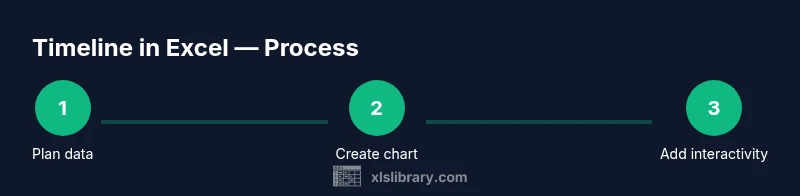
With your data structure in place, the next step is to create a visual timeline using a stacked bar chart. The core idea is to represent each task by two bars: a starting offset from a baseline and a duration that encodes how long the task lasts. A stacked bar chart can then display these two components side by side, creating the appearance of a timeline that starts at the correct date and grows across the appropriate span.
First, identify the earliest start date as your baseline. Then, add helper columns to compute the offset (how far from the baseline a task begins) and the duration (how long the task runs). Once those helper columns exist, insert a stacked bar chart and set the first series to the offset and the second to the duration. Format the axis to show dates instead of numeric values, and adjust the colors to emphasize milestones or owner groups. This approach keeps the data in your workbook and yields a shareable, editable timeline that updates when you modify the Start Date or End Date. As you gain confidence, you can layer more interactivity with filters or slicers.
Tip: Keep the chart area clean by hiding the baseline series or removing gap width, so the timeline appears as continuous bands rather than pie-slice shapes. This is a small cosmetic touch that improves readability for stakeholders reviewing the schedule.
Making it dynamic with formulas and named ranges: keep the timeline current
Dynamic timelines respond to updates without constant manual edits. A core strategy is to leverage Excel Tables for your data so formulas automatically adjust as rows are added. Use a couple of straightforward helper columns: one for Start Offset (the difference between the task start and the baseline) and one for Duration (the difference between End Date and Start Date, measured in your chosen unit). If you want the timeline to reflect only business days, you can tailor the duration calculation to exclude weekends.
Naming ranges improves readability and reduces formula errors in charts. For example, you can create named ranges that refer to the Start Date and Duration columns so your chart always targets the current data. If your dataset expands, the chart expands automatically when the tables grow. The XLS Library guidance emphasizes starting with a solid table and using named ranges for reliability and maintainability.
Dynamic updates also pair nicely with data validation. Set up a date picker constraint to prevent invalid dates from entering the Start Date column, and consider a small helper column that flags any End Dates that precede Start Dates. These safeguards help keep your timeline accurate as you iterate.
Enhancements: conditional formatting, filters, and interactivity
Color is the most immediate way to convey information in a timeline. Use conditional formatting to color-code bars by status or owner, and consider a color legend for quick reference. Adding filters transforms the timeline into an explorer: you can show only tasks assigned to a specific team, or only milestones. If you use an Excel Table, you can easily insert slicers or a timeline slicer for dates to let readers focus on a timeframe.
Another enhancement is data labeling. Add data labels to show durations or start dates on each bar, but avoid overloading the chart—labels should be concise and legible. You might also add a milestone marker on the timeline by adding a separate marker series or using a data label on a special symbol. When sharing with stakeholders, save the workbook as a template so others can reuse the layout without rebuilding from scratch.
Common pitfalls and best practices: precision, readability, and maintenance
Timelines are only as useful as their accuracy. Avoid mixing date formats within a column; keep Start Date and End Date as true date values. Don’t leave blank dates unless you intend to represent a gap in the plan. Be mindful of the chart axis—too granular a date scale can make the timeline hard to scan, while too broad a scale can obscure important milestones. Regularly audit the data, particularly if multiple people edit the sheet.
A practical habit is to maintain a short, reusable template with the essential structure and formatting, then customize colors and labels per project. Finally, remember that Excel timelines thrive on simplicity. If your data grows too large, consider archiving older tasks in a separate sheet or using filters to keep the primary view clean.
Quick-start checklist and template tips
- Start with a clean, structured table for tasks, dates, and owners.
- Create Start Offset and Duration helper columns.
- Build a stacked bar chart and format dates on the axis.
- Apply conditional formatting for status-based coloring.
- Add filters or slicers to enable interactive viewing.
- Save as a template for future projects and updates.
- Validate dates regularly to prevent misinterpretation by stakeholders.
This approach gives you a practical, reusable timeline you can adapt for different teams and initiatives. The XLS Library Team endorses templates that are easy to share and adjust as schedules shift.
Tools & Materials
- Microsoft Excel (Excel for Windows or Mac)(Excel 2019+ or Office 365; charting and table features required)
- Sample dataset with dates and milestones(Columns: Task Name, Start Date, End Date, Milestone, Owner, Status)
- Blank worksheet or workbook(Use as the canvas for data and chart)
- Date formatting guide(Standardize dates (e.g., YYYY-MM-DD) across all rows)
- Optional: Excel Table for data(Converts data to a dynamic range that expands with new rows)
Steps
Estimated time: 45-90 minutes
- 1
Prepare data layout
Create a table with essential columns: Task Name, Start Date, End Date, Milestone, Owner, and Status. Ensure dates are stored as true date values and expand the table as new tasks are added.
Tip: Convert the range to an Excel Table to enable automatic expansion. - 2
Normalize dates
Verify that all Start Dates and End Dates use the same date format and are real dates (not text). Flag any inconsistencies before building the chart.
Tip: Use data validation to prevent invalid dates from entering. - 3
Add helper columns
Create a Start Offset column as the difference between the task Start Date and the baseline date, and a Duration column as End Date minus Start Date.
Tip: If you want business-day only durations, adjust the calculation accordingly. - 4
Create the timeline chart
Insert a stacked bar chart with the Start Offset as the first series and Duration as the second. Remove the baseline visually to reveal the actual timeline.
Tip: Hide the Start Offset bars if you prefer a clean timeline look. - 5
Format the axis for dates
Change the horizontal axis to display dates and choose a suitable unit (week, month). Ensure the timeline starts at your baseline date for readability.
Tip: Use a minimum and maximum date range that fits your project window. - 6
Add labels and milestones
Label bars with task names and optional durations. Mark milestones with a distinct color or a symbol for quick scanning.
Tip: Keep labels concise to avoid chart clutter. - 7
Apply conditional formatting
Color-code bars by status or owner, using a legend to guide readers. This improves immediate comprehension.
Tip: Limit the palette to a few distinct colors for clarity. - 8
Enable interactivity and templates
Add filters or slicers for time ranges or categories. Save the workbook as a reusable template for future projects.
Tip: Test sharing with a colleague to ensure filters work as expected.
People Also Ask
What is the difference between a timeline and a Gantt chart in Excel?
A timeline in Excel focuses on sequencing events over time using a simple bar style, while a Gantt chart emphasizes task durations and overlaps. Timelines are typically lighter and easier to share, whereas Gantt charts highlight dependencies and critical paths.
A timeline shows when events happen over time, while a Gantt chart highlights task durations. Timelines are simpler to share, while Gantt charts emphasize dependencies.
Can I recreate the timeline without complex formulas?
Yes. Start with a basic Start Date and End Date, compute a simple duration, and use a stacked bar chart. As you grow your timeline, you can add one or two helper columns to improve accuracy without heavy formulas.
You can start with a simple setup and add helpers later if you need more accuracy.
Which chart type works best for a timeline in Excel?
A stacked bar chart adapted to show Start Offset and Duration is a common and effective choice. It visually aligns with calendar timelines while staying within Excel's native charting capabilities.
A stacked bar chart is usually the easiest option for an Excel timeline.
How can I make the timeline dynamic with external data?
Convert the data to an Excel Table so the chart expands automatically as rows are added. You can also use named ranges or Power Query to refresh data from external sources.
Make the data a table so the timeline grows automatically as new rows are added.
Is it possible to share the timeline with others who don’t have Excel?
Yes. Export the timeline to PDF or share the workbook with read-only access. If needed, you can reproduce the chart in Google Sheets using compatible features.
You can export to PDF or share a read-only workbook; Google Sheets can mirror basic charts.
How do I update the timeline when a milestone changes?
Edit the Start Date or End Date in your table; the chart updates automatically if you used dynamic ranges or a table. Re-check axis scaling after updates to preserve readability.
Update the dates in the table and the chart will refresh automatically.
Can I include milestones and regular tasks in the same timeline?
Yes. Use a Milestone flag or separate milestone column to differentiate them and apply distinct formatting in the chart. This keeps the timeline informative without clutter.
Absolutely, use a milestone flag and distinct colors to separate milestones from regular tasks.
Watch Video
The Essentials
- Plan data with a clear column structure before any chart work.
- Use a stacked bar approach to visualize start offsets and durations.
- Enable interactivity with filters or slicers for focused analysis.
- Keep dates consistent and templates reusable for ongoing projects.