How to Make Box Plot Excel: A Practical Guide
Learn how to create a box plot in Excel with a practical, step-by-step approach. Prepare data, insert the box-and-whisker chart, customize visuals, and interpret results for clear data storytelling.


You can build a box plot in Excel by preparing clean numeric data, inserting a box-and-whisker chart, and then refining the visuals. This guide walks you through data setup, chart creation, and customization for accurate interpretation.
Why box plots matter in Excel
Box plots offer a compact, visual summary of data distribution, highlighting median, quartiles, and potential outliers at a glance. They enable quick comparisons across groups and time periods, which is essential for data storytelling in business and research. According to XLS Library, box plots can simplify complex distributions into an interpretable format, making it easier to spot differences and patterns. If you are curious about how to make box plot excel analyses more transparent, this method provides a consistent, repeatable approach that works with standard Excel charts. By the end of this section, you will understand when a box plot is the right choice and what it communicates to stakeholders.
Data requirements and preparation
A box plot requires numeric data arranged in a way that Excel can interpret for distribution. You can use a single column of numbers or a structured table with a group label to compare multiple categories. Key preparation steps include: removing nonnumeric values, handling missing data, and ensuring each group has a sufficient sample size to produce meaningful quartiles. For best results, store data in a clean, tabular format with headers that clearly describe each group. This minimizes errors during chart creation and makes it easier to automate the process in future analyses. In this guide, we will focus on a clean, reproducible approach that aligns with XLS Library recommendations for data readiness.
The box plot concept: quartiles, median, whiskers, and outliers
A box plot visualizes five-number summaries: minimum, first quartile Q1, median, third quartile Q3, and maximum. The box spans Q1 to Q3, with a line at the median. Whiskers extend to the most extreme data points within a defined range, and outliers are plotted beyond the whiskers. Understanding these components helps you interpret distributions across categories. When you compare multiple groups, you can quickly assess which group is more variable, where a central tendency lies, and if any data points stand out as potential anomalies. This foundation is essential for successful execution of the how to make box plot excel workflow.
Step-by-step overview to create a box plot in Excel
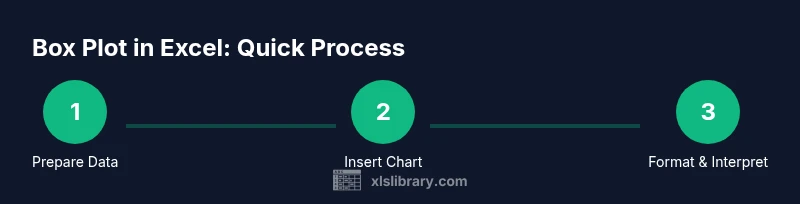
Excel supports the box plot through the box-and-whisker chart. The general steps are data preparation, chart insertion, data series adjustment, and final formatting. In this section we outline the core actions you will perform before diving into the step-by-step instructions. You will learn how to position your data, select the appropriate chart type, and ensure the quartiles align with your chosen grouping. The goal is a clean, readable chart that accurately reflects the distribution of each group. Keep in mind that small sample sizes may affect the reliability of quartile estimates, so plan to collect enough data per group where possible.
How to insert a box plot in Excel 2016 and newer (box-and-whisker chart)
To insert a box plot, start by selecting the data range that contains the numeric values you want to analyze. If you have multiple groups, place each group in its own column or provide a separate header to distinguish them. Navigate to the Insert tab, choose the Box and Whisker chart option (in some Excel versions labeled as Box Plot). Excel will render a chart that shows the quartiles and medians for each group. If your data includes multiple categories, you can switch to a clustered view to compare distributions side by side. This approach aligns with the recommended method described by XLS Library for building reliable visuals.
Customizing the chart: axes, colors, and outliers
Customization helps your box plot communicate clearly. Adjust axis scales so the range reflects your data, add a descriptive chart title, and label axes for context. Color-code boxes by group to enhance readability, and consider showing data labels for the median line if you need precise values. Outliers can be emphasized with distinct markers or color changes. If you want to highlight a particular group, you can apply a unique color or border style. These refinements improve interpretability for stakeholders reviewing the chart in reports or presentations. XLS Library emphasizes consistent styling to maintain professional visuals across analyses.
Interpreting the box plot: reading quartiles and outliers
When reading a box plot, focus on the spread between Q1 and Q3, the median line inside the box, and the position of whiskers relative to the data range. A wider box indicates greater variability; a shorter whisker range suggests data is tightly clustered. Outliers are plotted beyond the whiskers and can indicate data entry errors or true exceptional values. Comparing boxes reveals which group has higher or lower variability and where the central tendency lies. By interpreting these elements, you can make informed decisions based on distributional characteristics rather than just averages. This understanding is essential when communicating results to nontechnical audiences.
Common pitfalls and troubleshooting tips
Common issues include using inconsistent data ranges, including nonnumeric values, or misinterpreting the whiskers as data points. Ensure that each group has sufficient sample size, and verify that the data is correctly aligned to its labels. If Excel does not show a box plot in your version, you may need to enable the appropriate chart options or use an alternative approach such as a violin plot with an add-in. Always preview the chart with a small subset of data first to catch formatting problems before scaling up. Remember that data quality drives the validity of your box plot insights, so invest time in cleaning and organizing before charting.
Quick-start checklist and best practices
- Clean data with consistent formatting and headers
- Use separate columns for each group to simplify comparisons
- Verify the box plot chart type is available in your Excel version
- Customize colors and labels for clarity
- Save a copy of the data and chart settings for reproducibility
Tools & Materials
- Microsoft Excel (Office 365 or Excel 2019+)(Box and whisker chart available in modern Excel; in older versions, consider alternatives or add-ins)
- Clean data in a table(Organize numeric values with clear group labels if comparing categories)
- Blank worksheet for experimentation(Optional but helps avoid overwriting original data)
- Existing data range(Ensure no nonnumeric noise or blanks within the numeric columns)
Steps
Estimated time: 20-30 minutes
- 1
Prepare your data
Ensure all numeric values are in a clean, consistent format. If comparing groups, place each group in its own column with a header describing the group. Remove or impute missing values as needed before charting.
Tip: Use named ranges for stable references in your chart formulas. - 2
Select the data range for the chart
Highlight the numeric data you want to include in the box plot, including group headers if present. If you have labeled groups, ensure the labels are included in a row or column that Excel can read for axis labeling.
Tip: Include a little extra space around the data to allow for future updates. - 3
Insert the box plot
Go to the Insert tab, choose Box and Whisker chart (Box Plot). Excel will render the chart with boxes representing the IQR and whiskers showing the data range.
Tip: If you don’t see the option, verify Excel version and update if possible. - 4
Adjust data series if needed
If groups are not displayed as separate series, reselect the data or use the Chart Tools to reassign series to the correct columns.
Tip: Use the Select Data dialog to fine tune series names and ranges. - 5
Format axes and titles
Add a descriptive chart title, label the axes, and set the axis range to fit your data. This improves readability for viewers.
Tip: Keep fonts and colors consistent with your report style. - 6
Customize whiskers and outliers
If needed, adjust whisker length or mark outliers with distinct colors or symbols. This helps identify unusual values at a glance.
Tip: Consistent outlier markers reduce visual noise in multi-group charts. - 7
Review and save
Review the chart for accuracy, save a copy of the chart configuration, and export if required for reports.
Tip: Document the data range and version to support reproducibility.
People Also Ask
What is a box plot and what does it show?
A box plot shows the distribution of a dataset using quartiles, the median, and potential outliers. It visually summarizes spread and central tendency across groups.
A box plot displays distribution, showing the median, quartiles, and outliers for quick comparison.
Can I create a box plot in Excel 2010 or older?
Older versions may not include the box plot option. You can upgrade or use a workaround with error bars or third-party add-ins to approximate a box plot.
If you have an older Excel version, you might need a workaround or upgrade to access the box plot feature.
How many data points are recommended per group?
More data points per group improve quartile reliability. Aim for a minimum of 15 to 20 observations per group when possible.
Try to have at least about 15 data points per group for reliable quartiles.
How do I interpret outliers in a box plot?
Outliers are plotted beyond the whiskers and may indicate measurement errors or true extreme values. Investigate any outliers to determine their cause.
Outliers sit outside the whiskers and can be errors or true extremes; review them carefully.
Can I customize colors and labels in a box plot?
Yes. Use chart formatting options to color-code groups, add axis titles, and adjust font sizes for readability in reports.
Absolutely, you can color the boxes and add clear labels for better readability.
What if my Excel version does not show the box plot option?
Check for updates, try enabling the feature through chart options, or use an alternative visualization like a violin or customized chart.
If the option is missing, update Excel or use an alternative visualization.
Watch Video
The Essentials
- Box plots summarize distribution with quartiles and medians.
- Proper data preparation is critical for accurate charts.
- Excel box plots enable quick cross-group comparisons.
- Customize visuals to improve interpretability and reporting.