Smartsheet vs Excel Pros and Cons: An Analytical Comparison
An analytical side-by-side comparison of Smartsheet and Excel, highlighting strengths, weaknesses, and when to choose each tool for project management, data analysis, and collaboration. Based on XLS Library Analysis, 2026.


Smartsheet and Excel serve different work styles: Smartsheet excels at collaborative, project-driven work, while Excel dominates deep data modeling and complex calculations. According to XLS Library, the best choice depends on your team’s workflow, data needs, and governance. This quick TL;DR highlights the core tradeoffs, then we dive into practical scenarios, feature gaps, and licensing implications.
Overview of Smartsheet vs Excel: The Core Debate
At first glance, Smartsheet and Excel seem to address similar promises—organized data and project tracking—but their design choices steer different workflows. According to XLS Library, the central debate is not merely feature parity, but how teams prioritize collaboration, governance, and data modeling. Smartsheet offers a grid-based canvas built around tasks, owners, dates, attachments, and automated alerts; Excel focuses on cells, formulas, and data relationships that scale from small tables to enterprise models. When evaluating the smartsheet vs excel pros and cons, consider whether you need real-time collaboration and structured project views or deep analytics, custom dashboards, and advanced calculations. In practice, many organizations use both tools in tandem, exporting data from Smartsheet to Excel for heavy analysis, then reintegrating results back into project dashboards. This section lays out the landscape, defines the primary use cases, and outlines how each tool tends to shine.
Smartsheet’s Strengths for Team-Based Projects
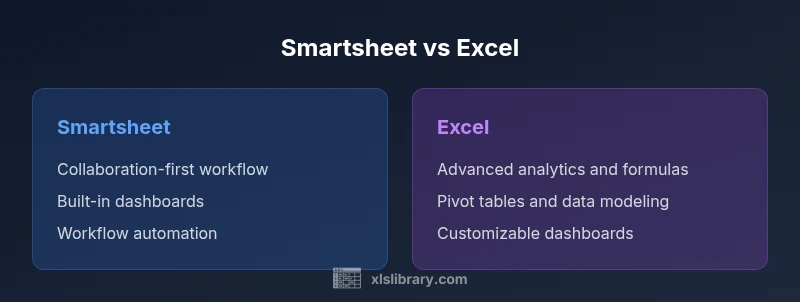
Smartsheet is designed around work execution. Its grid layout mirrors traditional project plans but adds collaboration-friendly features that Excel can only approximate in its raw form. Key strengths include real-time updates across the team, task assignments, and near-instant visibility into dependencies and timelines. The platform’s forms simplify data capture from non-technical users, while automated alerts keep stakeholders aligned without manual follow-up. Dashboards synthesize project health at a glance, which is especially valuable for managers coordinating cross-functional efforts. For organizations that prize governance, Smartsheet’s permissioning, line-of-sight reporting, and centralized attachments help maintain consistency and reduce version drift. In short, Smartsheet shines when the goal is rapid collaboration, standardized processes, and auditable activity across many users.
Excel’s Dominance in Data Mastery
Excel remains the go-to tool for in-depth data analysis, modeling, and ad hoc calculations. Its strength lies in a mature formula language, built-in functions, and the ability to create sophisticated data relationships with pivot tables, charts, and dashboards that are highly customizable. Users can build complex models, run what-if analyses, and automate repetitive tasks using macros and VBA. Excel’s ecosystem—Power Query for data connectivity, Power Pivot for data modeling, and an extensive library of templates—enables deep analytical work that scales to enterprise needs. While collaboration exists, it is most effective when individuals own structured data workstreams or analysts push the boundaries of data interpretation. For teams focused on metrics, forecasts, and scenario planning, Excel remains indispensable.
Key Differentiators: Collaboration, Automation, and Scale
The most meaningful differences between Smartsheet and Excel hinge on three pillars: collaboration, automation, and scale. Smartsheet centers teamwork with live collaboration, project-centric views, and task-centric automation; it streamlines routine project governance through templates and alerts. Excel prioritizes data modeling, formula-driven analysis, and large-scale data manipulation, with automation via macros and advanced add-ins. In terms of scale, Smartsheet handles multi-user workflows gracefully in a cloud-first environment, while Excel excels in handling heavy data processing on powerful workstations or cloud-enabled services. The choice often boils down to whether your priority is synchronized team execution or deep, customizable analytics. For many organizations, a hybrid approach—leverage Smartsheet for project management and Excel for data analysis—yields best-in-class results. The decision should align with your governance model, data needs, and user proficiency.
When Smartsheet Excels: Project Tracking, Resource Management, and Real-Time Updates
Smartsheet’s core advantage is its project-centric perspective. For teams that manage portfolios, track tasks, assign owners, and monitor progress in real time, Smartsheet offers out-of-the-box views (grid, card, calendar, and Gantt) that translate into clear accountability. Resource management is supported through visibility into workload distribution and capacity across teams, helping to balance demand and optimize schedules. Automation features enable triggers such as status changes and due-date alerts, reducing manual follow-up and ensuring timely action. The cloud-first nature means stakeholders can access project information from anywhere, on any device, with consistent governance rules. For organizations seeking fast onboarding and predictable project workflows, Smartsheet’s structure minimizes rework and accelerates project delivery.
When Excel Excels: Data Analysis, Complex Formulas, and Customization
Excel is unmatched for analytics-first tasks. It handles complex formulas, nested calculations, and scenario modeling with ease. Pivot tables, advanced charting, and data visualization tools empower analysts to extract insights from raw data. Excel also offers deep customization: custom templates, macros, and the ability to connect to external data sources via Power Query and Power Pivot. While collaboration is possible, Excel’s strongest feature is data manipulation at scale, which makes it ideal for financial modeling, forecasting, and operations research. However, this strength comes with a cost in governance and version control if not managed carefully. For data-centric roles, Excel often remains the default platform of choice.
Feature-by-Feature Comparison: Planning, Data Handling, and Accessibility
Below is a structured look at how Smartsheet and Excel compare on key capabilities. The emphasis is on practical implications for teams making a Smartsheet vs Excel pros and cons decision. Smartsheet tends to perform better in collaborative planning, task tracking, and cross-functional workflows, while Excel excels in data modeling, advanced calculations, and offline flexibility. Accessibility varies by deployment model; Smartsheet is typically cloud-first with mobile access, whereas Excel offers robust desktop experiences with optional cloud features. Both tools support data import/export, but the ease of transferring complex data and maintaining data integrity can differ. For organizations evaluating a hybrid setup, consider how data will move between the two platforms and what governance rules will govern that flow.
Real-World Scenarios: Case Studies and Use Cases
Case studies illustrate how teams adopt Smartsheet or Excel to meet distinct needs. A marketing team launching a multi-channel campaign might rely on Smartsheet for project plans, task assignments, and real-time status updates, while the finance department analyzes campaign ROI in Excel using complex formulas and PivotTable reports. A product development team may model release schedules in Smartsheet for visibility, with engineers exporting data to Excel for detailed cost and risk analysis. Another common scenario is data integration, where Smartsheet collects operational data and Excel performs advanced analytics, then feeds insights back into dashboards for leadership reviews. These scenarios demonstrate that most organizations benefit from a blended approach that leverages the strongest features of each tool.
Practical Guidance: How to Choose Based on Your Needs
To decide between Smartsheet and Excel, start with use-case mapping. If your priority is cross-team collaboration, transparent project tracking, and governance, Smartsheet is typically the better fit. If your primary need is advanced analytics, heavy data modeling, and custom calculations, Excel usually takes precedence. Consider a phased approach: begin with Smartsheet for project management, then bring critical data workflows into Excel for analysis, and finally establish integration points (e.g., data exports/imports or automated data pipelines). Training plans should reflect realistic skill gaps: grant project managers exposure to Smartsheet features while empowering analysts with Excel’s advanced capabilities. Finally, cost and licensing should be assessed in terms of total cost of ownership, not just per-user pricing.
Implementation Considerations: Migration, Training, and Governance
Migration between Smartsheet and Excel requires attention to data structure, column mappings, and data validation rules. Start with a pilot migration to a representative dataset and validate data integrity. Training should cover essential workflows—how to create sheets, manage permissions, and set up dashboards in Smartsheet alongside how to build formulas, create PivotTables, and use Power Query in Excel. Establish governance policies for version control, change management, and data provenance to avoid silos. Documentation should include best practices for naming conventions, data types, and validation rules. Finally, identify ownership for ongoing maintenance and establish a schedule for reviewing dashboards, reports, and automation rules to ensure they remain aligned with evolving business needs.
Cost and Licensing Considerations: Total Cost of Ownership
Pricing models for Smartsheet and Excel differ in structure, especially when considering team size, cloud vs on-premises deployments, and access requirements. Smartsheet tends to operate on a subscription basis with per-user or per-seat plans, often including features like automated workflows and dashboards as part of the package. Excel pricing typically hinges on Office 365 or Microsoft 365 licensing, with additional costs for advanced analytics tools or add-ins. In the long run, total cost of ownership should account for training, maintenance, data integration, and potential productivity gains or losses associated with each tool. While exact prices can vary by region and contract, the strategic question is whether collaboration efficiency or analytics capability delivers greater ROI for your organization.
Pitfalls and Limitations: Common Trade-offs
No tool is perfect for every scenario. Smartsheet’s strengths in collaboration can also lead to governance complexity if permissions become overly granular or workflows proliferate. Excel’s power comes with a steeper learning curve and potential version-control challenges when working with large teams or multiple data sources. Data interchange between the two platforms may require manual steps or dedicated integration, which can introduce errors if not carefully managed. Users should be aware of feature gaps—for example, Smartsheet’s formula language is not as extensive as Excel’s—and plan accordingly. The key is to adopt a pragmatic approach: use each tool where it plays to its strengths and implement clear data governance to minimize risks.
Comparison
| Feature | Smartsheet | Excel |
|---|---|---|
| Primary use case | Collaborative project management and work execution | Deep data analysis, modeling, and reporting |
| Collaboration & sharing | Real-time collaboration, assignments, alerts, and shared workspaces | Shared workbooks with concurrent editing tendencies; version history available |
| Automation & workflows | Forms, alerts, rules, and automated workflow templates | Advanced formulas, macros, and data modeling automation |
| Data modeling | Lightweight data structures with linked sheets | Advanced data modeling with PivotTables, Power Query |
| Reporting & dashboards | Built-in dashboards and project views | Powerful reporting with customizable charts and dashboards (via Excel features) |
| Learning curve | Low to moderate; quick onboarding for project management | Steeper for advanced analytics and data tooling |
| Platform & access | Cloud-first with strong mobile apps | Desktop-first with cloud options; offline access possible |
| Cost & licensing | Subscription-based; per-user or per-seat options | Office 365/Microsoft 365 licenses; potential add-ons |
Benefits
- Strength in collaboration and task visibility
- Rapid setup for project templates and dashboards
- Cloud-based access across devices
- Workflow automation reduces manual follow-up
- Centralized governance and permissions for teams
What's Bad
- Costs can scale with team size and features
- Less depth in advanced data modeling compared to Excel
- Data interchange between Smartsheet and Excel can be imperfect
- Over-reliance on templates may limit customization
Smartsheet for collaborative projects; Excel for deep analytics
If your priority is teamwork and governance, Smartsheet wins. If your priority is data modeling and advanced calculations, Excel wins. For many teams, a hybrid approach that pairs both tools yields the best outcomes.
People Also Ask
Is Smartsheet better for project management than Excel?
For teams prioritizing collaboration, task tracking, and governance, Smartsheet typically offers stronger out-of-the-box project management capabilities. Excel excels in data modeling and analytics. The best choice depends on your primary use case and governance needs.
Smartsheet is usually better for project management, while Excel shines in data analysis. Your choice should match your main use case.
Can you use Smartsheet offline?
Smartsheet primarily operates in the cloud with offline capabilities limited to some mobile experiences. For full functionality, an internet connection is generally required.
Offline use is limited; best to plan for online access.
Can Excel handle project management tasks?
Excel can manage project data and timelines, but it lacks built-in collaboration and workflow automation features that Smartsheet provides. You may need additional tools or add-ins for full project management capabilities.
Excel can track projects, but it isn’t as turnkey for collaboration as Smartsheet.
How do pricing and licensing compare?
Smartsheet uses subscription-based plans with per-user or per-seat pricing, often including collaboration features. Excel pricing is tied to Microsoft 365 licenses, with potential add-ons for advanced analytics. Total cost depends on team size and required features.
Smartsheet is subscription-based; Excel pricing depends on Microsoft 365 and features needed.
Is migration between Smartsheet and Excel straightforward?
Migration involves exporting/importing data and mapping fields. While straightforward for simple data, complex data models or automation may require careful planning and tooling to preserve data integrity.
Migration is doable but plan for data mapping and potential adjustments.
Which tool handles dashboards better?
Smartsheet dashboards are tightly integrated with project data and collaboration, making them quick to deploy for project status. Excel dashboards are highly customizable for analytics-driven insights but may require more setup and data preparation.
Smartsheet offers ready-made project dashboards; Excel offers highly customizable analytics dashboards.
Can I use both tools together effectively?
Yes. A common pattern is to manage project planning in Smartsheet while performing data modeling and deep analysis in Excel, with data exchange via exports/imports or connectors. This approach leverages the strengths of each tool.
Yes, many teams use both tools together with data handoffs.
The Essentials
- Start with your primary work style: collaboration vs data modeling.
- Leverage Smartsheet for project planning and real-time updates.
- Use Excel for complex analytics and customizable calculations.
- Consider hybrid workflows and defined data handoffs.
- Budget for training and governance to maximize ROI.