Free PDF to Excel: A Practical How-To
Learn how to convert PDFs to Excel for free using online and desktop tools. This XLS Library guide covers methods, accuracy, and practical steps for clean data.


By the end of this guide, you will convert PDFs to Excel for free and extract usable data with confidence. You'll learn quick options (online and offline), what to watch for in data quality, and how to verify results in Excel. A computer and internet access are the only requirements.
Why converting PDFs to Excel matters for data work
PDFs preserve the look of a document, but Excel is where data becomes actionable. For anyone doing budgeting, reporting, or data analysis, turning table-rich PDFs into editable spreadsheets unlocks a world of options. The ability to sort, filter, and apply formulas depends on clean extraction. According to XLS Library, the most efficient conversions balance speed with accuracy, and they emphasize starting with text-based PDFs over scans whenever possible. When a PDF is text-based, extraction is more reliable; when it is scanned, OCR becomes essential.
In practice, you will gain the ability to merge data from multiple sources, run formulas, and create dashboards. You can save hours instead of retyping numbers, reduce human error, and improve collaboration with teams. The best free tools preserve column structure and keep numbers aligned, which reduces the time spent on cleaning. The XLS Library analysis shows that the quality of the resulting Excel file often hinges on the initial PDF's structure and the tool's OCR capability. In short, learning to convert PDFs to Excel for free empowers you to turn static reports into dynamic data assets.
Free converter options for Excel users
There are three broad categories of free options you can explore: online web-based converters, offline desktop software that you install, and open source OCR-enabled tools. Online tools are convenient for quick one-off tasks and require no installation. Offline tools generally offer better privacy and more control over batch conversions. Desktop tools with OCR can handle complex layouts and image-based PDFs better than simple online apps. The XLS Library notes that offline options provide privacy advantages, while online options offer speed and accessibility. For best results, pick a tool that can export directly to Excel or CSV, preserves column structure, and preserves headers and numeric precision. If you work with sensitive data, offline tools reduce risk by avoiding data transfer to third-party servers.
Regardless of method, always review the converted sheet for misaligned columns, merged cells, and font changes. You may need to run small formatting corrections after download or export. Keep a baseline: compare row counts and column counts between the PDF and the Excel result. This practice reduces surprises when you later import the data into dashboards or analytics workflows.
How to pick a free converter that preserves data quality
The first criterion is input type. If your PDF is text-based, most converters will extract tables cleanly. If a PDF is scanned image-based, you need OCR with good layout retention. Look for options that offer multi-page data extraction, column detection, and the ability to export to Excel without forcing a single flat sheet. Check whether the tool preserves decimal places and negative numbers, and whether it can handle nested tables. Fast converters are appealing, but accuracy matters more when you plan to analyze data. If available, test a small sample first and compare results against the original formatting. The XLS Library suggests keeping a copy of the PDF and the converted file side by side during testing so you can quantify differences.
Another safeguard is to enable data validation features in Excel after import. If a converter collapses spaces or merges columns unexpectedly, you can fix this with a few simple steps in Excel, like text to columns or use of data validation to catch anomalies.
Step-by-step: online free converter workflow
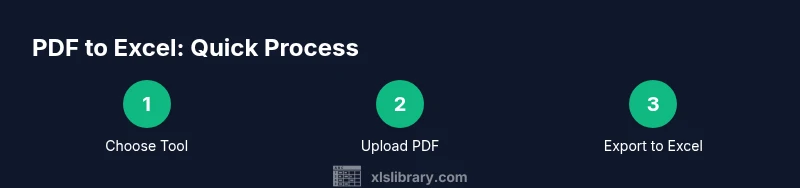
- Open your browser and navigate to a reputable free PDF to Excel converter. 2. Upload a PDF that contains a table you want to analyze. 3. Choose Excel as the output format and review OCR options if shown. 4. Start the conversion and download the resulting Excel file. 5. Open the workbook and review the first few rows to verify structure. 6. Save a backup before performing any edits.
Tip: If the online tool shows multiple pages, combine them into a single worksheet when possible. If you are dealing with heavy tables, export to CSV first and then import into Excel to control formatting more precisely.
Step-by-step: offline free desktop tool workflow
- Install a reputable free desktop tool that supports PDF to Excel conversion. 2. Launch the program and import the PDF file. 3. Configure OCR and table detection settings, then choose Excel as the export target. 4. Run the conversion and save the .xlsx file to your computer. 5. Open Excel and inspect the output for column alignment, header placement, and numeric accuracy. 6. Repeat with alternate settings if needed to improve fidelity.
Pro tip: If the PDF contains complex tables, try enabling gridlines and consistent font detection in the conversion options. This often reduces post-conversion cleanup time.
Post-conversion cleanup: formatting and verification
Once you have the Excel file, plan a quick cleanup pass. Start by adjusting column widths, applying text to columns for misaligned data, and ensuring numeric formats are correct. Use Excel features like Find & Replace, conditional formatting, and data validation to verify consistency across rows. If a conversion seems off, compare the PDF's table headers with the Excel header row to identify misalignment. The goal is a sheet that is easy to read, not just a faithful copy of the PDF. The time you invest here pays off with higher data quality and fewer downstream issues.
Authority sources
To support best practices, review these credible resources. NIST provides guidelines on data handling and document formats (https://www.nist.gov). The UK government site offers guidance on data presentation and accessibility (https://www.gov.uk). A major science publication platform offers articles on data cleaning and quality assurance (https://www.sciencedirect.com). These sources help frame the methods described here and reinforce the importance of accuracy when converting PDF data to Excel.
Tools & Materials
- Internet-connected computer (Windows, macOS, or Linux)(Needed to access online tools or install software)
- PDF file(s) to convert(Prefer text-based PDFs; OCR needed for scans)
- Microsoft Excel or Google Sheets (for verification)(Used to review and clean converted data)
- Web browser(If you use online tools, a browser is sufficient)
- Scanner/Images to PDF (optional)(If you need to convert from a scanned document)
Steps
Estimated time: 30-45 minutes
- 1
Choose a conversion method
Decide between online converters and offline desktop tools. Online options are quick, but offline tools provide more control over data privacy and can handle larger batches. The choice affects data accuracy and post-conversion cleanup.
Tip: For sensitive data, start with an offline option to minimize exposure. - 2
Prepare PDFs for extraction
If your PDF is text-based, you can proceed directly. If it is scanned, enable OCR and verify its language and layout settings for better table recognition.
Tip: OCR quality is crucial; test a sample page first. - 3
Convert using a free online tool
Upload the PDF, select Excel as the output, review OCR settings, and run the conversion. Download the Excel file and open it in Excel for a quick check.
Tip: Export to Excel or CSV if available to preserve structure. - 4
Convert using a free desktop tool
Launch the tool, import the PDF, configure OCR and table detection, choose Excel as export target, and save the file. Open in Excel and inspect results.
Tip: If results look off, adjust detection settings and re-run. - 5
Initial data validation in Excel
Check column headers, number formats, and decimal places. Use simple formulas to verify totals and counts against the PDF source.
Tip: Mark potential discrepancies with conditional formatting. - 6
Clean up and finalize
Adjust column widths, split merged cells, and apply text to columns where needed. Save a backup copy before making large edits.
Tip: Document any major changes for audit trails.
People Also Ask
What is the simplest way to convert PDFs to Excel for free?
The simplest approach is to use a reputable free online converter for a quick one-off task or a trusted offline desktop tool for privacy. Always verify the output in Excel and perform a quick cleanup.
Use a trusted online or offline tool, then check the results in Excel to confirm accuracy.
Can online PDF to Excel converters preserve complex tables?
Online converters work well for simple tables, but complex tables with merged cells or nested headers may require post-conversion cleanup in Excel.
They handle common tables, but you’ll likely need some cleanup for complex layouts.
Are online converters safe for sensitive data?
Online converters pose privacy risks if you upload sensitive information. Prefer offline tools or trusted services with clear data handling policies.
Online tools can expose data; use offline options for sensitive content.
What if the PDF is scanned and not text-based?
If the PDF is scanned, you need an OCR-enabled converter. Check OCR accuracy, language settings, and post‑conversion verification in Excel.
For scanned PDFs, choose an OCR-enabled tool and verify the extracted data.
Will formulas transfer to Excel after conversion?
Most converters extract values, not formulas. You will usually re-create formulas in Excel after ensuring the data layout is correct.
Formulas don’t usually transfer; you’ll add them in Excel after the data is in place.
What should I do if data is misaligned after conversion?
Use Excel's text to columns, reformat headers, and adjust column widths. Re-run the conversion with adjusted OCR or detection settings if needed.
If data is misaligned, correct it in Excel and consider re-running with different settings.
Watch Video
The Essentials
- Convert PDFs to Excel to unlock editable data workflows
- Choose offline tools for privacy or online for speed
- Always verify structure and numbers after conversion
- Plan a quick cleanup pass to ensure readability and accuracy
- Test with sample pages before processing large PDFs