How to Convert Excel to PDF for Free: A Practical Guide
Learn free methods to convert Excel to PDF using built-in tools, Print to PDF, and trusted online converters. This practical guide covers step-by-step methods, safety tips, and best practices.


By the end of this guide, you will convert Excel workbooks to PDF for free using built-in Excel options, print-to-PDF, and reputable online converters. You’ll learn step-by-step methods, decide when to use each approach, and how to preserve layout and formatting across platforms. No paid software is required.
Why converting Excel to PDF matters
Converting Excel files to PDF preserves layout, fonts, and data presentation, ensuring consistent viewing across devices and platforms. PDFs are ideal for sharing with colleagues who may not have Excel installed, for archival purposes, and when you want to lock down the content from casual edits. According to XLS Library, many users opt for free, no-cost methods to generate reliable PDFs without purchasing software. Understanding when and why to convert helps you choose the right method for your workflow, whether you're preparing a quick report, a data dashboard snapshot, or a shareable form.
Free built-in options in Excel and Windows
Excel includes built-in features that let you export or print to PDF without any extra software. On Windows or Mac, you can use Save As or Export to create a PDF from your current workbook. If you need a quick result, the Print option with a PDF printer (such as Microsoft Print to PDF) converts any printable view into a PDF. For online collaboration, Excel for the web offers a Print to PDF path as well. These options typically preserve your visible pages, including headers, footers, and charts, as configured in Page Setup.
Using Print to PDF (Windows and macOS)
The Print-to-PDF approach is universal and requires no additional tools. Open the workbook you want to convert, then choose Print (Ctrl+P or Command+P). In the printer list, select the built-in PDF option (or Microsoft Print to PDF on Windows). Click Print, choose a save location, name your file, and confirm. On macOS, you can use the native Save as PDF option from the bottom-left of the print dialog. This method is fast and ideal for ad-hoc conversions.
Free online converters: what to consider
Online converters can handle batch conversions or files with complex formatting, but you should weigh privacy and data sensitivity. If you are dealing with confidential data, prefer offline methods or trusted services with clear privacy policies. Based on XLS Library Analysis, 2026, many users report satisfactory results from reputable free tools, but always review file size limits and retention policies before uploading. For quick one-offs, online options can be convenient, provided you remove files after processing.
How to preserve formatting and layout when converting
To keep your Excel appearance intact, set up the workbook for printing before conversion: choose the correct orientation, set margins to narrow or normal, and use Page Layout > Size and > Scaling to fit sheet on one page if needed. Define a print area so only relevant data appears in the PDF. Avoid complex fonts or embedded objects that don’t render well; test by exporting a sample page before converting the full workbook. These steps help ensure the PDF looks like your on-screen sheet.
Batch conversion tips for multiple files
If you regularly convert many workbooks, create a simple workflow: save each file as PDF individually or use a scripting approach to automate the process. On Windows, a PowerShell loop can open each workbook and export to PDF via Excel COM objects. On macOS, Automator or AppleScript can batch-save PDFs from a folder. Keep a consistent naming convention and organize output PDFs in a dedicated folder for easy sharing.
Troubleshooting common issues
If some PDFs miss fonts or show misaligned elements, revisit Page Setup and ensure the font is embedded or substituted properly in the target PDF. Very large workbooks can fragment or slow down, so try exporting in chunks or reducing the file size. Hyperlinks sometimes lose formatting when printing to PDF; test by clicking links in the PDF after conversion. If charts render as images, it may be due to fonts or embedded objects—update fonts or simplify charts before exporting.
Quick-start checklist
- Decide on method: built-in Excel export or Print-to-PDF for offline use; consider online tools for batch needs.
- Preview page setup: orientation, margins, scaling, and print area.
- Perform a test export with a small page to verify results.
- Name the PDF clearly and save to a dedicated folder.
- Re-check the final PDF for data accuracy and formatting.
Note: Always ensure sensitive data is handled securely; prefer offline methods when necessary. The XLS Library team emphasizes starting with free, built-in options before resorting to external services.
The XLS Library verdict and next steps
For most users, free, built-in methods cover the 90% use case: quick saves, bug-free formatting, and easy sharing. When you need batch processing or advanced options, choose a reputable online converter with strong privacy controls, or leverage Windows and Mac printing options. The XLS Library team recommends practicing the described steps on a sample workbook to build confidence and reduce errors. This approach keeps your workflow efficient, with zero-cost solutions that scale as your needs grow.
Tools & Materials
- Microsoft Excel (Windows/macOS) or Excel for web(Prepare the workbook you want to convert)
- PDF printer or Save as PDF option(Windows: 'Microsoft Print to PDF'; Mac: 'Save as PDF' in print dialog)
- Web browser(Needed for online converters)
- Trusted online Excel to PDF converter(Review privacy policy and file size limits before use)
- PDF reader/viewer(To verify output after conversion)
Steps
Estimated time: 30-45 minutes
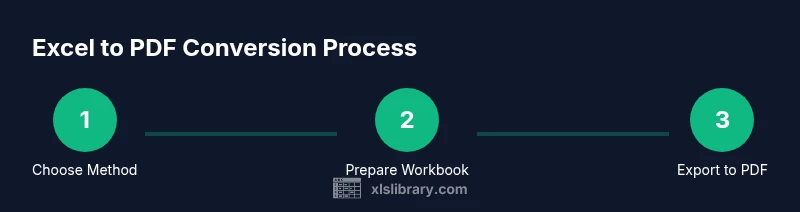
- 1
Choose conversion method
Decide whether to use built-in Excel export, a PDF printer, or an online converter. Consider data sensitivity and whether you need batch processing.
Tip: If the file contains sensitive data, start with offline built-in options. - 2
Open workbook and prepare layout
Open the workbook you intend to convert and review the print setup. Adjust orientation, margins, and the print area to capture the correct content.
Tip: Use Page Layout view to preview how pages will break across the PDF. - 3
Export to PDF from Excel
Use File > Save As or File > Export and select PDF as the format. Confirm the destination folder and file name.
Tip: Choose 'Publish' or 'Save' only after confirming page setup is correct. - 4
Alternative: Print to PDF
If Save As isn’t available, print to PDF. Select a PDF printer, set preferences, and save the resulting file.
Tip: This method is quick for ad-hoc conversions and preserves layout as shown on screen. - 5
Verify and adjust
Open the PDF and check that data, fonts, and charts display correctly. Re-export if something looks off.
Tip: Test a small sample page first before converting the entire workbook. - 6
Batch convert multiple files
For many files, use scripting (Windows PowerShell or macOS Automator) to batch export PDFs and keep a clear naming convention.
Tip: Batch runs save time but test with one file first to confirm outputs. - 7
Organize and share
Save PDFs into a dedicated folder, maintain consistent naming, and share via your preferred channel.
Tip: Maintain an archive of originals for future edits if needed.
People Also Ask
Can I convert Excel to PDF for free on any device?
Yes. Built-in features on Windows, macOS, or Excel for web can convert Excel to PDF without payment. If needed, trusted online converters offer additional options. Always verify the output visually.
Yes, you can use built-in tools on Windows, Mac, or online converters for free.
What is the best method for quick one-page PDFs?
For a single page, Print to PDF or Save as PDF after a quick page setup is usually fastest. This keeps formatting intact with minimal steps.
Print to PDF is usually the quickest for a single page.
Are online converters safe for sensitive data?
Only use trusted services with clear privacy policies. Avoid uploading confidential information unless offline options are impractical.
Be careful with sensitive data; use trusted tools and offline options when possible.
How can I convert multiple Excel files at once?
Use scripting or automation tools like PowerShell (Windows) or Automator (macOS) to batch export PDFs. Some online tools also offer batch options.
Batch convert with simple scripts or automation workflows.
Will fonts and formulas be preserved in PDF?
Fonts usually render correctly, but formulas appear as static text in PDFs. Ensure fonts are available on the viewing device.
Fonts usually stay the same; formulas won’t be editable in PDF.
Why do some PDFs look different from Excel?
Differences come from page setup, printer drivers, or scaling choices. Recheck orientation and scaling before exporting.
Layout settings often cause differences; adjust them first.
Watch Video
The Essentials
- Use built-in options first to avoid extra tools.
- Preview before exporting to preserve layout.
- Automate batch tasks for efficiency.
- Verify every PDF for accuracy.