Are Excel and Google Sheets Formulas the Same? A Practical Comparison
Explore how Excel and Google Sheets formulas compare: syntax, function parity, cross-platform porting, and best practices for building robust, portable spreadsheets.


In practice, are Excel and Google Sheets formulas the same? Not always. Core functions overlap widely (SUM, AVERAGE, IF, VLOOKUP, INDEX/MATCH), but syntax, references, and several advanced features differ. Expect smooth porting for basic calculations, while complex, platform-specific capabilities require testing and rewriting. This comparison helps you navigate where parity exists and where to plan adjustments.
Core reality: are excel and google sheets formulas the same?
The short answer is nuanced. While both Excel and Google Sheets share a foundational set of arithmetic and logical functions, the way those formulas are written, how references behave, and what features exist beyond the basics introduce meaningful differences. For teams documenting templates, this distinction matters because a formula that runs perfectly in Excel may fail or produce different results in Sheets without adjustments. In practice, are excel and google sheets formulas the same? They share the same core math and logic, but the surrounding rules—such as array handling, cross-file references, and certain named ranges—shape how you implement and port formulas. Acknowledging these differences up front helps you design sheets that survive platform migrations and collaborative use. This article, informed by XLS Library analyses, equips you with a structured way to compare, translate, and test formulas across environments.
Function parity: where the overlap shines and where gaps appear
Across both platforms, many core functions overlap, including SUM, AVERAGE, IF, AND, OR, and VLOOKUP/HLOOKUP. You’ll find that INDEX and MATCH are familiar workhorse tools on both sides, enabling sophisticated lookups when a simple VLOOKUP falls short. The practical upshot is that everyday calculations—totals, averages, conditional counts—tend to transfer with minimal changes. However, parity breaks down for specialized or newer functions. For instance, Excel’s expanded family of dynamic array functions and newer lookup utilities may have different equivalents or require workaround approaches in Google Sheets. The result is a continuum: common tasks are portable; advanced workflows often require reengineering to preserve behavior across platforms.
Syntax and argument handling: separators, references, and locale effects
One of the most consistent friction points when comparing are excel and google sheets formulas the same is syntax and argument separators. In many locales, Google Sheets and Excel use similar comma-based separators, but some regions rely on semicolons due to locale settings. References also differ in how sheets or files are named: Excel uses square bracket notation for external workbooks and sheet references, while Sheets relies on the single-notation: 'SheetName!A1'. Named ranges are supported on both, yet the scope and syntax for cross-referencing can diverge, particularly when working with structured tables in Excel versus named ranges in Sheets. When translating formulas across platforms, start by rewriting the reference parts in the target syntax before adjusting function arguments. The goal is to preserve the logical flow while adopting the platform’s conventions.
Arrays, spills, and how results propagate
Dynamic arrays changed the landscape for Excel, enabling formulas to return multiple values that spill into adjacent cells. Google Sheets handles arrays through implicit array expansion in many functions and via ARRAYFORMULA for more complex cases. If your workbook relies on dynamic arrays in Excel, you’ll need to reframe those calculations in Sheets using array-enabled functions or ARRAYFORMULA wrappers. Conversely, Sheets often treats array contexts more natively inside many core functions, which can simplify some designs but complicate others when porting back to Excel. A robust cross-platform approach maps how results spill and how to reference the resulting ranges so downstream formulas remain valid.
External data and cross-file references
When formulas pull data from outside the current workbook, Excel and Google Sheets take different paths. Excel traditionally links to external workbooks via data connections or linked workbooks, which can be fragile in collaborative environments. Google Sheets offers IMPORTRANGE to pull data from other sheets or other spreadsheets, with a straightforward permission model but potential latency. Porting a cross-file workflow often means rethinking data import: Excel might require building a data connection and refreshing, while Sheets may leverage live imports. The key is to map data flow, not just syntactic changes, so that the downstream calculations continue to work.
Porting strategies: practical steps for moving between platforms
If you need to port formulas from Excel to Google Sheets or vice versa, start by cataloging the critical formulas and grouping them by function family (lookup, math, text, date/time). Create a test sheet that mirrors the inputs and expected outputs, then port step by step, validating results after each change. A practical tactic is to implement a core, platform-agnostic layer for common tasks using simple functions, and reserve platform-specific formulas for edge cases. Where a feature lacks a direct equivalent, propose a workaround—such as splitting a calculation into multiple cells, or using helper columns—to maintain the same business logic. This method reduces risk and improves maintainability during cross-platform adoption.
Templates, governance, and building portable workbooks
A key benefit of recognizing are excel and google sheets formulas the same is the opportunity to standardize templates across teams. Centralize core calculations in a shared library, document the platform-specific notes, and use clear versioning to avoid drift. Governance matters: enforce naming conventions, document dependencies, and store cross-platform translation rules in a living wiki. The end goal is to produce templates that function reliably whether accessed in Excel or Sheets, minimizing the need for ad hoc rewrites. With disciplined templates, you reduce errors, improve onboarding, and speed up cross-team collaboration.
Practical examples: side-by-side formulas and translations
Consider a basic sum-if scenario. In Excel, you might use =SUMIF(Sales!A:A, ">1000", Sales!B:B). In Google Sheets, while the same logic applies, you may opt for =SUMIF(Sales!A:A, ">1000", Sales!B:B) as well, but if you port the formula into a Google Sheets environment with different range behavior or locale separators you might need to switch to =SUMIF(Sales!A:A, C1, Sales!B:B) where C1 holds the threshold. More complex lookups using INDEX/MATCH translate well between platforms, but careful attention to reference types, sheet names, and array handling ensures consistent outcomes across environments.
Case for choosing one platform: when to prioritize parity over portability
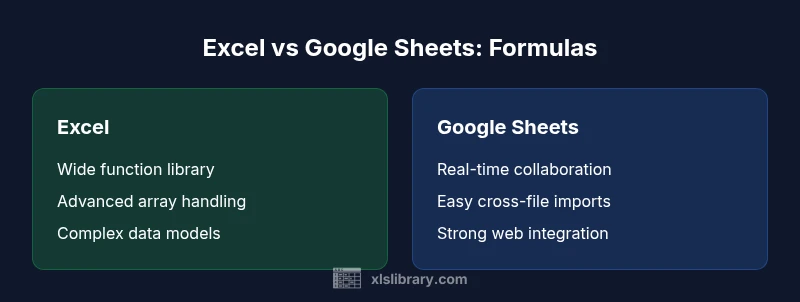
If your organization depends on advanced data modeling, external data connections, or Excel-only features like certain new dynamic array functions, you may prefer Excel as the primary environment. If collaboration, real-time sharing, and web-based access are your priorities, Google Sheets offers compelling advantages. The reality is that many teams operate in a mixed environment, so designing portable formulas, documenting differences, and providing platform-specific fallbacks becomes essential for long-term efficiency.
Authority and practical resources for deeper learning
To deepen your understanding of cross-platform formula behavior, consult authoritative resources that cover both environments. For example, official documentation from Microsoft and Google provides function references, syntax guidelines, and platform-specific notes. In addition, XLS Library analyses offer practical insights into real-world portability challenges, backed by methodology that emphasizes testing, validation, and template reliability.
Comparison
| Feature | Excel formulas | Google Sheets formulas |
|---|---|---|
| Syntax and separators | Locale-based separators (comma/semicolon) can differ; Excel uses locale rules; Sheets generally uses comma in US locale | Both support comma separators in many contexts; Sheets emphasizes uniform cross-language usage |
| Core function parity | Many basics overlap (SUM, AVERAGE, IF, VLOOKUP, INDEX/MATCH) | Core functions mostly overlap; some newer or Excel-specific features may lack direct equivalents in Sheets |
| Dynamic arrays / arrays | Excel dynamic arrays spill results across adjacent cells | Sheets uses ARRAYFORMULA and implicit array behavior in many cases |
| External data and cross-file references | Excel links to external workbooks; requires connections | Sheets uses IMPORTRANGE for cross-file data with permissions |
| Naming and structured references | Excel supports tables with structured references | Sheets relies on named ranges and standard references |
| Error handling and edge cases | Error values; behavior can differ with array functions and error propagation | Error handling approaches differ; consider IFERROR or IFNA depending on platform |
Benefits
- Helps teams migrate workflows with fewer rewrites
- Reveals platform-specific pitfalls early
- Improves cross-team collaboration on spreadsheets
- Supports designing portable, future-ready templates
What's Bad
- Cross-platform parity is not 1:1; some functions differ
- Porting formulas can require rewriting logic
- External references and data imports introduce maintenance challenges
- Learning curve remains for teams new to one platform
Cross-platform parity exists but is not complete; plan for testing and targeted rewrites when porting formulas.
Core functions overlap; advanced and platform-specific features require adaptation. Build portable templates and document differences to reduce future frictions.
People Also Ask
Are Excel formulas the same as Google Sheets formulas in everyday tasks?
For many common calculations, yes—the basic math, text, and simple lookups behave similarly. However, nuances in syntax, references, and array behavior can produce different results when porting. Always validate with real data after migration.
For everyday tasks, basic formulas are often the same, but always verify results after moving between platforms.
Can I port a complex Excel formula to Google Sheets without changes?
Porting a complex formula frequently requires rewriting or rethinking the approach. ARRAY formulas, external references, and advanced functions may not map directly. Break the formula into smaller parts and verify each step in Sheets.
Usually you need to adjust and test parts of complex formulas when porting.
What is a reliable strategy to translate formulas between platforms?
Adopt a platform-agnostic layer for common calculations first, then layer platform-specific logic. Create test cases, translate piece by piece, and use helper cells to isolate differences. Document the translation rules for future reference.
Translate step by step and test as you go.
Which platform has more advanced array handling?
Excel’s dynamic arrays are powerful for spill behavior and complex calculations. Google Sheets relies on ARRAYFORMULA for similar outcomes, but the exact mechanics differ. Expect some formulas to behave differently when ported.
Excel leads in native dynamic array behavior; Sheets uses ARRAYFORMULA.
Are cross-file references handled the same way?
No. Excel external workbook links require different setup than Google Sheets’ IMPORTRANGE approach. Plan for a separate data-import step when porting to Sheets, and ensure permissions are addressed.
External references differ; import methods vary by platform.
When should I choose Excel over Google Sheets for formulas?
Choose Excel for advanced modeling, offline work, and more extensive function libraries. Opt for Google Sheets when collaboration, real-time sharing, and web access are priorities. In mixed environments, build portable templates and clearly document platform-specific notes.
Pick based on whether collaboration or modeling power matters more; portability helps in mixed environments.
Is there a practical way to learn cross-platform formulas quickly?
Yes. Start with a core set of universal functions, practice porting a small workbook, and compare outputs. Use reference sheets that capture platform-specific differences and keep updating them as you gain experience.
Learn by porting small recipes and documenting differences.
Where can I find authoritative guidance on formulas for Excel and Sheets?
Consult official Microsoft and Google documentation for function references and syntax. Also, leverage analysis and best practices from XLS Library to understand real-world portability challenges.
Official docs plus XLS Library insights are valuable resources.
The Essentials
- Identify shared functions first to accelerate porting
- Map external data references before moving across platforms
- Use portable templates with explicit platform notes
- Test formulas thoroughly in both environments
- Document differences to improve onboarding