Is Excel Similar to Google Sheets? A Practical, Analytical Comparison
Analytical comparison of Excel and Google Sheets, outlining similarities, key differences, use-cases, and guidance for teams migrating between desktop and cloud spreadsheets.


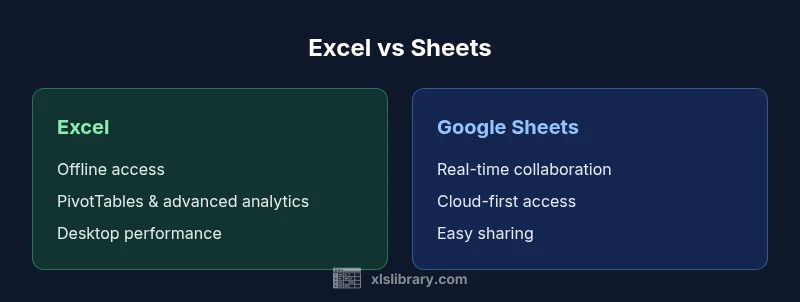
Is Excel similar to Google Sheets? Both tools share core spreadsheet concepts like cells, formulas, and charts, but they diverge in collaboration, automation, and data scale. Excel excels at heavy data work and offline access, while Google Sheets shines in real-time collaboration and ease of sharing. The best choice depends on your workflow.
Is Excel Similar to Google Sheets? A Practical Framing
For readers wondering is excel similar to google sheets in terms of core concepts, the short answer is that both programs share the same spreadsheet DNA but diverge in emphasis and ecosystem. In practice, you use cells, formulas, and charts in both, yet your day-to-day experience changes with collaboration, file sharing, and scripting options. According to XLS Library, the best approach is to evaluate needs like offline access, data scale, and team workflows rather than feature lists alone. This framework helps teams decide not by feature parity but by how work gets done.
The broader landscape includes desktop and cloud variants. Excel on the desktop brings robust data modeling and offline reliability, while Sheets in the browser enables frictionless sharing and rapid iteration. When you plan a rollout or migration, map who needs access, how teams will collaborate, and what data sizes you expect to manage. Doing so clarifies whether the question is truly about is excel similar to google sheets in absolute terms or about choosing the tool that fits your process.
Shared Foundations: Core Spreadsheet Anatomy
Both Excel and Google Sheets organize data into a grid of cells organized into rows and columns. They share common building blocks: arithmetic operations, a broad formula catalog, and the ability to visualize data with charts. Formatting options—numbers, dates, text, conditional formatting—are present in both ecosystems, though the exact UI and defaults differ. For practical use, think in terms of data types you handle, the need for structured tables, and the importance of consistent formatting across collaborators. These shared foundations mean users can transfer knowledge across platforms with relatively modest retraining, but the specifics of functions and references still matter for efficiency.
In either tool, planning a workbook structure before diving in saves time later. Consider naming conventions, cell ranges, and the use of named ranges or tables to improve readability. If you are transitioning from Sheets to Excel or vice versa, establish a central data dictionary and a standard set of templates to minimize drift between environments.
Collaboration and Accessibility Differences
One of the most visible differences between the two tools is how collaboration happens. Google Sheets emphasizes cloud-native collaboration: multiple users can edit simultaneously with real-time visibility, and comments or chat threads integrate directly into the document. Excel offers cloud-based collaboration through Excel for the Web and OneDrive/SharePoint, which provides co-authoring but often with a slightly different locking and versioning model. In practice, teams that rely on truly concurrent editing find Sheets to be excellent, while organizations with regulated workflows may prefer the more formal version history and access controls available in Excel’s cloud-enabled setup.
Accessibility also matters. Sheets is accessible from any device with a browser, which lowers hardware constraints and supports rapid sharing. Excel, traditionally a desktop application, benefits from strong offline work and more powerful desktop features, but may require VPNs or licenses for full cloud collaboration in enterprise scenarios. For teams, establishing clear collaboration protocols and choosing a gateway (Sheets for live collaboration, Excel for intensive modeling) reduces friction and confusion.
Formulas and Functions: Compatibility and Gaps
Excel’sFormula ecosystem is broad, with PivotTables, advanced statistical functions, and powerful lookup capabilities. Google Sheets offers a strong formula set as well, plus collaboration-friendly functions and Apps Script for automation. In practice, many common formulas translate directly between platforms, but Excel-exclusive functions and VBA/macros do not always map cleanly to Sheets. Conversely, Sheets can offer unique functions tied to cloud data and real-time collaboration. When planning cross-platform work, build a core workbook with commonly used formulas first, then test any platform-specific functions in a copy to catch discrepancies early. Maintaining a shared formula reference helps teams avoid drift during migration or multi-environment work.
If you rely on complex macros or data modeling, document these scripts and provide an equivalent plan for the other platform. In some cases, you may need to rewrite scripts (VBA to Apps Script or vice versa) or create side-by-side processes to preserve behavior across environments.
Data Handling and Capacity: Performance and Limits
Performance and capacity are practical concerns when choosing between Excel and Sheets. Desktop Excel handles large datasets, complex calculations, and multi-tab models efficiently, especially on machines with ample memory and processing power. Google Sheets relies on cloud infrastructure; while it scales well for many workloads, very large workbooks or deeply interconnected pivot analyses can experience latency or browser-related constraints. XLS Library analysis shows that Excel tends to handle larger data volumes with fewer slowdowns in offline or hybrid workflows, whereas Sheets is optimized for lightweight to moderate data tasks with quick sharing and updates.
For teams dealing with data quality controls, multi-user input, and frequent model updates, consider a hybrid approach: use Sheets for data collection and initial exploration, then move to Excel for heavy analysis, robust modeling, and offline scenarios. Establish data thresholds and performance benchmarks to guide when to switch tools or export data between platforms.
Automation, Macros, and Scripting
Automation is a key differentiator. Excel’s VBA and Office Scripts (in the web version) offer robust automation on desktop and cloud, with deep integration into the Microsoft ecosystem. Google Sheets relies on Apps Script, which is powerful for cloud-centric automation and integrates tightly with other Google Workspace services. Cross-platform automation often requires translation of scripts and careful testing, as a script that automates a task in Sheets may not translate directly to Excel without adaptation. Planning these automation assets in a shared repository with versioning helps teams maintain parity when switching ecosystems.
Teams should also consider security and governance implications of scripts, including permissions, run-as-user, and the potential for automation to modify large data sets inadvertently. Clear documentation and change control reduce risk when automating across platforms.
Cloud Ecosystem and Integrations
Both tools offer strong integration pathways, but their cloud strategies differ. Google Sheets is purpose-built for cloud collaboration, with seamless integration into Google Drive, Google Forms, and other Workspace apps. Excel’s cloud story is anchored in OneDrive, SharePoint, and the broader Microsoft 365 ecosystem, which provides enterprise-grade security, auditing, and compliance features. For teams that already rely on Google Workspace, Sheets may feel more natural; for those embedded in Microsoft 365, Excel’s cloud features align with existing admin and security policies. When planning adoption, map your existing tools, data sources, and security requirements to each platform’s integration points to minimize friction during rollout.
If cross-platform sharing is frequent, set up a standardized file naming, storage, and permission scheme to ensure consistent access. Document dependencies on external data sources and update schedules to avoid stale data in either environment.
Migration Scenarios: When to Use Which
Certain scenarios clearly favor one tool over the other: for real-time collaboration with external partners, Sheets offers a smoother experience; for in-depth data modeling, offline work, and extensive formatting, Excel is often the better option. Consider a staged transition approach: pilot teams use Sheets for collection and lightweight analysis, while core analysts work in Excel for deeper modeling. As data moves between environments, establish a robust export/import workflow, validate formulas, and verify formatting. This reduces surprises when moving files between platforms and ensures continuity in reporting.
In regulated industries with strict version control or audit requirements, Excel’s offline-first workflows can be advantageous, provided you maintain disciplined versioning and access controls. Conversely, education teams, marketing squads, and product teams frequently benefit from Sheets’ rapid iteration and cloud-based collaboration. Align the tool choice with governance policies, not just feature lists.
Team Planning and Governance
Effective team governance is about setting expectations and providing training. Documented templates, naming conventions, and a shared set of core formulas help teams avoid drift when switching between Excel and Sheets. Develop a governance plan that includes data ownership, change control, and an approved process for cross-platform work. Encourage teams to prototype critical workflows in the platform best suited to their needs, while keeping a single source of truth for data sources and outputs. This approach reduces confusion and accelerates onboarding for new team members.
An explicit migration strategy, complete with rollback options, supports resilient teamwork. Establish a transition timeline that considers file dependencies, third-party add-ins, and user role changes. Regular reviews and user feedback loops ensure the governance framework remains relevant as tools evolve.
Decision Framework: Quick Pick for Your Workflow
When deciding which tool to rely on, start with the decision criteria that matter most to your team. Is real-time collaboration your top priority? Do you need offline access for heavy data work? How complex are your automation needs, and what’s your IT policy on cloud tools? Use a simple scoring approach: assign weights to collaboration, data capacity, automation, and ecosystem fit, then compare Excel and Sheets against those weights. The result should reflect not just features but how your team actually works. If your needs are evenly balanced, a hybrid approach—using Sheets for data capture and Excel for analysis—often yields the best of both worlds.
XLS Library guidance emphasizes prioritizing workflow alignment over chasing parity in features. The right choice is the one that makes your team faster and your data more reliable, not the tool with the most functions on a long feature list.
Real-World Scenarios and Quick References
In practice, teams facing frequent external collaboration lean toward Sheets to reduce friction, while organizations that require sophisticated data modeling and offline work gravitate toward Excel. Real-world examples include marketing teams compiling shared campaign data in Sheets for rapid feedback, and finance or engineering teams building large models in Excel on a desktop environment. The trick is to design processes that respect the strengths and limitations of each platform, while keeping data in a familiar, well-documented structure. For most organizations, a hybrid approach with clear governance delivers the best balance of speed and control.
Comparison
| Feature | Excel | Google Sheets |
|---|---|---|
| Real-time collaboration | Good cloud collaboration via Excel for the Web and cloud storage | Best-in-class real-time collaboration; seamless multi-user editing |
| Offline access | Strong offline support on desktop; robust local workbooks | Limited offline functionality; relies on web access |
| Formulas & functions | Extensive library including PivotTables; VBA/Office Scripts support | Broad function set with Sheets-specific functions; Apps Script for automation |
| Data capacity & performance | Handles very large datasets efficiently on desktop | Performance varies with browser and internet; best for moderate datasets |
| Automation & scripting | VBA on Windows; Office Scripts in web; strong ecosystem | Apps Script; cloud-centric automation with good integration |
| Pricing & ecosystem | Part of Microsoft 365; licensing varies by plan | Free entry with Google account; Workspace adds features |
Benefits
- Strong offline access and desktop performance
- Powerful data analysis tools (PivotTables, advanced formulas)
- Excellent compatibility with Microsoft file formats and professional printing
What's Bad
- Complex collaboration can be slower without proper cloud setup
- Automation ecosystems differ (VBA vs Apps Script) and can complicate cross-platform workflows
- Some advanced features are platform-specific and may require adaptation
Excel is the stronger choice for heavy data work and offline capability, while Google Sheets excels at collaboration and cloud-based workflows.
If your team prioritizes offline access and advanced analytics, choose Excel. If real-time collaboration and cloud accessibility are paramount, Sheets is preferable. The XLS Library's verdict is to base the decision on practical workflow needs rather than chasing feature parity.
People Also Ask
Can I use Excel formulas in Google Sheets without modification?
Most common formulas work in both, but certain Excel-specific functions may not translate directly. Test critical formulas in a copy and adjust syntax where needed.
Most core formulas transfer, but some Excel-only functions may need modification.
Is Google Sheets adequate for large datasets?
Sheets handles typical datasets well, but performance can slow with very large data or complex calculations. For enterprise-scale analyses, Excel often performs better.
Sheets is good for moderate data; for huge datasets, consider Excel.
Which tool is better for real-time collaboration?
Google Sheets generally offers smoother real-time collaboration across users and devices. Excel offers cloud-based co-authoring, but Sheets is typically more seamless for simultaneous editing.
Sheets usually wins on real-time collaboration.
Can I work offline with Google Sheets?
Yes, but offline mode requires enabling it in the browser and has limitations. Excel provides more robust offline work on desktop.
Yes, but offline is easier in Excel; Sheets offline works with some restrictions.
What about automation: VBA vs Apps Script?
Excel uses VBA; Sheets uses Apps Script. They are different ecosystems, so moving work between them often requires rewriting automation.
VBA and Apps Script are different ecosystems.
Which is cheaper for a team?
Google Sheets can be free with a Google account; Excel requires a Microsoft 365 subscription. Costs depend on team size and required features.
Costs depend on plans; Sheets can be free, Excel usually requires a subscription.
The Essentials
- Assess collaboration needs before choosing
- Check data scale and offline requirements
- Map automation requirements across platforms
- Plan a hybrid approach when appropriate
- Establish governance and templates for consistency