Is Excel and Google Sheets the Same? A Practical Comparison
Analytical comparison of is Excel and Google Sheets the same, highlighting features, collaboration, automation, and data handling to help you pick the right spreadsheet tool.


Is Excel and Google Sheets the same? Not exactly. Both are spreadsheet programs used to organize data, perform calculations, and create charts, but they differ in features, collaboration, and scripting. This article compares the two to help you choose the right tool for your needs. Across use cases, pricing, compatibility, and automation, the differences matter.
Is Excel and Google Sheets the Same? A Quick Reality Check
Is Excel and Google Sheets the same? The short answer is no, but the core idea behind both tools is the same: they are spreadsheets designed to store, manipulate, and analyze data. The XLS Library team notes that while both programs support rows, columns, and formulas, the path you take with each platform depends on your work style. If you operate in a cloud-first, multi-user environment, you may lean toward Sheets; if you work heavily with offline data modeling or complex analytics, Excel often suits you better. According to XLS Library, the key distinction lies in the ecosystem: desktop power versus cloud collaboration. This initial framing helps you understand where the two diverge and where they converge.
For people new to this topic, it’s important to remember that the question is not “which is better” in a vacuum, but “which is better for my specific use case.” The two tools share many foundation features, yet the differences in collaboration, automation, and data handling decisions can dramatically affect outcomes. For many teams, the choice comes down to whether real-time collaboration or deep data analysis is the priority. The XLS Library analysis shows that teams prioritizing cloud access often find Sheets more convenient, while those requiring robust offline capabilities and advanced modeling gravitate toward Excel.
altText”:null},
Comparison
| Feature | Excel | Google Sheets |
|---|---|---|
| Offline access | Strong offline support with desktop Excel | Web-first with offline mode in Sheets (requires setup) |
| Real-time collaboration | Co-authoring via OneDrive/SharePoint; stable for many users | Best-in-class real-time collaboration with Google Workspace |
| Automation & scripting | VBA, Office Scripts, Power Automate ecosystem | Apps Script and built-in automation features |
| Macros | VBA macros supported in desktop Excel; limited in web app | Apps Script-based macros; no VBA in Sheets |
| Add-ins & extensions | Wide range of Office add-ins and Power Query | Google Workspace add-ons and Apps Script libraries |
| Data size & performance | Tends to scale with desktop resources; strong performance for large models | Performance can depend on network; best for collaborative tasks with moderate data |
| Formulas compatibility | Broad formula support; some legacy functions differ | Many common formulas are supported; some function gaps exist |
Benefits
- Excel offers powerful data analysis tools, VBA, and robust offline work.
- Sheets shines with real-time collaboration and cloud accessibility.
- Both tools support a wide ecosystem of add-ins and integrations.
- Excel's desktop environment often handles larger datasets more predictably.
- Sheets provides easy sharing and cross-device access without licensing friction.
What's Bad
- Moving complex work between the two can require formula adjustments or rework.
- Sheets may lag with very large datasets or advanced data modeling compared to Excel.
- Excel requires a license or Microsoft 365 subscription for desktop features.
- Google Sheets lacks VBA and some enterprise-grade features found in Excel.
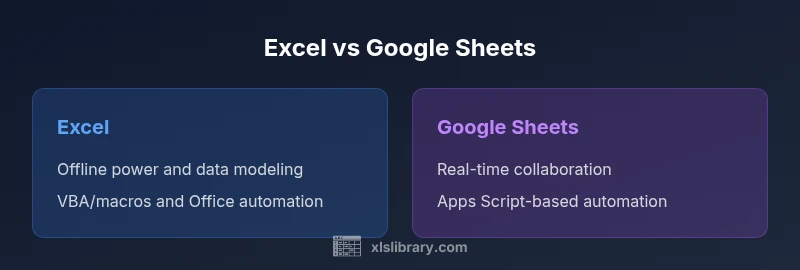
Excel generally excels at complex data modeling and offline power, while Google Sheets shines in real-time collaboration and cloud accessibility.
Choose Excel when offline work, advanced analytics, or large datasets are central. Choose Sheets when collaboration and cross-device access dominate your workflow. The right choice depends on your team's priorities and existing infrastructure.
People Also Ask
Can I open Excel files in Google Sheets without losing formatting?
You can open many Excel files in Google Sheets, but some formatting, macros, and advanced features may not translate perfectly. It’s wise to review complex workbooks after import and adjust formulas or formatting as needed.
Yes, you can open Excel files in Sheets, but double-check advanced features and formatting after import.
Are Excel formulas the same as Google Sheets formulas?
Many common formulas are similar across both platforms, but some functions and syntax differ. If a workbook uses advanced functions, you may need to adapt or rewrite those parts for Sheets.
Most basics are similar, but some functions differ; expect a few adjustments when moving complex sheets.
Which tool is better for macros?
Excel supports VBA macros with a mature ecosystem, while Google Sheets uses Apps Script. If your workflow relies on VBA, you'll need to translate to Apps Script or keep Excel.
Excel handles macros via VBA; Sheets uses Apps Script, so you’ll need to rewrite macros when moving tools.
Is Google Sheets suitable for large, complex datasets?
Google Sheets works well for many scenarios, but Excel generally offers stronger performance and data modeling for very large or complex datasets. Consider data size, performance needs, and offline access when deciding.
Sheets is great for collaboration, but for heavy data modeling, Excel is usually a better fit.
How do pricing and licensing differ between the two?
Excel typically requires a Microsoft 365 subscription for desktop and cloud features, while Google Sheets is free with a Google account and offers paid Workspace options. The cost depends on team size and feature needs.
Excel often requires a license; Sheets can be free with a Google account or part of Workspace.
What are practical tips for moving work between Excel and Sheets?
Identify non-transferable features early (VBA, Power Query, certain add-ins) and plan for formula adjustments. Use interoperability options like exporting/importing CSVs for data, then rebuild advanced logic in the target platform.
Plan migrations by mapping features and rewriting non-transferable parts.
The Essentials
- Prioritize collaboration if your team works remotely or across devices.
- Opt for Excel for heavy data models, macros, and offline needs.
- Expect some feature gaps when moving between platforms; plan migrations carefully.
- Leverage the ecosystem of add-ins and automation tools in each platform as appropriate.