Excel distance between postcodes: a practical guide
Learn how to calculate the distance between postcodes in Excel using haversine formulas or mapping data. This practical, step-by-step guide covers setup, methods, validation, and tips for reliable results.


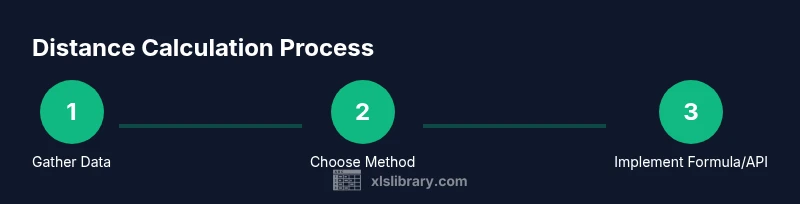
In this guide you will learn how to calculate the distance between two postcodes in Excel using built-in functions, simple lookups, and optional external data. You'll set up a reference dataset, choose a method (straight-line vs. driving distance), implement reusable formulas, and verify results for accuracy. This quick answer introduces the core steps and the best practices for reliable results.
Why excel distance between postcodes matters in Excel
According to XLS Library, measuring the distance between postcodes is a common task in logistics planning, marketing analytics, and route optimization. When teams model delivery windows, capacity planning, or coverage areas, having reliable postcode-distance data in Excel helps avoid misinterpretations from rough estimates. The goal is to create a transparent, reproducible workflow that you can audit, share, and extend across projects. You’ll learn how to balance accuracy with performance, especially when working with large postcode lists. This section sets the stage for practical methods you can apply in real-world scenarios, from small-scale local deliveries to national operations.
- Practicality: Excel users can stay within familiar tools without heavy GIS software.
- Reproducibility: A documented workflow reduces variance between team members.
- Transparency: Clear data sources and formulas improve auditability.
XLS Library’s guidance emphasizes validating results against a reference dataset and documenting assumptions (e.g., choosing straight-line distance vs. driving distance).
Methods at a glance: haversine vs driving distance
There are two primary approaches to measuring distance between postcodes in Excel:
- Haversine (straight-line) distance using latitude and longitude. This method treats the Earth as a sphere and provides quick estimates ideal for planning, clustering, and scoring. It requires you to map each postcode to a latitude and longitude value.
- Driving distance using a mapping service API. This yields route-based distances that reflect actual roads and traffic patterns. It’s more accurate for delivery routing but requires API access and may incur usage limits.
In practice, many teams start with haversine for fast screening, then layer in driving distances for high-stakes decisions. This section discusses data needs, trade-offs, and how to document method choice in your workbook. XLS Library’s approach favors a clear, testable workflow with reproducible results across datasets.
Data you need: coordinates, postcode tables, and references
To compute excel distance between postcodes, you must decide how you’ll source coordinates. The haversine method relies on a postcode-to-latitude/longitude table. A reliable dataset should include three columns at minimum: Postcode, Latitude, Longitude. For driving distances, you’ll need access to a mapping API and a field to capture the API response (distance in chosen units).
Tips:
- Use consistent decimal precision (e.g., six decimals) to minimize rounding errors.
- Normalize postcode formats (remove spaces, uppercase) before lookups.
- Keep a master reference table with source notes so you can update coordinates over time.
According to XLS Library, maintaining a centralized postcode dataset improves consistency across worksheets and projects.
Building a reusable Excel workflow
A repeatable workflow lets you compute distances for any postcode pair without rewriting formulas. Start by organizing your data in a clean table: Postcode1, Postcode2, Latitude1, Longitude1, Latitude2, Longitude2 (for haversine). Then create named ranges for the latitude/longitude columns to simplify formulas. Build a small, static test set to validate results before scaling up. This approach ensures your workbook remains maintainable as you add more postcodes and scenarios.
XLS Library recommends documenting each named range and the chosen method so teammates can reproduce distances quickly.
Implementing the haversine distance in Excel
The haversine formula requires converting degrees to radians and applying a specific trigonometric expression. A typical implementation in Excel uses nested functions to compute differences in latitude and longitude, then applies the haversine function to derive a distance in kilometers or miles. The key steps are:
- Convert lat/long to radians: RADIANS(latitude), RADIANS(longitude)
- Compute deltas: dLat = RADIANS(lat2 - lat1), dLon = RADIANS(lon2 - lon1)
- Apply the formula: a = SIN(dLat/2)^2 + COS(RADIANS(lat1)) * COS(RADIANS(lat2)) * SIN(dLon/2)^2
- Distance: c = 2 * ATAN2(SQRT(a), SQRT(1-a)); distance = R * c with R ≈ 6371 km
A well-constructed worksheet uses named ranges for lat/long and includes validation checks to catch missing data. Testing with known city pairs helps confirm your implementation.
Validating results and handling data quality
Validation is essential to ensure your postcode distances are trustworthy. Start with small, known pairs (e.g., postcode A to postcode B) and compare results against a trusted reference. If you see obvious mismatches, re-check coordinate accuracy, postcode formatting, and unit consistency. For driving distances, compare API outputs against a couple of test routes in the same region. Implement a simple error-handling mechanism in Excel (e.g., IFERROR wrappers) to gracefully show when inputs are incomplete or out of range. Finally, maintain a changelog to document data updates and formula changes.
Automation options and scalability
As your postcode dataset grows, manual updates become impractical. Power Query (Get & Transform) can automate data ingestion from CSV/Excel sources, and dynamic named ranges can adapt to new rows. If you’re using driving distances, consider a lightweight API integration with a quota-aware setup to avoid overloading services or incurring unexpected costs. A robust workbook includes a data model, parameterized queries, and clear versioning to help you scale while preserving accuracy.
Tools & Materials
- Latitude/Longitude dataset(CSV or Excel with columns: postcode, latitude, longitude (6+ decimal places preferred))
- Postcode lookup table(Reference mapping of postcode to latitude/longitude or a link to the dataset source)
- Excel workbook(Template with named ranges for coordinates and a clean data table)
- Power Query (Get & Transform)(Useful for importing/shaping data; keeps data sources auditable)
- Mapping API key (optional)(Needed if you plan to compute driving distances via an online service)
- Internet connection(Required for API-based driving distances or online datasets)
Steps
Estimated time: 1-2 hours
- 1
Gather postcode coordinates
Assemble your postcode-to-latitude/longitude table and verify formatting. Ensure all postcodes are standardized (uppercase, no extraneous spaces) to prevent lookup mismatches.
Tip: Validate a random sample of pairs to confirm lat/lon values align with the postcode. - 2
Choose your distance method
Decide between haversine (straight-line) and driving distance. Document the rationale in a README so future users understand the choice and assumptions.
Tip: For large datasets, start with haversine to filter candidates before requesting driving distances. - 3
Set up named ranges for coordinates
Create named ranges like lat1, lon1, lat2, lon2 that cover your data columns. This makes formulas easier to read and reuse across sheets.
Tip: Lock the named ranges to the specific columns to avoid misalignment when adding rows. - 4
Implement the haversine formula
In a new column, implement the haversine distance using radians, sin, cos, and arctan functions. Return distance in kilometers or miles as needed.
Tip: Use IFERROR to gracefully handle missing data and show a clear message instead of an error. - 5
Create a postcode-pair grid
If you need distances for many pairs, create a small grid or cross-join of postcodes to compute all pairwise distances efficiently.
Tip: Limit the grid size during testing to avoid performance slowdowns. - 6
Add driving distance (optional)
If using a mapping API, build a lightweight request framework (URL or API call) and parse the distance result back into Excel.
Tip: Monitor API quotas and edge-case errors in the response (e.g., missing routes). - 7
Validate results against a reference
Cross-check a subset of results with a trusted source. Investigate discrepancies by checking coordinate precision and data provenance.
Tip: Document any known deviations and the impact on downstream analyses. - 8
Document and share your workbook
Provide a short user guide within the workbook: data sources, method chosen, formula logic, and steps to refresh data.
Tip: Include a changelog so others can track updates over time.
People Also Ask
What is the haversine formula and when should I use it?
The haversine formula estimates great-circle distances between two points on a sphere using their lat/long coordinates. It’s ideal for quick, scalable distance estimates in Excel when you don’t need exact driving routes. Use it for preliminary screening and clustering tasks.
The haversine formula estimates straight-line distance between coordinates. It’s great for quick, scalable distance estimates in Excel when you don’t need real driving routes.
Can I calculate driving distance directly in Excel without external data?
Direct driving distances require an external mapping service. In Excel, you can fetch distances via a mapping API and parse the response back into your workbook. This adds a dependency on API keys and usage limits but yields route-based distances.
Driving distances rely on a mapping service. You can fetch results via an API and bring them into Excel, but you’ll need an API key and manage usage limits.
Do I always need lat/long data for postcodes?
For haversine, yes: you need latitude and longitude for each postcode. If you only have postcodes, you’ll need a separate lookup table to map to coordinates or switch to driving-distance workflows that rely on addresses.
Yes, for haversine you need coordinates. Without them, you need a postcode-to-coordinate lookup or switch to driving distances.
How should I handle UK vs US postcode formats?
Postcode formats vary by country, so ensure your dataset uses a consistent schema for all entries. Standardize case, remove spaces if needed, and verify each postcode maps to a valid latitude/longitude before calculation.
Ensure consistent formatting and a valid coordinate map for all postcodes, then proceed with distance calculations.
Which Excel versions support Power Query and dynamic arrays for this task?
Power Query is available in Excel 2016 and newer (and in some Office 365 builds). Dynamic arrays help with spill formulas in newer versions. If your version lacks these features, you can still compute distances with traditional formulas but may miss automation opportunities.
Power Query and dynamic arrays appear in recent Excel versions. If you’re on older builds, you’ll rely on classic formulas and manual steps.
Is there a recommended data source for postcodes?
Choose authoritative postcode datasets with clear provenance and update logs. Document the source and update frequency to keep distances reliable as postcodes change or are renamed.
Use a reputable postcode dataset with a clear update log and provenance, and document updates for reliability.
Watch Video
The Essentials
- Choose a distance method based on accuracy and practicality
- Maintain a clean, versioned postcode coordinate dataset
- Build reusable, well-documented Excel formulas
- Validate results with a trusted reference
- Consider automation for large datasets