Regression in Excel: A Practical Step-by-Step Guide
Master regression analysis in Excel using built-in tools like Data Analysis Toolpak and LINEST. This comprehensive guide covers data preparation, running the model, interpreting outputs, and best practices for reliable insights.


Learn to run regression analysis in Excel using built-in tools such as the Data Analysis Toolpak or the LINEST function. This guide walks you through data preparation, model execution, and interpretation of coefficients, intercept, and R-squared. According to XLS Library, mastering regression in Excel enables practical data insights with minimal setup.
What regression means in Excel and when to use it
Regression is a statistical method that models the relationship between a dependent variable and one or more independent variables. In Excel, you can perform simple linear regression with a single predictor or explore multiple regression with several predictors. Use regression to forecast outcomes, quantify relationships, and test theories about how factors influence your data. According to XLS Library, regression helps translate complex data patterns into actionable insights, especially when you want to quantify how changes in predictors relate to outcomes. This section clarifies when regression is appropriate and how to frame questions so Excel can answer them reliably.
Preparing your data for regression
A solid regression analysis starts with clean, well-structured data. Ensure the dependent variable (the outcome you want to predict) and all independent variables are numeric. Remove or impute missing values, standardize formats, and place each variable in its own column with clear headers. Create a concise data dictionary that explains what each column represents, and keep the dataset free of outliers unless you’re explicitly testing their influence. XLS Library notes that reproducible data preparation is the foundation of trustworthy results. Consider validating data quality with basic checks (consistency of units, reasonable ranges, and alignment across records).
Methods you can use in Excel: Toolpak, LINEST, and more
Excel offers multiple routes to regression. The Data Analysis Toolpak (a separate add-in) provides an integrated Regression tool with an output summary. The LINEST function offers a flexible, formula-based approach for linear regression. For quick visuals, you can use a trendline on a chart as a rough check, but remember that chart fit is not a substitute for formal regression output. This section compares approaches and suggests when to choose each method. As noted in XLS Library analysis, many users start with the Toolpak for a comprehensive snapshot and then verify results with LINEST for deeper understanding.
Running regression with the Data Analysis Toolpak
To run regression using the Toolpak, first load the add-in if it isn’t already enabled. Then select the Regression tool and designate your Y range (dependent variable) and X range(s) (independent variable(s)). Excel will return an output table with coefficients, R-squared, standard error, and significance values. If you have multiple predictors, you’ll see individual coefficients and their standard errors, which help you understand each predictor’s impact. Save the results to a new worksheet for clarity, and label the output so you can reuse it in future analyses.
Interpreting the outputs and validating assumptions
Interpretation centers on coefficients, intercept, and model fit. Coefficients quantify the estimated change in the dependent variable per unit change in each predictor. The R-squared value indicates how much of the outcome’s variation the model explains. Evaluate p-values to assess whether predictors contribute meaningfully, and review residual plots to check assumptions like linearity and homoscedasticity. If assumptions fail, you may need data transformations or to revert to a simpler model. XLS Library also highlights the importance of documenting data preparation steps for reproducibility and future audits.
Common pitfalls and best practices
Avoid overfitting by keeping the model parsimonious and interpreting results within the context of your data. Watch for multicollinearity when using multiple predictors, which can distort coefficient estimates. Ensure consistent data scaling if you plan to apply the model to new samples. Always validate results with a holdout set or cross-validation where feasible. Finally, keep audit trails: note data sources, cleaning steps, and version history to support transparency and future updates.
Tools & Materials
- Microsoft Excel (Windows or Mac)(With Data Analysis Toolpak installed or available)
- Data Analysis Toolpak add-in(Enable via Add-ins in Excel options)
- Clean dataset (numeric columns, labeled)(Dependent and independent variables clearly defined)
- LINEST-ready data table(Optional for formula-based regression)
- Residual plots (optional)(Helpful for checking assumptions)
- External reference materials(Books or PDFs for deeper theory)
Steps
Estimated time: 45-60 minutes
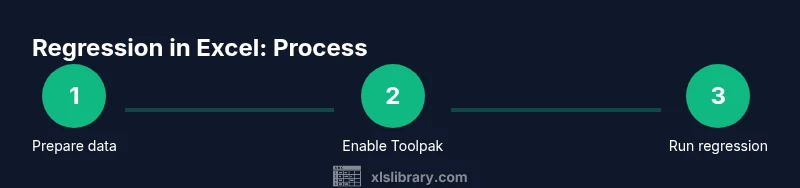
- 1
Prepare your dataset
Create columns for the dependent variable and each independent variable, label them clearly, and clean data (remove non-numeric entries or impute missing values).
Tip: Use named ranges to simplify formulas and references - 2
Enable the Toolpak
Go to Excel options and enable the Analysis Toolpak so the Regression tool is available.
Tip: Restart Excel if you don’t see the Toolpak after enabling - 3
Open Regression tool
Navigate to Data > Data Analysis > Regression and select it to begin.
Tip: Only include numeric data; avoid non-numeric headers in ranges - 4
Configure input ranges
Assign the Y range to the dependent variable and the X range(s) to the predictor(s).
Tip: Include the intercept as needed and consider including multiple predictors - 5
Review output
Excel outputs coefficients, standard errors, t-stats, p-values, and R-squared. Copy the table to a new sheet for clarity.
Tip: Check that the sign and magnitude of coefficients make sense in context - 6
Interpret and report
Interpret the model in terms of practical impact, note limitations, and document the data preparation steps.
Tip: Save your workbook and annotate decisions for reproducibility
People Also Ask
Do I need Excel 365 to run regression?
Regression analysis is available in recent Excel versions via the Data Analysis Toolpak or LINEST. Some features vary by edition, so check your installation.
Regression is available in recent Excel versions via Toolpak or LINEST; check your edition.
What assumptions must be met for regression?
Key assumptions include linearity, independence, homoscedasticity, and normally distributed residuals. Use residual plots and diagnostic tests to assess them.
Linearity, independence, constant variance, and normal residuals are important.
Can I run regression with multiple predictors in Excel?
Yes. The Data Analysis Toolpak supports multiple independent variables, and LINEST offers a flexible, formula-based approach for regression.
Yes, you can use multiple predictors with Toolpak or LINEST.
How should I interpret R-squared?
R-squared indicates the proportion of outcome variation explained by the model. A higher value is better, but context matters and overfitting should be avoided.
R-squared shows explained variance; context matters.
What if there are missing values in my data?
Address missing values before analysis, either by imputation or exclusion, to avoid biased results.
Handle missing data before regression to prevent bias.
Watch Video
The Essentials
- Prepare clean, labeled data.
- Choose Toolpak or LINEST based on comfort.
- Interpret coefficients and R-squared carefully.
- Check model assumptions via residuals.
- Document methods for reproducibility.