Performing Multiple Regression in Excel: A Practical Guide
Learn to run a robust multiple regression in Excel using the Toolpak or LINEST. This step-by-step guide covers data prep, regression outputs, diagnostics, and practical applications.


You're going to learn how to run a multiple regression in Excel using the Data Analysis Toolpak or LINEST, interpret the coefficients and p-values, and validate the model. The quick steps cover data preparation, selecting predictors, running regression, reading output, and applying results to business decisions. According to XLS Library, this approach balances accessibility with solid statistics.
What is multiple regression in Excel?
Multiple regression estimates how a dependent variable Y responds to several predictors X1, X2, X3, and so on. In Excel, you can run this analysis using the Data Analysis Toolpak or the LINEST function. According to XLS Library, mastering this technique opens practical insights for business forecasting, operations optimization, and data-driven decision making. The XLS Library Team emphasizes choosing relevant predictors and validating assumptions as you build the model. With careful setup, you can compare competing models and interpret results in plain language that stakeholders can act on. This method helps translate raw data into actionable insights that stakeholders can trust, especially when the dataset is well-prepared and the predictors are conceptually aligned with the outcome.
Why build a multiple regression model?
A well-specified model can quantify how much each predictor contributes to the outcome while controlling for others. This is especially useful in business contexts (e.g., forecasting sales with marketing spend and seasonality) and in operations research (e.g., predicting production yield based on labor hours and machine settings). The XLS Library Team reminds readers that the goal is interpretability and practical decision support, not just statistical significance. Think of regression as a tool for scenario planning: what happens to Y if you adjust X variables under realistic constraints?
How Excel supports regression analysis
Excel provides two common paths: the Data Analysis Toolpak for a guided regression output and the LINEST function for flexible, embedded analyses. The Toolpak delivers a comprehensive summary including coefficients, p-values, R-squared, and an ANOVA table. LINEST offers coefficients array support that you can integrate into dashboards and custom reports. As you advance, you may combine both approaches within the same workbook to validate results and cross-check findings. The goal is to build a solid, repeatable workflow that your team can reuse.
Planning predictor selection and data prep
The quality of your regression hinges on predictor relevance and data quality. Start by defining the dependent variable clearly and choosing predictors based on theory or past data trends. Clean the dataset: remove duplicates, handle missing values, and ensure numerical formats. Consider standardizing units across predictors to aid interpretation. The XLS Library analysis shows that tidy data reduces output errors and makes coefficients easier to explain to non-technical stakeholders.
Interpreting coefficients and diagnostic indicators
Interpreting regression output involves more than reading coefficients. Look at the p-values to gauge statistical significance, the R-squared value to assess fit, and the ANOVA table to test the overall model. Coefficients tell you the direction and magnitude of impact for each predictor, holding others constant. Always relate findings to the business context and communicate both statistical and practical significance. The XLS Library analysis shows that clear interpretation enables better decision making when presenting results to leadership.
A practical workflow you can adopt
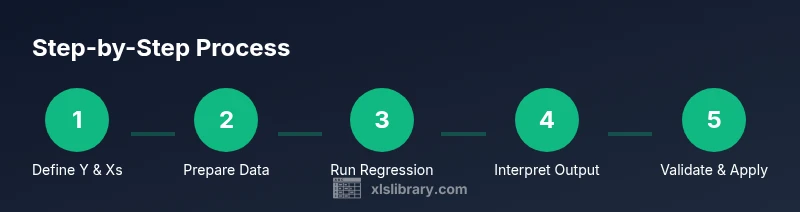
- Prepare data with a clear dependent variable and predictors. 2) Enable the Toolpak or prepare to use LINEST. 3) Run regression and capture outputs in a dedicated sheet. 4) Interpret coefficients and p-values; review R-squared and F-statistics. 5) Check residuals for patterns and potential violations. 6) Validate with simple cross-checks or hold-out samples. 7) Document assumptions and limitations for stakeholders. 8) Apply results to scenario planning and forecasting models.
What the workflow looks like in real projects
In real projects, teams often compare two or three model specifications to determine the most robust predictor set. You’ll typically trade off model simplicity against explanatory power. The process includes data prep, regression execution, diagnostics, and careful communication of uncertainties. The lesson from XLS Library is to maintain a transparent, reproducible approach that stakeholders can audit and reproduce in future analyses.
Tools & Materials
- Excel desktop (Windows or macOS) with Data Analysis Toolpak(Ensure Toolpak is enabled under Add-ins. Desktop Excel is preferred for full Toolpak functionality.)
- Dataset with dependent variable and predictors(One column for Y and multiple columns for X1, X2, ..., with a header row.)
- New worksheet or workbook area for outputs(Keep results separate from raw data to avoid confusion.)
- LINEST capability (optional)(If Toolpak is unavailable, LINEST provides coefficients via an array formula.)
- Data cleaning tools or templates(Useful for handling missing values and formatting issues before regression.)
Steps
Estimated time: 45-90 minutes
- 1
Define Y and X variables
Identify the dependent variable Y and the predictor variables X1, X2, X3, etc. Write a short theory or hypothesis for why these predictors matter. This clarity guides data preparation and interpretation.
Tip: Document your assumptions and rationale before running any analysis. - 2
Prepare and clean the data
Ensure all data are numeric, handle missing values, and remove outliers that don’t reflect the typical process. Keep a clean copy of the original data for reference.
Tip: Use a separate sheet to store a cleaned version of your data. - 3
Enable and locate the Toolpak
Go to File > Options > Add-ins, select Analysis Toolpak, and enable it. This step is required to access the Regression tool in most Excel versions.
Tip: If you’re on a Mac, verify the Toolpak availability in the same path. - 4
Run regression with Toolpak
Data > Data Analysis > Regression. Input Y range and X range, enable Labels if your data has headers, and choose an output location on a new sheet.
Tip: Output in a new sheet keeps results organized and prevents overwriting input data. - 5
Review the regression output
Examine coefficients, p-values, R-squared, and the ANOVA table. Identify which predictors are statistically significant and assess model fit.
Tip: Prioritize practical significance alongside p-values when reporting results. - 6
Check residuals and assumptions
Create a residuals plot to inspect randomness, check for patterns, and assess homoscedasticity. Test for linearity and normality if needed.
Tip: If residuals show structure, consider transforming variables or adding interaction terms. - 7
Alternative: use LINEST for flexibility
If Toolpak is unavailable, enter =LINEST(Y_range, Xs_range, TRUE, TRUE) as an array formula and review the coefficients and statistics.
Tip: LINEST is powerful for embedding regression inside dashboards or reports. - 8
Apply the model to predictions
Use the estimated coefficients to compute predicted Y for new values of X. Build a simple forecast table and compare scenarios.
Tip: Keep a documented copy of the regression equation for future reference.
People Also Ask
What is multiple regression in Excel?
Multiple regression in Excel estimates how a dependent variable changes when several predictors vary, using the Toolpak or LINEST. It’s a practical way to quantify relationships and forecast outcomes.
Multiple regression in Excel estimates how a dependent variable changes when several predictors vary, using the Toolpak or LINEST.
Do I need to enable the Data Analysis Toolpak?
Yes. The Toolpak is a built-in add-in that provides a guided Regression tool. If it’s not available, LINEST offers an alternative approach.
Yes. The Toolpak is a built-in add-in and provides a guided regression tool. If not available, LINEST offers an alternative.
What do R-squared and p-values tell me?
R-squared shows how much variance in Y is explained by the model, while p-values indicate whether each predictor’s effect is statistically significant.
R-squared shows explained variance; p-values show predictor significance.
How many observations are enough for regression?
A reasonably large sample helps ensure stable estimates; avoid very small datasets that can produce unstable coefficients.
A reasonably large sample helps ensure stable estimates; avoid very small datasets.
Can I use LINEST instead of Toolpak?
Yes. LINEST returns coefficients via an array and works when Toolpak isn’t available. It’s flexible for custom reports.
Yes. LINEST returns coefficients via an array and works when Toolpak isn’t available.
What if predictors are correlated?
High correlation among predictors (multicollinearity) can distort estimates. Consider removing or combining predictors and re-running the model.
High correlation can distort estimates; consider removing or combining predictors.
Watch Video
The Essentials
- Identify Y and X variables clearly.
- Use Toolpak for regression in Excel.
- Check residuals to validate assumptions.
- Apply regression insights with caution, per XLS Library Team.