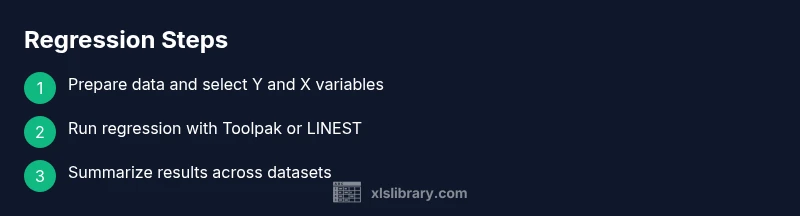
Regression Across Multiple Excel Datasets: A Practical How-To
Learn to perform regression analysis on multiple Excel datasets using built-in tools. This guide covers data prep, model fitting, interpretation, and cross-dataset comparisons for accurate insights.


Goal: Perform regression analysis on multiple Excel datasets using built-in tools. You’ll prepare clean data, run regression for each dataset, compare models, and interpret outputs like R-squared and p-values. Requirements: Excel 2016+ (or Microsoft 365), a clean data table with numeric columns, and basic stats literacy to read regression outputs.
Introduction to regression across multiple Excel datasets
According to XLS Library, regression analysis is a foundational technique for understanding how a set of predictor variables relates to a numeric outcome. When you face several datasets—perhaps from different time periods, regions, or product lines—the goal is to compare how predictors influence the outcome across contexts. This approach helps you spot consistent patterns, detect context-specific effects, and quantify uncertainty in your estimates. The XLS Library team emphasizes starting with a clear theory: which predictors should explain the outcome, and which datasets are comparable. Keeping hypotheses explicit makes the subsequent steps more reliable and easier to audit.
Prerequisites and data hygiene
Before you dive into regression, ensure your data is clean and well-structured. Each dataset should be in a tabular format with one row per observation and columns for the dependent variable (the outcome you want to explain) and the independent variables (predictors). Remove or impute missing values consistently, verify numeric data types, and ensure units are aligned across datasets. Label each dataset clearly and store it on a dedicated sheet or workbook tab. In practice, many Excel users begin by validating assumptions informally: plot residuals, check correlations, and confirm no extreme outliers drive the results.
Model selection and consistency across datasets
A key decision is which regression model to apply: simple linear regression for one predictor, multiple linear regression for several, or a variant like ridge regression when multicollinearity is a concern. For multiple datasets, keep the same model specification across all analyses to enable fair comparisons. If you add or remove predictors, document the rationale and adjust all datasets accordingly. This consistency is vital when you later compile a cross-dataset summary and create visuals that compare effect sizes.
Running regression with Excel's built-in tools
Excel offers several paths to regression: the Data Analysis Toolpak, the LINEST function, or newer dynamic array features in Excel 365. The most straightforward path for many users is the Data Analysis Toolpak: it provides a dedicated Regression tool where you specify the Y (dependent) range and one or more X (predictor) ranges. For multiple datasets, you can run the regression on each sheet and copy the results to a summary sheet. LINEST delivers regression statistics in array form, which can be powerful for automation but requires careful handling of outputs and array formulas.
Handling multiple datasets efficiently
To scale regression across many datasets efficiently, consider these approaches:
- Create a master template and duplicate it for each dataset, automatically referencing the correct ranges via named ranges or dynamic references.
- Use Power Query to consolidate datasets into a single analysis-ready table, with a dataset identifier column to preserve context.
- Build a small VBA routine that loops through sheets or files, runs the regression, and writes results to a central summary table. Each method reduces manual copying and minimizes human error while allowing you to compare results side-by-side.
Interpreting regression outputs across datasets
Focus on the core statistics that inform model strength and reliability: coefficients (the size and direction of effects), R-squared (the proportion of variance explained), adjusted R-squared (accounts for model complexity), the F-statistic (overall significance), and p-values for predictors. When datasets differ markedly in scale or variance, examine standardized coefficients to compare effects. Document confidence intervals and discuss practical significance, not just statistical significance.
Visualization and reporting for cross-dataset insights
Summarize results with a dedicated dashboard: a table of R-squared values, coefficients, and p-values per dataset, complemented by sparklines or small bar charts showing effect sizes. Use charts that highlight consistency (e.g., a heatmap of p-values across datasets) and anomalies (datasets with unusual coefficients). Provide a narrative that explains why certain datasets align with theory and when deviations suggest domain-specific factors.
Validation and risk management
Always validate regression assumptions in each dataset: linearity, independence, homoscedasticity, and normality of residuals. Inspect residual plots and consider transformations if needed. When multiple comparisons are involved, adjust for false discovery risk or focus on a predefined set of predictors. Keep your workflow transparent: log data sources, model choices, and any data cleaning steps so others can audit your results.
Practical example and takeaways
Imagine you compare three regional datasets to understand how marketing spend and seasonality impact sales. You run a regression for each dataset with the same predictors, extract coefficients, and then compare R-squared and p-values. The pattern may show strong year-over-year consistency in some regions and context-specific effects in others. The key takeaway is to document the workflow, preserve data lineage, and present a concise cross-dataset story that supports decision-making. The XLS Library team would stress repeatability and clear documentation as the backbone of reliable regression work.
Tools & Materials
- Excel 2016+ or Microsoft 365(Ensure the Data Analysis Toolpak is installed (Add-ins).)
- Data Analysis Toolpak(Enable via File > Options > Add-ins > Analysis Toolpak.)
- Clean, numeric datasets(One dataset per worksheet or a clearly identified tab within a workbook.)
- Consistent variable naming(Use the same predictor names across datasets to simplify synthesis.)
- Auxiliary tools (optional)(Power Query for consolidation; VBA for automation; charts for visuals.)
Steps
Estimated time: 2-4 hours (depends on dataset count and complexity)
- 1
Prepare the workbook
Create a clean regression workbook with a separate tab for each dataset or a clearly labeled single tab. Place the dependent variable in one column and each predictor in adjacent columns. Ensure headers are unique and consistent across datasets.
Tip: Use a master template so future datasets require minimal reformatting. - 2
Enable Data Analysis Toolpak if needed
Go to File > Options > Add-ins. In the Manage box, select Excel Add-ins and click Go. Check Analysis Toolpak and click OK. This activates the Regression tool in Data Analysis.
Tip: If Toolpak isn’t visible, install Office updates or reinstall the add-in. - 3
Run regression for the first dataset
Open Data > Data Analysis > Regression. For Y, select the dependent variable column; for X, select all predictor columns. Choose an output range on a new worksheet or new workbook. Click OK to run.
Tip: Record the regression results and save the workbook to prevent data loss. - 4
Repeat for additional datasets
Duplicate the regression steps for each dataset, ensuring that the same Y and X ranges are applied where appropriate. Copy outputs to a central summary sheet with a dataset identifier.
Tip: Automation helps: use named ranges to avoid mistakes when datasets shift. - 5
Create a cross-dataset summary
On a dedicated sheet, summarize R-squared, adjusted R-squared, F-statistic, and p-values for each dataset. Align coefficients to compare effect directions across contexts.
Tip: Use conditional formatting to highlight consistently significant predictors. - 6
Visualize and compare
Add charts: a column chart for R-squared by dataset and a forest/line chart for coefficients. Sparklines in the dataset rows help spot trends at a glance.
Tip: Keep visuals simple and labeled with dataset IDs for clarity. - 7
Check assumptions and refinements
Review residual plots for each dataset. If patterns emerge, consider transformations (log, square root) or alternative models (polynomial terms, ridge).
Tip: Document any transformations and rationale for future audits. - 8
Document data lineage
Maintain a changelog detailing data sources, cleaning steps, model specifications, and any deviations across datasets. This underpins reproducibility.
Tip: Store the log next to the workbook or in a companion document. - 9
Share findings responsibly
Prepare a concise narrative that explains what the cross-dataset analysis shows, including limitations and practical implications for decision-makers.
Tip: Avoid over-interpretation; note uncertainty and potential biases. - 10
Save and version
Save a versioned file, including the dataset identifiers and a summary of results. Keep both the raw datasets and the regression outputs accessible.
Tip: Create backups to prevent data loss and to support audits.
People Also Ask
Can I run regression in Excel without the Data Analysis Toolpak?
Yes, you can use the LINEST function or dynamic array formulas as an alternative, but the Toolpak provides a more guided interface for straightforward regression. You may need to configure array results carefully if not using Toolpak.
You can use LINEST as an alternative, but Toolpak makes regression easier for most users.
How many predictors can I include in Excel regression?
Excel supports multiple predictors in LINEST and the Regression tool, but performance and interpretability decline as predictors multiply. Start with a manageable number and add predictors one at a time while watching changes in R-squared and p-values.
You can include several predictors, but keep it practical and monitor changes as you add more.
How do I compare regression models across datasets?
Keep the same model specification for all datasets, then compare R-squared, adjusted R-squared, and p-values on a central summary sheet. Visuals like heatmaps of p-values help spot consistency or divergence quickly.
Use a consistent model and a single dashboard to compare results.
What if relationships are non-linear?
Consider transforming the dependent or predictor variables (log, square root) or adding polynomial terms. In some cases, nonlinear models or alternative techniques may better capture the relationships.
If linear assumptions fail, try data transformations or nonlinear terms.
Can I automate regression on many datasets?
Yes. Use Power Query to consolidate data and/or a small VBA macro to run regressions across sheets, capturing outputs to a central summary. Documentation remains critical to ensure reproducibility.
Automation helps scale regression across many datasets quickly.
Watch Video
The Essentials
- Run the same regression model across all datasets for apples-to-apples comparisons.
- Summarize and visualize results to identify consistent patterns and outliers.
- Validate assumptions and document data lineage for transparency.
- Automate where possible to reduce manual errors and save time.
- The XLS Library approach emphasizes repeatability and clear reporting.