Analysis Data with Excel: Practical Data Mastery for 2026
Master data analysis with Excel through practical steps—cleaning, exploring, modeling, and visualizing. A focused guide from XLS Library that turns raw data into insights.


Goal: Learn to analyze data with Excel by cleaning, transforming, and visualizing datasets. You’ll build reliable workflows using Power Query, pivot tables, and charts, validate results with basic checks, and document your analysis for sharing. By the end, you’ll turn raw data into actionable insights using practical Excel techniques. This guide emphasizes reproducible, transparent processes you can apply in real projects.
Why Analysis Data with Excel Matters in 2026
In today’s data-driven workplaces, analysis data with excel remains a practical, scalable approach for turning raw numbers into clear insights. The XLS Library team found that many professionals rely on Excel as their first stop for ad-hoc analysis because it is widely installed, familiar, and capable of handling a wide range of tasks without special software. When you combine solid data-cleaning habits with the right techniques, Excel becomes a repeatable, auditable workflow rather than a one-off script. This block explains why Excel-based analysis endures and how you can structure your work to ensure reproducibility, transparency, and value across teams. You’ll see how a disciplined approach—start with a clean dataset, use a simple data model, and layer summaries and visuals—creates powerful analyses that stakeholders can trust. By the end, you’ll appreciate that analysis data with excel is not about clever tricks alone, but about disciplined practice that scales.
Core Excel Tools for Data Analysis
Excel is a toolbox, not a single feature. For data analysis, you’ll lean on three pillars: data preparation, data modeling, and data presentation. Power Query (Get & Transform) helps you clean, reshape, and merge sources without altering the original files. PivotTables summarize large datasets quickly, letting you slice and dice by dimensions like time, region, and product. Charts and conditional formatting turn numbers into narratives, while formulas such as XLOOKUP, IF, and AGGREGATE enable robust computations inside worksheets. The modern Excel environment also includes a Data Model and Power Pivot, which let you relate tables and create more powerful measures using DAX. The goal isn’t to memorize every trick, but to assemble a reliable toolkit you can reuse across projects. Throughout this guide, you’ll see practical examples that demonstrate how these tools work together to analyze data efficiently in real-world tasks.
Building aReusable Analysis Workflow
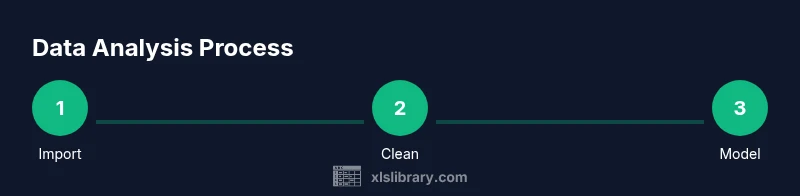
Creating a repeatable workflow begins with a clear data contract. Define source files, update cadence, and naming conventions so that anyone can reproduce your analysis. Start by loading data into a clean workbook with a dedicated data sheet, then connect to external sources via Power Query and load a Data Model if needed. Build modular steps: import, clean, model, summarize, and visualize. Save your steps as templates or Power Query queries and document the assumptions behind each transformation. A well-designed workflow reduces errors, speeds up collaboration, and makes it easy to hand off analyses between teammates. In this section, you’ll learn how to design a starter project that scales from a single workbook to a small analytics dashboard.
Data Cleaning and Preparation in Excel
Quality analysis begins with clean data. Start by removing duplicates, standardizing date and text formats, and filling missing values with sensible defaults or calculated estimates. Use Data Validation to prevent bad entries, and leverage conditional formatting to spot anomalies at a glance. Normalize data types across columns, convert textual numbers to real numbers, and create helper columns for consistency. If you’re merging datasets, ensure matching keys are standardized. Document every cleaning rule in a data dictionary so that others can audit how the dataset was shaped. A disciplined cleaning phase pays dividends in downstream modeling and reporting.
Exploratory Data Analysis with PivotTables and Charts
Exploratory analysis relies on quick summaries and visual storytelling. PivotTables let you aggregate measures—such as total sales or average margins—by dimensions like product, region, and month. Use slicers and timelines to interactively filter data, then place charts adjacent to the pivot for rapid interpretation. Combine charts with sparklines or heat maps to highlight trends and outliers. This section demonstrates how to build a lightweight analytics view that communicates findings clearly without overwhelming stakeholders. Remember to annotate important observations so your colleagues can follow the logic behind your conclusions.
Modeling and Basic Forecasting in Excel
Excel supports simple forecasting and modeling techniques that don’t require scripting. Use trendlines, moving averages, and the FORECAST.ETS family of functions to project future values based on historical data. For more rigorous work, enable the Data Analysis Toolpak to run regression models and descriptive statistics. Build rough scenarios by creating input cells for key assumptions and using data tables to compare outcomes. The focus is on building believable, testable models that remain transparent and easy to audit in Excel.
Validation, Documentation, and Reproducibility
An analysis is only as trustworthy as its documentation. Create a changelog, protect formulas, and use versioned file names. Build a short narrative in a separate sheet that explains the data sources, cleaning steps, modeling choices, and key findings. Validate results by cross-checking summaries against raw data, using control totals, and performing simple unit tests for critical calculations. Store metadata on data provenance and calculation logic so future analysts can reproduce your work with confidence. The XLS Library recommends establishing a governance checklist at the start of every project.
Real-World Example: Analyzing a Sales Dataset
Imagine a dataset containing Date, Region, Product, and Sales figures. Start by loading the data into Excel and inspecting the first rows to understand structure. Clean and standardize the date format, create a Data Model linking Regions and Products, and summarize sales by Month with a PivotTable. Add a chart to show month-over-month trends and a slicer for Region. Build a simple forecast using FORECAST.ETS and compare results across scenarios with a data table. This example walks you through a practical workflow so you can apply the same pattern to your own datasets.
Tips, Tricks, and Common Pitfalls
To accelerate your analysis, reuse templates and keep a minimal, legible workbook design. Avoid overcomplicating formulas; favor named ranges and modular calculations. Watch for data type inconsistencies and keep data sources up to date. Be careful with hard-coded numbers in formulas; instead, link to input cells and maintain a separate assumptions sheet. Finally, beware of performance bottlenecks when datasets grow large—simplify queries and limit the number of distinct pivot cache operations. These best practices help you avoid wasted time and fragile analyses.
Tools & Materials
- Excel 365 or Excel for Windows/Mac(Ensure Power Query and Data Model features are available in your edition.)
- Sample dataset (CSV or Excel)(At least 100 rows; include columns like Date, Region, Product, Sales.)
- Power Query Editor access(Available via the Data tab (Get & Transform).)
- Data Model / Power Pivot (optional but recommended)(Relate tables for advanced measures.)
- Notepad or documentation tool(Capture cleaning rules and assumptions.)
Steps
Estimated time: 1-2 hours
- 1
Load Dataset
Open your Excel workbook, import the dataset using Power Query, and place the raw data on a dedicated sheet. This step preserves the original data for audit and rollback. Ensure the data types align with the intended analysis.
Tip: Use a named query for easy reuse in other projects. - 2
Define a Data Contract
Document sources, update cadence, and data dictionary. Establish naming conventions for sheets, queries, and measures so teammates can reproduce your analysis quickly.
Tip: Create a one-page data contract as part of the workbook. - 3
Clean and Normalize
Remove duplicates, standardize dates and text, handle missing values with defined defaults, and convert data types to consistent formats. Create helper columns when needed.
Tip: Use Power Query to apply all cleaning steps in a single, reusable pipeline. - 4
Build a Data Model
If possible, load tables into the Data Model and relate them by key columns. This enables robust relationships and easier aggregation across dimensions.
Tip: Keep relationships simple to avoid circular logic. - 5
Create Pivot-Based Summaries
Insert a PivotTable, drag in key measures and dimensions, and add slicers to enable interactive exploration. This is the core of your exploratory analysis.
Tip: Name your PivotTable and keep the layout reviewer-friendly. - 6
Add Visuals
Link charts to Pivot data, use consistent color schemes, and apply simple formatting to highlight trends without clutter. Consider sparklines for quick trend indication.
Tip: Place visuals next to the PivotTable for a cohesive view. - 7
Forecast and Scenario Analysis
Use FORECAST.ETS or moving averages for projections. Create a data table to compare scenarios by changing input assumptions in dedicated cells.
Tip: Always document assumptions behind forecasts. - 8
Validate and Document
Cross-check results against raw data, save versioned copies, and write a concise narrative in a separate sheet covering sources, cleaning logic, and key findings.
Tip: Include a short ‘how to reproduce’ section for future analysts.
People Also Ask
What is the best Excel feature for data analysis?
There isn’t a single best feature; combine Power Query for cleaning, PivotTables for summarization, and charts for visualization. The optimal setup depends on your data and goals.
Power Query, PivotTables, and charts work best together for data analysis in Excel.
Do I need Power Query to analyze data in Excel?
Power Query is highly helpful for cleaning and transforming data but you can perform many analyses with formulas and manual steps if Power Query isn’t available.
Power Query is great to have, but you can still analyze data in Excel without it.
How should I handle missing values during analysis?
Decide on a policy—omit, impute, or flag—and document the choice in a data dictionary. Consistency is key for reliable results.
Pick a clear rule for missing values and write it down so others can follow.
Can Excel handle large datasets for analysis?
Excel can manage sizable datasets, but performance depends on hardware and complexity. For very large data, consider sampling or modeling in a dedicated tool.
Excel works for big data if you keep it efficient and well-structured.
What’s the best way to share an analysis with teammates?
Share a well-documented workbook or dashboard, include a data dictionary, and provide a short narrative. Use consistent naming and provide sources and steps.
Share a clean, well-documented workbook with a quick narrative.
Watch Video
The Essentials
- Analyze data with Excel using a repeatable workflow
- Leverage Power Query, PivotTables, and charts for end-to-end analysis
- Document processes to ensure reproducibility
- Validate results with simple checks and clear narratives