Two Excel Files Compare: Practical Side-by-Side Guide
Learn practical methods for a two excel files compare, including manual and automated approaches, workflow tips, and common pitfalls to ensure accurate workbook diffs.


For a reliable two excel files compare, start with a clear plan that combines automated diff where possible with targeted manual checks for edge cases. Use structured mapping, verify alignment of sheets, and capture diffs in a reproducible workflow. This approach minimizes errors and speeds up audits, making it suitable for both beginners and seasoned Excel users.
Why two excel files compare matters
Two excel files compare is a fundamental task in data governance, reconciliation, and reporting. When teams review two workbooks, they ensure consistency across periods, data sources, and stakeholder outputs. According to XLS Library, the process becomes more reliable when you define a clear scope, decide on the metrics you will check, and use repeatable steps rather than ad-hoc eyeballing. The concept of comparing two Excel files isn’t about finding every single discrepancy; it’s about identifying meaningful differences that affect decision making. In practice, you should map source sheets, align column headers, and select a baseline file to compare against. This reduces noise and helps you distinguish meaningful differences from trivial variations. The goal is to empower both aspiring analysts and seasoned professionals to perform accurate diffs with confidence, using a blend of manual checks and automation as appropriate.
Key differences to consider when comparing two workbooks
When you set out to compare two Excel files, several dimensions matter more than others. First, data structure matters: are sheets aligned, do both workbooks share the same tab order and named ranges, and are there hidden sheets that carry critical context? Second, data integrity matters: do values match exactly, or are there rounding differences, date serials, or floating-point tolerance issues? Third, formulas and dependencies: do formulas reference the same cells, and are there external links or named ranges that differ? Fourth, metadata and formatting: are fonts, colors, and conditional formatting relevant to your diff scope, or can formatting differences be ignored for a numeric reconciliation? Finally, versioning and audibility: can you reproduce the exact diff steps later for an audit trail? Each of these factors informs the method you choose and whether you’ll rely on manual checks, automated diff, or a hybrid approach.
Data mapping and alignment between files
A successful two excel files compare starts with data mapping. Define a mapping between sheets, headers, and key identifiers such as primary keys or unique columns. Create a reference schema file that lists expected sheet names, column orders, data types, and any columns that are allowed to differ. This mapping helps prevent misalignment when you scan values across workbooks. If you encounter renamed columns, use a normalization step to standardize headers before diffing. Consider creating a matrix that shows expected vs. actual column counts for each sheet. This upfront alignment reduces follow-up rework and makes diffs much easier to interpret later in the process.
Manual diff workflow: when it makes sense
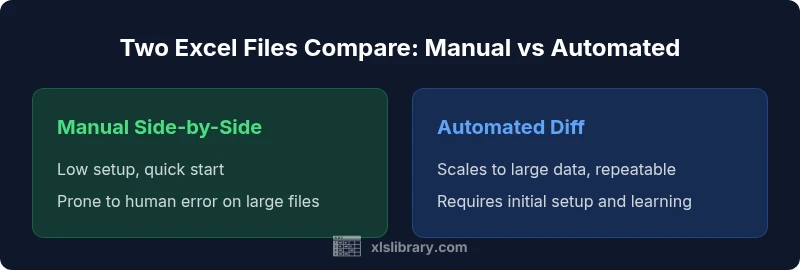
A manual diff workflow is useful for small datasets or one-off checks. Steps include opening both workbooks side-by-side, enabling synchronized scrolling, and filtering data to focus on critical regions. Use conditional formatting to highlight mismatches, and keep a running log of differences you observe. For qualitative checks, verify that key records, like customers or transactions, align across files. Document any intentional deviations (e.g., temporary data gating or known outliers) to avoid confusion later. Manual reviews are fast to start but can become error-prone as file size grows, so limit their scope to high-priority sections and pair them with automated checks where possible.
Automated diff workflow in Excel: scalable and repeatable
Automated diff workflows leverage built-in tools such as formulas, Excel’s Inquire or Spreadsheet Compare features, and Power Query for data shaping. Start by loading both workbooks into a single model, align data using queries, and generate a difference report that lists exact mismatches with row and column references. Automated diffs can detect numeric mismatches within a tolerance, identify newly added or removed rows, and flag changes in formulas or data types. To maximize reliability, export the diff results to a worksheet or a CSV file so you can archive results and share them with stakeholders. This approach scales well to larger files and supports routine reconciliations without repetitive manual effort.
Handling formulas, data types, and dependencies across files
When two workbooks contain complex formulas, ensure your comparison accounts for formula logic and dependencies. Differences may arise from relative vs. absolute references, external links, or named ranges that differ between workbooks. Consider isolating value comparisons from formula comparisons: first verify that cell values match, then inspect formulas for logical differences. Data types (text, number, date) can shift during import/export or when regional settings differ; normalize data types before diffing. If external links are involved, document which links point to which sources and whether those sources should be treated as equivalent. This careful handling helps prevent false positives and preserves the meaning of your diffs.
Scaling the process for large files and complex workbooks
Large workbooks demand efficient strategies. Use Power Query or built-in data models to stage data before diffing, rather than diffing raw files. Partition workbooks by sheets or by data domains (e.g., sales, inventory) and run diffs in parallel where possible. Create incremental diff pipelines that only process changed regions since the last audit, and maintain a changelog that records recurring issues and resolutions. When possible, automate the generation of summary metrics (e.g., percentage of mismatched rows) to provide quick dashboards for stakeholders. Performance considerations include avoiding volatile functions during diff runs and limiting the use of array formulas in diff-heavy worksheets.
Practical templates and sample workbook structure for two-file comparisons
A practical setup includes a baseline workbook that contains the canonical data model, a diff workbook that stores comparison results, and a log workbook for audit trails. Suggested sheets include: Source_A, Source_B, Mapping, Diff_Report, Audit_Log. Use a consistent naming convention for diffs, and add a separate sheet to track the status of each diff item (unresolved, confirmed, ignored). You can also include a small template for tolerance thresholds (e.g., numeric delta) and a section for documenting known exceptions. By standardizing structure, you reduce onboarding time and improve repeatability across teams.
Common pitfalls and how to avoid them
Diffing two Excel files is prone to several classic pitfalls: misaligned headers, hidden rows skewing results, and differences in regional date formats. To avoid these, always unhide and unwrap all relevant sheets, normalize headers, and apply consistent data type conversions before running diffs. Test tolerance thresholds in a controlled sample before applying them to full files, and ensure your audit trail captures both the diff results and the exact steps taken to reproduce them. Finally, review the diff results with a colleague to catch interpretation errors or edge cases you may have missed.
Comparison
| Feature | Manual side-by-side comparison | Automated diff with Excel tooling |
|---|---|---|
| Data alignment risk | Moderate risk of misalignment without controls | High accuracy with automated checks and mapping rules |
| Change detection approach | Human review of differences | Automated detection with explicit diffs and exportable reports |
| Formula handling | Manual review of formulas | Automated diff reports for values and formulas including dependencies |
| Performance on large files | Slower, scales poorly with size | Faster with indexing, caching, and built-in tooling |
| Setup and maintenance | Low setup, more manual follow-up | Moderate setup, repeatable workflows |
| Audit trail | Manual notes and screenshots | Automated logs and exportable diff files |
| Best use case | Small datasets or quick checks | Large datasets and ongoing audits |
Benefits
- Manual approach is quick to start with zero licensing or setup
- Automated diff provides repeatable, auditable results for large workbooks
- Combining both methods yields a balanced, reliable workflow
- Automation reduces human error and speeds up routine reconciliations
What's Bad
- Manual checks are time-consuming for large files
- Automated tooling requires some learning and setup
- Automation can miss context without human interpretation
- Overreliance on one method can miss edge cases
Automated diff is the generally preferred approach for most professional workflows, with manual checks reserved for edge cases and quick confirms.
In most scenarios, automate the comparison to gain speed and an auditable trail. Use manual checks selectively to validate edge cases and ensure the diff makes sense in context.
People Also Ask
What is the simplest way to compare two Excel files?
Start with a straightforward, two-step approach: map the sheets and headers, then run a diff using built-in Excel tools or a simple Power Query workflow. Validate results with a quick manual spot-check on a few critical rows.
Start by mapping sheets and headers, then run a diff with built-in tools. Validate a quick spot-check to ensure the results make sense.
How do you align data between two workbooks?
Create a mapping document that lists matching sheets and corresponding columns. Normalize headers and data types, then load both workbooks into a single model for comparison. This alignment prevents misreads and ensures diffs reflect real differences.
Map sheets and columns first, normalize headers and data types, then compare the aligned data.
Can Excel automatically detect differences in formulas?
Yes. Use tools like Spreadsheet Compare or compare formulas via Power Query transformations. These methods can highlight changes in formulas, dependencies, and calculated results, separating value differences from formula changes.
Excel can auto-detect formula differences with the right tools and setup.
What about formatting changes? Should they be part of the diff?
Decide up front whether formatting is relevant to your diff scope. If not, ignore formatting in automated checks to reduce noise; include it only if visual consistency is part of the audit.
Only include formatting in the diff if visual consistency matters to your audit.
How can I handle very large workbooks efficiently?
Partition data by sheets or domains, use Power Query or data models to stage data, and run diffs incrementally. Save results to a persistent diff log for ongoing audits.
For big files, diff in chunks and keep a persistent log for audits.
Is there built-in support in Excel for workbook comparison?
Yes, Excel offers some built-in comparison and auditing capabilities, such as Inquire or Spreadsheet Compare in certain editions. For more control, combine with Power Query to normalize data first.
Excel has built-in tools for comparing workbooks in some editions, plus Power Query for prep.
The Essentials
- Automate the diff for large files and frequent audits
- Use a clear data-mapping plan before diffing
- Maintain an auditable diff log for compliance
- Combine automated results with targeted manual verification