How to convert pdf files to excel free: A practical guide
Learn proven, free methods to convert pdf files to Excel without paying for software. Step-by-step guidance, safety tips, and best practices to preserve data integrity and formatting.


You can convert pdf files to excel free by using free online converters, built‑in export options in PDF readers, or browser-based OCR tools. This guide outlines reliable, privacy‑minded approaches to extract tabular data into Excel, preserve as much structure as possible, and verify results before saving your workbook.
Why converting pdf files to Excel matters (and why you should do it for free)
Converting pdf files to Excel frees you from manual data entry and lets you analyze information in familiar tools. The phrase convert pdf files to excel free captures a common goal: access data without paying for specialized software. In this guide, you’ll learn why free methods can work well for clear, tabular PDFs and when you should consider alternative approaches. According to XLS Library, free tools are most effective when PDFs are text-based and tables have consistent column alignment. When data appears as images, OCR becomes essential, and results may require post‑processing to reach Excel-ready quality. The goal is to get trustworthy data with minimal manual cleanup, while keeping your data privacy intact. Based on XLS Library analysis, free tooling can handle many everyday PDFs, especially simple invoices, reports, and lists, with proper preparation.
Quick note on privacy and trust
When you choose free tools, prioritize reputable sites and avoid uploading sensitive material to unknown services. Look for privacy policies that limit data retention and offer secure connections. If your PDF contains personal information or confidential numbers, prefer offline methods or trusted platforms that let you work locally. The highlights below cover both online and offline options so you can pick the approach that best fits your data sensitivity and workflow.
Tools & Materials
- PDF file(s) to convert(Ensure the file is accessible and not password-protected (or have the password handy).)
- Internet connection(Needed for online converters or cloud-based workflows.)
- Web browser or PDF reader(Chrome/Edge/Firefox recommended; Google Drive/Google Sheets can act as intermediaries.)
- Free online PDF-to-Excel converter or OCR tool(Choose reputable sources; verify the data after export.)
- Microsoft Excel or Google Sheets(Use for final cleanup, formatting, and validation of the extracted data.)
- Optional offline OCR software(Use if your PDF is scanned and not text-based.)
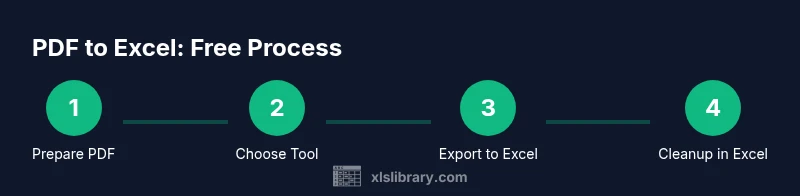
Steps
Estimated time: 45-90 minutes
- 1
Prepare the PDF for extraction
Open the PDF and inspect the tables. If the text is selectable, you can copy-paste small blocks directly; if not, confirm you need OCR or a more capable converter. Remove any password protection if you have permission, since this can block the export.
Tip: If the file is large, split it into smaller sections to reduce extraction errors. - 2
Choose a trusted free method
Decide between an online converter, a browser-based workflow (e.g., Google Drive/Sheets), or a desktop OCR option. Favor tools with clear privacy policies and the option to download results locally. For sensitive data, offline solutions are safer.
Tip: Check user reviews and privacy notes before uploading to any online service. - 3
Upload or open the PDF in the tool
Upload the PDF to the chosen tool or open it via a browser-based workflow. Ensure the tool recognizes the table structure and does not reinterpret rows as separate blocks. If you see misaligned columns, prepare to adjust formatting after export.
Tip: Take a quick sample export to verify that headers and key fields align correctly. - 4
Configure extraction settings
If available, select options like 'Table' or 'Export to CSV/Excel', enable OCR for scanned pages, and specify whether to export all pages or a subset. Preview results when possible to catch obvious misreads before export.
Tip: For inconsistent layouts, export as CSV first and then import into Excel for easier column alignment. - 5
Export to Excel and download
Export the extracted data as an .xlsx or .csv file and save it to a known folder. Open the file in Excel and verify that the data appears in the expected columns with correct numeric formats.
Tip: If numbers are stored as text, use Data > Text to Columns or VALUE() to convert them to numbers. - 6
Clean and validate the data in Excel
Review headers, merged cells, and multi-line entries. Use Excel tools like Find & Replace, Text to Columns, and simple formulas (TRIM, CLEAN) to normalize text. Validate totals and key fields against the original PDF values.
Tip: Keep a copy of the original export to compare against after cleaning. - 7
Save, document, and review privacy
Save a final, clean workbook and document your workflow for future use. If you used an online service, review any privacy implications and delete sensitive exports if required.
Tip: Create a reusable template for similar PDFs to speed up future conversions.
People Also Ask
What is the easiest free method to convert PDF to Excel?
For simple, text-based PDFs, a trusted online converter or Google Sheets workflow is often fastest. For scanned PDFs, use OCR-enabled tools and expect some cleanup.
The easiest free method is usually a reliable online converter for text PDFs; for scanned PDFs, use OCR tools and be ready to tidy up in Excel.
Can I preserve all formatting and tables exactly after conversion?
Exact preservation is rare with free tools. Expect header shifts, merged cells, and column misalignment. You’ll likely need post-processing in Excel.
You probably won’t get perfect formatting; you’ll need to adjust in Excel after export.
Is it safe to upload PDFs containing sensitive data to free converters?
Be cautious. Review privacy policies and avoid converters that store your files. Prefer offline methods for highly sensitive material.
Be careful with private data; use offline tools if you can.
What if my PDF is password-protected?
You must unlock the PDF with proper permissions or use tools that can handle password-protected documents, provided you are authorized to access the data.
If you’re authorized, unlock the PDF; otherwise skip the file.
Do I need to install software to convert PDFs for free?
Not necessarily. Many free methods are browser-based or involve Excel's built-in import features. Offline OCR is optional.
Usually you can do it without installing anything, but offline OCR is an option if needed.
What if the data looks wrong after conversion?
Check for OCR errors, adjust column boundaries, and use Text to Columns or formulas in Excel to fix misread values.
If it looks wrong, tidy the data in Excel with a few clean-up steps.
Watch Video
The Essentials
- Identify whether PDF is text-based or scanned before choosing a method.
- Prefer reputable, privacy-conscious free tools for safety.
- Expect minor cleanup; plan time for data cleaning in Excel.
- Validate data by cross-checking with the source document.
- Create a reusable workflow to convert similar PDFs quickly.